
Epson Projector How To Connect Speakers
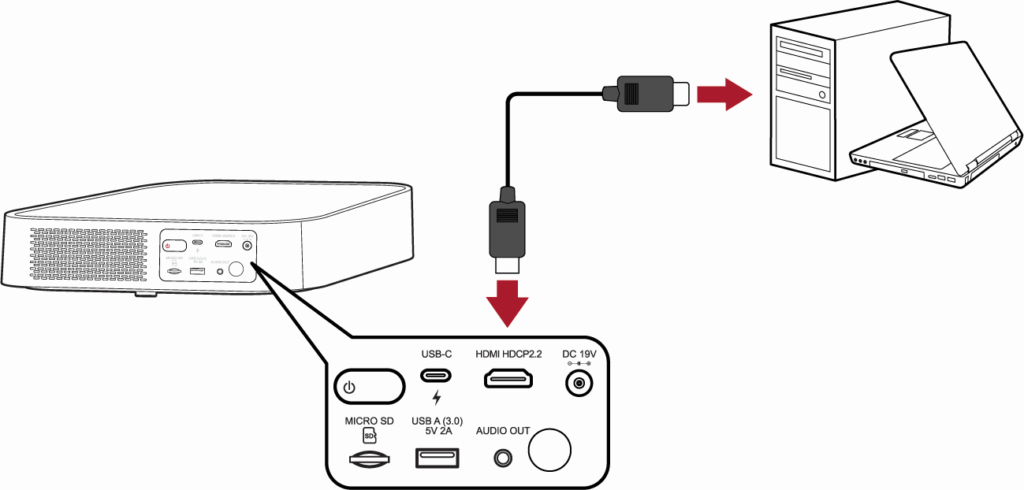
Connecting external speakers to an Epson projector enhances audio quality, especially in large rooms or during presentations where built-in speakers fall short. While Epson projectors are known for their sharp visuals, their internal sound systems may lack power and clarity.
This guide walks you through the necessary steps to connect various types of speakers—wired and wireless—using audio output ports such as 3.5mm, RCA, or HDMI ARC. You’ll learn about compatible speaker types, required cables, and proper settings adjustments to ensure synchronized sound and video. Whether for business, education, or home entertainment, optimizing your audio setup improves the overall viewing experience when using an Epson projector.
How to Connect Speakers to Your Epson Projector
Epson projectors are widely used for home theaters, business presentations, and educational purposes, but many models have limited built-in audio capabilities. To achieve a better sound experience, connecting external speakers is often necessary.
 Audio Unlimited Wireless Speakers How To Connect
Fortunately, most Epson projectors come equipped with an audio output port—typically a 3.5mm Audio Out (headphone jack)—which allows you to connect a wide range of external audio systems. This can include powered speakers, soundbars, home theater systems, or even active studio monitors. The key is identifying the correct connection method based on your speaker type and the available output options on your Epson projector.
Whether you're using analog audio cables, HDMI ARC, or an audio extractor for HDMI setups, ensuring proper setup and configuration will greatly enhance your audio-visual experience. Always check your projector’s user manual to confirm available audio output features and recommended speaker types.
Understanding Audio Output Options on Epson Projectors
Most Epson projectors include a 3.5mm Audio Out port, which is designed to send audio signals to external devices like speakers or amplifiers. This analog output mirrors the audio being played through the projector’s internal source. Some higher-end models also support HDMI with Audio Return Channel (ARC), allowing digital audio transmission when connected to compatible displays or sound systems.
If your projector is receiving video via HDMI but lacks direct audio output to speakers, you may need an HDMI audio extractor to separate the audio signal and route it to external speakers. Knowing which output options your specific Epson model supports—whether it’s optical audio, HDMI, or analog—is the first step to selecting the right external audio setup.
 B&O Speakers How To Connect
Wired Connection Methods for External Speakers
To connect speakers using a wired setup, begin by using a 3.5mm male-to-male audio cable. Plug one end into the projector’s Audio Out port and the other into the input of your powered speakers or audio receiver.
If your speakers use RCA inputs, you’ll need a 3.5mm to RCA adapter cable. For a cleaner, higher-quality signal, especially over long distances, consider using an HDMI audio extractor to pull the audio from the HDMI feed and send it via RCA or optical cables to your sound system.
Ensure that both the projector and speakers are powered on and set to the correct input mode. Adjust volume levels first through the speaker system, as some Epson projectors may not control external speaker volume despite having audio output.
Recommended Speaker Types and Compatibility
When connecting external speakers to your Epson projector, powered (active) speakers are typically the best choice since they have built-in amplifiers and only require a line-level signal from the projector’s audio output.
 Bang And Olufsen Speakers How To Connect
Passive speakers will not work directly unless paired with an external amplifier or receiver. Soundbars are also a popular option due to their ease of setup and space-saving design, especially when using them with projectors for home entertainment.
For larger venues or immersive audio, consider a 5.1 surround sound system connected through an AV receiver, using either analog audio or HDMI audio extracted from the source. Always verify input compatibility (e.g., 3.5mm, RCA, optical) between your projector and speakers to ensure seamless integration.
| Connection Type | Required Equipment | Best For |
|---|---|---|
| 3.5mm Audio Cable | 3.5mm male-to-male cable or 3.5mm to RCA adapter | Basic powered speakers, desktop setups |
| HDMI Audio Extractor | Extractor, HDMI cables, RCA/optical audio cables | Sending audio to older receivers or sound systems |
| Direct HDMI ARC | HDMI cable (ARC-compatible), soundbar or AV receiver | Modern home theater systems with clean cable management |
How to Connect Speakers to Your Epson Projector: A Step-by-Step Guide
How to Connect External Speakers to an Epson Projector for Better Audio Output

Identify the Audio Output Options on Your Epson Projector
- Epson projectors typically come with one or more audio output ports, the most common being a 3.5mm audio jack (also known as a headphone jack). Locate this port on the back or side panel of your projector, usually labeled with a headphone symbol.
- Some newer or professional-grade Epson models may also feature additional audio output options such as HDMI with audio pass-through, RCA audio outputs, or even Bluetooth connectivity. Check your projector’s user manual or specifications sheet to confirm the available audio output methods.
- Understanding which audio output your projector supports is essential for selecting the correct cable or adapter to connect your external speakers. For instance, a 3.5mm jack requires a 3.5mm male-to-male audio cable, while RCA outputs will require RCA audio cables.
Choose and Connect Your External Speakers
- Select external speakers compatible with your projector’s audio output. Passive speakers will require an external amplifier or receiver, while active (powered) speakers often have built-in amplifiers and can be connected directly using the appropriate audio cable.
- Use a 3.5mm male-to-male auxiliary cable if your projector has a headphone jack and your speakers support 3.5mm input. Plug one end into the projector’s audio out port and the other into the audio input of your speakers.
- If your speakers use RCA inputs, use a 3.5mm-to-RCA adapter cable. Connect the 3.5mm end to the projector and the RCA ends (red and white) to the corresponding inputs on the speaker system. Ensure the connections are secure to prevent audio interruption.
Configure Audio Settings and Test the Connection
- After making the physical connection, power on both the projector and the external speakers. Make sure the speakers are set to the correct input source, such as “AUX” or “Line In,” depending on the model.
- Access the projector’s on-screen menu using the remote control. Navigate to the “Audio Settings” or “Sound Settings” section and ensure the audio output is enabled and set to “External Speakers” or “Variable” mode, which allows volume control through the projector.
- Play audio or video content through the projector to test the connection. Adjust the volume on both the projector and the speakers to achieve optimal sound levels. If no sound is detected, double-check cable connections, speaker power, and input selections.
How to Connect an Epson Projector to a Bluetooth Speaker

 Bose Speakers For TV How To Connect
Check Projector Bluetooth Compatibility
- Epson projectors typically do not support Bluetooth audio output natively. Before attempting a connection, verify whether your specific Epson projector model includes built-in Bluetooth functionality. You can check the official Epson website or consult the user manual to confirm audio and Bluetooth specifications.
- If your projector does not support Bluetooth, it will not be able to transmit audio wirelessly to a Bluetooth speaker. In such cases, you must rely on external devices or adapters to enable wireless audio output.
- Some newer Epson models with Smart Streaming capabilities may include limited Bluetooth support, but this is generally for connecting input devices like keyboards rather than streaming audio. Always double-check the exact model specifications to avoid assumptions.
Use a Bluetooth Audio Transmitter
- To connect your Epson projector to a Bluetooth speaker, use a 3.5mm or optical audio output from the projector and attach a Bluetooth audio transmitter. Most Epson projectors include a 3.5mm audio output (headphone jack) that can send audio to external devices.
- Plug the Bluetooth transmitter into the projector’s audio output port using a 3.5mm male-to-male cable. Ensure the transmitter is powered, either via USB or built-in battery, and place it within range of the projector and speaker.
- Turn on the Bluetooth transmitter and put it into pairing mode. Then, power on your Bluetooth speaker and set it to pairing mode. Once both devices detect each other, complete the pairing process. After successful pairing, audio from the projector will be transmitted wirelessly to the speaker.
Alternative: Use an HDMI Audio Extractor with Bluetooth
- If you're connecting your source device (like a laptop or media player) to the projector via HDMI and the projector lacks an audio output, consider using an HDMI audio extractor with Bluetooth support. This device splits the audio signal from the HDMI cable and sends it wirelessly.
- Connect the source device to the HDMI input of the audio extractor. Then, connect the extractor's HDMI output to the projector. This maintains video transmission to the projector while redirecting audio.
- Link the audio extractor’s built-in Bluetooth function to your Bluetooth speaker. Some extractors require an external Bluetooth transmitter connected to their audio output (3.5mm or optical). Once connected, the speaker will play sound while the projector displays the video, providing a seamless audio-visual experience.
Frequently Asked Questions
How can I connect external speakers to my Epson projector?
You can connect external speakers to your Epson projector using the audio output port, typically a 3.5mm headphone jack. Use a standard audio cable to link the projector’s audio output to the speaker’s input. Ensure the projector’s audio settings are enabled and set to Audio Out. Some models support HDMI audio pass-through, allowing audio to be sent to compatible speakers via HDMI.
Can I use Bluetooth speakers with my Epson projector?
Most Epson projectors do not support Bluetooth audio output natively. To use Bluetooth speakers, connect a third-party Bluetooth transmitter to the projector’s 3.5mm audio output or HDMI port (using an HDMI audio extractor). Once connected, pair your Bluetooth speakers with the transmitter. Check your projector’s model specifications and consider using external devices for wireless audio streaming.
Why is there no sound when I connect speakers to my Epson projector?
No sound may occur if the audio settings are not correctly configured. First, ensure the audio output is enabled and set to Audio Out in the projector’s settings menu. Check that the audio cable is securely connected and the external speakers are powered and turned up. Also, verify that the source device’s audio is not being sent directly through HDMI without proper audio extraction.
Can I connect speakers using an HDMI cable to my Epson projector?
Yes, if your speakers or sound system have HDMI inputs (like a soundbar or AV receiver), you can use HDMI for both video and audio. Connect the source device directly to the speaker system, then use a second HDMI cable from the speakers to the projector. This allows audio to play through the speakers while the projector displays the video. Not all setups support this configuration, so check compatibility first.
 Bose Speakers How To Connect To TV
Leave a Reply