
Heos Speakers How To Connect
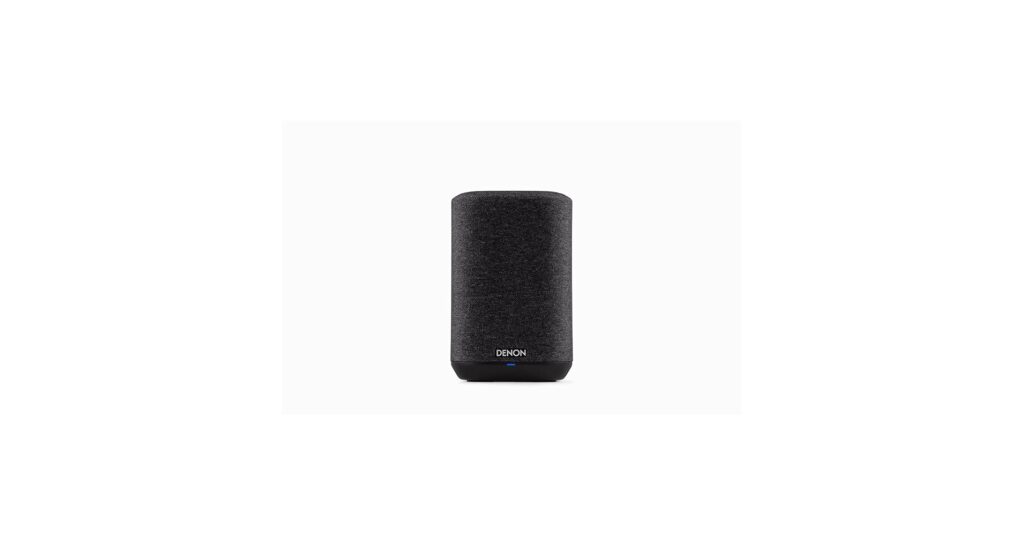
Connecting HEOS speakers to your home audio system is a straightforward process that enhances your listening experience with seamless wireless streaming.
Whether you're setting up a single speaker or a multi-room configuration, HEOS by Denon offers versatile connectivity options through Wi-Fi, Bluetooth, and Ethernet. Using the HEOS app, users can easily manage music playback, control volume, and group speakers across different rooms.
This guide walks you through the step-by-step process of connecting your HEOS speakers, from power setup and network selection to app configuration and audio source pairing, ensuring optimal performance and uninterrupted sound quality in any environment.
 B&O Speakers How To Connect
How to Connect HEOS Speakers: A Complete Guide
Connecting HEOS speakers allows you to enjoy high-quality wireless audio throughout your home using your preferred music sources and devices. Whether you're setting up a single speaker or a multi-room audio system, HEOS by Denon offers a seamless integration process through Wi-Fi, Bluetooth, and compatible streaming services.
The setup is primarily managed via the HEOS app, available for both iOS and Android, which guides you step by step through connecting your speakers to your home network and linking them to your music libraries or streaming platforms like Spotify, Pandora, Amazon Music, and Tidal.
For optimal performance, HEOS relies on a strong Wi-Fi connection rather than Bluetooth for multi-room synchronization, allowing you to stream music simultaneously across multiple rooms with perfect timing. Additionally, certain HEOS devices support Ethernet connections for improved stability, especially in larger setups or areas with weaker wireless coverage.
Connecting HEOS Speakers via Wi-Fi Using the HEOS App
To connect your HEOS speaker via Wi-Fi, start by downloading the free HEOS app from the Apple App Store or Google Play Store and creating a HEOS account if you don’t already have one.
 Bang And Olufsen Speakers How To Connect
Power on your speaker and ensure your smartphone or tablet is connected to your home’s Wi-Fi network. Open the HEOS app, tap Add Device, and follow the on-screen instructions to locate your speaker on the network. The app will prompt you to select your Wi-Fi network and enter the password.
Once connected, the speaker will receive a firmware update if needed, and will appear in the app’s device list, ready for use. This Wi-Fi connection enables full access to streaming services, multi-room grouping, and remote control functionality. For best results, place the speaker within a strong Wi-Fi signal range or consider using a Wi-Fi extender if connectivity issues arise.
Pairing HEOS Speakers via Bluetooth for Direct Streaming
While HEOS speakers are optimized for Wi-Fi use, many models support Bluetooth for direct audio streaming from smartphones, tablets, or laptops.
To pair via Bluetooth, first put your HEOS speaker into pairing mode by pressing and holding the Bluetooth button (if available) on the device or by selecting Bluetooth from the input options in the HEOS app. On your mobile device, go to the Bluetooth settings and scan for available devices. Select your HEOS speaker from the list and complete the pairing process.
 Bose Speakers For TV How To Connect
Once connected, you can play music directly from your device without using your home Wi-Fi network. It's important to note that Bluetooth mode disables multi-room functionality, so it’s best used for temporary or private listening. To return to full HEOS features, simply disconnect Bluetooth and reconnect via Wi-Fi.
Wired Connection Options: Using Ethernet with HEOS Devices
For users seeking a more stable and reliable connection—especially in large homes or areas with crowded Wi-Fi networks—many HEOS speakers and receivers support a wired Ethernet connection.
To set this up, connect one end of an Ethernet cable to the LAN port on the back of your HEOS device and the other end to your home router or network switch. Then, power on the device and proceed with the HEOS app setup process.
During configuration, the app detects the wired connection and automatically configures the network settings. A wired connection reduces signal interference, minimizes audio dropouts, and ensures consistent performance for multi-room audio. This option is particularly recommended for HEOS home theater systems or setups where audio synchronization across multiple speakers is critical.
 Club Car Onward Bluetooth Speakers How To Connect
| Connection Type | Best For | Key Benefits | Limits |
|---|---|---|---|
| Wi-Fi | Multi-room audio, streaming services | Enables whole-home audio, app control, firmware updates | Requires strong network; performance depends on router placement |
| Bluetooth | Quick pairing, direct device streaming | No Wi-Fi needed; simple setup | Limited range; no multi-room sync; lower audio latency |
| Ethernet (Wired) | Stable performance, home theater setups | Reduces lag and dropouts; ideal for high-demand use | Requires physical cabling; less flexible placement |
How to Connect HEOS Speakers: A Step-by-Step Setup Guide
Why won’t my HEOS speaker connect to Wi-Fi during setup?
Check Your Wi-Fi Network Compatibility
- HEOS speakers are designed to work with 2.4 GHz Wi-Fi networks and do not support 5 GHz bands. If your router broadcasts dual-band Wi-Fi (both 2.4 GHz and 5 GHz), ensure your speaker is attempting to connect to the 2.4 GHz network, as connection to a 5 GHz network will fail.
- Some mesh networks or extenders may create separate network names (SSIDs) for each band. Make sure your mobile device is connected to the same 2.4 GHz network that you intend for the HEOS speaker to use during setup.
- Confirm that your network uses a supported security protocol, such as WPA2-PSK (AES). Older protocols like WEP or unsupported configurations like WPA3-only may cause connectivity problems during the pairing process.
Verify Router and Network Settings
- Ensure your router is functioning properly by testing internet connectivity on other devices. If other devices can't connect, the issue may lie with your router or internet service, not the speaker.
- Some routers have client isolation, MAC filtering, or firewall settings enabled that can block new devices like HEOS speakers from joining the network. Temporarily disable these features during setup to test connectivity.
- Restart your router and modem by powering them off for 30 seconds and then turning them back on. This often resolves temporary network glitches that may prevent the HEOS speaker from detecting or connecting to the Wi-Fi network.
Correct Setup Procedure and App Troubleshooting
- Ensure you are using the official HEOS app and that it is updated to the latest version. Outdated apps may have bugs or compatibility issues that interfere with the setup process.
- During setup, power on the HEOS speaker and wait for it to enter setup mode (indicated by a flashing light). Make sure your smartphone or tablet is connected to the same Wi-Fi network the speaker is trying to join, and disable mobile data to avoid confusion.
- If the speaker fails to connect, forget the network in the HEOS app, restart the setup process, and follow the prompts carefully. You may also try resetting the speaker to factory settings using the button combination or app option before attempting setup again.
Frequently Asked Questions
How do I connect my Heos speaker to Wi-Fi?
Download the Heos app, power on your speaker, and follow the setup instructions. Select your Wi-Fi network, enter the password, and wait for the speaker to connect. The app will confirm when the connection is successful. Ensure your router is active and the Wi-Fi signal is strong for best results. For dual-band networks, use 2.4 GHz, as some Heos models don’t support 5 GHz.
Can I connect Heos speakers via Bluetooth?
Heos speakers primarily use Wi-Fi for streaming, but some models support Bluetooth for direct device connection. Use the Heos app to enable Bluetooth mode if available. Pair your phone or tablet through its Bluetooth settings. Note that Bluetooth may limit access to multi-room features and high-resolution audio supported over Wi-Fi.
How do I connect multiple Heos speakers for multi-room audio?
Set up each Heos speaker on the same Wi-Fi network using the Heos app. Open the app, go to “Rooms,” group the speakers you want to sync, then play music from a supported service. All grouped speakers will play in sync. Ensure all devices are updated to the latest firmware for optimal performance and compatibility.
Why won’t my Heos speaker connect to the app?
Ensure your speaker is powered on and connected to Wi-Fi. Restart the speaker, check your router, and confirm your mobile device is on the same network. Reinstall the Heos app if needed. Also, verify that your router’s firewall or parental controls aren't blocking the connection. Updating firmware through the app may also resolve connectivity issues.
 Coby Speakers How To Connect
Leave a Reply