
How To Connect Bluetooth Speakers To Alexa

Connecting Bluetooth speakers to Alexa enhances your audio experience by combining voice-controlled smart features with high-quality sound.
Whether you want richer bass, louder output, or multi-room audio, pairing your Bluetooth speaker to an Alexa-enabled device is a simple and effective solution. This guide walks you through the step-by-step process to seamlessly link your speaker using the Alexa app or voice commands.
You'll learn how to prepare your devices, initiate pairing mode, and verify the connection for uninterrupted playback. Additionally, we’ll cover troubleshooting tips for common issues like failed connections or audio delays. Get the most out of your Alexa experience with superior sound through a connected Bluetooth speaker.
 How To Connect JBL Speakers To TV
How to Connect Bluetooth Speakers to Alexa
Connecting Bluetooth speakers to Alexa is a straightforward process that allows you to enjoy higher-quality audio from your favorite music streaming services using Alexa-enabled devices like the Amazon Echo.
By pairing your Bluetooth speaker with Alexa, you transform your smart speaker into a powerful audio hub. This connection lets you use voice commands through Alexa while taking advantage of the superior sound output provided by external Bluetooth speakers.
Whether you're looking to enhance your home audio experience or free up your phone for other tasks, pairing a Bluetooth speaker expands Alexa’s capabilities. The process works across most Alexa-compatible devices and popular Bluetooth speakers, making it a versatile and user-friendly option for anyone looking to get better sound from their voice assistant.
Step-by-Step Guide to Pairing Bluetooth Speakers with Alexa
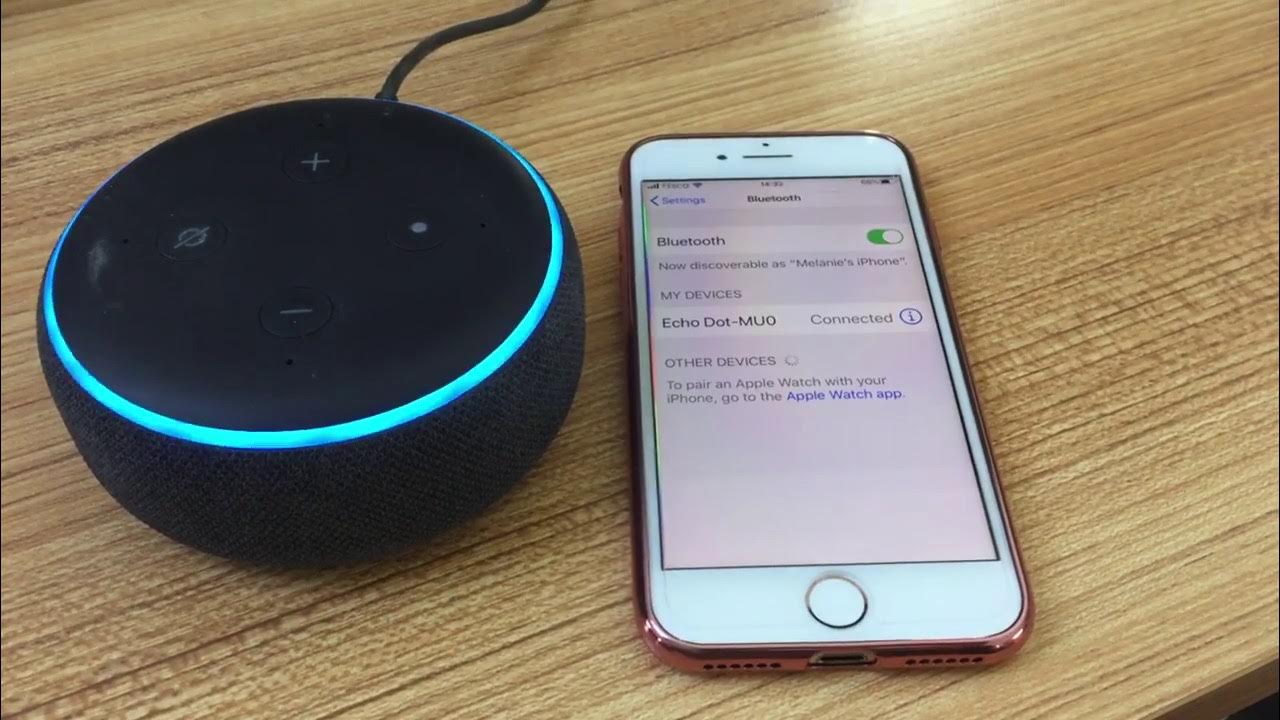
To begin pairing your Bluetooth speaker with Alexa, ensure the speaker is powered on and in pairing mode—this is typically done by holding the Bluetooth button until a light flashes.
 How To Connect Multiple Speakers On Spotify
Next, open the Alexa app on your smartphone or tablet, navigate to Devices, select your Alexa-enabled device (such as an Echo Dot or Echo Show), and tap Bluetooth. Choose “Pair a New Device,” and Alexa will begin searching for nearby speakers. Once your speaker appears in the list, tap it to connect.
Alexa will confirm the successful pairing with a voice prompt. After pairing, all audio played through Alexa—including music, audiobooks, and news—will route through the connected Bluetooth speaker. You can always disconnect or switch to another speaker via the same Bluetooth settings menu.
Managing and Switching Between Paired Bluetooth Devices
Once you’ve connected a Bluetooth speaker to Alexa, managing multiple devices becomes essential if you own more than one audio accessory.
The Alexa app allows you to view all paired devices and switch between them quickly. Under the Bluetooth section of your Echo device settings, you’ll see a list of devices previously connected. Selecting another speaker will disconnect the current one and establish a new connection—provided the new device is powered on and within range.
 How To Connect Multiple Speakers To Bluetooth
It's important to note that Alexa can only stream audio to one Bluetooth device at a time, so switching is required when using different speakers. You can also remove unused devices from the list to keep the menu organized. This seamless switching enhances usability across rooms or different listening preferences.
Common Issues and Troubleshooting Tips
Despite the ease of pairing, users may encounter issues such as Alexa not detecting the speaker, connection drops, or audio distortion. First, ensure both your Alexa device and Bluetooth speaker are within close range (typically up to 30 feet) and free from physical obstructions.
Restarting both devices often resolves temporary glitches. If the speaker doesn’t appear in the app, manually put it back into pairing mode and refresh the Bluetooth device list in the Alexa app. Clearing the Bluetooth cache on your Echo—by forgetting the device and re-pairing—can also fix persistent connection problems.
Additionally, interference from Wi-Fi networks or other wireless devices may degrade performance; adjusting your speaker's location or reducing signal congestion can improve stability. Always verify that your devices are updated to the latest firmware for optimal compatibility.
 Rocker Gaming Chair With Speakers How To Connect
| Issue | Possible Cause | Solution |
|---|---|---|
| Alexa doesn't find the speaker | Speaker not in pairing mode or out of range | Ensure the speaker is in pairing mode and within 30 feet |
| Connection drops frequently | Interference or low battery | Move devices closer, eliminate obstructions, or charge the speaker |
| No sound after pairing | Incorrect output selection or app glitch | Re-pair the device or check audio settings in the Alexa app |
| Audio is distorted | Poor Bluetooth signal or outdated firmware | Reduce distance between devices or update both devices' software |
How to Connect Bluetooth Speakers to Alexa: A Step-by-Step Guide
How to Pair Bluetooth Speakers with Alexa for Seamless Audio Streaming
Preparing Your Bluetooth Speaker and Alexa Device
- Ensure your Bluetooth speaker is fully charged or connected to a power source to prevent interruption during pairing. Most speakers have a battery indicator or LED light that shows charging status.
- Turn on your Bluetooth speaker and put it in pairing mode. This is typically done by pressing and holding a dedicated Bluetooth button until the indicator light starts flashing, signaling it's discoverable.
- Make sure your Alexa-enabled device, such as an Echo Dot or Echo Show, is powered on, connected to Wi-Fi, and logged into your Amazon account. Open the Alexa app on your smartphone or tablet to confirm your device is properly set up and recognized.
Connecting the Bluetooth Speaker via the Alexa App
- Open the Alexa app on your mobile device and tap the Devices icon in the bottom-right corner, then select the plus (+) symbol in the top-right corner to add a new device.
- Choose Audio from the device list, then select Bluetooth Speakers. The app will begin searching for available devices within range.
- When your speaker's name appears in the list, tap on it to initiate pairing. Alexa will confirm the connection with a verbal prompt or a notification in the app. Once paired, the speaker will be listed under your connected Bluetooth devices.
Streaming Audio and Managing Your Connected Speaker
- After pairing, you can stream audio by saying commands like “Alexa, play music on [speaker name]” or “Alexa, connect to [speaker name].” Alexa will route audio output to the connected Bluetooth speaker.
- To switch between devices or disconnect, say “Alexa, disconnect from [speaker name]” or use the Alexa app under the Devices tab to manually manage connections.
- For consistent performance, disconnect unused Bluetooth devices and re-pair if audio drops occur. Keep in mind that only one Bluetooth audio device can be actively connected to Alexa at a time for streaming purposes.
Why can't Alexa detect my Bluetooth speaker during pairing?

Bluetooth Speaker Compatibility Issues
Not all Bluetooth speakers are compatible with Alexa-enabled devices, which can prevent detection during pairing. Some older models or third-party audio devices may not support the Bluetooth profile required by Amazon Echo devices.
Alexa typically requires speakers that support Advanced Audio Distribution Profile (A2DP) and Audio/Video Remote Control Profile (AVRCP) to function correctly. If your speaker uses outdated firmware or a non-standard Bluetooth implementation, Alexa may not recognize it. Additionally, certain budget or niche-brand speakers might lack proper certification or have limited interoperability with mainstream smart assistants.
 Recoton Wireless Speakers How To Connect
- Ensure your speaker supports A2DP and AVRCP, which are essential for audio streaming and remote control functions.
- Check the manufacturer's website for Alexa compatibility or compatibility with Amazon Echo devices.
- Update your speaker’s firmware to the latest version available, as updates often improve device compatibility.
Proximity and Interference Problems
Physical distance and environmental interference can significantly impact Bluetooth detection when pairing with Alexa. Bluetooth signals have a limited range, typically up to 30 feet (10 meters), and obstacles like walls, furniture, or electronic devices can weaken or block the signal.
If your speaker is too far from the Alexa device or placed behind thick materials, the connection may fail. Other electronic appliances such as microwaves, Wi-Fi routers, or cordless phones operating on the 2.4 GHz frequency band can also cause interference, disrupting the Bluetooth handshake required for pairing.
- Place the speaker within 10 feet of the Alexa device with minimal obstacles between them.
- Turn off or move other wireless devices that may be causing signal interference.
- Ensure both the Alexa device and the speaker are powered on and in pairing mode simultaneously.
Bluetooth Pairing Mode Not Activated
Many Bluetooth speakers require manual activation of pairing mode before they can be detected by Alexa. If the speaker is not in discoverable mode, the Alexa device will not be able to find it.
The process for enabling pairing mode varies by brand and model—some require holding a dedicated button, while others use a mobile app to initiate pairing. Even if the speaker is connected to another device, it might not appear to Alexa until it is disconnected and placed in pairing mode again. Alexa can only pair with one Bluetooth device at a time, so existing connections must be cleared.
 QTX Speakers Bluetooth How To Connect
- Refer to your speaker’s user manual to correctly activate Bluetooth pairing mode, often indicated by a flashing LED.
- Disconnect the speaker from any other previously connected devices like smartphones or tablets.
- Ask Alexa to search for devices again by saying, “Alexa, pair” after the speaker is in pairing mode.
Frequently Asked Questions
How do I pair Bluetooth speakers to my Alexa device?
To pair Bluetooth speakers to your Alexa device, open the Alexa app, select your device, and go to Bluetooth settings. Choose Pair Device, ensure your speaker is in pairing mode, and wait for it to appear in the list. Select it to connect. Once paired, Alexa will confirm the connection and play audio through the speaker. For best results, keep devices within close range during pairing.
Can I use any Bluetooth speaker with Alexa?
Most Bluetooth speakers are compatible with Alexa-enabled devices. However, performance may vary depending on the speaker's quality and range. Ensure your speaker supports standard Bluetooth audio streaming (A2DP profile). Some advanced features like voice control through the speaker may not work. Always check manufacturer specifications and keep the speaker charged and within 30 feet of your Alexa device for a stable connection.
Why won’t my Bluetooth speaker connect to Alexa?
Your Bluetooth speaker may not connect due to distance, low battery, or lack of pairing mode. Restart both devices and ensure Bluetooth is enabled. In the Alexa app, remove previous pairings and retry. Interference from other electronics or Wi-Fi congestion can also disrupt connection. If issues persist, update your Alexa device’s firmware and verify speaker compatibility. Try pairing with another device to isolate the problem.
How do I disconnect or switch Bluetooth speakers from Alexa?
To disconnect or switch speakers, open the Alexa app, select your device, and go to Bluetooth settings. Tap “Forget Device” to unpair the current speaker. Then, put the new speaker in pairing mode and select “Pair a New Device.” Alexa will search and connect automatically. You can only stream to one Bluetooth speaker at a time. Remember to disconnect when not in use to prevent automatic reconnections.
 Pyle Speakers How To Connect
Leave a Reply