
How To Connect Portable CarPlay To Car Speakers

Connecting Portable CarPlay to your car speakers enhances your driving experience by seamlessly integrating your smartphone’s features with your vehicle’s audio system.
This setup allows you to access navigation, music, calls, and messaging through a familiar interface, all while keeping your hands on the wheel. With advancements in wireless technology, achieving clear, high-quality sound through your car’s built-in speakers is easier than ever.
This guide walks you through the essential steps, compatible devices, and troubleshooting tips to ensure a smooth connection. Whether using a USB adapter, wireless dongle, or aftermarket head unit, you can enjoy CarPlay’s functionality with optimal audio performance directly from your car’s sound system.
 How To Connect JBL Speakers To TV
How To Connect Portable CarPlay To Car Speakers
Connecting a portable CarPlay device to your car speakers allows you to enjoy seamless smartphone integration, enabling calls, music streaming, navigation, and voice commands through Apple’s intuitive interface.
Most portable CarPlay units connect via USB or wireless technology, and then route audio to the car’s existing speaker system—either through the factory-installed head unit or auxiliary inputs. The key to a successful setup lies in understanding your vehicle’s audio capabilities and choosing the right connection method.
Whether your car supports wired CarPlay natively, requires an adapter, or uses a standalone Android-based device with CarPlay emulation, compatibility with your car speakers is essential. Ensuring proper power supply, correct input selection on the stereo, and stable Bluetooth or USB pairing are crucial steps to optimize both performance and sound quality.
Understanding CarPlay Connection Types
Before connecting portable CarPlay to your car speakers, it's crucial to understand the two main connection types: wired and wireless.
 How To Connect Multiple Speakers On Spotify
Most standard CarPlay systems rely on a USB connection to link the iPhone directly to the vehicle’s infotainment system. However, portable CarPlay devices often run on Android and emulate CarPlay functionality, allowing wireless screen mirroring via Wi-Fi Direct or require a physical HDMI or USB-C connection.
These portable units usually include built-in Bluetooth and audio output options that send sound to your car speakers via an FM transmitter, AUX-in cable, or Bluetooth audio streaming. Identifying whether your portable system supports wired USB, Bluetooth audio output, or auxiliary line-out will determine the most effective method for linking to your car’s speaker setup.
Using AUX or Bluetooth for Audio Output
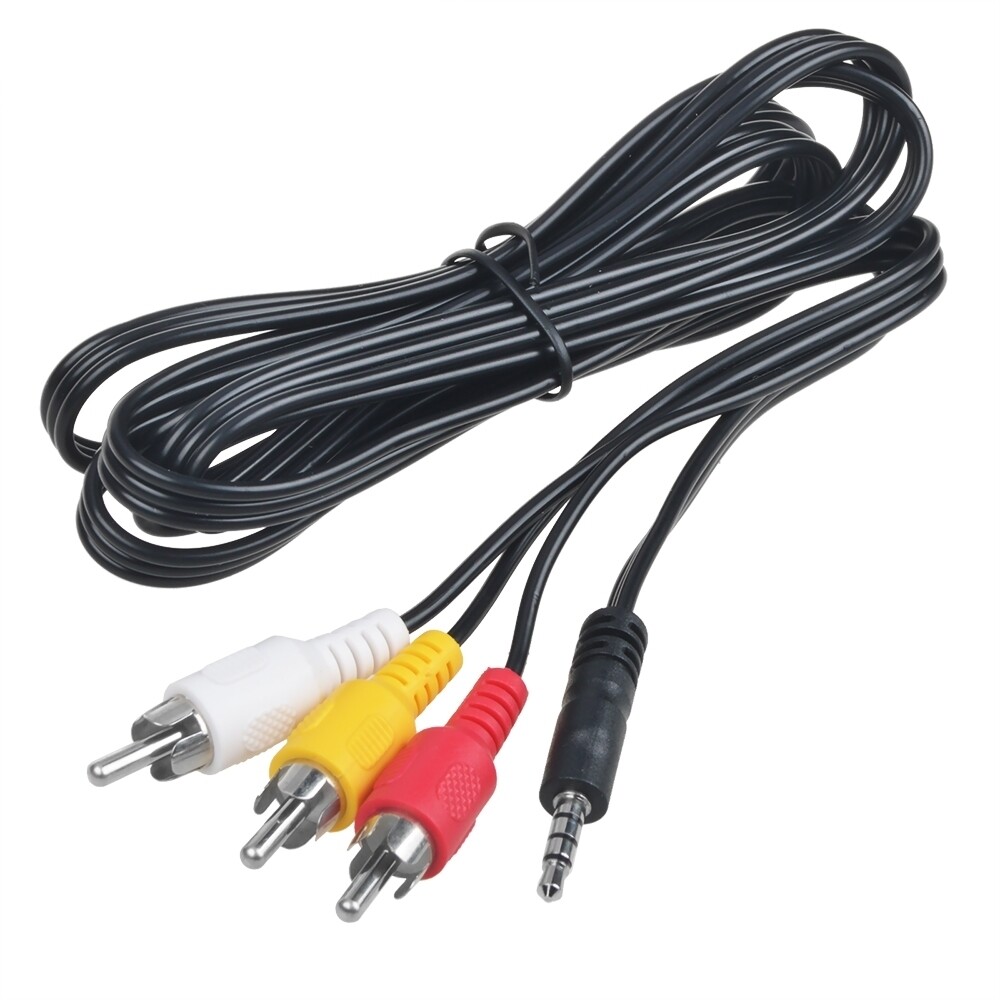
One of the most common ways to connect a portable CarPlay device to car speakers is through an AUX cable or Bluetooth pairing. If your portable unit has a 3.5mm audio output jack, simply plug one end into the device and the other into your car’s AUX input, then switch the stereo to AUX mode.
This provides a reliable, high-quality audio connection with minimal latency. Alternatively, if your car stereo supports Bluetooth audio, power on Bluetooth on both the portable CarPlay device and your vehicle’s head unit, then pair them like any Bluetooth speaker.
 How To Connect Multiple Speakers To Bluetooth
Keep in mind that while Bluetooth offers wireless convenience, it may result in slight audio lag or compression depending on your car’s stereo codec support. Always ensure that both media audio and streaming audio profiles are enabled on the CarPlay device for full functionality.
Optimizing Sound Quality and Setup Stability
To ensure high-quality sound and a stable connection when routing portable CarPlay through car speakers, several setup optimizations should be applied.
First, use high-quality shielded cables (for AUX or USB connections) to prevent electrical interference from the car’s systems. Position the portable device close to the audio input source and avoid running cables near power lines or fans. If using Bluetooth, minimize interference by disconnecting unused devices and ensuring your car’s stereo is the only active audio receiver.
Additionally, configure the audio output settings on the portable CarPlay unit to match your speaker system's power and impedance. Finally, stabilize the device’s power by connecting it to a dedicated USB power port or 12V adapter to avoid shutdowns or performance drops during use.
 Rocker Gaming Chair With Speakers How To Connect
| Connection Method | Best For | Sound Quality | Setup Complexity |
|---|---|---|---|
| AUX Cable | Older cars without Bluetooth | High (lossless analog signal) | Low (plug and play) |
| Bluetooth | Wireless convenience | Moderate (depends on codec) | Medium (pairing required) |
| FM Transmitter | Cars with no AUX/Bluetooth | Low to Moderate (radio interference) | Medium (frequency tuning needed) |
| USB Audio (if supported) | Modern car stereos with USB input | High (digital signal) | Medium (requires compatible file systems) |
How to Connect Portable CarPlay to Car Speakers: A Step-by-Step Guide
How to Connect a Portable CarPlay Device to Car Speakers for Seamless Audio Playback
Understanding the Basics of Portable CarPlay and Audio Output
- Portable CarPlay devices are compact adapters that allow users to bring Apple CarPlay functionality into older or non-CarPlay-equipped vehicles. These devices typically connect to a car’s infotainment system via USB, Bluetooth, or auxiliary input and provide access to Apple Maps, Messages, Music, and other iOS apps directly through the car’s display.
- The audio output from a portable CarPlay device can be routed through the car speakers in several ways, depending on the vehicle’s existing audio infrastructure. The most common methods include using a wired auxiliary input, Bluetooth streaming, or an FM transmitter built into the adapter.
- To ensure seamless audio playback, it's important to confirm compatibility between the portable CarPlay device and your car’s stereo system. Check whether your car has an auxiliary jack, USB port, or Bluetooth audio capability, as these are necessary for transmitting sound from the CarPlay device to the speakers.
Methods to Connect Your Portable CarPlay Device to Car Speakers
- Using an auxiliary cable (3.5mm audio cable) is one of the most reliable ways to connect. Plug one end into the headphone jack of the portable CarPlay device and the other into your car’s AUX input. Once connected, switch the car stereo to AUX mode to enable audio playback through the speakers.
- Bluetooth connection is another popular option, especially for wireless convenience. Enable Bluetooth on both the portable CarPlay device and your car’s stereo. Pair the two devices through the car’s Bluetooth settings menu. This method enables both hands-free calling and high-quality audio streaming without wires.
- Some portable CarPlay adapters include an integrated FM transmitter. Set the transmitter to an unused FM frequency and tune your car’s radio to the same frequency. This method works well in cars lacking AUX or Bluetooth but may be subject to interference from local radio stations or electrical noise.
Optimizing Audio Quality and Ensuring Stable Playback
- To achieve the best sound quality, prefer a wired connection such as AUX or USB over wireless methods where possible, as they generally offer less compression and interference compared to Bluetooth or FM transmitters.
- Ensure the portable CarPlay device is powered consistently, either through a USB power source or car charger, to avoid audio dropouts or disconnections during playback, which can occur if the device battery drains.
- Adjust the audio settings on both the iPhone and the car stereo to balance volume levels and EQ settings. Disable any audio enhancements or noise cancellation features that might distort the output, and verify that the sample rate and bit depth are optimized within the CarPlay settings if applicable.
Can CarPlay Audio Be Routed Through Vehicle Speakers When Using a Portable Adapter?

Yes, CarPlay audio can typically be routed through a vehicle’s factory speakers when using a portable adapter, provided the adapter is properly connected and compatible with the vehicle’s audio system. Most portable CarPlay adapters connect via the vehicle’s USB port and enable Apple CarPlay functionality without requiring a full head unit replacement.
Once connected, audio from phone calls, music, navigation prompts, and other CarPlay-supported apps plays through the car’s existing speaker system using the vehicle’s audio output channels. The key requirement is that the car stereo must support data transmission through its USB port, not just charging.
Some older or base-model vehicles may only have USB ports designed for charging, which will prevent CarPlay from initiating altogether. When CarPlay is successfully active, all audio is automatically redirected from the phone’s internal speakers to the vehicle’s speakers, delivering a seamless, integrated experience.
 Recoton Wireless Speakers How To Connect
How Portable CarPlay Adapters Connect to Vehicle Audio Systems
- Portable CarPlay adapters usually plug into the vehicle's existing USB port, which is commonly located on the dashboard or center console. This connection allows the adapter to communicate with the car’s infotainment system by emulating an original factory CarPlay-compatible device.
- Once plugged in, the adapter pairs with an iPhone via a Lightning cable or wirelessly, depending on the model, and establishes a bridge between the phone and the car’s head unit, enabling CarPlay to load on the vehicle’s display.
- The vehicle’s head unit then routes all CarPlay-generated audio through its internal amplifier and speakers, using the factory sound system just as if the phone were connected directly to an OEM-enabled touchscreen.
Compatibility Requirements for Audio Routing Through Car Speakers
- For audio to play through the vehicle's speakers, the car must support USB data transfer through the port where the adapter is connected; ports limited to charging only will not allow CarPlay to function.
- The portable adapter must be specifically designed to work with Apple CarPlay and should be updated to the latest firmware to ensure compatibility with current iOS versions and car systems.
- The vehicle's head unit must be capable of displaying CarPlay and processing its audio output signal—most vehicles manufactured from 2016 onward with USB connectivity meet this requirement, but exceptions exist, especially in entry-level trims.
Common Issues That Prevent Audio from Playing Through Vehicle Speakers
- If the portable adapter is not recognized due to a faulty connection or outdated firmware, CarPlay may fail to launch entirely, leaving audio stranded on the iPhone instead of being routed to the car speakers.
- Some adapters may connect but not fully negotiate audio output routing, especially in vehicles with proprietary infotainment systems or incompatible software protocols, resulting in silent navigation or music playback.
- Incorrect iPhone settings, such as Bluetooth audio being prioritized or the CarPlay session not completing initialization, can also cause audio to remain on the phone instead of switching to the car’s speaker system.
Why isn't CarPlay audio outputting through my car speakers?

Check Physical Connections and Cables
One of the most common reasons CarPlay audio doesn't play through your car speakers is due to faulty or loose physical connections. Ensuring that your iPhone is properly connected via USB is essential for a stable CarPlay experience. Over time, cables can wear out or develop internal breaks that aren't visibly obvious, which can interrupt data and power transmission. Additionally, some third-party cables may not support data transfer even if they charge your device. It's also possible that the car’s USB port is dirty or damaged, preventing a solid connection. To troubleshoot:
- Try a different USB cable, preferably an Apple-certified one, to rule out cable defects.
- Pull the cable out and reinsert it firmly into both the iPhone and the car’s USB port.
- Inspect the USB port in your vehicle for debris or damage, and clean it carefully if needed.
Verify Audio Source and Settings in the Vehicle
Even if CarPlay is displaying correctly on your car’s infotainment screen, the audio output might not be routed properly if the car’s internal settings are misconfigured. Some vehicles require you to manually switch the audio source to CarPlay or iPhone after establishing a connection.
In other cases, the stereo might default to another input like radio, Bluetooth audio, or auxiliary. Additionally, the iPhone’s settings can influence how audio is handled when connected. It's important to confirm that both your car system and iPhone are directing sound appropriately:
 QTX Speakers Bluetooth How To Connect
- On your car’s head unit, navigate to the audio source menu and ensure that 'CarPlay' or 'iPhone' is selected as the active audio source.
- Check that the car’s volume is not muted or set too low, and that the speaker outputs are functional by testing with another source like AM/FM radio.
- On your iPhone, go to Settings > General > CarPlay > [Your Car] and confirm that audio apps are allowed to play through CarPlay.
Reset and Update Software on iPhone and Car System
Software glitches or outdated firmware on either your iPhone or your car’s infotainment system can prevent CarPlay from outputting audio correctly.
Apple regularly releases iOS updates that improve CarPlay stability, while automakers issue updates to fix bugs related to connectivity and audio routing. A simple restart can clear temporary software issues that interfere with audio playback. In more persistent cases, resetting settings on the iPhone or performing a head unit reset may be necessary to restore normal functionality.
- Restart your iPhone by holding the side button and either volume button, then sliding to power off. Turn it back on after 30 seconds.
- Check for iOS updates by going to Settings > General > Software Update and install any available updates.
- Consult your car’s owner manual to perform a head unit reset or check for available firmware updates from the manufacturer.
Frequently Asked Questions
How do I connect my portable CarPlay device to my car speakers?
Connect your portable CarPlay device to your car speakers using a Bluetooth connection or AUX cable. If your car supports Bluetooth, pair the device through the audio settings. For AUX, plug one end into the device’s headphone jack and the other into your car’s AUX input. Then, switch your car’s audio source to AUX or Bluetooth to hear sound through the speakers.
Can I use wireless CarPlay with my portable device?
Yes, if your portable CarPlay device supports wireless CarPlay and your car is compatible, you can connect wirelessly. Enable Bluetooth and Wi-Fi on both the device and car system, then follow the on-screen instructions to pair. Keep in mind that some systems require initial setup via a USB connection before enabling wireless use.
 Pyle Speakers How To Connect
Why isn’t sound coming through my car speakers after connecting CarPlay?
Ensure your car’s audio source is set to AUX or Bluetooth, depending on your connection method. Check that the volume is turned up on both the portable device and car stereo. Verify the cable is securely plugged in or that Bluetooth pairing is successful. Restart both devices if needed, and confirm CarPlay is properly activated on the screen.
Do I need a separate adapter to connect CarPlay to my speakers?
You may need an AUX cable or a Bluetooth transmitter depending on your car’s audio input options. Most portable CarPlay devices have a headphone jack for AUX use. If your car lacks AUX, a Bluetooth transmitter plugged into the USB or cigarette lighter can send audio wirelessly to your car speakers. Always verify compatibility before purchasing.
 PS5 How To Connect Speakers
Leave a Reply