
Realtek Hd Audio Manager Speaker Configuration

Realtek HD Audio Manager provides users with advanced control over their audio experience, particularly through its speaker configuration settings. This built-in utility allows customization of speaker setups, audio effects, and output channels to match various audio hardware.
Whether using stereo, surround sound, or 5.1/7.1 speaker systems, proper configuration ensures optimal sound quality. The Speaker Configuration feature enables users to define speaker size, designate output types, and test individual channels for accurate audio distribution. Understanding these settings is essential for enhancing multimedia performance on desktops, laptops, and home theater PCs, making Realtek HD Audio Manager a vital tool for audio customization.
Understanding Realtek HD Audio Manager Speaker Configuration
The Realtek HD Audio Manager is a software application developed by Realtek Semiconductor Corp. that allows users to control and optimize the audio output of their computer systems. One of its key features is Speaker Configuration, which enables users to customize how sound is delivered based on the number and layout of connected speakers.
 Sonos Speakers How To Connect
This feature is particularly useful for improving audio quality on desktops, laptops, and home theater setups. Through the Speaker Configuration settings, users can select speaker setups such as Stereo (2.0), Surround Sound (5.1 or 7.1), or Headphones, ensuring that audio output matches the physical speaker arrangement.
The configuration process is user-friendly and typically accessible directly from the Realtek HD Audio Manager interface, often found in the system tray or via sound settings in the Control Panel. Proper setup enhances audio immersion in media, gaming, and communication applications.
How to Access Speaker Configuration in Realtek HD Audio Manager
To access the Speaker Configuration settings, users must first open the Realtek HD Audio Manager, which can usually be launched by double-clicking the speaker icon in the system tray or by searching for it in the Start menu. Once opened, the main interface displays several tabs, with the Speaker or Speakers tab being the primary access point for configuration options.
Clicking on this tab reveals a button labeled Speaker Configuration, which opens a setup wizard. This wizard guides the user through selecting the appropriate speaker setup and, in many cases, includes a test tone feature to verify each speaker's functionality. It’s important to ensure that the latest Realtek audio drivers are installed, as outdated versions may lack certain configurations or have limited functionality.
 Sonos Speakers Bluetooth How To Connect
Available Speaker Layouts and Their Uses
Realtek HD Audio Manager supports multiple speaker configurations, each designed for different listening environments and audio needs.
The most common options include 2.0 (Stereo) for standard dual-speaker setups, 2.1 for stereo with a subwoofer, 5.1 Surround Sound for a full home theater experience with front, center, rear, and subwoofer channels, and 7.1 Surround for even more detailed spatial audio with additional side speakers. Headphone mode simulates surround sound using stereo headphones through virtualization technology.
Choosing the correct configuration ensures that audio signals are routed accurately to each speaker, improving clarity and directional effects in movies, music, and games. Misconfiguration can result in missing audio channels or poor sound balance, so it’s essential to match the selection with the actual hardware setup.
Settings and Audio Enhancements in Speaker Configuration
Beyond selecting the physical layout, Realtek HD Audio Manager’s Speaker Configuration includes additional audio enhancements that can be customized for an improved listening experience.
 Sonos Ikea Speakers How To Connect
These include features like Audio Stereo Expansion, which widens the soundstage for stereo content, and Bass Management, which controls how low frequencies are distributed, particularly useful in 2.1 or 5.1 setups. Users can also enable S/PDIF (Sony/Philips Digital Interface) output if using digital audio connections.
The interface allows for saving custom profiles based on different activities, such as Movie, Music, or Gaming, ensuring optimal audio settings are easily accessible. These enhancements, combined with proper speaker configuration, significantly elevate the audio output quality from standard onboard sound systems.
| Speaker Configuration | Description | Best Use Case |
|---|---|---|
| 2.0 (Stereo) | Uses two speakers (left and right) for standard audio output. | Basic desktops, laptops, casual listening |
| 2.1 | Stereo setup with an added subwoofer for enhanced bass. | Music, multimedia with richer low-end response |
| 5.1 Surround | Includes front, center, rear, and subwoofer channels for immersive sound. | Home theaters, movies, gaming |
| 7.1 Surround | Expands 5.1 with two additional side speakers for more precise audio positioning. | Advanced gaming, professional audio editing |
| Headphone Mode | Simulates surround sound using virtualization on stereo headphones. | Private listening with spatial audio effects |
Realtek HD Audio Manager Speaker Configuration: A Comprehensive Setup Guide
How to configure Realtek HD Audio Manager for speaker output instead of digital audio?
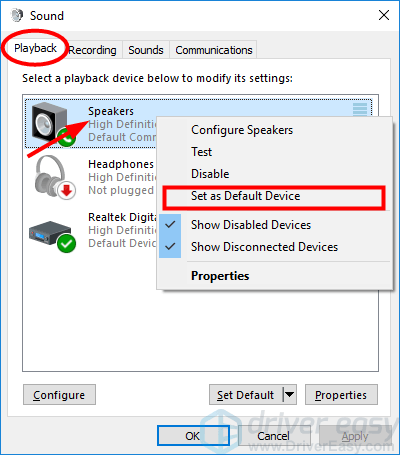
Accessing the Realtek HD Audio Manager Interface
- Locate the Realtek HD Audio Manager on your system. It is typically accessible through the Windows Control Panel under Hardware and Sound or by clicking the speaker icon in the system tray (near the clock) and selecting Open Realtek HD Audio Manager.
- If the application does not appear, ensure the Realtek audio drivers are properly installed. You may need to download the latest driver from your PC or motherboard manufacturer’s website.
- Once opened, the main interface will display available audio ports and configuration options. Make sure you are logged in as an administrator to access all settings.
Changing Default Output from Digital to Analog
- Inside the Realtek HD Audio Manager, navigate to the top-right corner and click on the gear or Device advanced settings icon, depending on your version.
- In the settings window, look for an option labeled Make front and rear output devices playback two different audio streams simultaneously or similar. Disable this if enabled, as it can cause conflicts.
- Ensure the option Mute the rear output device when the front headphone is plugged in is checked only if using front panel audio. Most importantly, confirm that Digital Output is not set as the default by selecting Speakers as the preferred output mode.
Configuring Speaker Setup and Audio Routing
- Go to the Speaker or Playback tab within the Realtek HD Audio Manager and click on Speaker Setup. Choose the appropriate configuration such as Stereo for standard speaker setups.
- Select Analog as the output type and avoid selecting Digital Output (S/PDIF) unless specifically required. This ensures audio is routed through the motherboard’s audio jacks rather than optical or HDMI outputs.
- Test the configuration by playing audio and using the test tones in the manager to verify that sound is correctly coming from the connected speakers and not being redirected to a digital interface.
How can I optimize Realtek HD Audio Manager speaker settings for better sound quality?
 Sonance Outdoor Speakers How To Connect
Access and Update Realtek HD Audio Manager
- Ensure Realtek HD Audio Manager is properly installed on your system by checking under Programs and Features in the Control Panel or via the Device Manager under audio inputs and outputs.
- Visit the official Realtek website or your computer/motherboard manufacturer’s support page to download the latest audio driver compatible with your system and hardware configuration.
- Updating the driver ensures access to the most recent features, stability improvements, and bug fixes that directly affect audio quality and functionality within the Realtek HD Audio Manager interface.
Configure Speaker Output and Audio Channels
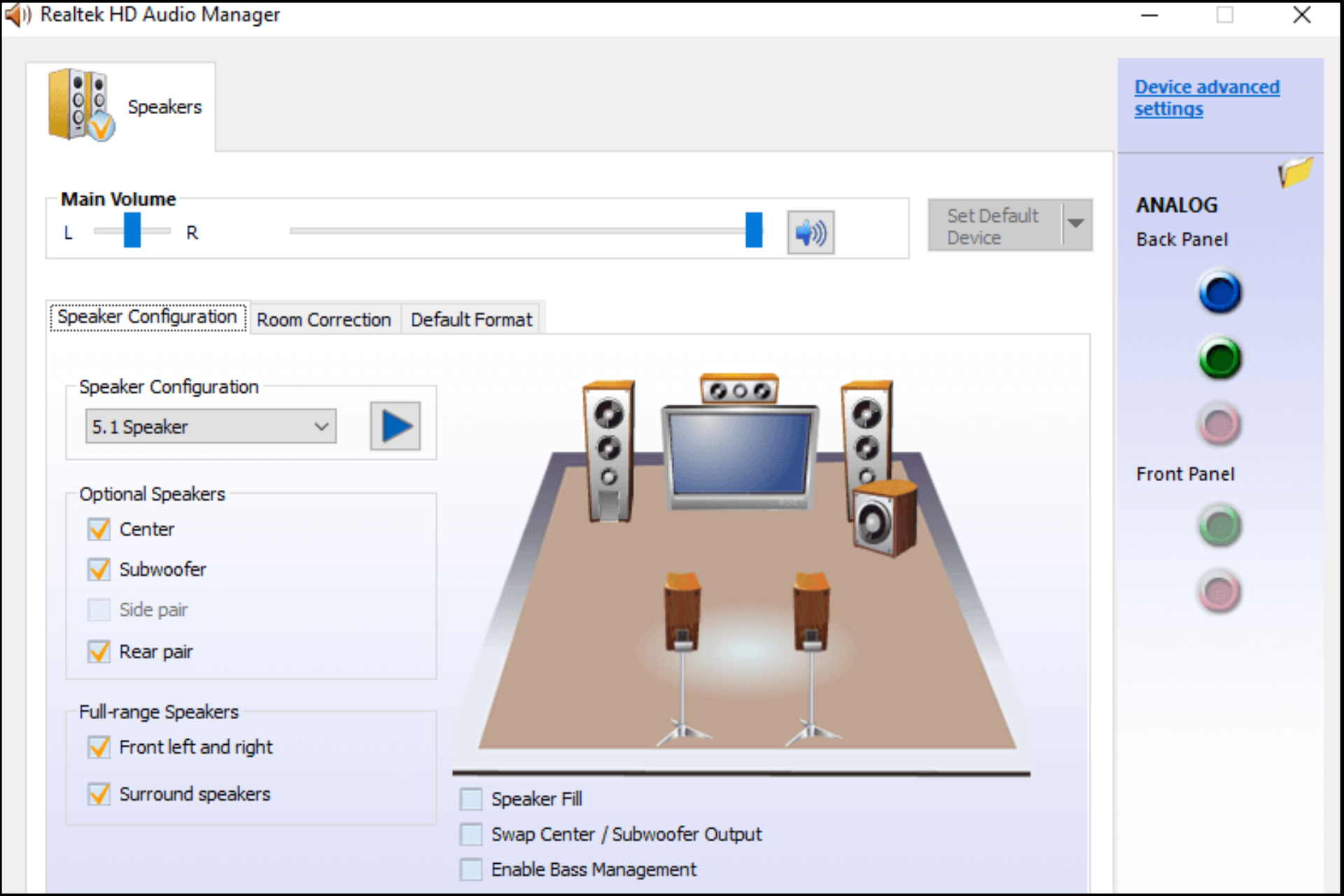
- Open Realtek HD Audio Manager and navigate to the Speakers or Audio I/O tab, then click on Speaker Settings or a similar option depending on your version.
- Select the appropriate speaker configuration, such as 2.0 (Stereo), 2.1, 5.1, or 7.1, based on your speaker setup to ensure proper channel mapping and sound distribution.
- Use the built-in speaker test feature to verify that each speaker is correctly identified and producing sound, which helps avoid imbalances or missing channels in stereo or surround sound playback.
Enhance Audio with Equalizer and Effects
- Go to the Sound Effects or Effects tab in Realtek HD Audio Manager and enable the equalizer, then adjust frequency bands to match your listening preferences—boost lower frequencies for more bass or higher bands for clearer vocals and treble.
- Enable audio enhancements such as Loudness Equalization to balance volume levels across different audio sources and prevent sudden volume spikes or drops.
- Experiment with spatial effects like Virtual Surround or Speaker Fill if using stereo speakers to simulate a wider soundstage, enhancing immersion for movies and games without requiring additional hardware.
How to configure stereo speakers in Realtek HD Audio Manager?
Accessing Realtek HD Audio Manager
- Click on the Windows Start menu and type Realtek HD Audio Manager in the search bar, then select the application from the results.
- If the application does not appear, ensure that the Realtek audio driver is properly installed. You may need to visit your computer or motherboard manufacturer's website to download and install the latest audio driver.
- Once the Realtek HD Audio Manager window opens, you will see various audio configuration options, including speaker settings, jack settings, and audio effects. Locate and click on the Speaker Setup or Speakers tab to begin configuring your stereo speakers.
Configuring Speaker Output for Stereo Mode
- In the Speaker Setup section, click on the Speaker Configuration or Format option, which might be represented by a button or dropdown menu.
- Select 2 Speakers (Stereo) from the available options to ensure the audio output is optimized for stereo playback.
- After selection, click Next or Apply to save the changes. You may be prompted to confirm the configuration, and the system might play a test tone through each speaker to verify proper setup.
Testing and Adjusting Speaker Balance
- Navigate to the Playback or Device Advanced Settings section in the Realtek HD Audio Manager, where you can test each speaker individually.
- Use the Test feature to play audio through the left and right speakers separately. This ensures both speakers are correctly wired and receiving signal.
- If the volume differs between speakers, manually adjust the balance using the volume slider controls within the Windows Sound settings or through third-party audio tools, ensuring a balanced stereo output for optimal listening experience.
Frequently Asked Questions
What is Realtek HD Audio Manager Speaker Configuration?
Realtek HD Audio Manager Speaker Configuration allows users to customize audio output settings based on their speaker setup. It helps optimize sound for stereo, surround sound, or headphones by selecting the correct speaker arrangement. The tool detects connected audio devices and enables adjustments like speaker size, levels, and audio effects to enhance listening quality on Windows systems with Realtek audio drivers.
How do I access Speaker Configuration in Realtek HD Audio Manager?
To access Speaker Configuration, open Realtek HD Audio Manager from the Windows Control Panel or system tray. Click on the Speakers or Speaker Configuration tab, usually represented by a house or audio icon. Here, you can select your speaker setup (e.g., 2.0, 5.1, headphones). Ensure your audio drivers are updated for full functionality and consistent access to configuration settings.
Why is my speaker configuration not saving in Realtek HD Audio Manager?
Speaker configuration settings may not save due to outdated drivers, software glitches, or permission issues. First, update your Realtek audio driver to the latest version. Restart your computer after making changes. Run the audio manager as administrator to ensure settings are applied correctly. If the issue persists, reinstall the Realtek HD Audio Manager or check for conflicts with other audio software.
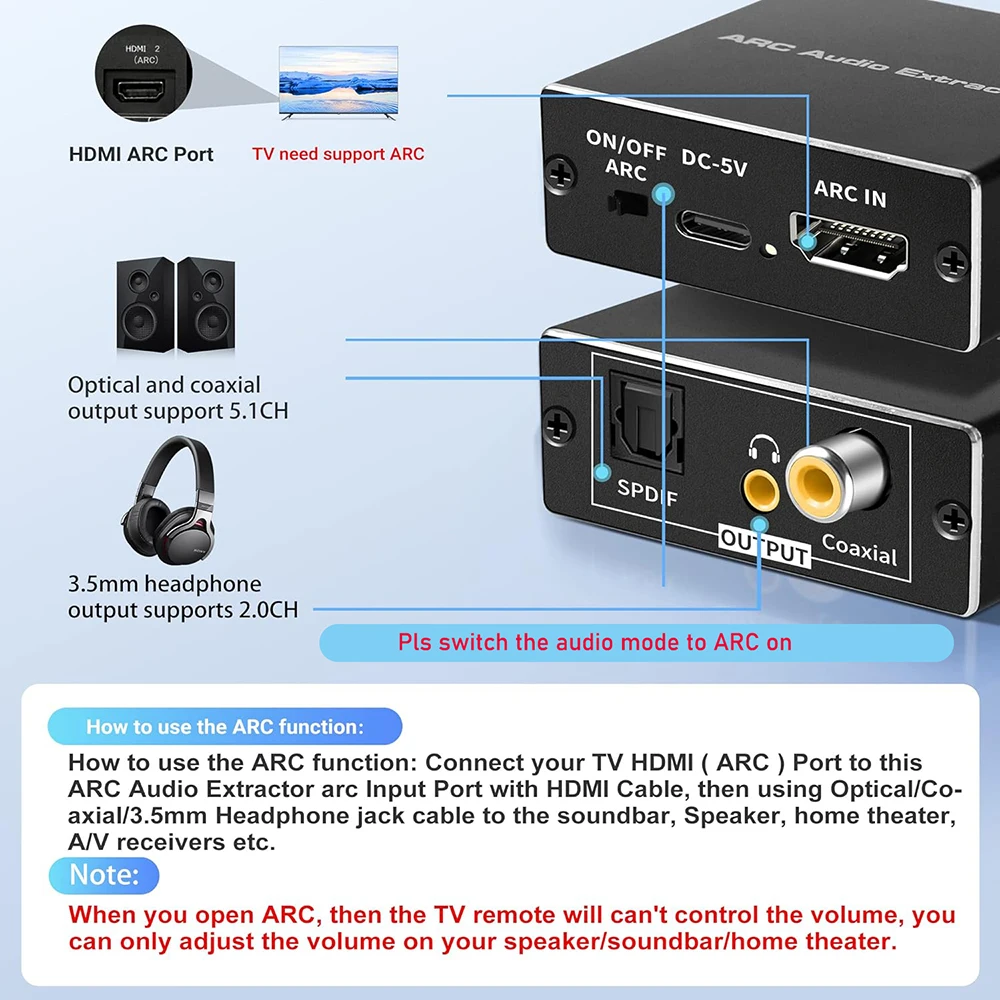 Samsung TV How To Connect Speakers
Can I use headphones and speakers simultaneously in Realtek HD Audio Manager?
Yes, certain versions of Realtek HD Audio Manager support simultaneous output to headphones and speakers. Go to the Device Advanced Settings or Connector Settings and enable the option to allow multiple audio streams. However, this feature depends on your motherboard's audio hardware and driver support. Not all systems enable this function, so check your Realtek driver version and motherboard specifications for compatibility.
Leave a Reply