
Sonos Speaker Not Configured

A Sonos speaker not configured error can be frustrating, especially when setting up a new device or reconfiguring an existing system.
This issue typically arises during the setup process in the Sonos app, preventing the speaker from joining the network and functioning properly. While Sonos systems are known for their seamless integration and high-quality audio, various factors like Wi-Fi interference, incorrect network settings, or app glitches can disrupt the configuration.
Understanding the common causes and troubleshooting steps is essential for restoring functionality. This article explores the potential reasons behind the Sonos speaker not configured message and provides clear, effective solutions to get your speaker up and running.
 Sonance Outdoor Speakers How To Connect
Sonos Speaker Not Configured: Common Causes and How to Fix It
When your Sonos speaker displays a Not Configured message, it typically means the device is unable to connect properly to your Wi-Fi network or the Sonos system.
This issue can prevent the speaker from appearing in the Sonos app or stop it from playing audio, even when powered on. Several factors can contribute to this problem, including network connectivity issues, outdated firmware, improper setup procedures, or hardware complications.
Resolving the Sonos Speaker Not Configured error often involves a combination of troubleshooting steps such as restarting devices, checking network settings, reconfiguring the speaker through the Sonos app, or performing a factory reset. Understanding the root cause is essential to restore full functionality and enjoy uninterrupted audio streaming.
Wi-Fi and Network Connectivity Issues
One of the most common reasons for a Sonos speaker not being configured is poor or unstable Wi-Fi connectivity.
 Samsung TV How To Connect Speakers
Sonos speakers rely heavily on a stable network connection to communicate with the app and stream audio. If the router is too far from the speaker, operating on an incompatible frequency (such as 5GHz-only networks), or experiencing interference from other devices, the speaker may fail to configure properly.
To address this, ensure the speaker is within a strong Wi-Fi signal range, use a 2.4 GHz network band (which Sonos devices primarily support), and avoid congested wireless channels. You can also try relocating the router, using a Sonos Boost for enhanced signal, or connecting the speaker via Ethernet if available.
Sometimes, the not configured problem stems from outdated software or glitches within the Sonos app or device firmware.
If the app hasn't been updated or the speaker is running an obsolete firmware version, it can prevent proper recognition and setup. To fix this, open the Sonos app and check for any available updates under Settings > System Updates. If an update is pending, install it immediately.
 Samsung Smart TV How To Connect Speakers
Additionally, force-closing and reopening the app, clearing app cache (on mobile), or reinstalling the Sonos app can resolve temporary bugs. Ensuring all devices in the Sonos ecosystem are on the latest firmware version improves compatibility and can automatically resolve configuration failures.
Factory Reset and Reconfiguration Process
When other troubleshooting steps fail, performing a factory reset on the Sonos speaker can be an effective solution to the not configured issue. This wipes all current settings and returns the speaker to its original out-of-the-box state, allowing for a clean re-setup.
To reset, press and hold the reset button (usually located on the back or bottom) for about 10 seconds until the LED flashes amber and white. After the reset, open the Sonos app and follow the initial setup wizard to re-add the speaker to your network. This process ensures that any incorrect network credentials or corrupted configuration data are eliminated, giving you a fresh start.
| Issue | Possible Cause | Solution |
|---|---|---|
| Sonos not appearing in app | Network disconnect or IP conflict | Restart router, check IP settings, or use Sonos Boost |
| Speaker shows amber light | Configuration or firmware issue | Update firmware or perform factory reset |
| Failed setup attempts | App glitch or outdated version | Reinstall Sonos app or try setup on another device |
How to Resolve Sonos Speaker Not Configured Error
Why won’t my Sonos speaker configure properly during setup?

 Samsung Q990D How To Connect Rear Speakers
Wi-Fi Connectivity Issues During Setup
Wi-Fi connectivity problems are among the most common reasons a Sonos speaker fails to configure properly. The setup process requires a stable and strong Wi-Fi signal, and any instability can interrupt communication between the speaker and the Sonos app.
Devices on crowded networks or located far from the router may experience weak signal strength, leading to timeouts or failed connections. Additionally, certain router configurations like separated 2.4 GHz and 5 GHz bands can confuse the speaker, which primarily uses the 2.4 GHz frequency. To ensure reliable communication, the speaker should be within close proximity to the router during setup.
- Ensure your Sonos speaker is within range of your Wi-Fi router to maintain a strong signal during setup.
- Verify that your router supports 2.4 GHz Wi-Fi and that it is enabled, as most Sonos speakers depend on this band.
- Restart your router and modem to refresh the network connection, which can resolve temporary connectivity glitches that interfere with the setup.
Incompatible or Outdated App and Software Versions
Using an outdated version of the Sonos app or having firmware that is not current can prevent proper configuration. The Sonos app must communicate seamlessly with the speaker, and if either device runs obsolete software, essential setup protocols may fail.
Additionally, some mobile operating systems or app versions may lack necessary permissions or features required for detecting and pairing with the speaker. It is important to use the latest version of the app and ensure the device running it meets compatibility requirements.
 Best eq setting razer barracuda x
- Check the App Store or Google Play Store to confirm you have the most recent version of the Sonos app installed.
- Ensure your smartphone or tablet is running a supported operating system version compatible with the Sonos app.
- Allow the Sonos app to access location services if prompted, especially on Android devices, as this is needed for discovering nearby Sonos devices on the network.
Router Settings and Network Restrictions
Certain router settings can block or interfere with Sonos speaker setup, even if general internet access appears normal. Features such as MAC address filtering, client isolation, or strict firewall rules may prevent the speaker from joining the network or communicating with the Sonos app.
Additionally, using a mesh network or dual-band router with incompatible settings can disrupt device discovery. Some internet service providers also use network address translation (CGNAT), which limits local network functionality required for setup. Adjusting or temporarily disabling certain security features can help determine if they are the cause.
- Disable client isolation or AP isolation on your router, as this setting prevents devices on the same network from communicating with each other.
- Check if your router has firewall or security settings that may block UDP ports commonly used by Sonos for device discovery and audio streaming.
- If using a dual-band router, try separating the 2.4 GHz and 5 GHz network names (SSIDs) to ensure the speaker connects to the correct frequency band.
Why won’t my Sonos speaker configure, and how can I fix it?
Check Your Wi-Fi Connection and Network Settings
One of the most common reasons a Sonos speaker fails to configure is an unstable or incompatible Wi-Fi connection. The Sonos setup process requires a stable 2.4 GHz network, as Sonos speakers do not support 5 GHz-only networks.
 Best spotify eq setting
If your router broadcasts dual bands but separates them into different network names (SSIDs), ensure the speaker is connecting to the 2.4 GHz version. Also, check that your Wi-Fi signal is strong at the speaker’s location—weak signals can interrupt the setup process. Make sure no MAC filtering or overly strict firewall settings are blocking the device from joining the network.
- Ensure your router is broadcasting a 2.4 GHz network and that your Sonos speaker connects to this band.
- Move the speaker closer to the router during setup to strengthen signal reception.
- Disable MAC filtering, UPnP restrictions, or overly aggressive firewall settings in your router temporarily to see if they interfere with configuration.
Restart Devices and Reboot the Setup Process
Temporary software glitches on your mobile device, router, or the Sonos speaker itself can prevent proper configuration. Restarting all components involved often resolves these transient issues.
A reboot clears cached data and resets network handshakes, which can be crucial during device pairing. After restarting, launch the Sonos app again and begin the setup from scratch. Avoid rushing through prompts and make sure each step registers correctly before moving forward. This method frequently fixes issues where the app gets stuck on a detection or connection screen.
- Power off your Sonos speaker, mobile device, and router; then power them back on after 30 seconds.
- Open the Sonos app after all devices fully restart and attempt setup again without skipping steps.
- Ensure no other Sonos devices are actively forcing the system into an outdated configuration mode during the process.
Update Firmware and Use the Latest Sonos App
The Sonos app and the speaker’s firmware must be up to date for successful configuration. Older app versions may not recognize newer speaker models or might contain bugs that disrupt setup.
Similarly, if the speaker has outdated firmware, it might not communicate properly with your network or app. Sonos frequently releases updates to improve compatibility, fix bugs, and enhance setup procedures. Always download the app from the official App Store or Google Play to avoid counterfeit or modified versions that could cause issues.
- Go to your device’s app store and verify that the Sonos app is updated to the latest version.
- Ensure automatic updates are enabled for the app to prevent future compatibility problems.
- During setup, allow the app to check for and install any available firmware updates for your speaker automatically.
How to fix a Sonos speaker that won’t configure properly?

Check Network and Wi-Fi Connectivity
One of the most common reasons a Sonos speaker fails to configure properly is an unstable or incompatible network connection. Sonos systems rely heavily on a strong, consistent Wi-Fi signal, and certain network configurations—like dual-band routers broadcasting a single network name (SSID) for both 2.4 GHz and 5 GHz bands—can disrupt the setup process. Interference from other wireless devices, weak signal strength, or network congestion can also hinder communication between the speaker and the Sonos app.
- Ensure your Wi-Fi network operates on the 2.4 GHz band, as most Sonos speakers do not support 5 GHz during initial setup. Verify this by checking your router settings or temporarily disabling the 5 GHz band to eliminate dual-band complications.
- Position the Sonos speaker closer to your Wi-Fi router during setup to improve signal strength. Avoid placing it near large metal objects, microwaves, or cordless phones that could interfere with the signal.
- Restart your modem and router to refresh the network connection. Unplug both devices, wait 30 seconds, and power them back on before retrying the Sonos setup process.
Verify Device and App Compatibility
The Sonos app must be up-to-date and installed on a compatible mobile device or computer to successfully configure a speaker. Older operating systems or outdated app versions may lack the latest bug fixes and features required for seamless integration. Additionally, some firewall settings or third-party security software on your network might block Sonos from connecting properly, especially if ports used by Sonos are restricted.
- Download the latest version of the Sonos app from the official App Store (iOS) or Google Play Store (Android). If you're using a desktop or laptop, ensure you're using the Sonos desktop app or the web controller if available for your model.
- Confirm that your device meets the minimum OS requirements—iOS 12 or later, Android 8.0 or later—for running the Sonos app. Devices running older software versions may not support newer Sonos features or security protocols.
- Temporarily disable any firewall, antivirus, or network filtering tools on your devices or router to check if they are obstructing Sonos communication. Reconfigure these tools later to allow traffic on UDP ports 1900–1901 and TCP port 1443 if necessary.
Reset and Reboot the Sonos Speaker
When a Sonos speaker gets stuck during setup, performing a hardware reset can clear any corrupted configuration data and return the device to factory default settings. This is particularly helpful if the speaker was previously set up or paired with another system. A proper reset ensures the speaker is in a clean state and ready for a fresh configuration attempt through the app.
- Locate the reset button on your Sonos speaker. Most models have a small pinhole button typically found on the back or bottom. Use a paperclip or similar tool to press and hold the button for about 10 seconds until the LED flashes red and amber alternately.
- Wait for the speaker to reboot completely, indicated by the LED turning solid white or flashing white. This may take up to a minute. Do not power off the speaker during this process.
- Open the Sonos app and begin the setup process anew. Follow the on-screen instructions carefully, ensuring the speaker appears in the device list and connects to your Wi-Fi network without interruption.
Why isn't my Sonos speaker appearing as configured on the system?
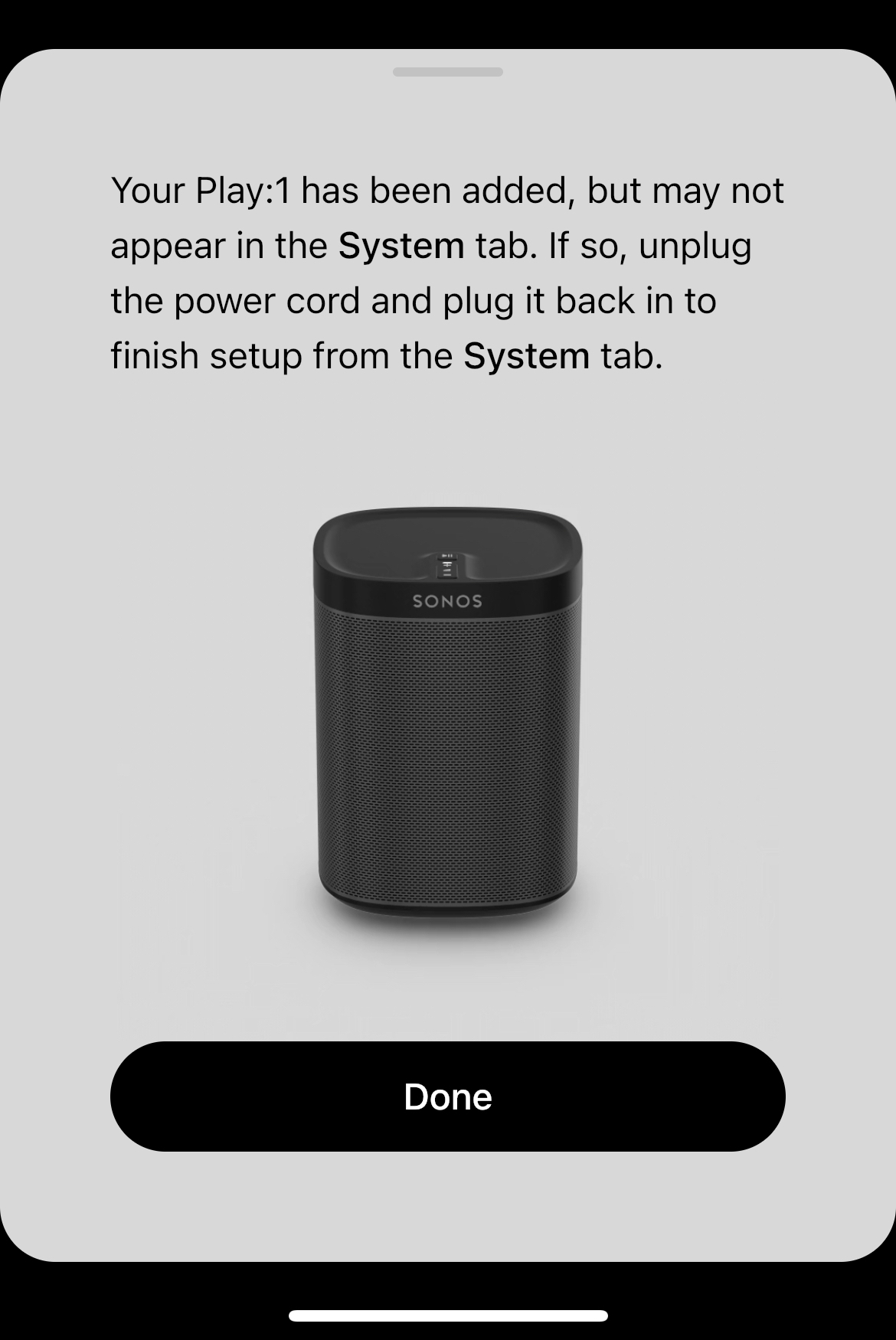
Network Connectivity Issues
- One of the most common reasons your Sonos speaker may not appear as configured is unstable or interrupted network connectivity. Sonos speakers rely on a stable Wi-Fi or Ethernet connection to communicate with your home network and the Sonos app. If the speaker loses connection, it may become temporarily invisible in the app.
- Check whether your router is functioning properly and broadcasting a strong Wi-Fi signal. Sonos speakers operate best on 2.4 GHz networks, as 5 GHz bands can have limited range and poor wall penetration, leading to dropped connections.
- Ensure that your Sonos speaker is within range of your router or connected to a Sonos Boost or Ethernet network extender for improved reliability, especially in larger homes where signal strength can diminish over distance.
App and Software Configuration Problems
- The Sonos app may not display your speaker correctly if the app itself isn't updated to the latest version. Outdated software can cause syncing errors or prevent the app from recognizing already configured speakers.
- Try closing and reopening the Sonos app, or completely uninstalling and reinstalling it to refresh the device list and clear any cache-related issues that could be blocking speaker detection.
- Ensure that your mobile device or computer is on the same network as the Sonos speaker. If you're connected to a guest network or a separate VLAN, the app may not be able to locate the speaker even if it's powered on and properly set up.
Hardware and Setup Misconfiguration
- Your Sonos speaker might not appear in the app if it hasn’t completed setup correctly. This can happen if the initial setup was interrupted, or if the speaker reset to factory settings due to a power surge or manual reset.
- Check the status light on your Sonos speaker—solid white usually indicates it's powered and connected, while flashing orange may mean it’s in setup mode or experiencing a hardware issue.
- Open the Sonos app and go to Settings > System > Manage > Devices. If your speaker appears as 'Offline' or isn't listed, you may need to go through the setup process again, following the on-screen instructions to reconnect and reconfigure the device.
Frequently Asked Questions
Why is my Sonos speaker showing Not Configured?
Your Sonos speaker shows Not Configured when it’s unpaired from your network or reset. This can happen after a power cycle, router change, or firmware update. The speaker needs to reconnect to your Wi-Fi and be set up again in the Sonos app. Ensure your mobile device is on the same network, then open the app to guide you through reconfiguration.
How do I fix a Sonos speaker that is not configured?
Open the Sonos app, ensure your phone is on the correct Wi-Fi, and follow the setup prompts for the unconfigured speaker. You may need to press the speaker’s join button if prompted. Make sure your router is active and the speaker is powered on. If issues persist, restart your router, try a different Ethernet cable (for Boost), or perform a factory reset and re-add the speaker.
Can I configure my Sonos speaker without the app?
No, you cannot fully configure a Sonos speaker without the Sonos app. The app is required to connect the speaker to your Wi-Fi network, assign it a name, and integrate it with other Sonos devices. While the speaker may power on, it remains Not Configured until processed through the app. Download the app on iOS or Android to complete setup.
What does a flashing white light mean on my Sonos speaker?
A flashing white light on a Sonos speaker typically indicates it’s in setup mode and not yet configured or has lost network connection. It means the device is ready to be set up via the Sonos app. Ensure your phone is on the same Wi-Fi network and open the app to proceed with configuration. A solid white light means it's successfully connected.
Leave a Reply