
Sonos Speakers Play 1 How To Connect
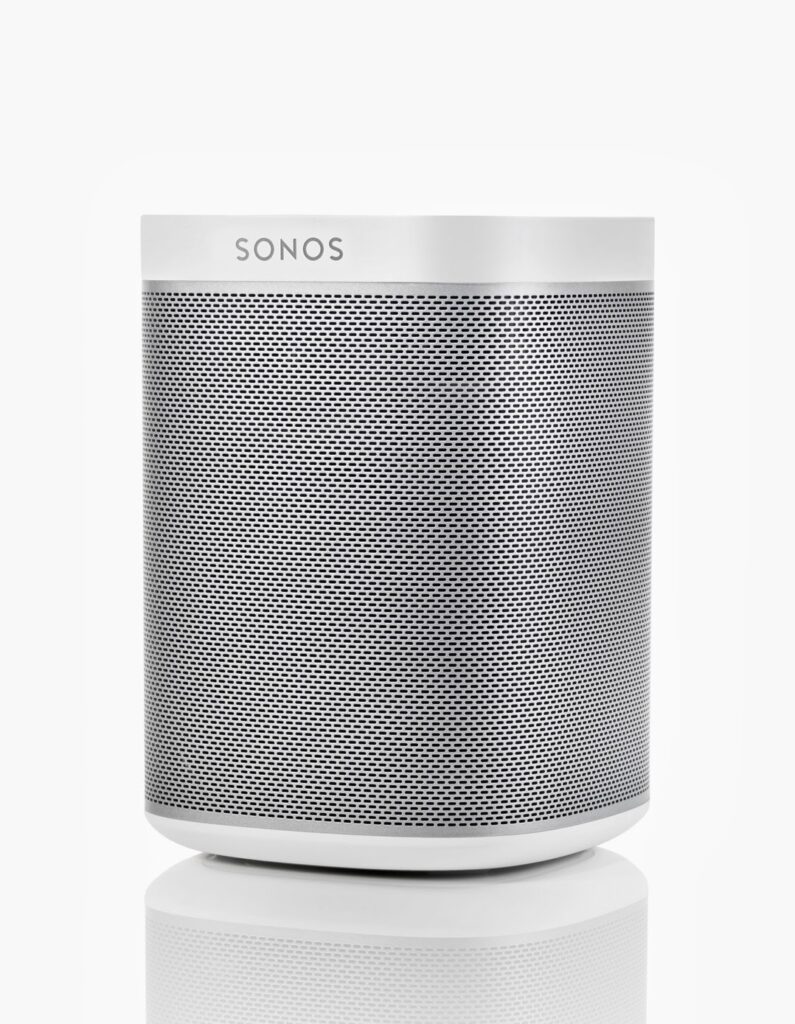
Setting up the Sonos Play 1 speaker is a straightforward process that enhances your home audio experience with seamless connectivity and rich sound quality.
Designed for effortless integration into any room, the Play 1 connects wirelessly through your home Wi-Fi network, allowing you to stream music from popular services, control volume via the Sonos app, and group with other Sonos speakers for whole-home audio.
Whether you're connecting the speaker for the first time or troubleshooting your setup, understanding the required steps—like powering the device, syncing with the app, and configuring network settings—is essential. This guide walks you through each phase to ensure smooth operation from the start.
 How To Connect PS5 To Bluetooth Speakers
How to Connect Your Sonos Play:1 Speaker to Your Network and Devices
Connecting your Sonos Play:1 speaker is a straightforward process designed to integrate seamlessly into your home audio setup. Whether you're setting it up for the first time or reconfiguring it on a new network, the Sonos Play:1 uses Wi-Fi instead of Bluetooth, which ensures stable, high-quality audio streaming.
The entire setup is managed through the Sonos app (available for iOS and Android), which guides you step by step through connecting the speaker to your Wi-Fi network.
You’ll need a working Wi-Fi network, a smartphone or tablet, and the Play:1 plugged into a power source. Once connected, the speaker can stream music from popular services like Spotify, Apple Music, Amazon Music, and more—either independently or as part of a multi-room Sonos system.
Setting Up the Sonos Play:1 Using the Sonos App
The primary method to connect your Sonos Play:1 is through the official Sonos app, which serves as the control center for all Sonos devices.
 How To Connect Speakers To Roku TV
Begin by downloading the Sonos app from the App Store or Google Play, then launch it and select Set up a new system. Follow the in-app prompts to create a Sonos account or log in if you already have one.
When asked to add a speaker, choose the Play:1, and the app will detect it over your network. The app then guides you through connecting the Play:1 to your Wi-Fi network by entering your network name (SSID) and password. Once connected, the app will test the connection and confirm system readiness.
Wired vs. Wireless Connection Options for Sonos Play:1
While the Sonos Play:1 is primarily a Wi-Fi-based speaker, it does not support direct Bluetooth pairing. However, it can be connected wirelessly to your home network or via Ethernet using the Ethernet port on the back for a more stable connection.
If you’re experiencing intermittent Wi-Fi signals, using an Ethernet cable provides a more reliable network connection, which is especially beneficial for high-bitrate audio streaming or when using multiple Sonos speakers.
 GTRacing Gaming Chair With Bluetooth Speakers How To Connect
Even when connected via Ethernet, the Play:1 still broadcasts audio within the Sonos ecosystem wirelessly, allowing you to control it from your mobile device or group it with other Sonos units.
Adding Music Services and Streaming to Your Play:1
After connecting your Sonos Play:1 to Wi-Fi, the next step is to add music services through the Sonos app. Navigate to Settings, then Music Services, and browse the list of available platforms such as Spotify, Apple Music, Pandora, and others. Log in to your accounts to sync them with your Sonos system.
Once added, you can select your preferred service within the app and choose the Play:1 as the playback device. The speaker supports multi-room playback, so you can group it with other Sonos speakers or play different music in different rooms simultaneously.
| Feature | Description | Importance for Setup |
|---|---|---|
| Sonos App | The central hub for setup, control, and music management. | Essential for initial configuration and ongoing use. |
| Wi-Fi Network | Required for wireless communication and streaming. | Must have a stable 2.4 GHz network; 5 GHz not supported directly. |
| Ethernet Port | Allows wired network connection on the back of Play:1. | Recommended for improved audio reliability and stability. |
| Music Services | Streaming platforms like Spotify, Apple Music, etc. | Enables direct access to your favorite music libraries. |
| Multi-Room Audio | Sync playback across multiple Sonos speakers. | One of the main advantages of the Sonos ecosystem. |
How to Connect Sonos Play 1 Speakers: A Step-by-Step Guide
Why is my Sonos Play 1 not connecting to my phone?

 How To Connect 2 Bluetooth Speakers To iPhone
Common Reasons Your Sonos Play 1 Won’t Connect to Your Phone
There are several potential causes when your Sonos Play 1 fails to connect to your phone. First, ensure that both your phone and the Sonos Play 1 are connected to the same Wi-Fi network, as mismatched networks are a frequent problem.
Second, outdated firmware on the speaker can interfere with device recognition and connection stability. Finally, Bluetooth is not supported by the Sonos Play 1 for audio streaming; it uses only Wi-Fi and must be controlled via the Sonos app over a shared network.
- Verify that both the Sonos Play 1 and your phone are on the same 2.4 GHz Wi-Fi band, as the speaker does not support 5 GHz networks in most cases.
- Check if the Sonos app shows the speaker as 'Not Connected' or displays a flashing amber light on the device, which indicates a setup or connectivity issue.
- Restart your phone, router, and Sonos Play 1 to clear any temporary network glitches or app-related bugs.
Steps to Reconnect Your Sonos Play 1 Using the Sonos App
Using the Sonos app properly is essential for establishing and maintaining a connection between your phone and the Play 1. Start by launching the Sonos app and confirming that your phone is connected to the correct Wi-Fi network. If the speaker doesn't appear, try adding it again through the app’s setup menu. Sometimes, removing the speaker from the app and re-adding it as a new device resolves persistent pairing issues.
- Open the Sonos app, go to Settings > System > Network > Wireless Settings, and reconfigure your Wi-Fi if necessary.
- Press and hold the Play/Pause button on the Sonos Play 1 for about 10 seconds until the light turns amber, putting it into setup mode.
- Follow the in-app setup steps to reconnect the speaker, ensuring you select the correct Wi-Fi credentials during configuration.
Network and Router Configuration Issues Affecting Sonos Connectivity
Your home network setup plays a critical role in Sonos device performance. Routers with overly strict firewall settings, MAC filtering, or guest network isolation can prevent the Sonos Play 1 from communicating with your phone. Additionally, some modern routers split the 2.4 GHz and 5 GHz bands under the same network name, causing connectivity drops since the Sonos Play 1 cannot operate on 5 GHz.
 How To Connect 2 Boom Speakers
- Access your router settings and ensure the 2.4 GHz band is enabled and broadcasting separately if band steering is active.
- Disable features like AP Isolation or Client Isolation that restrict device-to-device communication on the same network.
- Assign a static IP address to your Sonos Play 1 through your router’s DHCP reservation settings to prevent IP conflicts and improve connection reliability.
Frequently Asked Questions
How do I connect my Sonos Play 1 to Wi-Fi?
Download the Sonos app, open it, and follow the setup instructions. Ensure your mobile device is connected to Wi-Fi. The app will guide you to connect the Play 1 to your home network using your router’s Wi-Fi settings. You may need to temporarily connect the speaker via Ethernet for initial setup. Once connected, the app lets you manage playback, groups, and settings wirelessly.
Can I connect Sonos Play 1 with Bluetooth?
No, the Sonos Play 1 does not support Bluetooth connectivity. It connects exclusively via Wi-Fi or a wired Ethernet connection. To stream audio, use the Sonos app or compatible services like Spotify, Apple AirPlay 2 (on updated firmware), or via a home network. Bluetooth isn’t built into the Play 1, so wireless control relies on your home network rather than direct device pairing.
How do I connect multiple Sonos Play 1 speakers together?
Use the Sonos app to set up multiple Play 1 speakers on the same Wi-Fi network. During setup, each speaker appears in the app where you can group them. You can stereo pair two Play 1s or synchronize them across rooms. Once connected, control volume and playback individually or as a group directly from the app for a seamless multi-room audio experience.
What should I do if my Sonos Play 1 won’t connect to the network?
Restart your router, Play 1 speaker, and mobile device. Ensure the Sonos app is updated. Use Ethernet for the initial setup if Wi-Fi fails. Check that your router supports the required 2.4 GHz band and isn’t blocking connections. In the app, try “Forget This System” and restart setup. If issues persist, perform a factory reset by holding the Connect button for 10 seconds.
 Xbox One How To Connect Speakers
Leave a Reply