
How Do I Connect Bluetooth Speakers To My TV

Connecting Bluetooth speakers to your TV can significantly enhance your audio experience, offering clearer sound and greater flexibility in speaker placement.
While many modern TVs support Bluetooth connectivity, the process can vary depending on your TV’s brand, model, and operating system. Understanding how to pair your Bluetooth speakers correctly ensures seamless integration and optimal performance.
This guide walks you through the essential steps, from enabling Bluetooth on your television to troubleshooting common connection issues. Whether you're using a smart TV, a streaming device, or an external adapter, you'll find practical tips to achieve a stable wireless connection and enjoy immersive sound without the clutter of wires.
 How Can I Connect Old Speakers To Computer
How to Connect Bluetooth Speakers to Your TV
Connecting Bluetooth speakers to your TV can significantly enhance your audio experience, especially if your TV has weak built-in speakers or lacks support for advanced sound formats. Most modern smart TVs come with built-in Bluetooth functionality, allowing you to pair compatible audio devices wirelessly.
To establish a connection, start by ensuring that both your TV and Bluetooth speaker are powered on and within range—typically within 30 feet without major obstructions. Access your TV’s settings menu, navigate to the Bluetooth or Sound output options, and enable Bluetooth discovery mode. Your TV should then scan for available devices.
Select your Bluetooth speaker from the list when it appears. Once paired, the audio output from your TV will be routed to the speaker. If your TV does not support Bluetooth natively, you can use a Bluetooth transmitter connected to the TV’s audio output (such as a 3.5mm headphone jack, optical audio port, or HDMI ARC) to enable wireless audio transmission.
Check If Your TV Supports Bluetooth
Before attempting to pair a Bluetooth speaker, confirm whether your TV has built-in Bluetooth capabilities. You can usually find this information in your TV’s user manual or by navigating to the settings menu—look for options like Sound, Audio Output, or Device Connections.
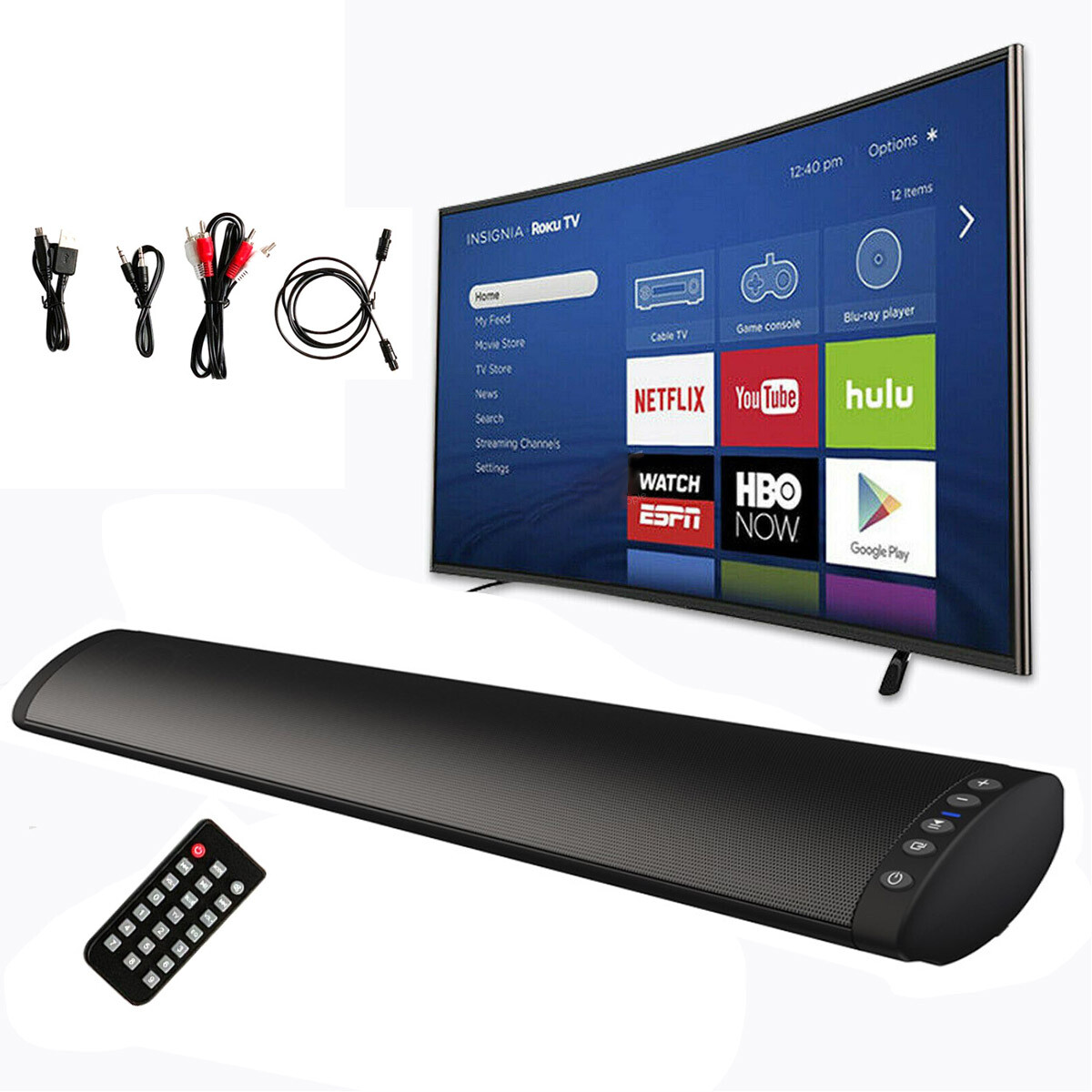 How Can I Connect Wireless Speakers To My TV
If you see a Bluetooth or Wireless Connection section, your TV likely supports Bluetooth pairing. Common brands such as Samsung, LG, and Sony include Bluetooth in many of their newer models.
If your TV lacks Bluetooth, don’t worry—there are still ways to connect wireless speakers using external adapters. Knowing your TV’s capabilities upfront will save time and help you choose the correct method for connecting your audio device.
Pairing Your Bluetooth Speaker to the TV
To pair your Bluetooth speaker, first put the speaker into pairing mode—refer to its manual, as the process varies by brand and model (often involving holding down a power or Bluetooth button until a light flashes). On your TV, go to Settings > Sound > Bluetooth Devices (or similarly named options), then select Scan or Add Device.
Once your speaker appears in the device list, highlight it and select Pair or Connect. The TV will attempt to establish a connection, and upon success, you should hear an audio confirmation or see a connected status. If pairing fails, ensure the speaker isn’t already connected to another device, is fully charged, or try resetting the Bluetooth settings on your TV.
 How Connect TV To Speakers
Using a Bluetooth Transmitter for Non-Bluetooth TVs
If your TV doesn’t have Bluetooth, a Bluetooth transmitter is an effective solution. These small devices plug into your TV’s audio output—such as the 3.5mm headphone jack, optical audio port, or HDMI ARC—and wirelessly send audio to Bluetooth speakers or headphones.
Simply connect the transmitter to the appropriate port, power it (usually via USB), and put it into pairing mode. Then, activate pairing mode on your speaker and follow the transmitter’s instructions to link the devices. This method offers a reliable workaround for older TVs and maintains high audio quality, especially models supporting aptX or AAC codecs.
| Connection Method | Required Equipment | Best For |
|---|---|---|
| Direct Bluetooth Pairing | TV with built-in Bluetooth, Bluetooth speaker | Modern smart TVs with native wireless audio support |
| Bluetooth Transmitter via 3.5mm | Bluetooth transmitter, 3.5mm audio cable | Older TVs with headphone jack |
| Optical to Bluetooth Adapter | Optical cable, Bluetooth transmitter with optical input | TVs with digital audio output but no Bluetooth |
Step-by-Step Guide to Connecting Bluetooth Speakers to Your TV
How to Connect Bluetooth Speakers to Your TV: A Step-by-Step Guide

Check Your TV and Speaker Compatibility
Before attempting to connect Bluetooth speakers to your TV, it's essential to verify compatibility between both devices. Not all TVs support Bluetooth audio output, especially older models or certain budget-friendly brands.
 How Do Banana Plugs Connect To Speakers
To confirm if your TV has built-in Bluetooth, navigate to the settings menu and look for a Bluetooth or Sound option. If you find a section labeled Audio Output or Sound Output, check whether Bluetooth devices are listed as an available option. Similarly, ensure your Bluetooth speaker supports standard audio profiles like A2DP for high-quality streaming.
If your TV lacks native Bluetooth, consider using a Bluetooth audio transmitter that plugs into the TV’s audio output jack, such as an optical, 3.5mm, or RCA port. Once compatibility is confirmed, power on both devices and ensure the speaker is in pairing mode, typically indicated by flashing lights or an audible tone.
- Determine if your TV supports Bluetooth audio output by checking the Settings > Sound > Audio Output menu.
- Verify that your Bluetooth speaker is compatible with A2DP for stereo sound streaming.
- If the TV doesn’t have built-in Bluetooth, purchase a Bluetooth transmitter that connects via optical, AUX, or USB.
Enable Pairing Mode on Your Bluetooth Speaker
Activating pairing mode on your Bluetooth speaker is a crucial step to establish a successful connection with your TV. The method to enter pairing mode varies by manufacturer and model, but most speakers require you to press and hold the Bluetooth or power button for several seconds until an indicator light starts blinking rapidly or you hear a voice prompt indicating pairing mode is active.
Consult your speaker’s user manual if the process isn’t obvious. During this time, keep the speaker within close proximity to the TV—ideally within 3 to 10 feet (1 to 3 meters)—to ensure a strong signal.
 How Do I Connect 2 Bluetooth Speakers To My iPhone
Avoid interference from other wireless devices like Wi-Fi routers or microwaves. Once the speaker is ready, return to your TV’s Bluetooth settings to initiate the search for available devices. Some TVs may automatically detect the speaker, while others require you to manually select Search for Devices or Pair New Device.
- Press and hold the Bluetooth button on the speaker until the LED blinks rapidly, indicating pairing mode.
- Keep the speaker within close range of the TV to ensure a reliable connection during pairing.
- Minimize wireless interference by turning off or relocating other electronic devices nearby.
Pair the Speaker Through Your TV’s Bluetooth Menu
With your Bluetooth speaker in pairing mode, access the Bluetooth settings on your TV to complete the connection process. Open the settings menu using your remote, navigate to Sound or Audio Settings, and select Bluetooth Devices or Device Connection. Choose the option to scan for new devices.
Your TV will display a list of detectable Bluetooth devices; locate your speaker by its model name or brand identifier. Select the speaker from the list, and the TV will attempt to pair. Depending on the system, you may be prompted to confirm a passcode or automatically complete the pairing without input.
Once connected, the TV usually shows a confirmation message such as “Device Connected” or “Audio is now playing through selected device.” After pairing, test the audio by playing a video or adjusting the volume through the TV remote to ensure sound is properly routed.
 How Do I Connect Bluetooth Speakers To My Computer
- Go to TV Settings > Sound > Bluetooth Devices and select “Search for Devices.”
- Choose your speaker from the list of detected devices when it appears.
- Wait for the on-screen confirmation and test playback to verify sound output through the speaker.
Frequently Asked Questions
How can I check if my TV supports Bluetooth?
Most modern smart TVs have built-in Bluetooth. To check, go to your TV’s settings menu, look for a Sound or Devices section, and see if there’s a Bluetooth option. If available, you can pair Bluetooth speakers directly. If your TV doesn’t support Bluetooth, you can use a Bluetooth transmitter plugged into the audio output port for wireless connectivity.
What steps do I need to follow to pair Bluetooth speakers with my TV?
First, put your Bluetooth speakers in pairing mode. Then, on your TV, go to Settings > Sound > Bluetooth Devices. Select Scan or Add Device, and choose your speaker from the list. Once connected, audio will play through the speakers. Make sure the TV and speakers are close and within range during pairing, and confirm the connection by playing a sound to ensure proper setup.
Why won’t my Bluetooth speakers connect to my TV?
Connection issues may occur due to distance, interference, or incompatibility. Ensure both devices are close, powered on, and in pairing mode. Restart your TV and speaker, and forget previous connections. Check if your TV’s Bluetooth is enabled and supports the speaker’s profile. If problems persist, update your TV’s firmware or use a third-party Bluetooth transmitter for better compatibility.
Can I use any Bluetooth speaker with my TV?
Most Bluetooth speakers are compatible with TVs that have Bluetooth, but ensure your TV supports Bluetooth audio output. Some older or budget models may lack this feature. Speakers using standard Bluetooth profiles like A2DP work best. If your TV doesn’t support Bluetooth, use a Bluetooth transmitter via the headphone or optical audio output to connect virtually any Bluetooth speaker wirelessly.
 How Do I Connect Bluetooth Speakers To My PC
Leave a Reply