
How To Connect 2 LG XBoom Speakers
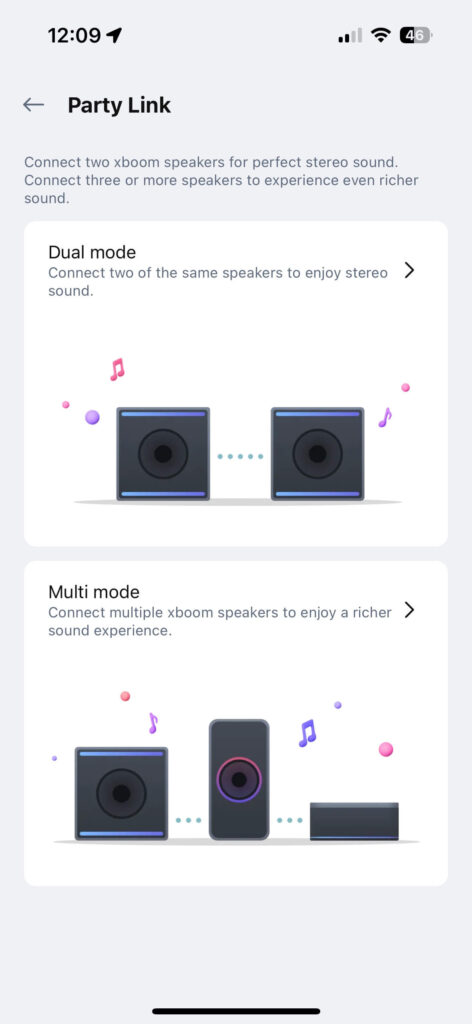
Connecting two LG XBoom speakers allows you to experience immersive, stereo-like sound for a richer audio experience.
Whether you're hosting a party or simply enjoying music at home, pairing these powerful speakers enhances volume and sound distribution. The process is straightforward and relies on built-in Bluetooth or wireless multi-connect features, depending on the model.
By synchronizing both speakers, you can create a seamless audio setup that plays the same track simultaneously. This guide walks you through the necessary steps, including preparing your devices, enabling pairing mode, and ensuring stable connectivity for uninterrupted playback.
 How To Connect Wireless Microphone To Speakers
How to Connect Two LG XBoom Speakers for Enhanced Audio Experience
Connecting two LG XBoom speakers allows you to create a more immersive sound environment by pairing them for stereo or amplified mono playback. This process typically leverages the Bluetooth multi-speaker pairing capability, which LG integrates into many of its XBoom models.
Whether you aim to boost volume for a party or achieve a wider soundstage, pairing two compatible LG XBoom speakers is a straightforward process that can be completed in just a few steps using the built-in wireless features. It's essential to ensure both speakers are of compatible models, fully charged, and within close proximity to ensure a stable connection.
Step-by-Step Guide to Pair Two LG XBoom Speakers via Bluetooth
To begin pairing two LG XBoom speakers, first power on both units and place them within 1 meter of each other to maintain a strong Bluetooth signal.
Press and hold the Bluetooth button on the primary speaker until you hear a tone or see the indicator flashing rapidly—this puts it into pairing mode. Next, do the same for the second speaker. Some models automatically detect and pair with another XBoom when both are in pairing mode.
 How To Connect Wireless Speakers To TV
Once the speakers are successfully linked, you will hear a confirmation tone or see a solid Bluetooth light. After pairing, connect your audio source (such as a smartphone or tablet) to the primary speaker, and the sound will be transmitted to both units seamlessly. This method supports true wireless stereo (TWS) on supported models, allowing for distinct left and right audio channels.
Understanding TWS (True Wireless Stereo) Mode on LG XBoom Speakers
TWS mode is a key feature that enables two LG XBoom speakers to function together as a stereo pair, with one handling the left audio channel and the other the right.
Not all LG XBoom models support TWS, so it's important to verify compatibility with your specific model (e.g., models like the LG XBoom OK55 or XBoom GO PL7 often include this function). To activate TWS, use the LG XBoom app (if available) or follow the hardware-based pairing method outlined in the user manual.
Once TWS mode is enabled, the stereo effect greatly improves music clarity and spatial depth, making it ideal for outdoor gatherings or home entertainment. The seamless synchronization between speakers ensures low latency audio distribution, preserving the integrity of your music feed.
 Mixer How To Connect A Powered Subwoofer To Passive Speakers
Troubleshooting Common Connection Issues Between LG XBoom Speakers
Despite the simplicity of pairing, users might encounter issues like failed connections, audio dropouts, or one speaker failing to sync.
First, ensure both speakers are updated to the latest firmware via the LG XBoom app or by connecting to a computer. Resetting the Bluetooth settings by turning off both speakers, then turning them on and repeating the pairing steps often resolves connectivity hiccups.
Also, avoid interference from other wireless devices by limiting the number of active Bluetooth connections nearby. If the speakers still won’t pair, try forgetting previous pairings from your source device and restarting the process. Keeping speakers within optimal range—no more than 10 meters with minimal obstructions—can drastically improve connection stability.
| Feature | Supported? | Notes |
|---|---|---|
| Bluetooth Pairing | Yes | Standard on all XBoom models; required for dual-speaker setup |
| TWS (True Wireless Stereo) | Model-dependent | Available on select models like PL7, OK55, PK3 |
| Wired Connection Option | No | Only wireless (Bluetooth) pairing is supported between speakers |
| App Control | Limited | LG XBoom app enhances setup and firmware updates |
| Range Between Speakers | Up to 10 m | Optimal performance within line of sight |
How to Connect Two LG XBoom Speakers for a Dual Audio Experience
How to wirelessly pair two LG Xboom speakers for stereo sound?

 Acoustic Audio Speakers How To Connect
Check Speaker Compatibility and Requirements
Before attempting to pair two LG Xboom speakers for stereo sound, it is essential to verify that both speakers support the feature.
Not all LG Xboom models are capable of wireless stereo pairing. Confirm that your models are from the same series and support the Stereo Pairing or Wireless Stereo Mode function, typically found in higher-end models like the XBoom Go PL5, PL7, or similar.
Ensure both speakers are charged or connected to a power source, are turned on, and are placed within close proximity—ideally no more than 10 meters apart without physical obstructions. Additionally, make sure neither speaker is already connected to another device or in party mode, as this can interfere with stereo pairing.
- Identify the exact model numbers of both LG Xboom speakers and verify stereo pairing compatibility via the official LG website or user manual.
- Charge both speakers fully to prevent interruptions during setup.
- Turn on both speakers and ensure Bluetooth is enabled and set to discoverable mode.
Enable Wireless Stereo Mode Using the LG Xboom App
The most reliable method to pair two LG Xboom speakers for stereo sound is by using the official LG Xboom app, available for both Android and iOS devices.
 Acoustic Research Wireless Speakers How To Connect
Download and install the app from the Google Play Store or Apple App Store, then connect your smartphone or tablet to one of the speakers via Bluetooth. Open the app and navigate to the Multi-Speaker or Stereo Pairing section.
From there, select Create Stereo Pair and follow the on-screen instructions to locate and connect the second speaker. The app will allow you to assign one speaker as the left channel and the other as the right channel, establishing a true stereo experience. Once paired, the app will confirm the setup and allow volume and playback control from a single point.
- Download and install the LG Xboom app on a compatible mobile device.
- Pair your phone to one of the speakers via Bluetooth and open the app.
- Use the app's stereo pairing feature to detect the second speaker and assign left/right audio channels.
Some LG Xboom models support stereo pairing directly through physical buttons without requiring a smartphone app. To use this method, power on both speakers and locate the pairing or function button, often labeled Party or Connect.
Press and hold the pairing button on the first speaker for about 5 seconds until you hear a tone or see a blinking light pattern indicating pairing mode. Repeat the same process on the second speaker. The speakers should detect each other and synchronize automatically.
 Altec Lansing Computer Speakers How To Connect
One speaker will usually indicate it is now the left channel while the other takes the right channel. After the pairing is complete, you can play audio from a Bluetooth source, and the sound will be distributed in stereo across both units.
- Turn on both speakers and locate the pairing button, typically near other control buttons on the top panel.
- Press and hold the pairing button on the first speaker for 5 seconds until an audio or visual cue confirms pairing mode.
- Repeat the same step on the second speaker to complete the wireless stereo connection.
Frequently Asked Questions
How do I pair two LG XBoom speakers together?
To pair two LG XBoom speakers, ensure both are turned on and in Bluetooth pairing mode. Press and hold the Bluetooth and Volume + buttons simultaneously on both speakers until you hear a pairing tone. Use your smartphone to connect to one speaker, then enable Party Boost or Sound Sync in the LG XBoom app. The speakers will sync wirelessly for stereo or amplified sound.
Can I connect LG XBoom speakers using Bluetooth without an app?
Yes, you can connect two LG XBoom speakers via Bluetooth without the app if they support LG’s Party Boost or Wireless Party Chain feature. Turn on both speakers and press the Bluetooth and Volume + buttons together until the pairing sound plays. Once linked, connect your audio source to one speaker—it will automatically route sound to both without needing additional apps or settings.
What is the range for connecting two LG XBoom speakers wirelessly?
The wireless connection range between two LG XBoom speakers is typically up to 30 feet (about 10 meters) in open space. Walls, obstacles, or interference from other wireless devices may reduce this range. For best performance, keep the speakers within line of sight and minimize obstacles. A stable connection ensures synchronized playback without audio lag or dropouts.
 Amplifier How To Connect Speakers To TV
Why won’t my two LG XBoom speakers connect?
Your LG XBoom speakers may fail to connect due to outdated firmware, Bluetooth interference, or incorrect pairing steps. Ensure both speakers are fully charged, in pairing mode, and support multi-speaker functionality. Restart both units and reattempt the pairing process. Also, disconnect other Bluetooth devices nearby. Updating the firmware via the LG XBoom app may also resolve connectivity issues.
Leave a Reply