
Sonos Speakers How To Connect To Phone
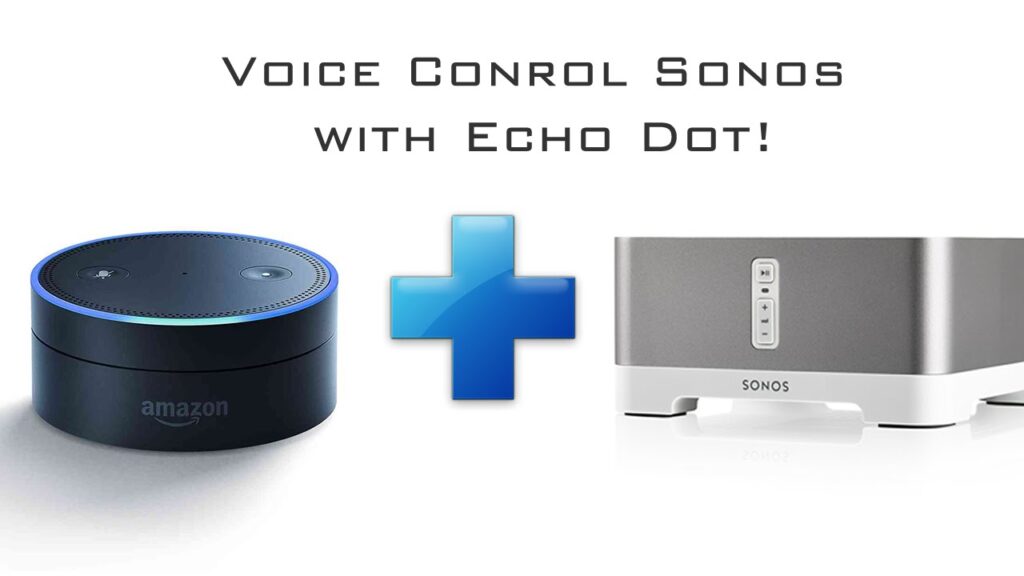
Connecting your Sonos speakers to your phone enhances your audio experience by providing seamless access to your favorite music, podcasts, and apps.
Whether you're using an iPhone or an Android device, Sonos offers a user-friendly process that requires the Sonos app and a stable Wi-Fi connection. From initial setup to navigating playback options, the integration allows for convenient wireless control.
This guide walks you through each step, ensuring you can stream content effortlessly from your smartphone to your Sonos system. Discover how to pair devices, troubleshoot common issues, and optimize settings for the best sound quality directly from your pocket.
 How To Connect 2 Bluetooth Speakers To iPhone
How to Connect Your Sonos Speakers to Your Phone
Connecting your Sonos speakers to your phone allows you to stream music, podcasts, and other audio content seamlessly using your preferred apps. Whether you're using an iPhone or an Android device, the Sonos system is designed for intuitive wireless setup through the free Sonos app.
This app acts as the central hub for managing your speakers, enabling you to control volume, group speakers, and select audio sources directly from your phone. The connection process generally relies on your home Wi-Fi network rather than Bluetooth (except for select Sonos models like the Sonos Roam and Move), which ensures higher audio quality and broader range.
To begin, make sure your phone and Sonos speaker are connected to the same Wi-Fi network, download the Sonos app, and follow the on-screen setup instructions to add your speaker to the system.
Setting Up the Sonos App on Your Phone
To connect your Sonos speaker to your phone, the first step is downloading and installing the Sonos app from either the Apple App Store or Google Play Store.
 How To Connect 2 Boom Speakers
Once installed, open the app and create a Sonos account or sign in if you already have one. The app will automatically search for any Sonos devices on the same Wi-Fi network. Follow the guided prompts to power on your speaker and complete the network configuration.
During setup, you may need to press a join button on certain Sonos models to confirm pairing. The app provides real-time feedback to ensure each step is completed correctly, making the setup process user-friendly for both beginners and advanced users. After setup, your phone becomes a remote control for your entire Sonos system.
Using Wi-Fi vs. Bluetooth for Sonos Connections
Most Sonos speakers connect via Wi-Fi, not Bluetooth, to deliver higher sound quality and support multi-room audio synchronization. This means your Sonos speaker and phone must be on the same wireless network to communicate effectively.
The Sonos app uses your Wi-Fi network to transmit audio signals from your phone to the speaker, allowing you to stream from services like Spotify, Apple Music, or YouTube Music without loss of quality.
 Xbox One How To Connect Speakers
However, newer portable models such as the Sonos Roam and Sonos Move do support Bluetooth for direct connections when Wi-Fi is unavailable. While Bluetooth offers convenience on the go, it’s recommended to use Wi-Fi for the best audio experience and full access to Sonos features like voice control and speaker grouping.
Streaming Music from Your Phone to Sonos
Once your Sonos speaker is set up and connected to Wi-Fi, you can stream music directly from your phone using various methods.
The most common way is through the Sonos app, where you can browse your music library or linked streaming services. Alternatively, many apps support AirPlay 2 (on iOS) or Sonos Cast (on Android and iOS), allowing you to tap a share or cast icon within the app to send audio to your Sonos speaker.
You can also use voice assistants like Amazon Alexa or Google Assistant through your phone to control playback. No matter the method, the Sonos system ensures smooth, high-definition audio streaming with minimal latency and full remote control capabilities from your mobile device.
 X Rocker Gaming Chair With Speakers How To Connect
| Connection Method | Compatibility | Key Advantages |
|---|---|---|
| Wi-Fi (via Sonos App) | All Sonos speakers | Supports multi-room audio, high-quality streaming, and full app control |
| Bluetooth | Sonos Roam, Sonos Move only | Useful for outdoor or off-network playback; direct connection |
| AirPlay 2 | iOS devices and AirPlay-compatible Sonos speakers | Seamless integration with Apple ecosystem; easy audio sharing |
| Sonos Cast | Android and iOS with Sonos-compatible apps | Allows casting from supported music and podcast apps directly |
How to Connect Sonos Speakers to Your Phone: A Step-by-Step Guide
Can Sonos speakers pair with a phone via Bluetooth?

Yes, most Sonos speakers do not support pairing directly with a phone via Bluetooth. Sonos products are primarily designed to operate over Wi-Fi using the Sonos app for audio streaming, which allows for multi-room functionality, higher audio quality, and better overall integration across devices.
While Bluetooth is a common feature in many standalone smart speakers, Sonos has chosen to focus on Wi-Fi-based connectivity to maintain consistent performance and system-wide synchronization. There is, however, one exception to this rule.
Which Sonos Speakers Support Bluetooth?
- The Sonos Move is the only Sonos speaker that supports Bluetooth connectivity. This portable speaker was specifically engineered for flexibility, allowing it to function both indoors and outdoors even when not connected to Wi-Fi.
- When using Bluetooth, the Sonos Move can directly pair with a smartphone, tablet, or other Bluetooth-enabled devices for audio playback without requiring a Wi-Fi network.
- It's important to note that while Bluetooth works for direct streaming, certain features such as multi-room audio, TruePlay tuning, and voice assistant access (like Alexa or Google Assistant) are disabled when the speaker is in Bluetooth mode.
How to Connect the Sonos Move via Bluetooth
- To pair your phone with the Sonos Move using Bluetooth, first press and hold the Bluetooth button located on the back of the speaker until the status light begins to blink blue.
- On your smartphone, go to the Bluetooth settings, turn on Bluetooth, and select Sonos Move from the list of available devices.
- Once connected, audio from your phone will play directly through the Sonos Move. To return to Wi-Fi mode, press the Bluetooth button again and reconnect through the Sonos app for full feature access.
Why Don't Other Sonos Speakers Use Bluetooth?
- Sonos made a strategic decision early on to prioritize Wi-Fi over Bluetooth to enable synchronized multi-room audio, which Bluetooth often struggles with due to latency and bandwidth limitations.
- Wi-Fi allows Sonos speakers to stream high-resolution audio from multiple sources, including music services like Spotify, Apple AirPlay 2, and other networked media players, providing a more robust and reliable experience.
- Additionally, the Sonos ecosystem relies on stable network connections to support software updates, voice assistant features, and integration with smart home platforms—functions that are more efficiently managed over Wi-Fi than Bluetooth.
Frequently Asked Questions
How do I connect my Sonos speaker to my phone via Wi-Fi?
To connect your Sonos speaker to your phone via Wi-Fi, download the Sonos app, power on the speaker, and follow the in-app setup. The app will guide you to connect the speaker to your home Wi-Fi network. Ensure your phone is on the same network. Once configured, you can control playback and stream music directly from your phone through the Sonos app or supported services like Spotify or Apple Music.
 Vifa Speakers How To Connect
Can I connect my Sonos speaker to my phone using Bluetooth?
No, most Sonos speakers do not support Bluetooth connectivity. Sonos relies exclusively on Wi-Fi for streaming audio. To play music from your phone, use the Sonos app or AirPlay 2 (on compatible models) over the same Wi-Fi network. This allows for higher-quality audio and multi-room functionality. Always ensure your phone and speaker are connected to the same Wi-Fi network for seamless control and streaming.
How do I play music from my iPhone on a Sonos speaker?
To play music from your iPhone on a Sonos speaker, ensure both devices are on the same Wi-Fi network. Open a supported app like Apple Music, Spotify, or Podcasts, start playback, then tap the AirPlay icon and select your Sonos speaker. Alternatively, use the Sonos app to browse and stream music. AirPlay 2 is required for this feature and is available on newer Sonos models.
Why won’t my Sonos speaker connect to my phone?
If your Sonos speaker won’t connect to your phone, first ensure both are on the same Wi-Fi network. Restart the Sonos speaker and your phone. Check for app or firmware updates in the Sonos app. Make sure your Wi-Fi is stable and functioning. If issues persist, reset the speaker and go through the setup process again. Poor network signals or outdated software are common causes of connection problems.
 USB Speakers For PC How To Connect
Leave a Reply