
Only Stereo In Speaker Configuration
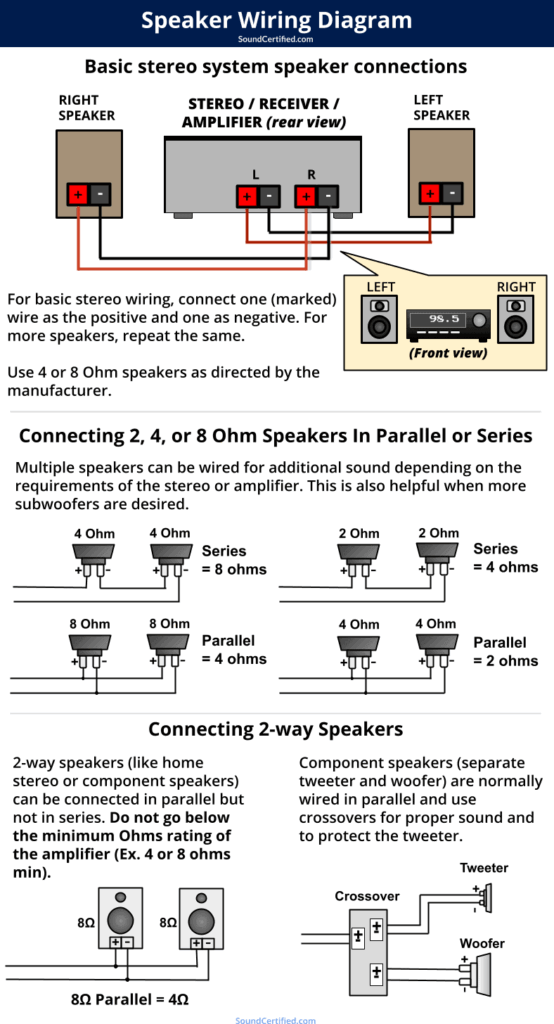
When configuring audio systems, the choice of speaker setup significantly impacts sound quality and listening experience.
The Only Stereo speaker configuration remains a popular and effective option for both casual listeners and audiophiles. This setup utilizes just two channels—left and right—to create a balanced, spatial soundstage.
Despite advancements in surround sound and multi-channel audio, stereo maintains its relevance due to its simplicity, accuracy, and ability to deliver rich, immersive audio without complex wiring or additional speakers.
 What Speaker Configuration Should I Use For Headphones
Ideal for music playback and smaller environments, a well-calibrated stereo system can outperform more elaborate setups, proving that sometimes, less truly is more in the pursuit of sonic excellence.
Understanding Only Stereo In Speaker Configuration
The phrase Only Stereo In Speaker Configuration typically appears in audio system settings or during setup processes, indicating that the available or detected audio output is limited to a stereo (2.0) format. This means the system recognizes only two discrete audio channels — left and right — and does not support more advanced speaker arrangements such as 5.1, 7.1, or surround sound.
This limitation can occur for a variety of reasons, including hardware constraints (such as sound cards or audio interfaces that only support stereo output), cabling issues, driver misconfigurations, or software settings that disable multi-channel audio.
It is commonly encountered in operating systems like Windows, audio playback software, or AV receivers when attempting to configure a home theater or professional audio setup. Users aiming for an immersive audio experience may find this restriction limiting and will need to investigate both hardware compatibility and software configuration to expand beyond stereo output.
 Windows 11 5.1 Speaker Configuration
Common Causes of Stereo-Only Audio Output
Stereo-only audio output can stem from several technical factors, both at the hardware and software levels. One of the primary causes is the type of audio connection being used; for instance, a standard 3.5mm analog jack or basic HDMI connection without proper Handshake Protocol support may restrict the system to stereo transmission only.
Additionally, outdated, missing, or incorrect audio drivers can prevent the operating system from recognizing multi-channel capabilities. Certain audio formats, like compressed stereo streams in media files or streaming platforms, might not contain surround sound data, prompting the system to default to stereo.
Furthermore, some applications or playback software enforce stereo output unless explicitly configured otherwise. Troubleshooting this issue requires verifying connection types, updating drivers, checking source content, and ensuring that all components in the audio chain support and are configured for multi-channel output.
How to Check and Modify Speaker Configuration Settings
To verify and change your speaker configuration, begin by accessing the sound settings in your operating system. On Windows, go to Settings > System > Sound > Advanced sound options > Sound Control Panel, then select your playback device and click Configure. This opens the speaker configuration wizard, where you can choose between stereo, 5.1, 7.1, or other layouts.
 Windows 11 Speaker Configuration
If only the stereo option is available, it may indicate that the system does not detect multi-channel support. Ensure your audio driver is up to date and from a trusted source — such as Realtek, NVIDIA HD Audio, or your motherboard manufacturer. For HDMI or S/PDIF connections, verify in your GPU or audio device settings that bitstream output or multi-channel LPCM is enabled.
On macOS, check System Settings > Sound > Output and confirm the configured device supports and is set to output more than stereo, if applicable. Correct configuration at both OS and application levels is essential for unlocking surround sound capabilities.
Hardware and Connection Requirements for Multi-Channel Audio
Achieving audio beyond stereo requires compatible hardware, cabling, and proper signal routing. For systems aiming to support 5.1 or 7.1 surround sound, the audio source (PC, gaming console, Blu-ray player) must have a sound card or onboard audio that supports multi-channel LPCM or encoded formats like Dolby Digital or DTS.
The connection method is equally critical: while analog connections using multiple 3.5mm jacks can support multi-channel audio, HDMI is the most reliable for transmitting high-bandwidth, uncompressed surround formats. Optical (TOSLINK) connections can carry compressed surround but often do not support high-resolution lossless formats.
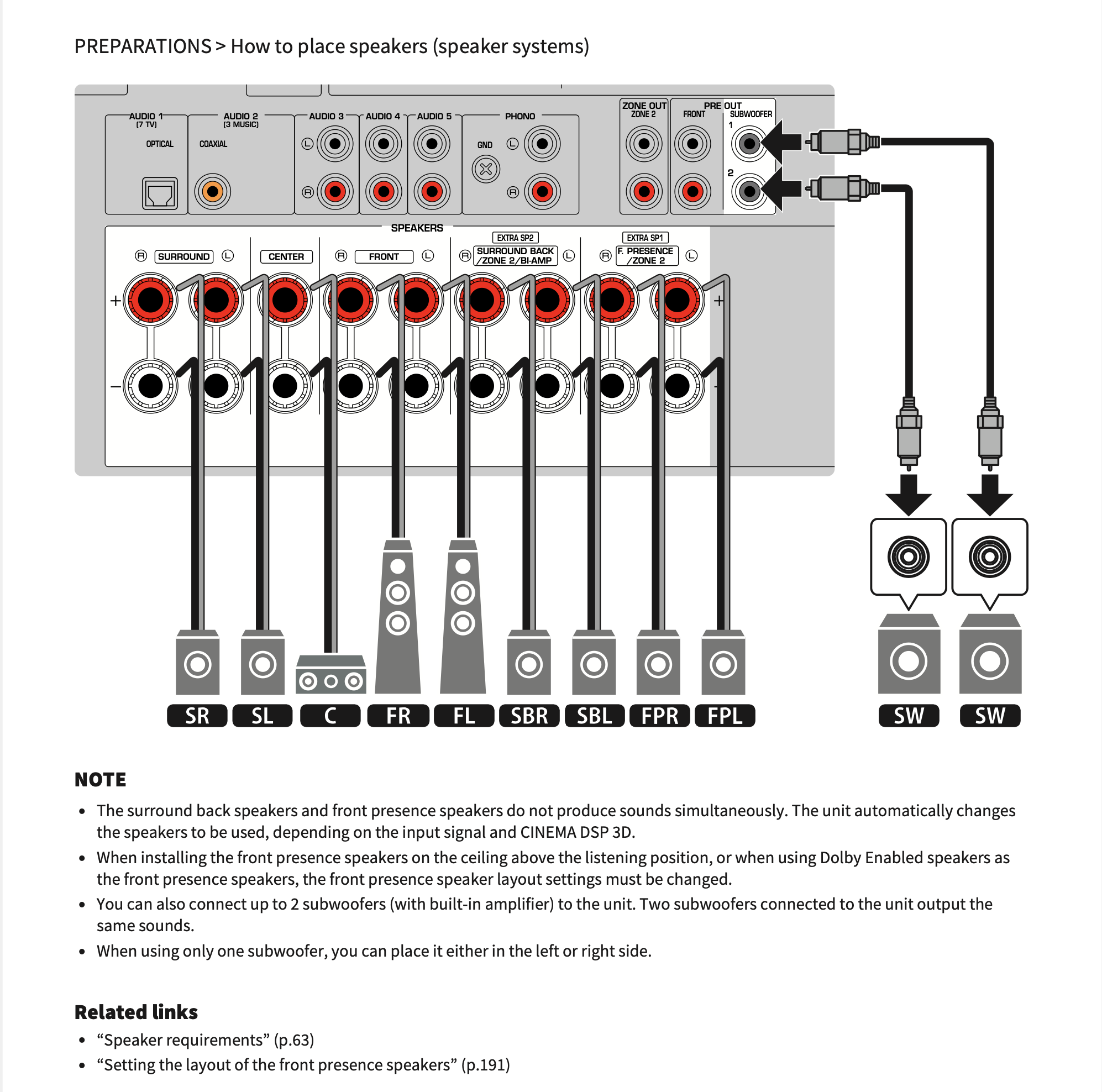 Yamaha Receiver Speaker Configuration
Additionally, your receiver or speaker system must be capable of decoding and outputting multi-channel audio. Cables must be of adequate quality and firmly connected, as poor connections can force fallback to stereo. Ensuring all components — from source to amplifier to speakers — are properly matched and configured is essential for moving beyond stereo-only setups.
| Factor | Impact on Stereo-Only Limitation | Solution |
|---|---|---|
| Audio Connection Type | 3.5mm or basic HDMI may only carry stereo signals | Use HDMI with ARC/eARC or multi-pin analog cables |
| Audio Drivers | Outdated drivers disable multi-channel detection | Update to latest manufacturer-specific drivers |
| Playback Device Settings | Default configuration may restrict to stereo | Enable bitstream output or multi-channel LPCM |
| Source Content | Movies or files without surround audio default to stereo | Use content with Dolby Digital or DTS encoding |
| Receiver/Speaker System | System not configured for surround mode | Verify correct input mode and speaker setup on receiver |
Understanding Only Stereo In Speaker Configuration: A Detailed Guide
What does stereo only mean in speaker configuration settings?

The term stereo only in speaker configuration settings refers to an audio output mode that limits playback to two discrete audio channels: left and right.
This setting ensures that only the front left and front right speakers (or stereo headphones) are used to deliver sound, regardless of whether additional speakers such as center, surround, or subwoofer are physically present in the system. It is commonly found in audio control panels for sound cards, AV receivers, or software-based audio drivers.
 Yamaha Speaker Configuration
When stereo only is enabled, any multichannel audio signal—such as 5.1 or 7.1 surround sound—is downmixed into a two-channel stereo format. This guarantees compatibility with stereo playback systems and avoids any potential issues with missing or improperly configured surround speakers.
How Stereo Only Affects Audio Signal Processing
- When stereo only is active, the audio device ignores any additional channels beyond the left and right front outputs, effectively disabling center, surround, and subwoofer channels in a multichannel setup.
- The system applies downmixing algorithms to convert multichannel sources—like surround-encoded movies or games—into a two-channel format that preserves a balanced stereo image.
- This mode prevents audio from being routed to speakers that may not be properly calibrated or connected, ensuring consistent and reliable sound reproduction through basic stereo hardware.
Common Use Cases for Stereo Only Mode
- Users with basic two-speaker setups or headphones often select stereo only to avoid audio dropouts or errors that can occur when the system expects multiple speakers that aren't present.
- It is frequently used in desktop computing environments where surround sound capability is either unnecessary or unsupported by the hardware or drivers.
- Some music playback scenarios benefit from stereo only mode, as most music is produced and mixed in stereo, making it the most accurate format for faithful audio reproduction.
Differences Between Stereo Only and Other Speaker Configurations
- Unlike 5.1 or 7.1 configurations, stereo only does not utilize surround speakers or a dedicated subwoofer, limiting spatial audio effects and immersion in films or games designed for multichannel playback.
- While stereo may sometimes allow virtual surround processing through software, stereo only typically disables such enhancements to deliver a direct, unprocessed two-channel output.
- In contrast to auto-detect or dynamic audio routing modes, stereo only enforces a fixed output path, ensuring that no audio is mistakenly sent to unavailable speakers, which can prevent silence on certain channels or incorrect panning.
Why is stereo the only option available in speaker configuration?

Hardware and Audio System Limitations
- Many devices, especially laptops, budget sound cards, and integrated motherboards, are designed with stereo output as the default and often only option. This is due to cost-saving measures during manufacturing, where adding support for multiple audio channels requires more complex circuitry and audio processing capabilities that are not deemed essential for the average user.
- The internal audio processors in such systems are typically configured to handle only two-channel output, meaning they lack the necessary drivers or firmware to process surround or multi-channel audio formats like 5.1 or 7.1. As a result, the operating system or audio control panel only presents stereo as a viable option because the hardware cannot interpret or deliver audio to more than two speakers.
- Additionally, the physical connections available on many consumer-grade devices are limited to a single audio jack or HDMI output that defaults to stereo unless explicitly configured otherwise. Without multiple output ports or digital audio transmission support, multi-speaker configurations cannot be recognized or enabled.
Operating System and Driver Constraints
- The speaker configuration options displayed in an operating system—such as Windows, macOS, or Linux—are dependent on the audio drivers provided by the hardware manufacturer. If the driver does not expose multi-channel capabilities or is outdated, the system will only show stereo as the available configuration, even if the hardware technically supports more.
- Some drivers are intentionally simplified to prioritize stability and broad compatibility, which means advanced audio settings like surround sound are hidden or disabled by default. Users may need to install specialized audio software or updated drivers from the manufacturer to unlock additional speaker options, but this is not always possible.
- In certain instances, the operating system detects the connected audio device as a generic stereo output device, especially when using Bluetooth or basic USB audio adapters. Since these devices often do not transmit detailed capability information, the OS defaults to stereo mode to ensure basic audio functionality.
Software and Application-Level Restrictions
- Applications and media players may not support multi-channel audio output even if the underlying hardware and system are capable. For example, many web browsers, streaming platforms, and basic media players only decode and deliver audio in stereo format, bypassing the need for complex speaker setups and thus making multi-speaker configurations irrelevant in practice.
- Content itself is frequently mastered in stereo, particularly music, podcasts, and online videos. Because most audio content does not utilize surround sound, systems are optimized to default to stereo to match the standard format, limiting user incentive and technical necessity for alternative configurations.
- Some audio management software, especially pre-installed utilities on OEM devices, restrict access to advanced audio settings to prevent user confusion or misconfiguration. This means that even if the system is technically capable of multi-speaker output, the interface only exposes stereo to simplify the user experience.
Is stereo speaker configuration superior to mono for audio performance?

Immersive Soundstage and Spatial Imaging
Stereo speaker configuration offers a significantly more immersive listening experience compared to mono due to its ability to create a soundstage that mimics natural auditory perception.
 9.4.6 Speaker Configuration
Human hearing relies on subtle differences in timing and volume between the left and right ears to locate sound sources, and stereo systems leverage this by delivering distinct audio signals to each side. This spatial separation allows listeners to perceive depth, direction, and placement of instruments or voices within a virtual environment, leading to a more realistic and engaging experience.
- Stereo setups distribute audio signals across left and right channels, enhancing directional cues and listener immersion.
- The spatial imaging allows for accurate representation of live recordings or cinematic scenes, where sound movement is crucial.
- Compared to mono, stereo provides a wider soundstage, which better replicates how sound behaves in real acoustic environments.
Clarity and Instrument Separation
In complex audio compositions such as music tracks or film soundtracks, stereo configurations improve clarity by isolating different elements across the audio spectrum.
Instruments, vocals, and effects can be panned to specific positions, reducing auditory masking and allowing each component to be heard distinctly. This separation enables listeners to discern subtle details that might be lost in a mono mix, where all sounds are combined into a single channel.
- Stereo allows individual instruments to occupy unique spatial positions, minimizing frequency overlap and improving sonic clarity.
- Panning techniques in stereo mixes help prioritize auditory focus, making it easier to follow specific audio elements.
- In professional audio production, stereo mastering preserves dynamic range and detail more effectively than mono downmixing.
Suitability Across Listening Environments
While stereo offers superior audio performance in controlled or dedicated listening environments, its advantages depend on proper speaker placement and listener positioning.
 D'Appolito Speaker Configuration
In contrast, mono configurations maintain consistent sound quality regardless of the listener’s location, making them more reliable in public address systems or mobile devices where orientation varies. However, for home audio, studio monitoring, or entertainment systems, stereo remains the preferred choice for delivering high-fidelity sound with depth and precision.
- Stereo sound is most effective when the listener is within the optimal “sweet spot” equidistant from both speakers.
- Improper speaker alignment or asymmetrical room acoustics can reduce the effectiveness of stereo imaging.
- Despite limitations in non-ideal conditions, stereo still provides more dynamic and nuanced output than mono in suitable setups.
Frequently Asked Questions
What does 'Only Stereo In Speaker Configuration' mean?
This setting indicates that only stereo audio input is supported in the current speaker setup. It means your system or device is configured to receive audio signals in two-channel (left and right) format.
Surround or multi-channel audio inputs won't be processed or recognized. To use stereo audio, ensure your source outputs in a 2.0 format. This is common in devices with limited audio processing capabilities or when surround sound hardware is not detected or enabled.
Why can't I select surround sound in my speaker settings?
You may only see stereo as an available option because your audio system or hardware doesn’t support surround sound input. This could be due to driver limitations, incorrect audio connections, or lack of compatible hardware. Check that your speakers and audio interface support surround formats.
Also, verify that all necessary cables are properly connected and that the correct audio drivers are installed. Some applications and media players may also restrict output based on detected configuration.
How do I enable multi-channel audio instead of stereo only?
To enable multi-channel audio, first ensure your audio hardware supports surround sound. Use appropriate connections like HDMI or optical digital audio.
Install the latest audio drivers and access your sound settings to select a surround configuration (e.g., 5.1 or 7.1). In some cases, external audio devices such as AV receivers may require setup. Additionally, confirm that your media player and source content support multi-channel output for the change to take effect.
Can 'Only Stereo In' affect audio quality on my system?
The 'Only Stereo In' setting doesn’t necessarily reduce audio quality, but it limits channels to two: left and right. High-quality stereo audio can still sound excellent on most systems. However, you miss spatial effects provided by surround sound.
If your content is mixed in surround format, downmixing to stereo may lose ambient details. For optimal experience, use stereo when required, but upgrade hardware and connections if you want a fuller, immersive audio experience from multi-channel sources.
Leave a Reply