
PS4 How To Connect Speakers
Connecting external speakers to your PS4 can significantly enhance your gaming experience by delivering richer, more immersive audio. While the console supports various audio output methods, setting up speakers properly requires understanding the available connection options.
Whether you're using a home theater system, a soundbar, or standalone powered speakers, the process involves configuring the PS4's audio settings and using the correct cables, such as HDMI, optical audio, or a 3.5mm jack. This guide walks you through each step, ensuring clear sound output tailored to your setup. Learn how to optimize your PS4’s audio settings and connect speakers for superior sound quality.
How to Connect Speakers to Your PS4 for Enhanced Audio Experience
Connecting external speakers to your PS4 can significantly improve your gaming audio, offering richer sound and better immersion compared to standard TV speakers.
 How To Connect Edifier Speakers To Audio Technica Turntable
While the PS4 does not support direct wired connections to typical PC-style or powered speakers via USB or 3.5mm jack for full system audio, there are several effective methods to route sound from your console to external speaker systems.
These include using the HDMI audio output through your TV, utilizing an AV receiver, or employing external audio interfaces such as soundbars, home theater systems, or digital-to-analog converters (DACs).
Understanding your speaker type and available connections on your PS4 and display device is crucial to achieving optimal audio performance. Configuring the correct audio output settings within the PS4 system menu also ensures compatibility and maximum sound quality.
Using HDMI Audio Output Through Your TV or AV Receiver
The most common and effective way to connect speakers to a PS4 is by routing the audio through the HDMI connection to your TV or AV receiver, which then sends the sound to your speaker setup.
 How To Connect Edifier Speakers To PC Wired
Your PS4 sends both video and audio via HDMI to the display, and if your TV or receiver is connected to external speakers or a soundbar, the audio is automatically passed through using either HDMI ARC (Audio Return Channel), optical audio (TOSLINK), or analog audio outputs.
To optimize this setup, ensure your PS4's audio settings are configured under Settings > Sound and Screen > Audio Output. Here, you can select the appropriate audio format such as Bitstream (Dolby or DTS) or Linear PCM, depending on your receiver or speaker system’s capabilities. This method allows for high-quality surround sound when using compatible hardware.
Connecting Powered Speakers via Optical Audio (TOSLINK)
If your powered speakers or audio system support digital optical input, you can connect them directly to your PS4 using a TOSLINK cable.
This requires your PS4 to be connected via HDMI to your TV, while the optical audio output on the back of the console links to the optical input on your speaker system or DAC. To set this up correctly, go to Settings > Sound and Screen > Audio Output and set the Primary Output Port to Optical Out.
 How To Connect Harbinger Speakers Bluetooth
Then, choose an appropriate audio format like Bitstream (Dolby) if your speakers support Dolby Digital. Unlike HDMI, optical audio can transmit compressed surround sound formats, making it ideal for 5.1 surround setups. Note that not all powered speakers have optical inputs, so verify compatibility before purchase.
Using a 3.5mm Audio or USB Solution with External DACs
While the PS4 does not support direct audio output to standard 3.5mm speakers or USB audio devices for system-wide sound, you can use external digital-to-analog converters (DACs) or USB audio adapters to achieve high-quality audio with specialized speaker setups.
Some gaming headsets with 3.5mm jacks can share audio with small desktop speakers if connected through a splitter, though this is less common. For better results, use a USB DAC that converts digital audio from the PS4 (via optical or USB) into analog signals that regular speakers can use.
These DACs are often marketed for headphones but can drive small powered speakers effectively. Ensure the PS4 recognizes the device by checking Audio Output Settings and selecting the correct output device to avoid silence or low volume issues.
 How To Connect In Ceiling Speakers To TV
| Connection Method | Required Equipment | Best For | Audio Quality |
|---|---|---|---|
| HDMI + TV/Receiver Audio Pass-Through | HDMI cable, TV or AV receiver with speaker output | Most users with soundbars or home theater systems | High (up to 7.1 surround) |
| Optical Audio (TOSLINK) | Optical cable, compatible speaker or DAC | 5.1 surround or high-fidelity stereo setups | High (supports Dolby Digital) |
| USB or 3.5mm via External DAC | USB/3.5mm DAC, powered speakers | Custom audio setups or audiophile-grade sound | Moderate to High (depends on DAC) |
How to Connect Speakers to Your PS4: A Step-by-Step Guide
How to Connect External Speakers to PS4 Using Audio Output?

Understanding PS4 Audio Output Options
- The PS4 offers multiple audio output methods, including HDMI, optical (Toslink), and the 3.5mm auxiliary jack on the controller. To connect external speakers effectively, it's crucial to identify which audio output your speakers support. Most external speaker systems accept analog RCA inputs or digital optical signals, so ensure compatibility before connecting.
- If your speakers have a digital optical input, the PS4's optical audio port (available on most models except the PS4 Slim, which lacks this port) allows for high-quality digital sound transmission. This is ideal for systems such as home theater setups or powered speakers with optical support.
- For speakers that accept analog inputs like RCA or 3.5mm AUX, consider using an HDMI audio extractor or a digital-to-analog converter (DAC) if routing through optical, or use the PS4 controller’s 3.5mm jack with a compatible splitter to isolate audio from the headset and pass it to external analog speakers.
Connecting via Optical Audio Cable (Digital Audio Out)
- First, power off your PS4 to avoid signal interruption during setup. Locate the Digital Audio Out (Optical) port on the back of your PS4 console, if available—note that the PS4 Slim model does not include this port, limiting this method to original or PS4 Pro models.
- Connect one end of a Toslink optical cable to the PS4’s optical port and the other end to the optical input on your external speaker system or audio receiver. Ensure the cable is securely inserted and the connector clicks into place to maintain optimal signal transmission.
- Power on the PS4 and navigate to Settings > Sound and Screen > Audio Output Settings. Choose Digital Audio (Optical) and set the audio format to match your speaker’s capabilities, such as PCM or Bitstream. Then select your preferred bitrate or format and test the output using built-in audio calibration.
Using an HDMI Audio Extractor for Analog Speakers
- When connecting analog speakers (such as those with RCA inputs), use an HDMI audio extractor. Connect the PS4’s HDMI output to the extractor’s HDMI input, then connect the extractor’s HDMI output to your TV or display. This device separates the audio signal from the video feed for external use.
- Attach the audio output from the extractor—typically via RCA, 3.5mm, or optical—to your external speaker system using the appropriate cables. If your speakers require amplified input, ensure the extractor provides sufficient output level or use a powered speaker or amplifier in the chain.
- Configure the PS4 audio settings by going to Settings > Sound and Screen > Audio Output Settings. Select the appropriate output device, choose the correct audio format like stereo PCM, and test the audio playback through the Settings menu to confirm sound is being routed correctly to the speakers.
Frequently Asked Questions
How can I connect external speakers to my PS4 using an audio cable?
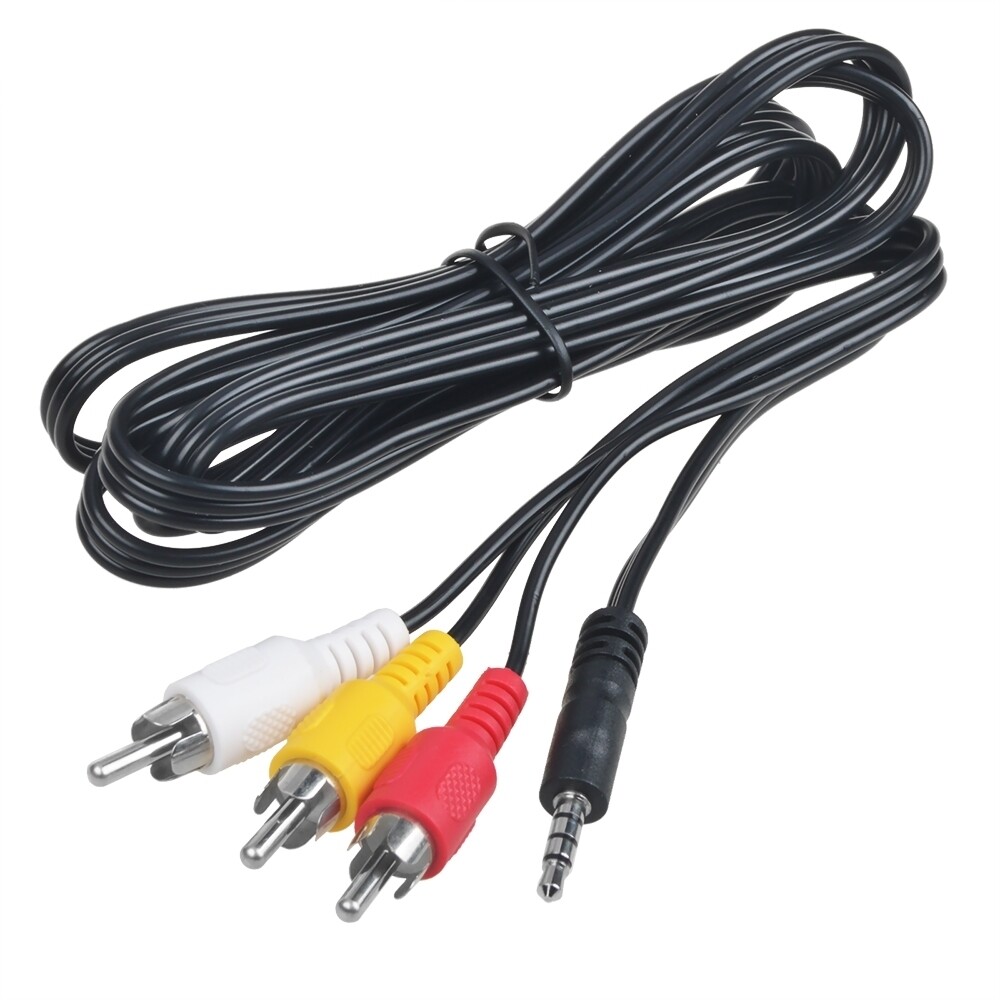
You can connect external speakers to your PS4 using a 3.5mm audio cable or an AV cable. Plug one end into the controller’s headphone jack or the console’s AUX port, and the other into your speakers. Then, go to Settings > Sound and Screen > Audio Output and select the appropriate output device. Ensure your speakers are powered on and set to the correct input source for sound to play properly.
Can I use Bluetooth speakers with my PS4?
Yes, you can use Bluetooth speakers with your PS4, but only through a workaround since the PS4 doesn’t natively support Bluetooth audio for speakers. Use a Bluetooth transmitter connected to the PS4’s USB or optical audio port. Pair the transmitter with your Bluetooth speaker. Then go to Settings > Devices > Audio Devices and set the output to the transmitter. Note that audio delay may occur depending on the device.
What audio cables are compatible with the PS4 for speaker setup?
The PS4 supports several audio cables for connecting speakers, including 3.5mm stereo audio cables, HDMI audio extractors, and optical audio cables. Use a 3.5mm cable for direct connection via the controller. For higher quality, use an HDMI audio extractor or an optical cable connected to an AV receiver or soundbar. Ensure your connected audio device supports the cable type and matches the PS4’s audio output settings.
 How To Connect JBL Speakers To TV
Why isn’t my PS4 playing sound through connected speakers?
If your PS4 isn’t playing sound through connected speakers, first verify the cable connection and ensure the speakers are powered on. Then, go to Settings > Sound and Screen > Audio Output and confirm the correct output device is selected. Test different audio formats or reset audio settings. If using optical audio, ensure the cable is fully inserted and the TV or receiver is set to the right input. Restart the PS4 if issues persist.
Leave a Reply