
How To Connect JBL Speakers To TV
Connecting your JBL speakers to your TV can significantly enhance your audio experience, delivering rich, room-filling sound that standard TV speakers often lack. Whether you're enjoying movies, music, or gaming, the right setup makes a noticeable difference. JBL offers a range of wireless and wired speaker options compatible with most modern televisions.
This guide walks you through the step-by-step process of connecting your JBL speakers to your TV using various methods, including Bluetooth, HDMI, optical cables, and auxiliary connections. You’ll also find troubleshooting tips and recommendations to ensure a seamless, high-quality audio setup tailored to your entertainment needs.
How to Connect JBL Speakers to Your TV
Connecting JBL speakers to your TV can significantly enhance your audio experience, whether you're watching movies, shows, or gaming. JBL offers a variety of speaker models—some Bluetooth-enabled, others with auxiliary or optical inputs—which means there are multiple ways to establish a connection depending on your TV’s available ports and your speaker model.
 How To Connect A Subwoofer To Speakers
The most common connection methods include Bluetooth pairing, using an optical audio cable, an AUX (3.5mm) cable, or an HDMI ARC (Audio Return Channel) connection. Before starting, confirm the audio output options on your TV and the input capabilities of your JBL speaker.
This ensures compatibility and helps you choose the most effective and high-quality audio setup. Once properly connected, you may need to adjust your TV’s sound settings to route audio through the external speakers instead of the internal TV speakers. With the right setup, you can enjoy rich, immersive sound from your JBL speakers while watching content on your TV.
Using Bluetooth to Connect JBL Speakers to Your TV
To connect your JBL speakers via Bluetooth, ensure both your TV and speaker support Bluetooth audio output and pairing. First, turn on your JBL speaker and put it in pairing mode—this is typically done by pressing and holding the Bluetooth or source button until a voice prompt or LED indicator signals pairing status.
Next, go to your TV’s settings menu, navigate to the Bluetooth or wireless device section, and scan for available devices. Select your JBL speaker from the list, and once connected, audio from your TV will be routed through the speaker.
 How To Connect A TV To Bluetooth Speakers
Keep in mind that Bluetooth connections may experience slight latency, which can cause audio delay during fast-paced scenes or while gaming; some TVs include audio sync features to correct this. For the best experience, keep the speaker within close range and free of obstructions to maintain a strong signal.
Connecting via Optical Audio Cable for High-Quality Sound
An optical audio cable (TOSLINK) is one of the best ways to connect JBL speakers to your TV when high audio fidelity is a priority.
Begin by checking if your TV has an optical audio output port and confirm your JBL speaker (or an external amplifier/soundbar it’s connected to) supports optical input. Use a compatible optical cable to link the TV’s optical out to the speaker system’s optical in. After the physical connection, go to your TV’s audio settings and select “Optical” or “External Speaker” as the audio output.
You may also need to set the audio format to PCM for compatibility. Optical connections are ideal because they transmit digital audio signals without interference, support surround sound formats, and eliminate electrical ground loops, resulting in clean, high-quality sound.
 How To Connect Altec Lansing Speakers
Using AUX or HDMI ARC for Simple and Reliable Connections
If your JBL speaker has a 3.5mm AUX input or you're using a JBL soundbar with HDMI ARC support, these methods offer reliable and straightforward integration with your TV.
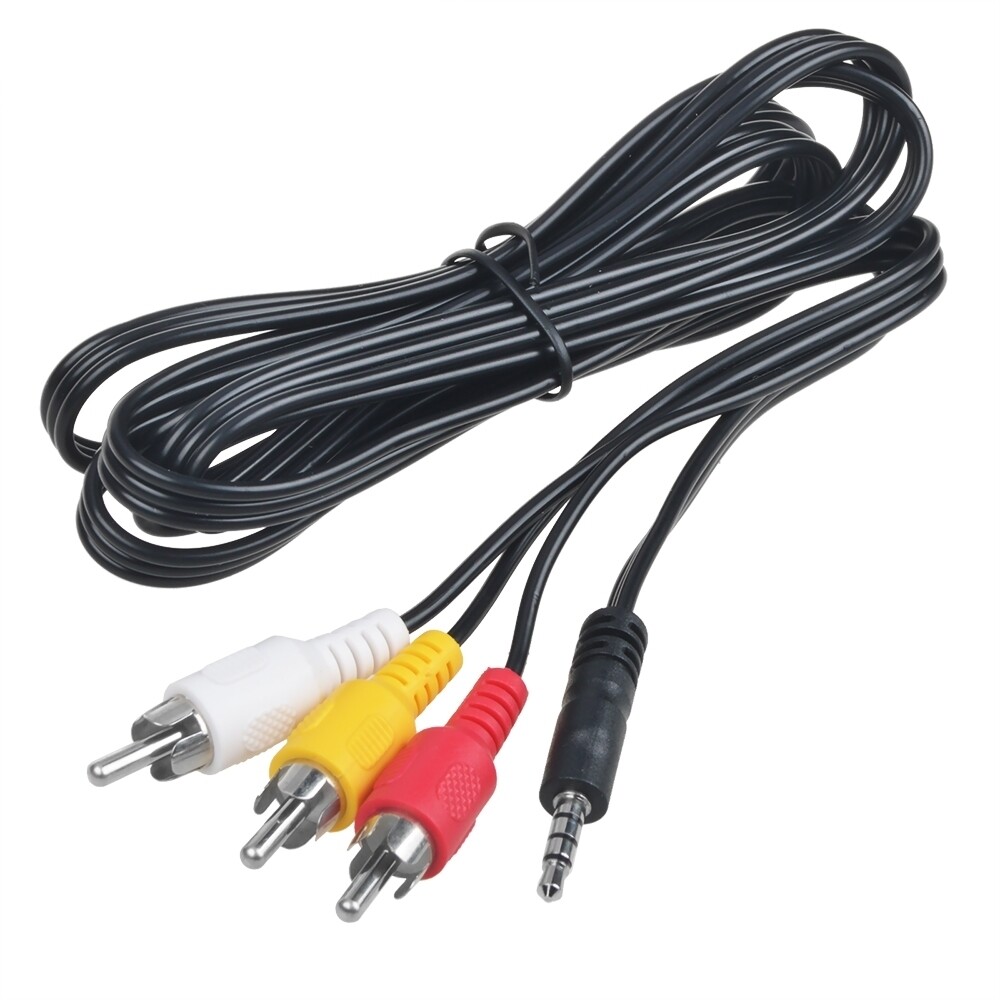
For an AUX connection, use a 3.5mm male-to-male audio cable (or an RCA-to-3.5mm adapter if your TV uses RCA outputs), plug one end into your TV’s headphone or audio output jack, and the other into your speaker. Then, adjust the audio output settings on your TV to use the external headphone jack. While simple, AUX connections are analog and may have lower sound quality compared to digital options.
Alternatively, if both your TV and speaker support HDMI ARC, connect them using an HDMI cable labeled “ARC” on both ends. HDMI ARC allows audio to travel from the TV to the speaker over a single cable and supports advanced audio formats like Dolby Digital, while also enabling control of speaker volume via the TV remote through CEC (Consumer Electronics Control).
| Connection Method | Pros | Cons | Best For |
|---|---|---|---|
| Bluetooth | Wireless setup, easy pairing, no cables | Lag/latency, limited range, lower audio quality | Casual viewing, portable models, non-ARC TVs |
| Optical Cable | Digital audio, no interference, supports surround sound | Needs compatible ports, no power over cable | Home theater setups, high-fidelity audio enthusiasts |
| AUX or HDMI ARC | AUX: Simple; HDMI ARC: High-quality audio, remote control sync | AUX: Analog only; HDMI ARC: Requires compatible devices | AUX: Basic setups; HDMI ARC: Modern smart TVs and soundbars |
How to Connect JBL Speakers to Your TV: A Step-by-Step Guide
How to connect JBL wireless speakers to your TV seamlessly

 How To Connect Amp To Car Speakers
Using Bluetooth to Connect JBL Wireless Speakers to Your TV
Connecting your JBL wireless speakers to your TV via Bluetooth is one of the most common and convenient methods, especially if your TV supports Bluetooth audio output. Start by turning on your JBL speaker and putting it into pairing mode—this is usually done by pressing and holding the Bluetooth button until you hear a tone or see a flashing indicator.
Next, go to your TV's settings menu, navigate to the Sound or Audio Output section, and select Bluetooth Devices or Bluetooth Settings. From there, choose Scan or Add Device, and wait for your JBL speaker to appear in the list of available devices.
Once it shows up, select it to pair. After a successful connection, your TV audio will automatically route through the JBL speaker. To ensure stability, keep the speaker within close range and minimize obstacles like walls or electronic interference.
- Power on the JBL speaker and activate pairing mode using the Bluetooth button.
- Access your TV’s Bluetooth settings under Sound or Audio Output in the settings menu.
- Select the JBL speaker from the list of detected devices to complete the pairing process.
Connecting via an Audio Cable for a Wired Solution
If your TV lacks Bluetooth or you want a more stable connection, using an audio cable is a reliable alternative. First, identify the audio output port on your TV—this could be a 3.5mm headphone jack, RCA ports, or an optical audio (TOSLINK) output.
 How To Connect Audio-Technica To Speakers
Then, choose the proper cable: a 3.5mm-to-3.5mm aux cable, RCA-to-3.5mm, or optical cable depending on your TV and speaker compatibility. For JBL speakers that support wired input, connect one end of the cable to your TV's audio output and the other end to the auxiliary input on your JBL speaker.
After connecting, switch the speaker to AUX or LINE-IN mode using the input selection button. Finally, adjust your TV's audio settings to disable internal speakers and route sound through the external audio output. This method eliminates latency issues and ensures consistent audio quality without relying on wireless signals.
- Determine your TV's audio output type and select a compatible cable accordingly.
- Connect one end of the cable to the TV's audio output and the other to the JBL speaker's input.
- Set the speaker to AUX or LINE-IN mode and adjust TV audio settings to output sound externally.
Using a Bluetooth Audio Transmitter for Non-Bluetooth TVs
Many older TVs do not have built-in Bluetooth, but you can still connect your JBL wireless speakers using a Bluetooth audio transmitter.
Purchase a compact Bluetooth transmitter that connects to your TV’s audio output port—commonly the 3.5mm headphone jack, RCA, or optical audio port. Plug the transmitter into the TV’s audio output and power it using a USB port or an AC adapter. Turn on the transmitter and put it into pairing mode.
 How To Connect Bluetooth Speakers To Roku TV
Then, activate pairing mode on your JBL speaker as you normally would. The transmitter will appear as an audio device on the speaker; connect them just like pairing any two Bluetooth devices. Once linked, the transmitter will send your TV’s audio signal wirelessly to the JBL speaker. This solution effectively upgrades non-Bluetooth TVs, offering wireless convenience without replacing existing equipment.
- Attach a Bluetooth transmitter to your TV's available audio output port.
- Power on the transmitter and set it to pairing mode.
- Pair the transmitter with your JBL speaker by selecting it in the speaker’s Bluetooth device list.
Frequently Asked Questions
How can I connect my JBL speaker to my TV using Bluetooth?
Enable Bluetooth on both your TV and JBL speaker. Go to your TV’s Bluetooth settings, scan for devices, and select your JBL speaker from the list. Once paired, audio from the TV will play through the speaker. Ensure the devices are within range and avoid interference. Not all TVs support Bluetooth audio output, so check your TV’s specifications before attempting this connection method.
Can I connect a JBL speaker to my TV with an audio cable?
Yes, you can use a 3.5mm audio cable or RCA-to-3.5mm cable, depending on your TV’s audio output. Plug one end into the TV’s headphone or audio output port and the other into the JBL speaker’s auxiliary input. Then set the speaker to AUX mode. This wired connection provides stable audio without latency, making it ideal for environments with Bluetooth interference or for older TVs without wireless capabilities.
What should I do if my JBL speaker isn’t showing up on my TV’s Bluetooth list?
Make sure the JBL speaker is in pairing mode—usually indicated by a flashing Bluetooth light. Restart both devices and ensure the speaker isn’t already connected to another device. Delete old pairings on your TV and retry the search. If the issue persists, check for firmware updates for both devices. Some TVs only pair with specific Bluetooth profiles, so verify compatibility before troubleshooting further.
 How To Connect Bluetooth To Multiple Speakers
Do I need a Bluetooth transmitter to connect my JBL speaker to a non-Bluetooth TV?
Yes, if your TV lacks Bluetooth, you’ll need a Bluetooth transmitter. Plug it into your TV’s audio output (optical, RCA, or 3.5mm), then pair it with your JBL speaker. The transmitter converts the TV’s audio signal into a Bluetooth signal. This method works well with older TVs and maintains good sound quality, offering a simple wireless solution where direct Bluetooth connectivity isn’t available.
Leave a Reply