
How Can I Connect My Laptop To Bluetooth Speakers
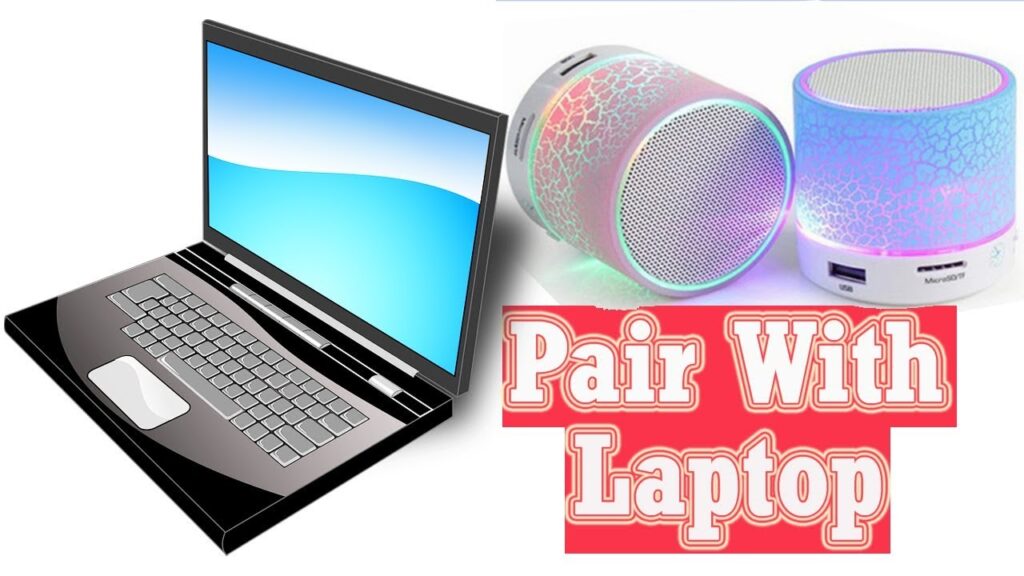
Connecting your laptop to Bluetooth speakers enhances your audio experience, offering convenience and freedom from wires. Whether you're watching movies, listening to music, or joining virtual meetings, wireless audio can simplify your setup.
Most modern laptops and Bluetooth speakers support seamless pairing through built-in features. The process typically involves enabling Bluetooth on your laptop, making the speaker discoverable, and syncing both devices.
While the steps may vary slightly depending on your operating system, the overall method remains straightforward. This guide will walk you through connecting your laptop to Bluetooth speakers on Windows, macOS, and other platforms, ensuring clear sound and reliable performance without complications.
 Heos Speakers How To Connect
How to Connect Your Laptop to Bluetooth Speakers
Connecting your laptop to Bluetooth speakers enhances your audio experience whether you're watching movies, listening to music, or attending virtual meetings. The process is straightforward and works across various operating systems such as Windows, macOS, and Linux.
To begin, ensure that both your laptop and Bluetooth speaker are powered on and within range—usually within 30 feet (10 meters). Your laptop must have built-in Bluetooth capability or use a USB Bluetooth adapter if it lacks one. Once ready, activate Bluetooth on your laptop through the settings menu and place your speaker in pairing mode by pressing and holding its Bluetooth button until an indicator light flashes.
After detection, select the speaker from the list of available devices and confirm the connection. In most cases, the setup completes automatically, and your laptop will route audio output to the speaker. For future use, the connection usually reconnects automatically when both devices are in range and powered on.
Checking Bluetooth Compatibility on Your Laptop
Before attempting to connect, it is essential to verify that your laptop supports Bluetooth connectivity. Most modern laptops include built-in Bluetooth, but older models might require a USB Bluetooth adapter to enable wireless functionality.
 Home Built In Speakers How To Connect
On Windows, press the Windows + I keys to open Settings, then go to Devices > Bluetooth & other devices to check if Bluetooth is listed and toggle it on. For macOS users, click the Apple menu, go to System Settings > Bluetooth, and ensure it’s enabled.
A missing Bluetooth option typically indicates either disabled hardware or lack of support, which can be resolved by installing a compatible USB Bluetooth dongle. Confirming compatibility prevents frustration and ensures a smooth pairing process.
Putting Your Bluetooth Speaker in Pairing Mode
To successfully connect your laptop, your Bluetooth speaker must be in pairing mode, a state where it actively broadcasts its availability to nearby devices.
This is usually activated by pressing and holding the Bluetooth or pairing button on the speaker until the LED starts blinking rapidly—some models emit a sound or display a voice prompt confirming the status. The exact method varies by brand and model, so consulting the user manual is recommended if the button is not clearly labeled.
 How Can I Connect My Laptop To My Bluetooth Speakers
Once in pairing mode, the speaker should appear in your laptop’s device list within seconds. If the speaker doesn’t show up, try turning it off and on again or resetting the Bluetooth module on both devices. Maintaining close proximity during this process improves detection success.
Managing Audio Output and Troubleshooting Connection Issues
After pairing, ensure that audio is properly routed to your Bluetooth speaker by checking the sound output settings on your laptop. On Windows, right-click the speaker icon in the taskbar, choose Open Sound settings, and select the connected speaker under Output devices.
On macOS, go to System Settings > Sound > Output and choose the Bluetooth speaker from the list. If audio still doesn’t play, try disconnecting and reconnecting the device, restarting Bluetooth on both devices, or removing the speaker from the list and pairing again.
Other common issues include low battery on the speaker, interference from other wireless devices, or excessive distance. Updating your laptop's Bluetooth drivers or operating system can also resolve persistent connection problems.
 How Can I Connect My Phone To Multiple Bluetooth Speakers
| Step | Action | Tips |
|---|---|---|
| 1 | Enable Bluetooth on your laptop | Use Settings > Devices on Windows or System Settings > Bluetooth on macOS |
| 2 | Turn on pairing mode on the speaker | Look for a blinking LED or audio cue indicating discoverable mode |
| 3 | Select the speaker from available devices | Choose the correct model name; some brands include X, Pro, or Series number |
| 4 | Set speaker as default audio output | Check Sound settings to confirm audio routing and avoid playback issues |
Step-by-Step Guide to Connect Your Laptop to Bluetooth Speakers
How to Connect a Laptop to Bluetooth Speakers for Proper Recognition

Enable Bluetooth on Your Laptop
- Ensure your laptop has built-in Bluetooth capabilities or connect a compatible USB Bluetooth adapter if it does not have one.
- Press the Windows key and click on Settings, then navigate to Devices, and select Bluetooth & other devices.
- Toggle the Bluetooth switch to On. On some laptops, you might need to press a function key (like F2, F3, or F8) combined with the Fn key to turn Bluetooth on.
- Wait for the system to initialize the Bluetooth module. You should see a notification or a Bluetooth icon indicating it’s ready to pair with devices.
- Make sure Airplane mode is turned off, as it can disable Bluetooth functionality even if the Bluetooth toggle appears active.
Prepare and Pair Bluetooth Speakers
- Power on your Bluetooth speakers and place them within close range of your laptop—ideally within 10 meters (33 feet) without obstructions.
- Put the speakers into pairing or discovery mode. This is usually done by pressing and holding a dedicated Bluetooth button until a light flashes rapidly or a voice prompt indicates pairing mode.
- On your laptop, go to Settings > Devices > Bluetooth & other devices and click on Add device.
- Select Bluetooth from the list of device types, then wait as your laptop scans for available devices.
- Choose your speaker from the list of detected devices and click on it to initiate pairing. Confirm the connection if prompted with a code or message on either device.
Set Bluetooth Speakers as Default Audio Output
- After successfully pairing, click the speaker icon in the system tray (bottom-right corner of the screen) and open Sound settings.
- Scroll down to the Output section and find your Bluetooth speakers in the list of available devices.
- Select the Bluetooth speaker to set it as the default output device; audio from your laptop will now route through it.
- If sound does not play automatically, right-click the speaker icon, choose Sounds, go to the Playback tab, locate your Bluetooth speaker, and click Set Default.
- Test the audio by playing music, a video, or a system sound to confirm the connection is stable and delivering clear sound.
Can every laptop pair with Bluetooth speakers?

Bluetooth Compatibility Across Laptops
- Not every laptop can pair with Bluetooth speakers because Bluetooth functionality depends on the laptop's hardware configuration. Some older or budget models may lack built-in Bluetooth support entirely.
- Many laptops manufactured before the mid-2010s do not include Bluetooth modules, especially entry-level business or education models where wireless connectivity was considered optional.
- To determine if a laptop supports Bluetooth, users should check the device specifications in the user manual or system settings. On Windows, this can be done by looking under Devices in Settings, while macOS users can check under System Settings or System Preferences for a Bluetooth option.
How to Enable Bluetooth Pairing on Supported Laptops
- If a laptop has Bluetooth capability, users must first ensure the feature is enabled. This is typically done through the system settings menu or via a function key shortcut on the keyboard.
- Once Bluetooth is turned on, the laptop can begin searching for nearby devices. The Bluetooth speaker must be powered on and in pairing mode, which is often indicated by a flashing LED light.
- After the laptop detects the speaker, selecting it from the list of available devices initiates the pairing process. Some devices may require a PIN or confirmation code, which is usually provided in the speaker’s documentation or displayed on the laptop screen.
Solutions for Laptops Without Built-in Bluetooth
- Laptops without integrated Bluetooth can still connect to Bluetooth speakers using a USB Bluetooth adapter. These small dongles plug into a USB port and add wireless connectivity to the system.
- When selecting a Bluetooth adapter, it's important to choose one that supports the Bluetooth version required by the speaker, ideally Bluetooth 4.0 or higher for better range and audio quality.
- After plugging in the adapter, the operating system usually recognizes it automatically and installs necessary drivers. Users may need to manually install software in some cases, especially on older systems, but once configured, the pairing steps are identical to those on native Bluetooth laptops.
Frequently Asked Questions
How do I enable Bluetooth on my laptop?
To enable Bluetooth on your laptop, go to Settings and select Devices or Bluetooth & other devices. Make sure Bluetooth is turned on. If you don’t see the option, check for a physical Bluetooth switch or use the function keys (Fn + F-key) to enable it. Some laptops require downloading Bluetooth drivers from the manufacturer’s website if the feature is missing.
How do I pair my laptop with Bluetooth speakers?
Turn on your Bluetooth speakers and put them in pairing mode. On your laptop, go to Bluetooth settings, click Add Bluetooth or other device, then select Bluetooth. Choose your speaker from the list and follow the prompts. Once connected, your laptop will confirm the pairing. The speaker should now appear as a connected audio output device in sound settings.
 How Can I Connect My TV To Bluetooth Speakers
Why won’t my laptop find my Bluetooth speakers?
Your laptop may not detect Bluetooth speakers if they’re out of range, not in pairing mode, or already connected to another device. Ensure the speaker is powered on and discoverable. Restart Bluetooth on your laptop, or restart both devices. Also, check for driver updates or interference from other wireless devices that could affect the Bluetooth signal.
Can I connect multiple Bluetooth speakers to my laptop at once?
Most laptops support only one audio output device via Bluetooth at a time. While you can pair multiple speakers, streaming audio to more than one simultaneously may require third-party software or specific speaker models with built-in support for stereo pairing. For the best experience, use one speaker at a time unless your hardware and software support multi-device audio streaming.
 How Can I Connect Old Speakers To Computer
Leave a Reply