
How Can I Connect Bluetooth Speakers To My TV

Connecting Bluetooth speakers to your TV can significantly enhance your audio experience, offering richer sound and greater flexibility in how you set up your entertainment system. While many modern TVs support Bluetooth connectivity, the process can vary depending on the brand, model, and speaker compatibility.
This guide walks you through the essential steps to pair your Bluetooth speakers seamlessly with your TV, troubleshoot common issues, and optimize audio settings for the best performance. Whether you're using built-in TV Bluetooth or relying on external adapters, understanding the setup process ensures you enjoy immersive sound without unnecessary complications.
How Can I Connect Bluetooth Speakers To My TV
Connecting Bluetooth speakers to your TV can significantly enhance your audio experience, especially if your TV has weak built-in speakers.
 Epson Projector How To Connect Speakers
While many modern smart TVs support Bluetooth connectivity natively, some older models or budget-friendly versions may lack this feature. Depending on your TV's capabilities, you can pair Bluetooth speakers directly through the TV’s settings menu, or you may need a Bluetooth transmitter connected via the audio output port (such as optical, 3.5mm, or RCA).
The key is to ensure both your TV and the speaker are in pairing mode simultaneously, and that they are compatible in terms of Bluetooth version and audio codecs. Success in pairing often depends on following the correct sequence and consulting your TV and speaker manuals for model-specific instructions.
Check If Your TV Supports Bluetooth
Before attempting to connect a Bluetooth speaker, it's critical to verify whether your TV has built-in Bluetooth functionality.
Most smart TVs released in the last five years, especially from brands like Samsung, LG, Sony, and TCL, include Bluetooth settings that can be accessed through the system menu under Sound or Device Connections. You can usually find this option by navigating to Settings > Sound > Output > Bluetooth Devices.
 Harman Kardon Speakers How To Connect To Computer
If your TV doesn’t display a Bluetooth option, it likely doesn’t support it natively, and you’ll need an external Bluetooth transmitter. Some models may list audio output types like HDMI ARC, optical audio, or 3.5mm headphone jack, which are alternative paths to connect a transmitter for wireless audio streaming.
Using a Bluetooth Transmitter for Non-Bluetooth TVs
If your TV lacks built-in Bluetooth, a Bluetooth transmitter is the ideal solution. These small devices plug into your TV’s audio output—such as optical (TOSLINK), AUX (3.5mm), or RCA—and convert the audio signal into a Bluetooth stream that can be sent to your wireless speakers or headphones. Most transmitters automatically power on when the TV is turned on, especially when connected via USB for power and optical for audio.
To use one, pair your Bluetooth speaker with the transmitter by pressing the pairing button on both devices until they connect. Ensure the transmitter is set to transmit mode (Tx mode) and that your TV’s audio output is correctly configured to route sound through the connected port, not the internal speakers.
Pairing Your Bluetooth Speaker With the TV
Once you’ve confirmed Bluetooth support or connected a transmitter, the next step is pairing your speaker with the TV. Begin by putting your Bluetooth speaker into pairing mode—this usually involves holding the power or Bluetooth button for a few seconds until a blinking light appears.
 Heos Speakers How To Connect
On your TV, go to Settings > Sound > Bluetooth Devices and select “Scan” or “Add Device.” When your speaker appears in the list, select it to initiate pairing. After a successful connection, the TV will typically display a confirmation message, and audio should now play through the speaker.
Note that some TVs only allow one Bluetooth device at a time and may disable internal speakers once a Bluetooth device is connected, so ensure your speaker is fully charged and within range (typically within 30 feet without obstructions).
| Connection Method | Requirements | Best For |
|---|---|---|
| Direct Bluetooth (Built-in) | TV with Bluetooth, compatible speaker | Modern smart TVs; simple setup |
| Bluetooth Transmitter via Optical | Optical audio output, transmitter, power source | Older TVs; high-quality digital audio |
| Bluetooth Transmitter via 3.5mm AUX | AUX port, transmitter, speaker | Basic models; portable setups |
| HDMI ARC with Adapter | HDMI ARC port, compatible audio extractor/transmitter | High-end audio systems; minimal latency |
How to Connect Bluetooth Speakers to Your TV: A Step-by-Step Guide
How to Pair Bluetooth Speakers with a Samsung TV

Check TV and Speaker Compatibility
- Ensure your Samsung TV supports Bluetooth connectivity by checking the user manual or navigating to Settings > Sound > Sound Output. If Bluetooth Speaker List appears as an option, your TV is Bluetooth-enabled.
- Verify that your Bluetooth speaker is turned on, within close range (about 30 feet), and in pairing mode. This typically involves pressing and holding the power or pairing button until a blinking indicator appears.
- Confirm that both the TV and speaker are updated to the latest firmware. Outdated software can prevent proper detection and connection.
Enable Bluetooth on the Samsung TV
- Using the remote, press the Home button and navigate to Settings, then select Sound from the menu options.
- Choose Sound Output and look for Bluetooth Speaker List. Selecting this will prompt the TV to start scanning for nearby Bluetooth devices.
- Wait a few seconds while the TV searches; ensure no other Bluetooth devices are interfering and keep the speaker close to avoid signal loss during the process.
Pair and Connect the Bluetooth Speaker
- When your speaker appears in the Bluetooth Speaker List on the TV, select it to initiate pairing. The TV may display a confirmation request or passcode, which should automatically resolve if both devices support secure simple pairing.
- Once connected, you will see the speaker name listed under Sound Output, and audio will begin routing through the speaker instead of the TV’s internal speakers.
- To verify the connection, play audio or video from a streaming app or connected device. If no sound is detected, restart both devices and repeat the pairing steps to ensure a stable link.
How to Connect Bluetooth Speakers to Your TV Without Auxiliary Ports
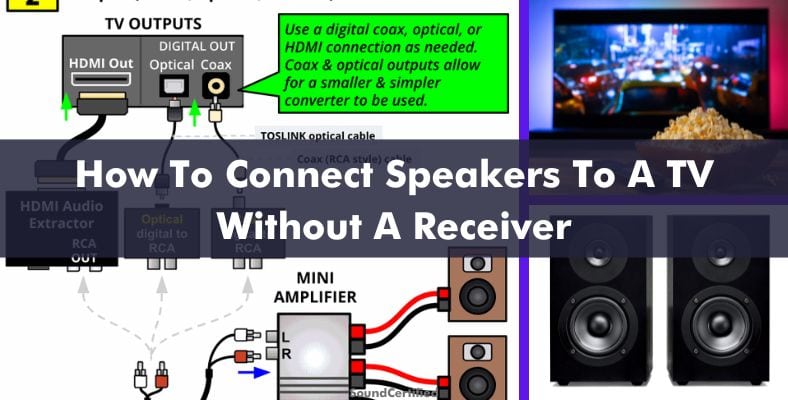
 Home Built In Speakers How To Connect
To connect Bluetooth speakers to your TV without auxiliary ports, you can rely on built-in Bluetooth technology or use external adapters if your TV does not support wireless audio streaming natively.
Many modern smart TVs come equipped with Bluetooth functionality, allowing you to pair audio devices such as wireless speakers directly. If your TV lacks this feature, a Bluetooth transmitter connected via USB or optical audio output can bridge the gap. Once the transmitter is powered and paired with your speakers, audio from the TV will be wirelessly delivered.
Ensuring both the TV and transmitter support compatible audio codecs (like SBC or AAC) helps maintain sound quality. Always check manufacturer instructions for pairing modes and connection sequences to avoid common setup errors.
Check Your TV’s Built-in Bluetooth Capability
- Access your TV’s settings menu and navigate to the Sound or Audio Output section to determine if Bluetooth pairing options are available.
- If Bluetooth devices are listed or a “Connect via Bluetooth” option appears, your TV supports direct pairing with Bluetooth speakers.
- Enable pairing mode on your Bluetooth speaker, then use the TV’s search function to detect and connect the device. Follow on-screen prompts to complete setup.
Use a Bluetooth Transmitter with Optical or USB Output
- If your TV lacks built-in Bluetooth, identify available audio output ports such as optical (TOSLINK), RCA, or USB. Optical is preferred for digital audio support and better sound quality.
- Purchase a Bluetooth transmitter compatible with your TV’s available port. Connect the transmitter to the optical or USB audio output and plug it into a power source if required.
- Put the transmitter into pairing mode, then activate pairing on your Bluetooth speaker. Once linked, the transmitter will relay TV audio wirelessly to your speakers.
Optimize Audio Sync and Sound Quality
- After pairing, you may notice audio lag. Check your TV or transmitter settings for an audio delay or lip-sync adjustment feature to align sound with video.
- Ensure your Bluetooth speaker supports the audio format being transmitted. While most use the standard SBC codec, devices supporting AAC or aptX offer better clarity, especially for dynamic content.
- Keep the speaker and transmitter within close proximity and minimize interference from walls or other wireless devices to maintain a stable connection and consistent audio output.
How to Connect Bluetooth Speakers to Your TV Using HDMI: A Step-by-Step Guide

 How Can I Connect Multiple Bluetooth Speakers To My iPhone
Not all TVs support direct Bluetooth audio connections, and even when they do, HDMI itself does not carry Bluetooth signals. However, many modern TVs have an HDMI Audio Return Channel (HDMI ARC) port that can be used in conjunction with a Bluetooth transmitter or soundbar to send audio wirelessly to Bluetooth speakers. This guide explains how to effectively connect Bluetooth speakers to your TV using HDMI ARC and additional accessories.
Understanding HDMI ARC and Its Role in Audio Transmission
- HDMI ARC (Audio Return Channel) allows your TV to send audio signals back through the HDMI cable to an external audio device, such as a soundbar or AV receiver, instead of using the TV’s built-in speakers. This feature simplifies cabling and enhances audio quality.
- To use HDMI ARC for Bluetooth connectivity, you need a device that receives the HDMI ARC signal and converts it into a Bluetooth signal. This typically involves a Bluetooth audio transmitter connected to the TV’s HDMI ARC port or an audio output port on a compatible sound system.
- Ensure your TV and external audio device (like a soundbar or AV receiver) both support HDMI ARC. Look for a port labeled HDMI ARC or ARC on your TV and device to confirm compatibility before proceeding.
Selecting the Right Bluetooth Transmitter for HDMI ARC Setup
- Choose a Bluetooth transmitter that has an optical or HDMI input to receive the audio signal from your TV. Since HDMI cables do not transmit Bluetooth directly, the transmitter acts as a bridge by receiving audio via HDMI ARC (often through optical) and converting it to a Bluetooth signal.
- Check that the transmitter supports high-quality Bluetooth codecs such as aptX, AAC, or SBC for better audio performance, especially if you're using premium Bluetooth speakers or headphones.
- Some transmitters offer dual pairing, allowing you to connect two Bluetooth speakers or headphones simultaneously. This is useful for households where multiple people want to listen at the same time without audio delay or sync issues.
Step-by-Step Connection Process
- Connect one end of an HDMI cable to your TV’s HDMI ARC port and the other end to the HDMI ARC port on a compatible soundbar or AV receiver. Alternatively, if your setup includes a Bluetooth transmitter with optical input, connect a digital optical cable from the TV’s optical audio out to the transmitter.
- Power on your TV and navigate to the audio settings menu. Enable HDMI ARC or Audio Return Channel in the settings, then set the TV’s audio output to External Speaker or Audio System to route sound through the HDMI ARC connection.
- Pair your Bluetooth speakers with the transmitter by turning on pairing mode on the speakers and pressing the pairing button on the transmitter. Once connected, audio from the TV will be transmitted wirelessly to your Bluetooth speakers through the HDMI ARC and transmitter setup.
Frequently Asked Questions
How do I check if my TV supports Bluetooth?
Most modern smart TVs have built-in Bluetooth. To check, go to your TV’s settings menu, look for Sound or Devices, and see if there’s an option for Bluetooth or Bluetooth pairing. If you find it, your TV supports Bluetooth. Some older or basic models may not, in which case you’ll need a Bluetooth transmitter connected via the audio output port.
What if my TV doesn't have Bluetooth?
If your TV lacks Bluetooth, use a Bluetooth transmitter. Plug it into your TV’s audio output—like a 3.5mm headphone jack, RCA, or optical port. Turn on the transmitter, pair it with your Bluetooth speaker, and route the audio through the transmitter. This lets you enjoy wireless sound even on non-Bluetooth TVs. Make sure the transmitter supports your speaker’s Bluetooth version for best performance.
How do I pair Bluetooth speakers with my TV?
Put your Bluetooth speaker in pairing mode, then go to your TV’s settings, select Sound, then Bluetooth devices. Scan for devices, choose your speaker from the list, and confirm pairing. Once connected, audio from the TV will play through the speaker. If it doesn’t work, ensure both devices are close, in range, and not connected to another device. Restart both if needed.
 How Can I Connect My iPhone To My Car Speakers
Can I use any Bluetooth speaker with my TV?
Most Bluetooth speakers work with TVs that have Bluetooth, but performance varies. Check compatibility for audio codecs and latency. Some speakers may have delays causing lip-sync issues. For best results, use low-latency or aptX LL compatible speakers. Also, ensure the speaker provides enough volume and bass for TV viewing. Basic speakers may lack sound quality for movies or shows.
https://youtube.com/watch?v=3YTldWqfas4
Leave a Reply