
How Can I Connect Multiple Bluetooth Speakers To My iPhone

Connecting multiple Bluetooth speakers to your iPhone can enhance your listening experience by delivering richer, more immersive sound.
While the iPhone doesn’t natively support pairing with several Bluetooth speakers at once, there are effective workarounds to achieve multi-speaker audio. Using built-in features like AirPlay 2, third-party apps, or speaker-specific companion apps, you can stream music to multiple devices simultaneously.
This guide explores reliable methods to connect multiple Bluetooth speakers to your iPhone, including compatible hardware options and step-by-step instructions. Whether you're hosting a party or simply want fuller sound, these solutions provide flexibility and improved audio distribution across different rooms or spaces.
 Epson Projector How To Connect Speakers
How Can I Connect Multiple Bluetooth Speakers To My iPhone
Connecting multiple Bluetooth speakers to your iPhone allows you to enhance audio coverage and create a more immersive sound experience, whether you're hosting a party, enjoying music outdoors, or setting up a surround sound system at home.
While the iPhone’s native Bluetooth functionality only supports one audio output device at a time, there are effective workarounds that make multi-speaker setups possible. These include using third-party apps, built-in iOS features like AirPlay 2 for compatible speakers, and audio syncing technologies provided by speaker manufacturers.
Understanding the right method—and the compatibility requirements—will help you achieve seamless, synchronized playback across multiple speakers without relying solely on hardware-specific ecosystems.
Using Built-in iOS Features Like AirPlay 2
Apple’s AirPlay 2 technology is one of the most reliable ways to connect multiple Bluetooth or Wi-Fi-enabled speakers to your iPhone.
 Harman Kardon Speakers How To Connect To Computer
Unlike standard Bluetooth, AirPlay 2 supports multi-room audio streaming, allowing you to send audio to multiple compatible speakers simultaneously and control them from one device. To use this feature, ensure your speakers support AirPlay 2 and are connected to the same Wi-Fi network as your iPhone.
Open the Music app, start playing a song, tap the AirPlay icon (a rectangle with upward-pointing triangle), and select multiple speakers from the list. You can also group them into custom zones. This method offers high-quality streaming, minimal latency, and independent volume control for each speaker, making it ideal for synchronized audio experiences.
Pairing Through Manufacturer-Specific Apps and Technologies
Many Bluetooth speaker brands, such as JBL (Connect+ or PartyBoost), Ultimate Ears (UE Boom/Megaboom with UE App), and Bose (Simple Sync), provide proprietary technologies that allow you to wirelessly link multiple speakers together.
To use these features, download the manufacturer’s app, pair the first speaker with your iPhone via Bluetooth, and then follow the app instructions to connect additional speakers to the first one, forming a daisy chain.
 Heos Speakers How To Connect
Once linked, the group functions as a single audio unit, and your iPhone only needs to connect to one speaker to transmit sound to all. This method is easy to set up, offers strong synchronization between speakers, and often includes stereo pairing options for left/right channel separation. Compatibility is limited to same-brand or same-model speakers, so check product specifications before use.
Using Third-Party Apps to Combine Bluetooth Audio Outputs
When your speakers don’t support AirPlay 2 or manufacturer-specific pairing, third-party iOS apps can help bridge the gap.
Apps like SoundSeeder, SpeakerFlow, or AmpMe enable you to stream audio from your iPhone to multiple Bluetooth speakers by turning them into a synchronized network—often over Wi-Fi or Bluetooth. These apps work by using your iPhone as the master device, playing audio and having other devices (connected via the app) receive and play the same stream in sync.
All devices must have the app installed and be on the same network. While this method supports a wider range of speaker models, including non-smart ones, it may introduce slight audio delay and requires stable internet or local network connectivity for best performance.
 Home Built In Speakers How To Connect
| Method | Best For | Requirements | Limitations |
|---|---|---|---|
| AirPlay 2 | High-quality, multi-room audio with Apple devices | AirPlay 2-compatible speakers, same Wi-Fi network, iOS device | Only works with Apple-supported or certified speakers |
| Manufacturer Apps (e.g., JBL, UE) | Linking same-brand Bluetooth speakers | Speakers with proprietary tech (PartyBoost, Connect+), manufacturer app | Requires matching brand or model; no cross-brand support |
| Third-Party Apps (e.g., AmpMe, SoundSeeder) | Using a mix of non-AirPlay, non-branded Bluetooth speakers | App installed on iPhone and receiving devices, stable network | Potential sync delays, battery drain, reliance on external servers |
How to Connect Multiple Bluetooth Speakers to Your iPhone: A Step-by-Step Guide
Can I Pair Two Bluetooth Speakers Simultaneously with My iPhone?
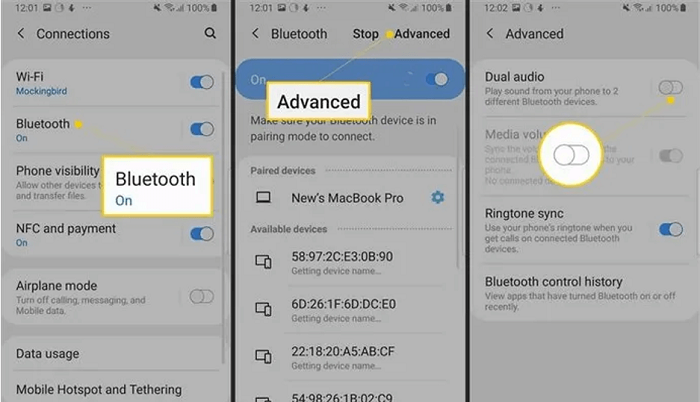
Yes, you can pair two Bluetooth speakers simultaneously with your iPhone, but the process and compatibility depend on the model of the speakers, the iOS version, and whether the speakers support stereo audio pairing or use third-party solutions.
Starting with iOS 13, Apple introduced a feature called Audio Sharing, which allows you to connect two pairs of compatible Bluetooth audio devices—such as AirPods or specific Beats models—simultaneously. However, this feature is more limited when it comes to standard Bluetooth speakers from various brands. For most traditional Bluetooth speakers, pairing two at the same time requires either built-in multi-speaker support from the manufacturer or the use of workarounds.
Supported Methods to Connect Two Bluetooth Speakers
- If both Bluetooth speakers support Apple's Audio Sharing feature—typically found in AirPods, AirPods Pro, AirPods Max, or select Beats headphones—you can easily connect them by bringing both devices near your iPhone, opening the case (for AirPods), and tapping “Connect” on the pop-up screen. Once the first set is connected, tap the audio icon in the Control Center and select “Share Audio,” then choose the second device.
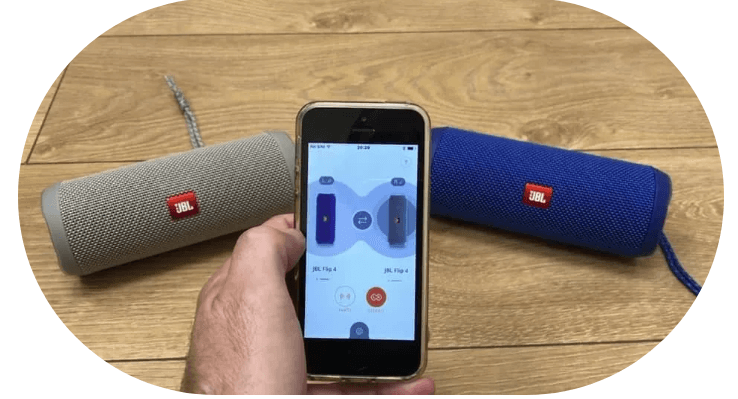
- For certain speaker brands like JBL, Ultimate Ears (UE), or Bose, some models come with proprietary party mode or stereo pairing features that allow two speakers to be paired together as one stereo source before connecting to the iPhone. In this scenario, your iPhone sees the paired speakers as a single Bluetooth device, making simultaneous playback possible.
- Third-party Bluetooth transmitters or audio splitter apps can sometimes enable dual speaker output, but they often require additional hardware or jailbreaking, which is not recommended due to security and stability issues. These methods may also result in audio latency or reduced sound quality.
Limitations of Native iOS Bluetooth Support
- iOS does not natively support connecting two arbitrary Bluetooth speakers at the same time like some Android devices do. Unlike Android’s Multipoint or Dual Audio features, iPhones cannot directly stream audio to two separate non-Apple branded Bluetooth speakers without using manufacturer-specific pairing modes.
- Even with Audio Sharing, iOS restricts this functionality mainly to Apple’s own headphones and select Beats products. Most third-party Bluetooth speakers, such as those from Sony, Anker, or Logitech, do not appear in the “Share Audio” list and thus cannot be paired simultaneously via this method.
- Latency and sync issues may arise when attempting unofficial methods to connect two speakers. Bluetooth audio transmission to multiple devices without proper synchronization can result in echo, delay, or uneven volume levels, especially during video playback or gaming.
Workarounds and Alternative Solutions
- Using a Bluetooth splitter device—a small hardware adapter that receives audio from the iPhone and rebroadcasts it to two separate Bluetooth speakers—can achieve simultaneous playback. These devices vary in reliability, and audio quality depends on the splitter’s Bluetooth codec support and firmware.
- Some speaker manufacturers offer dedicated apps (like JBL Portable or UE BOOM) that allow pairing two compatible speakers in stereo or party mode. After pairing them together through the app, the speaker pair connects to your iPhone as a single unit, effectively allowing dual-speaker audio.
- Connecting one speaker via Bluetooth and the other via a wired connection (using a Lightning to 3.5mm adapter and an AUX cable) is a stable workaround. This setup avoids Bluetooth syncing issues and ensures both speakers play audio in perfect sync, though it limits mobility.
Can you stream music from an iPhone to multiple Bluetooth speakers simultaneously?
 How Can I Connect My iPhone To My Car Speakers
Yes, you can stream music from an iPhone to multiple Bluetooth speakers simultaneously, but it depends on several factors, including your iPhone model, iOS version, and the speakers you're using. Apple introduced a feature called Audio Sharing in iOS 13 and later, which allows you to share audio with two sets of compatible Bluetooth headphones or speakers at the same time.
However, this feature works best with Apple devices like AirPods or Beats headphones. For third-party Bluetooth speakers, especially non-Apple ones, native support for simultaneous streaming to multiple speakers is limited. You may need to rely on third-party apps or Bluetooth transmitters to achieve true multi-speaker playback across more than two devices.
Supported Features for Multi-Speaker Streaming
- Audio Sharing, available on iPhones with iOS 13 and later, enables pairing two Bluetooth audio devices at once, such as two sets of AirPods or compatible headphones, by bringing the second device close to the iPhone while music is playing.
- This feature also supports sharing audio with one person using AirPods and another using compatible Beats headphones, making it useful for duet listening but not ideal for filling large spaces with sound from multiple stand-alone speakers.
- iOS limits native multi-output functionality primarily to Apple’s ecosystem; most third-party Bluetooth speakers are not designed to work seamlessly in a multi-speaker sync setup using only built-in iPhone tools.
Using Third-Party Apps for Expanded Connectivity
- Applications like AmpMe, Bose Connect, or Ultimate Bluetooth Hacker allow an iPhone to sync music playback across multiple Bluetooth speakers by turning your phone into a central controller that streams to each device in unison.
- These apps often require all users or devices to install the same software and connect to the same Wi-Fi network or use Bluetooth tethering to maintain synchronized audio output.
- While convenient, using third-party apps may introduce slight audio lag or reduce sound quality due to data compression and varying Bluetooth signal strength across devices.
Alternative Methods for Multi-Speaker Output
- Bluetooth transmitters with multi-point pairing capabilities can connect to an iPhone and then broadcast the audio signal to multiple paired speakers simultaneously, acting as a bridge to overcome iOS limitations.
- Some modern Bluetooth speakers support daisy-chaining or party mode features (such as JBL Connect, Sony's Stereo Party Chain, or Ultimate Ears' BOOM/Megaboom app), allowing a primary speaker to wirelessly link with others, creating a cohesive multi-speaker setup controlled from an iPhone.
- Home audio systems like Apple AirPlay 2-compatible speakers (e.g., HomePod, Sonos) enable true multi-room audio streaming from an iPhone over Wi-Fi, providing a more reliable and higher-quality alternative to Bluetooth for playing music on multiple speakers at once.
Frequently Asked Questions
Can I connect more than one Bluetooth speaker to my iPhone at the same time?
Yes, you can connect multiple Bluetooth speakers to your iPhone simultaneously. Modern iPhones support connecting to two audio devices at once using the Audio Sharing feature or third-party apps. Simply pair the first speaker normally, then open Control Center, press and hold the audio card, and tap Share Audio to connect a second compatible device. Some speaker brands also offer their own multi-speaker modes.
How do I use Audio Sharing to connect two Bluetooth speakers?
To use Audio Sharing, first connect one Bluetooth speaker to your iPhone. Then, bring the second compatible Bluetooth speaker close to your iPhone. Open Control Center, tap and hold the audio card showing the connected speaker, and tap Share Audio. Your iPhone will search for the second speaker—tap it when it appears. Both speakers will now play audio simultaneously from your iPhone.
 How Can I Connect My Laptop To Bluetooth Speakers
What if my speakers don’t support Audio Sharing?
If your speakers don’t support Audio Sharing, you can use third-party apps like AmpMe or Bose Connect to sync multiple speakers. These apps create a synchronized network across devices. Alternatively, some speaker brands, such as JBL with PartyBoost or Sony with Stereo Party, have proprietary technologies that allow daisy-chaining compatible models directly through their own app or functions without relying on iPhone features.
Can I connect more than two Bluetooth speakers to my iPhone?
The iPhone natively supports connecting to two Bluetooth audio devices at once using Audio Sharing. To connect more than two, you'll need speakers with built-in grouping capabilities, such as JBL PartyBoost or Ultimate Ears speakers with PartyUp. Alternatively, use a third-party app like AmpMe, which synchronizes multiple phones and speakers over Wi-Fi or Bluetooth to play audio in unison across several devices.
https://youtube.com/watch?v=FeCynqixUtQ
 How Can I Connect My Laptop To My Bluetooth Speakers
Leave a Reply