
How Can I Connect My iPhone To My Car Speakers

Connecting your iPhone to your car speakers enhances your driving experience by allowing seamless access to music, calls, and navigation.
With several methods available, including Bluetooth, USB, and wireless CarPlay, pairing your device has never been easier. Whether your vehicle supports the latest technology or relies on older audio systems, there’s a solution to integrate your iPhone smoothly.
This guide walks you through each compatible option, offering step-by-step instructions and troubleshooting tips to ensure a stable connection. From enabling Bluetooth settings to optimizing audio quality, you’ll discover practical ways to enjoy hands-free communication and entertainment while keeping your focus on the road.
 Harman Kardon Speakers How To Connect To Computer
How Can I Connect My iPhone To My Car Speakers
Connecting your iPhone to your car speakers allows you to enjoy hands-free calling, streaming music, navigation audio, and voice-assisted features directly through your vehicle’s audio system. This integration enhances safety and convenience while driving, minimizing distractions.
There are several methods to achieve this connection, depending on your car’s technology and model year. The most common approaches include using Bluetooth, a USB cable, or Apple CarPlay—either wired or wirelessly.
Each method varies in setup complexity, audio quality, and feature availability. Understanding the capabilities of both your iPhone and your car’s infotainment system is essential to choosing the best connection method for your needs.
Using Bluetooth to Pair Your iPhone with Your Car
Bluetooth is the most universally supported wireless method for connecting your iPhone to car speakers, offering a straightforward way to stream audio and make hands-free calls.
 Heos Speakers How To Connect
To pair your iPhone via Bluetooth, first, ensure that your car’s stereo system is in pairing mode and that Bluetooth is activated on your iPhone under Settings > Bluetooth. Then, select your car’s name from the list of available devices. Once connected, your iPhone will automatically reconnect to the car’s system whenever it's within range.
While Bluetooth provides convenience, audio quality may vary slightly depending on the codec supported by the car’s receiver, and some older models might not support advanced media controls or high-fidelity streaming. However, for most users, Bluetooth remains a reliable and simple solution for wireless audio connectivity.
Connecting via USB Cable for Stable Performance
A physical USB connection offers a more stable and often higher-quality link between your iPhone and your car’s audio system, especially when Apple CarPlay is supported.
Using a certified Lightning-to-USB cable, simply plug your iPhone into your car’s USB port, usually located on the dashboard or center console. The car’s infotainment screen will typically prompt you to enable CarPlay or allow trust access—tap “Trust” on your iPhone if prompted. USB connections provide faster data transmission, consistent audio playback, and continuous charging for your device, making them ideal for longer drives.
 Home Built In Speakers How To Connect
Unlike Bluetooth, USB connections rarely disconnect unexpectedly and offer enhanced integration with vehicle controls, allowing safer access to apps like Maps, Messages, and music services directly from the car’s touchscreen or steering wheel buttons.
Using Apple CarPlay for Seamless Integration
Apple CarPlay is Apple’s in-car interface that mirrors select iPhone apps onto your car’s display, providing a safe and intuitive way to access music, navigation, calls, and messages. CarPlay can be used over a USB connection or, in compatible vehicles, wirelessly.
Wired CarPlay requires a Lightning cable and automatic setup upon connection, while wireless CarPlay must be enabled in your car’s settings and paired through iPhone’s Bluetooth and Wi-Fi. Once active, CarPlay organizes apps in a car-friendly layout and supports Siri voice commands, enabling complete hands-free control.
Not all vehicles support CarPlay, so it’s important to check compatibility—but for supported models, it delivers the most immersive and feature-rich experience for iPhone users, turning the car’s display into an extension of the iPhone itself.
 How Can I Connect My Laptop To Bluetooth Speakers
| Connection Method | Setup Type | Audio Quality | Key Benefits | Limitations |
|---|---|---|---|---|
| Bluetooth | Wireless | Good (varies by codec) | Universal compatibility, easy pairing, hands-free calling | Lower audio fidelity, occasional dropouts, limited app integration |
| USB Cable | Wired | Excellent | Stable connection, charges iPhone, supports CarPlay | Requires cable, limited mobility |
| Apple CarPlay | Wired or Wireless | Excellent (with app streaming) | Full iPhone app integration, Siri support, intuitive interface | Requires compatible car or aftermarket stereo, not all cars support wireless |
How to Connect Your iPhone to Car Speakers: A Step-by-Step Guide
Why isn’t my iPhone playing audio through my car speakers via Bluetooth?
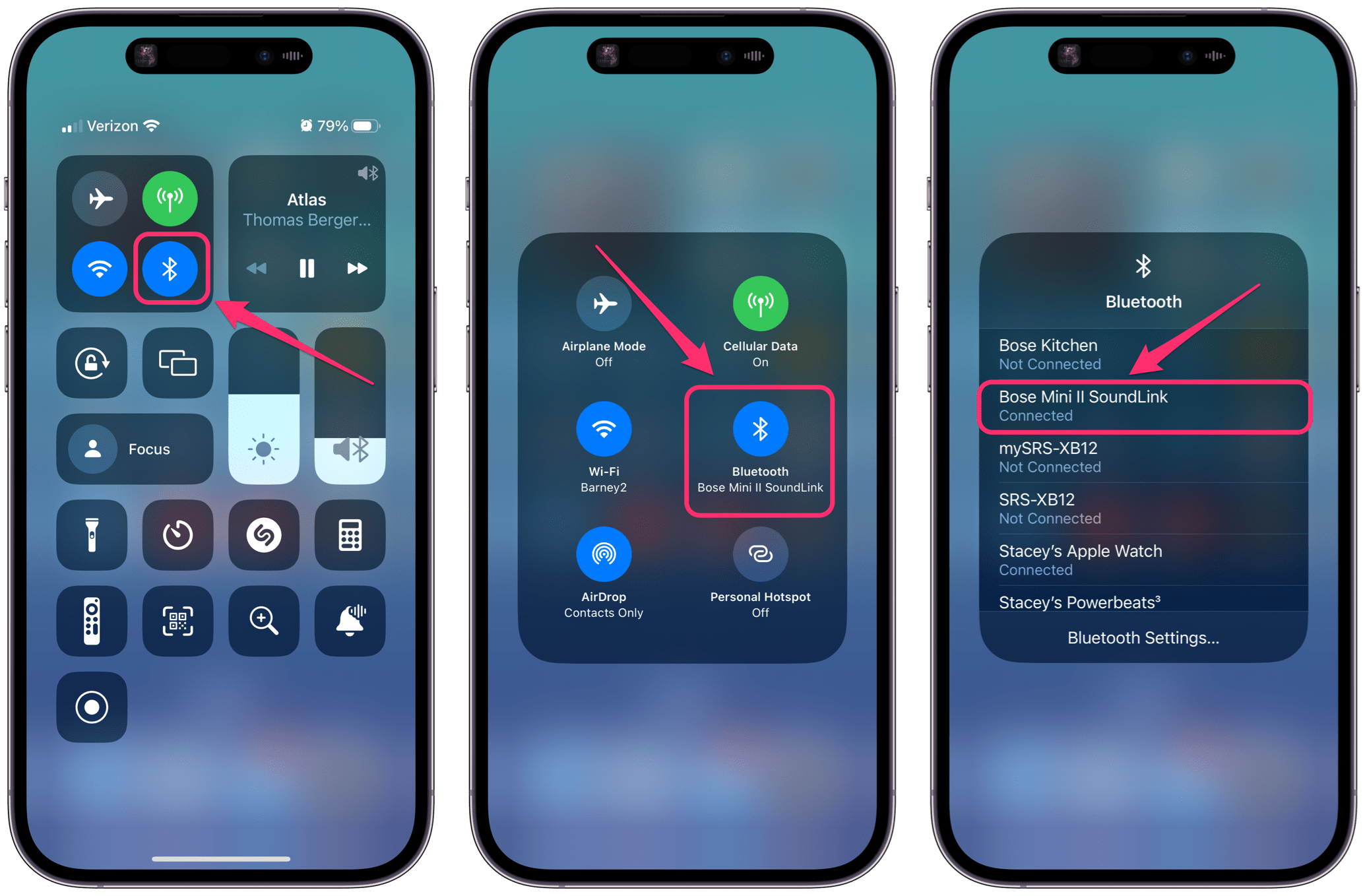
Check Bluetooth Connection and Pairing Status
One of the most common reasons your iPhone isn't playing audio through your car speakers via Bluetooth is due to a disconnected or improperly paired Bluetooth connection. Bluetooth pairing must be successfully completed between your iPhone and your car's audio system for audio to transmit. Over time, the pairing may fail due to software glitches, car infotainment system resets, or interference.
- Ensure Bluetooth is turned on both on your iPhone and in your car’s system settings. Go to Settings > Bluetooth on your iPhone and confirm it’s active.
- Check if your car appears under My Devices with a connected status. If it shows as “Not Connected,” tap on your car’s name to reconnect.
- If the device won’t connect, forget the device on your iPhone by tapping the info (i) icon next to the car’s name, then re-pair the devices from scratch to reset the connection.
Verify Audio Routing and App Output Settings
Even with Bluetooth connected, your iPhone may not automatically send audio to your car speakers if the audio output is directed elsewhere. This often happens after using headphones, AirPlay, or other Bluetooth devices. The iPhone doesn’t always switch audio output seamlessly, especially when switching contexts like ending a FaceTime call or disconnecting headphones.
- Start playing audio (such as music or a podcast), then swipe down from the top-right corner (iPhone X or later) or up from the bottom (iPhone 8 or earlier) to open the Control Center.
- Tap the audio output icon (a triangle with concentric circles) and select your car’s Bluetooth audio system from the list of available devices.
- If your car’s name isn’t listed, pause the audio, disconnect and reconnect Bluetooth, then retry selecting the car as output.
Update iPhone and Car System Software
Outdated software on your iPhone or your vehicle’s infotainment system can cause compatibility issues that prevent Bluetooth audio from working correctly. Manufacturers frequently release updates to fix bugs, improve connectivity, and enhance device interoperability. If neither the iPhone nor the car system has been updated recently, this could be the root cause.
 How Can I Connect My Laptop To My Bluetooth Speakers
- On your iPhone, go to Settings > General > Software Update to install any pending iOS updates. A recent update may have resolved Bluetooth audio bugs.
- Check your car manufacturer’s website or owner’s manual for instructions on updating the infotainment system. Some systems update over USB, Wi-Fi, or via a dealership service.
- After both systems are updated, restart your iPhone and your car, then attempt to pair and play audio again to see if the issue is resolved.
Frequently Asked Questions
How can I connect my iPhone to my car speakers using Bluetooth?
To connect via Bluetooth, turn on Bluetooth in your iPhone's Settings, then put your car's stereo in pairing mode. Select your car's name from the list of available devices on your iPhone. Confirm the pairing code if prompted. Once connected, audio from calls, music, and navigation will play through your car speakers automatically when in range.
Can I use a USB cable to connect my iPhone to my car’s audio system?
Yes, if your car supports USB audio input and has a Lightning or USB-C port, you can use an Apple-certified cable to connect your iPhone. Plug one end into your iPhone and the other into the car’s USB port. This enables audio playback and charging. Some systems may require you to select USB or iPod mode on the car’s stereo for it to work.
What is Apple CarPlay, and how does it help connect my iPhone to car speakers?
Apple CarPlay lets you control iPhone functions like music, maps, and messages through your car’s infotainment screen. To use it, connect your iPhone via USB or wirelessly (if supported). Once connected, audio automatically plays through the car speakers. CarPlay provides a simplified interface optimized for driving and enhances integration between your iPhone and vehicle systems.
Why won’t my iPhone connect to my car speakers via Bluetooth?
Your iPhone may fail to connect due to a poor Bluetooth connection, incompatible software, or the car system not being in pairing mode. Try resetting Bluetooth on both devices, forgetting the device on your iPhone, and re-pairing. Ensure your car’s software and iPhone iOS are updated. If issues persist, restart both devices and check for manufacturer-specific troubleshooting steps.
 How Can I Connect My Phone To Multiple Bluetooth Speakers
Leave a Reply