
Bose Speakers For TV How To Connect
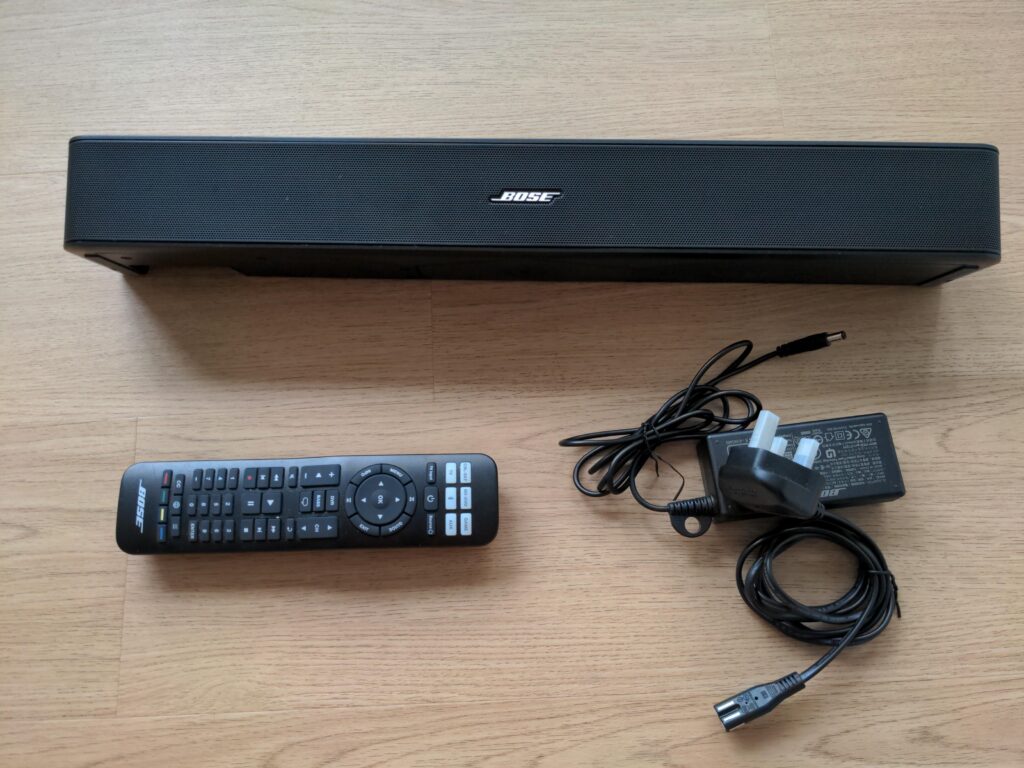
Connecting Bose speakers to your TV can significantly enhance your audio experience, delivering rich, immersive sound that built-in TV speakers often lack. Whether you're using a soundbar, home theater system, or standalone Bose speakers, proper setup is key to optimal performance.
This guide walks you through the various methods to connect Bose speakers to your TV, including HDMI, optical cables, and Bluetooth. You'll learn how to identify the right inputs and outputs on your devices, configure audio settings, and troubleshoot common connection issues. With clear, step-by-step instructions, you can quickly enjoy superior sound quality for movies, shows, and games.
How to Connect Bose Speakers to Your TV for Optimal Sound
Connecting Bose speakers to your TV enhances audio quality, delivering a theater-like experience at home. Whether you're using a soundbar, home theater system, or standalone Bose speakers, the connection process typically involves selecting the right audio output from your TV and pairing it with the appropriate input on your Bose device.
 Bose Speakers How To Connect To TV
Most modern Bose speaker systems support HDMI (ARC), optical audio cables, or Bluetooth connectivity. Ensuring compatibility between your TV and speaker model is essential for a smooth setup. Once physically connected, you may need to configure audio settings on your TV to direct sound to the external speakers and disable the internal TV speakers.
Using HDMI ARC to Connect Bose Speakers to Your TV
One of the most efficient ways to connect Bose speakers to a TV is through an HDMI ARC (Audio Return Channel) connection. This method requires a compatible TV and Bose system with an HDMI ARC port.
Simply use a high-speed HDMI cable to link the HDMI ARC port on your TV to the HDMI ARC input on the Bose speaker or soundbar. Once connected, enable HDMI Control or CEC in your TV and Bose system settings to allow synchronized power and volume control. This connection supports high-quality audio formats, including Dolby Digital, and simplifies setup by reducing the number of cables needed.
Connecting via Optical Audio Cable for Digital Sound
If your TV does not support HDMI ARC or your Bose speaker lacks an HDMI input, using an optical audio cable (TOSLINK) is an excellent alternative. Begin by locating the optical audio output on your TV and connecting one end of the cable to it, and the other to the optical input on your Bose speaker system.
 Ceiling Speakers How To Connect
After making the physical connection, switch your TV’s audio output settings to External Speakers or Audio System and select PCM or Dolby Digital depending on your Bose model’s support. This method delivers clear digital audio and is widely compatible with older and newer devices alike.
Pairing Bose Speakers to TV via Bluetooth
For a wireless connection, you can pair certain Bose speakers to your TV using Bluetooth, especially useful when wired options are unavailable. First, ensure your Bose speaker is in pairing mode. Then, access your TV’s Bluetooth settings and search for available devices.
Select your Bose speaker from the list to complete pairing. Note that not all TVs support audio output via Bluetooth, so you may need a Bluetooth transmitter plugged into your TV's audio output. While convenient, Bluetooth may introduce slight latency, so it’s best suited for casual viewing rather than synced cinematic content.
| Connection Type | Best For | Audio Quality | Setup Complexity |
|---|---|---|---|
| HDMI ARC | Modern TVs and Bose soundbars | High (supports surround formats) | Easy to medium |
| Optical Cable | Older or HDMI-limited setups | Medium to high (digital clarity) | Easy |
| Bluetooth | Wireless convenience | Medium (possible latency) | Easy, but may need adapter |
How to Connect Bose Speakers to Your TV: A Step-by-Step Guide
How to Connect a Bose TV Speaker to Your TV Without Using an Optical Cable

 Club Car Onward Bluetooth Speakers How To Connect
Using HDMI ARC (Audio Return Channel)
Connecting your Bose TV speaker to your television using HDMI ARC is one of the most effective and high-quality methods available without relying on an optical cable. This connection allows audio to travel from your TV to the speaker through a single HDMI cable, simplifying setup and supporting advanced audio formats like Dolby Digital. Most modern TVs and home audio systems come equipped with an HDMI ARC port, typically labeled as such on the back of the device.
- Locate the HDMI ARC port on your TV and the corresponding HDMI OUT (ARC) port on your Bose TV speaker or compatible Bose soundbar.
- Use a high-speed HDMI cable to connect the TV's HDMI ARC port to the Bose device’s HDMI OUT (ARC) port.
- Power on both devices, then navigate to your TV’s audio settings and select the HDMI ARC or external speaker option as the primary audio output.
Connecting via Bluetooth
Bluetooth offers a wireless alternative for linking your Bose TV speaker to your TV, especially useful when HDMI or optical connections are not feasible. While this method provides convenience and eliminates cable clutter, it may introduce slight audio lag and does not support the highest quality audio formats. Ensure that both your TV and the Bose speaker support Bluetooth pairing for this method to work effectively.
- Put your Bose TV speaker into Bluetooth pairing mode by pressing and holding the Bluetooth source button on the device or using the Bose remote.
- On your TV, go to Settings > Sound > Bluetooth Devices (exact menu names may vary by brand), then search for available devices.
- Select the Bose speaker from the list, confirm the pairing code if prompted, and set the TV audio output to Bluetooth or the specific Bose device name.
Using an Auxiliary (3.5mm) Cable with Audio Settings Adjustment
If your TV has a headphone or auxiliary output, you can connect your Bose TV speaker using a 3.5mm audio cable, provided the speaker has compatible input options. This analog method is straightforward but delivers standard stereo audio rather than surround sound. It's a practical solution for older TVs lacking HDMI ARC or Bluetooth capabilities.
- Identify the headphone or line-out port on your TV and the auxiliary input on your Bose speaker or companion device.
- Connect the two devices using a 3.5mm male-to-male audio cable, ensuring a secure fit at both ends.
- On your TV, disable internal speakers and route audio through the headphone jack. On the Bose system, switch the input source to AUX or LINE IN to receive the signal.
Frequently Asked Questions
How do I connect a Bose speaker to my TV using HDMI ARC?
Connect one end of an HDMI cable to the HDMI ARC port on your TV and the other to the HDMI OUT (ARC) on the Bose speaker system. Turn on both devices, then go to your TV’s audio settings and set the audio output to “HDMI ARC” or “Audio System.” This allows the TV to send sound to the Bose speaker automatically. Ensure both devices are powered and correctly configured for optimal performance.
 Coby Speakers How To Connect
Can I connect a Bose speaker to my TV via Bluetooth?
Yes, you can connect a Bose speaker to your TV via Bluetooth if both devices support it. Enable Bluetooth on the Bose speaker and put it in pairing mode. On your TV, go to Settings > Sound > Bluetooth Devices and select your Bose speaker. Note that Bluetooth may cause audio delay during video playback. For better synchronization, use HDMI or optical connections instead.
What type of cable do I need to connect a Bose speaker with an optical cable?
You need a standard TOSLINK optical cable to connect your Bose speaker to your TV using the optical audio output. Plug one end into the “Optical Out” port on your TV and the other into the “Optical In” on the Bose speaker. Set your TV’s audio output to “Optical” or “Digital Audio” and ensure the correct input is selected on the speaker for proper sound transmission.
Why is there no sound after connecting my Bose speaker to the TV?
Check that the correct input is selected on the Bose speaker and that your TV’s audio output is set to HDMI ARC, optical, or the appropriate connection type. Ensure cables are securely plugged in and not damaged. Restart both devices and verify that the TV’s volume isn’t muted. If using HDMI, confirm both devices support ARC and that you're using a compatible HDMI cable.
 Creative Bluetooth Speakers How To Connect
Leave a Reply