
Sonos Speaker Configuration
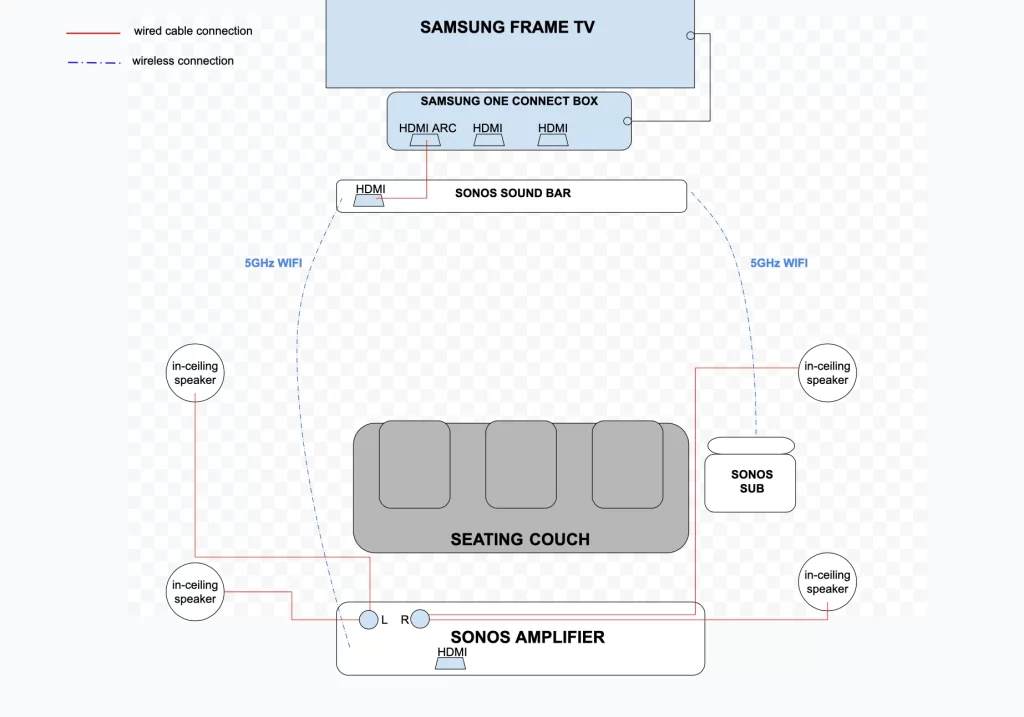
Configuring a Sonos speaker system transforms the way you experience sound at home. With seamless integration across rooms, Sonos offers a wireless audio solution that combines simplicity and high performance.
Whether you're setting up a single speaker or a whole-home audio network, the process is designed to be intuitive through the Sonos app. Users can customize speaker placement, fine-tune audio settings, group devices for synchronized playback, and even integrate voice control.
Proper configuration ensures optimal sound quality and connectivity, making it essential to understand network requirements, speaker compatibility, and placement strategies. This guide walks you through the key steps to maximize your Sonos system’s potential.
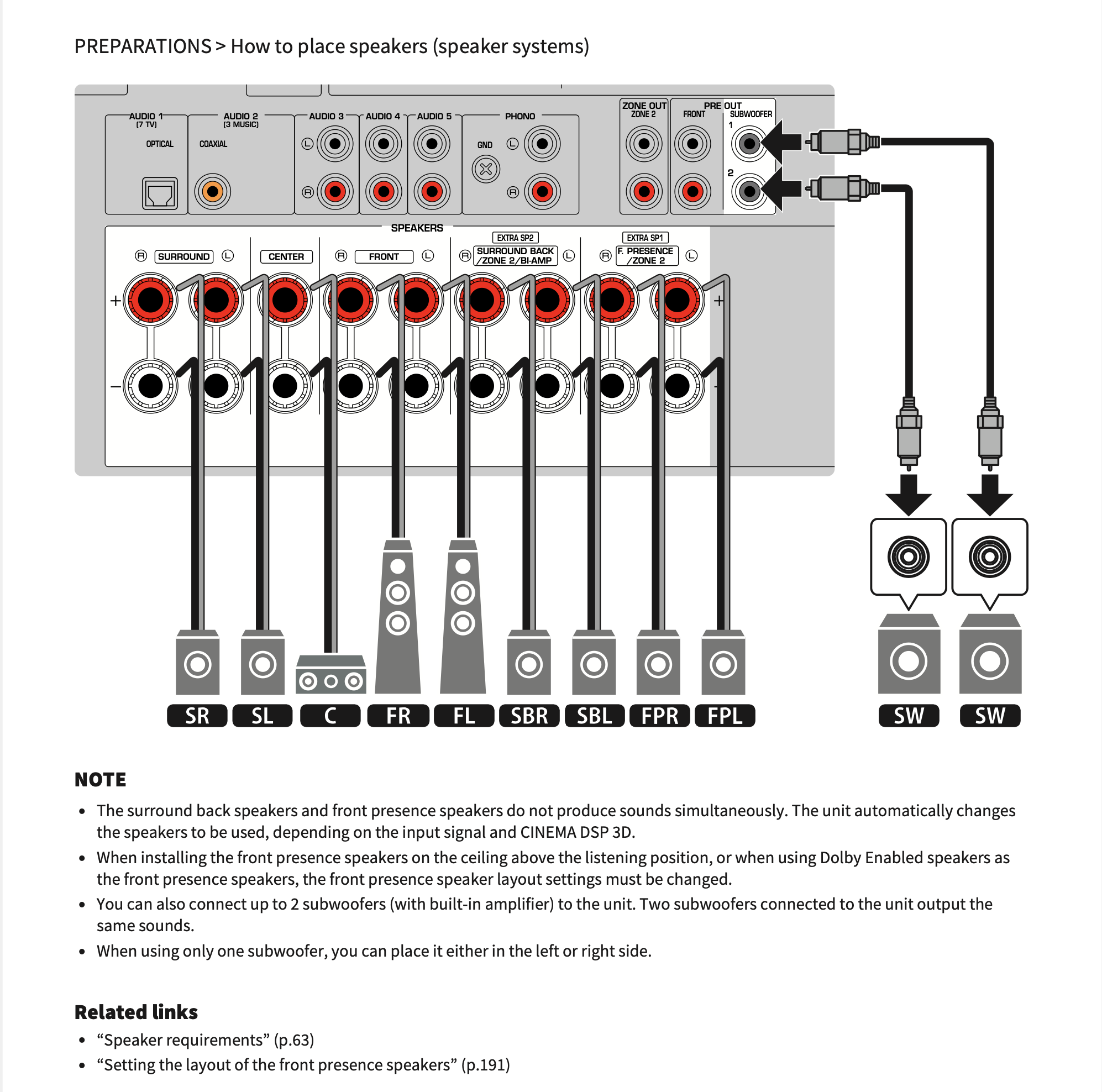 Yamaha Receiver Speaker Configuration
Sonos Speaker Configuration: Setting Up a Seamless Multi-Room Audio Experience
Configuring Sonos speakers properly allows users to enjoy synchronized, high-quality audio throughout their home using a single, intuitive app. The Sonos ecosystem is designed for ease of use and scalability, letting you start with one speaker and gradually expand to multiple rooms.
To begin, download the Sonos app (available for iOS and Android), which will guide you through connecting your speaker to Wi-Fi, naming each speaker by room, and grouping them for multi-room playback. Sonos uses a proprietary mesh networking technology called SonosNet (on compatible models) to ensure stable connections even in large homes with spotty Wi-Fi coverage.
Proper speaker placement—away from walls, corners, and electronic interference—enhances audio performance. Once configured, users can stream music from various services like Spotify, Apple Music, or Amazon Music, control volume per room, and even integrate voice assistants like Alexa or Google Assistant for hands-free operation.
Understanding Speaker Grouping and Room Naming
Properly naming your Sonos speakers by room (e.g., “Living Room,” “Kitchen,” “Bedroom”) is essential for organized multi-room audio control.
 Yamaha Speaker Configuration
The Sonos app allows you to group multiple speakers together so they play the same audio in sync, ideal for parties or whole-home listening. You can create temporary or permanent groups and ungroup them at any time with a tap.
Additionally, each grouped speaker maintains independent volume controls, enabling you to adjust sound levels based on room acoustics or personal preference. This level of flexibility makes it easy to customize your audio experience, whether you're playing background music throughout the house or isolating sound to a specific area.
Optimizing Network Performance with SonosNet
For reliable performance, especially in larger homes, using SonosNet—a dedicated wireless network created by Sonos speakers—can significantly enhance connectivity.
Unlike standard Wi-Fi setups where all devices depend on a single router, SonosNet uses select Sonos units (like the Sonos One, Beam, or Amp) to form a mesh network that relays the signal from speaker to speaker, improving stability and reducing dropouts.
 9.4.6 Speaker Configuration
To activate SonosNet, ensure at least one wired Ethernet connection to your network and use compatible hardware as boosters. This setup reduces strain on your home Wi-Fi and provides a smoother, more consistent streaming experience, particularly for high-resolution audio or video soundtracks.
Using Trueplay Tuning for Room-Specific Sound Optimization
Trueplay is a proprietary Sonos technology that tailors speaker sound output to the unique acoustics of each room. By using the microphone in your iOS device, Trueplay analyzes how sound reflects off walls, furniture, and other surfaces, then adjusts the speaker’s equalization settings accordingly.
This process ensures balanced bass, clear mids, and crisp highs regardless of speaker placement. While Trueplay is only available on iOS devices and cannot be used on Android, it is supported on most Sonos speakers including Move, One, Play:5, and Beam. Running Trueplay during setup—or after rearranging a room—ensures that each speaker delivers optimal audio performance in its environment.
| Feature | Description | Supported Models |
|---|---|---|
| Sonos App Setup | Central hub for configuring and managing all Sonos speakers and settings | All models |
| SonosNet | Makes a dedicated mesh network using Sonos speakers for improved stability | Sonos One, Beam, Amp, Symfonisk, Play:5 (Gen 2), etc. |
| Trueplay Tuning | Room-specific sound calibration using iOS microphone | Most Sonos speakers except Roam and Port |
| Multi-Room Grouping | Sync audio across multiple speakers in different rooms | All models |
Complete Guide to Sonos Speaker Configuration for Optimal Audio Performance
How do I set up and configure Sonos speakers for optimal performance?
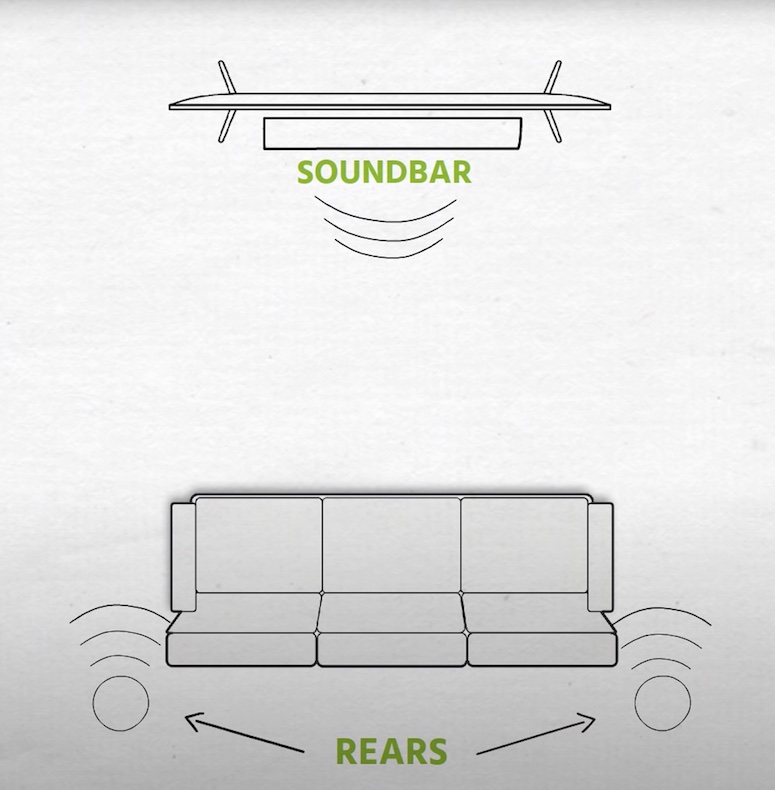
 D'Appolito Speaker Configuration
Positioning Your Sonos Speakers for Best Audio Quality
- Place your Sonos speakers at ear level when seated, as this ensures the sound is directed toward listeners for a more immersive experience. Bookshelf or wall-mounted placement works best for components like the Sonos One or Sonos Five.
- Keep speakers away from corners and walls to prevent bass buildup and audio distortion. If using a Sonos Sub, position it along a wall but not directly in a corner, allowing it to integrate smoothly with other speakers.
- Use the Sonos app’s room calibration feature, Trueplay (available on iOS), to optimize audio output based on your room’s acoustics. This adjusts EQ settings dynamically depending on speaker placement and room materials like carpet, glass, or wood.
Connecting Sonos Speakers to Your Network
- Start by downloading the Sonos app and creating an account. Ensure your smartphone or tablet is connected to the same Wi-Fi network you plan to use for the speakers.
- Power on your Sonos speaker and press the join button (if required). The app will detect the device and guide you through the setup process, including network selection and firmware updates.
- For stable performance, consider using a Sonos Boost or connecting one Sonos speaker via Ethernet to create a dedicated SonosNet mesh network, reducing reliance on Wi-Fi and minimizing dropouts.
Grouping and Configuring Speakers in the Sonos App
- Open the Sonos app and navigate to the “Settings” tab to group multiple speakers into a single zone, such as Living Room or Whole Home, enabling synchronized playback across rooms.
- Customize speaker stereo pairs or home theater setups, like pairing two Sonos Ones for a stereo configuration or linking a Sonos Arc with Sub and Era speakers for surround sound.
- Adjust playback settings such as volume limits, bass, treble, and balance per room, ensuring each area delivers sound tailored to its environment and usage.
How to Reset and Reconnect a Sonos Speaker During Configuration

How to Perform a Factory Reset on a Sonos Speaker
- Locate the reset button on your Sonos speaker; this is usually a small pinhole found on the back or bottom of the device, depending on the model.
- With the speaker powered on, use a paperclip or similar tool to press and hold the reset button for approximately 10 seconds.
- Observe the status light: initially, it may flash orange and white, but continue holding until it turns solid orange, then release. The speaker will reboot and enter setup mode, indicating that all previous settings have been erased.
Reconnecting the Sonos Speaker Using the Sonos App
- Open the Sonos app on your smartphone or tablet and ensure your device is connected to the same Wi-Fi network intended for the speaker.
- Tap the Settings tab, then go to System > Add Product. The app will automatically search for available Sonos devices in setup mode.
- Follow the on-screen prompts to select your speaker, reconnect it to your Wi-Fi network, and assign it to a room, completing the reconfiguration process.
Troubleshooting Connection Issues After Reset
- If the speaker isn’t detected after a reset, confirm that your mobile device's Wi-Fi and Bluetooth are enabled and that you're using the latest version of the Sonos app.
- Restart your router and try the setup process again; sometimes resetting the speaker disrupts communication with the network temporarily.
- Ensure no firewall or network settings are blocking Sonos devices, and consider using the SonosNet feature if your Wi-Fi signal is weak in the speaker’s location.
How to access Sonos speaker settings for configuration?
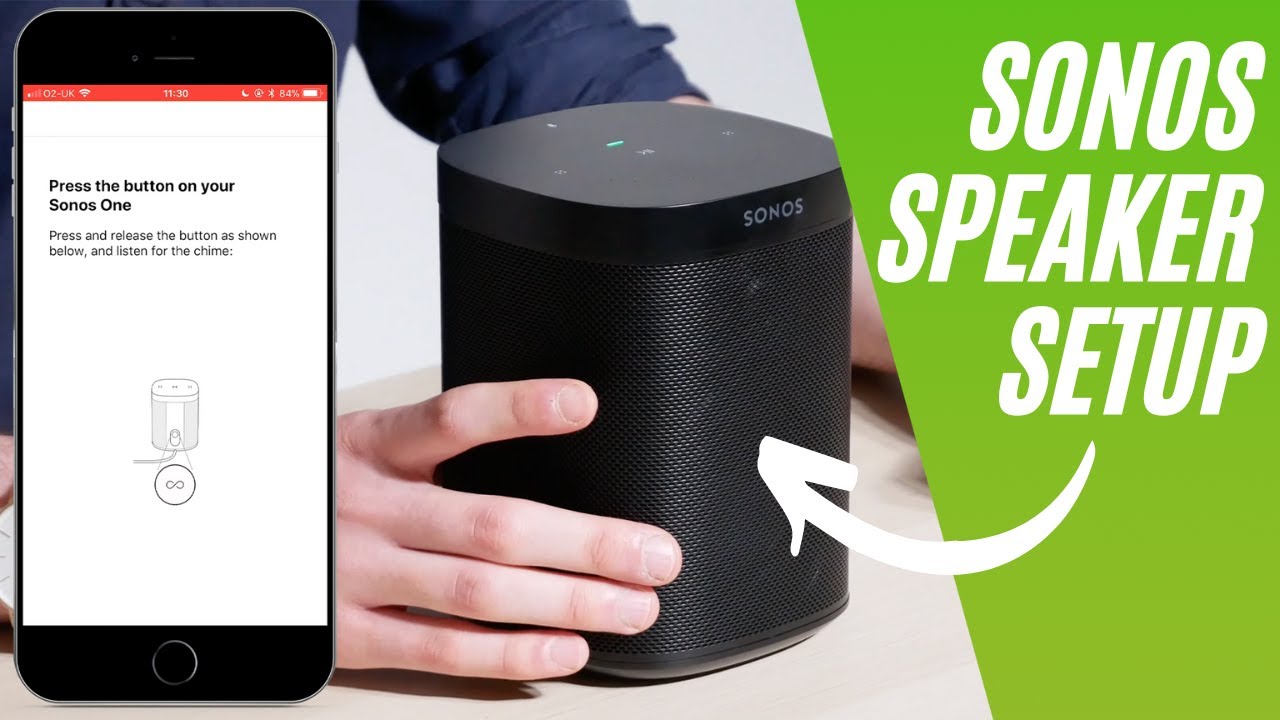
Accessing Sonos Settings via the Sonos App
The primary method to access and configure Sonos speaker settings is through the official Sonos app, available for smartphones, tablets, and desktop computers. This app serves as the central hub for managing all connected Sonos devices and provides an intuitive interface to make adjustments. After installing the Sonos app and connecting your device to the same Wi-Fi network as your speaker, you can begin configuring your system.
- Launch the Sonos app and ensure your account is signed in; if this is your first setup, follow the on-screen prompts to detect nearby speakers.
- Once your speaker appears in the main Devices tab or Home screen, tap on the specific speaker you wish to configure.
- Tap the Settings icon (usually a gear symbol) to access volume controls, stereo pairing options, room naming, and network details.
Configuring Audio and Room Settings
After accessing your speaker’s settings, you can customize various audio and room-specific options to optimize playback and room acoustics. These settings allow the speaker to adapt to its environment and deliver a tailored listening experience based on placement and usage.
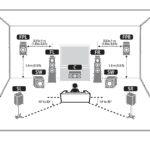 Dolby Atmos Speaker Configurations
- Use the “Trueplay Tuning” feature to adjust sound output based on your room’s acoustics; this requires an iOS device and walks you through automatically calibrating audio using the device’s microphone.
- Modify the room name and group settings to organize speakers by location, such as “Living Room” or “Kitchen,” for easier access during multi-room playback.
- Adjust EQ settings manually to boost bass, treble, or balance audio output according to personal preference or room layout.
Advanced Network and Device Management
For users who need deeper control over their Sonos system, advanced settings such as network configuration, software updates, and diagnostics are accessible directly within the app. These tools help ensure your speaker remains connected, updated, and performing optimally.
- Navigate to Settings > System > [Your Speaker] > Network to view IP address, signal strength, and Wi-Fi connection status; you can also choose to switch to Ethernet if the speaker supports a wired connection.
- Under System > Software Updates, verify that your speaker is running the latest firmware, which is automatically downloaded but can be manually triggered if needed.
- Use the Diagnostics tool to generate a diagnostic report if experiencing connection issues, which can be shared with Sonos support for troubleshooting.
Frequently Asked Questions
How do I set up my Sonos speaker for the first time?
Download the Sonos app, plug in your speaker, and open the app to follow the on-screen instructions. It will guide you through connecting the speaker to your Wi-Fi network and naming your device. You can also group speakers during setup. Ensure your smartphone is on the same Wi-Fi network for smooth configuration.
Can I use Sonos speakers with different Wi-Fi networks?
No, all Sonos speakers must operate on the same Wi-Fi network to function together. Mixing different networks isn’t supported. For optimal performance, use a strong 2.4 GHz network. If you have coverage issues, consider using a Sonos Boost or connecting one speaker via Ethernet to improve stability across the system.
How do I group multiple Sonos speakers?
Open the Sonos app, go to the Rooms tab, select the speakers you want to group, and tap “Create Group.” You can play the same audio across all grouped speakers. Groups can be customized and saved. To ungroup, simply tap the group name and select individual speakers to separate.
 Dota 2 Speaker Configuration
What should I do if my Sonos speaker won’t connect to Wi-Fi?
Ensure your Wi-Fi is working and the speaker is within range. Restart your router and Sonos device. In the Sonos app, check for interference or incorrect credentials. Use the built-in setup troubleshooting tool. If issues persist, reset the speaker by holding the button until the light flashes, then retry setup.
Leave a Reply