
Sonos Arc Speaker Configuration
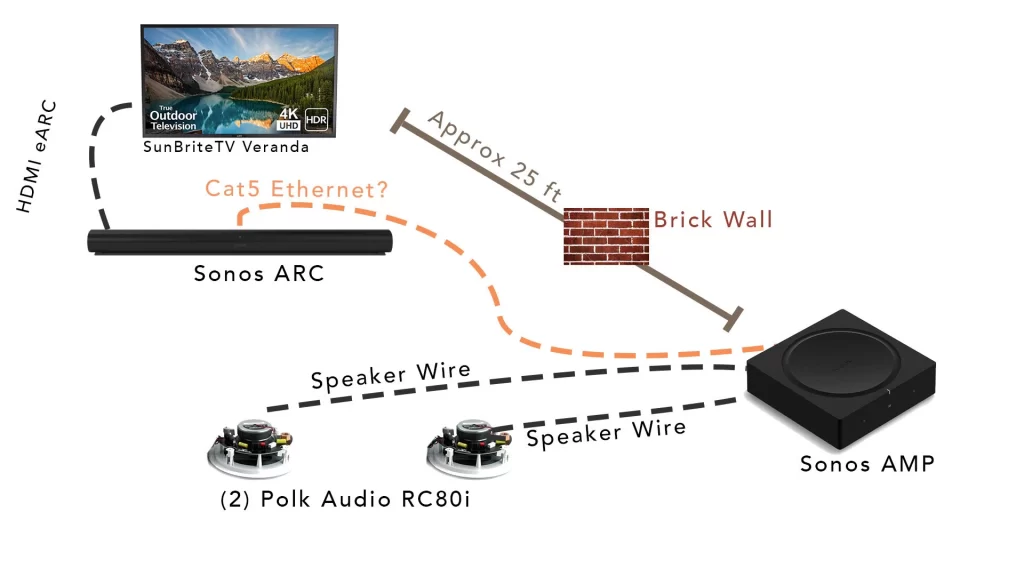
The Sonos Arc is a premium soundbar designed to elevate home audio with immersive, room-filling sound.
Known for its sleek design and advanced acoustic engineering, the Arc supports Dolby Atmos for a three-dimensional listening experience. Proper configuration is key to unlocking its full potential, whether mounted on a wall, placed on a stand, or integrated into an existing Sonos home theater system.
Connecting the Arc via Wi-Fi, pairing it with a Sonos Sub and rear speakers, and using Trueplay tuning can dramatically enhance audio performance. This guide walks through optimal setup steps, ensuring seamless integration and the best sound quality for movies, music, and more.
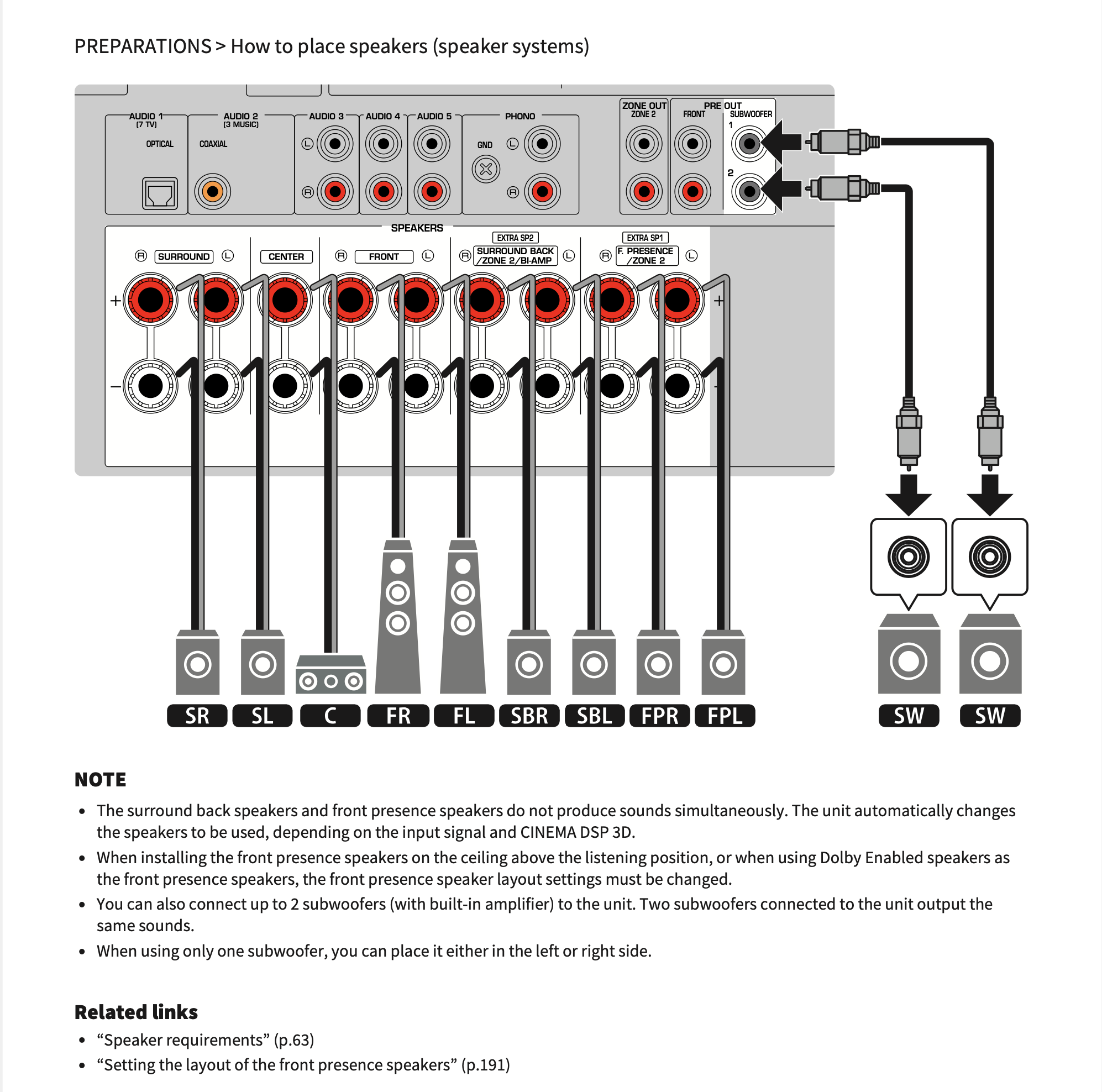 Yamaha Receiver Speaker Configuration
Optimizing Your Home Theater: Sonos Arc Speaker Configuration Explained
The Sonos Arc is a premium soundbar engineered to deliver immersive audio with support for Dolby Atmos, making it a centerpiece for modern home theater setups. Proper speaker configuration is essential to unlock its full potential, ensuring accurate sound staging, clear dialogue, and dynamic spatial audio.
Whether you're integrating the Arc into a standalone setup or expanding it into a multi-speaker Sonos home theater ecosystem, understanding the configuration options—such as placement, room calibration via Trueplay, and pairing with other Sonos components like the Sub and rear speakers—is critical.
Through the intuitive Sonos app, users can easily manage speaker settings, calibrate audio based on room acoustics, and create a cohesive entertainment experience tailored to their space and preferences.
Positioning and Placement for Optimal Acoustics
Correct positioning of the Sonos Arc significantly impacts sound quality. For best results, place the Arc directly below or above your TV, ideally centered and unobstructed, with at least 4 inches of clearance from walls to allow sound to project freely. Mounting the Arc on a wall using the optional bracket ensures stability and ideal angle alignment.
 Yamaha Speaker Configuration
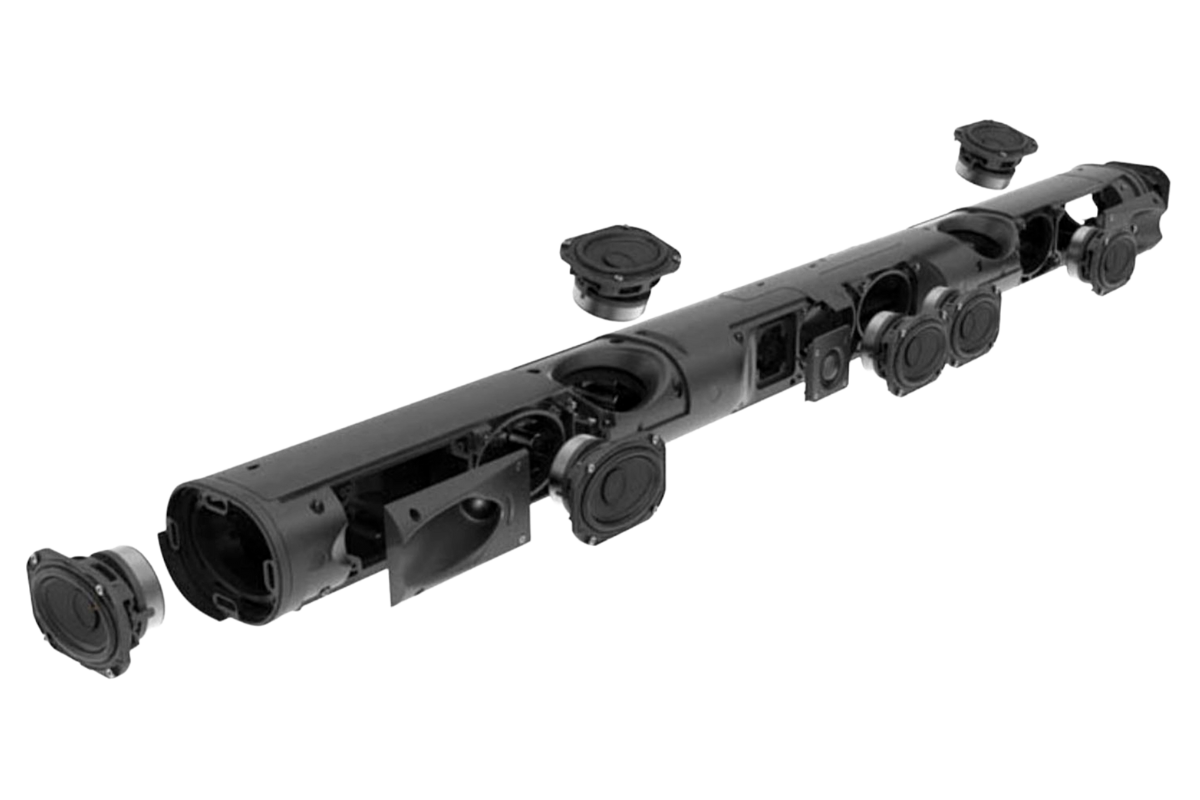
Avoid placing objects in front of the speaker, as its front-firing and upward-firing drivers rely on open space and ceiling reflection to create a spacious, three-dimensional soundstage. If your ceiling is slanted, high, or made of sound-absorbing materials, performance may vary, so consider room layout carefully during installation.
Using Trueplay Tuning to Customize Room Acoustics
Trueplay tuning is a proprietary Sonos feature that tailors the Arc’s audio output to the unique acoustics of your room.
By using the microphone on an iOS device, Trueplay measures how sound reflects off walls, furniture, and other surfaces, then adjusts equalization and timing to deliver balanced, room-optimized audio. This process should be performed in the primary listening position and repeated if speaker placement or room layout changes.
While Android devices do not support real-time Trueplay calibration, the Sonos app still allows access to pre-optimized EQ settings. Enabling Trueplay ensures that Dolby Atmos effects are rendered accurately, enhancing immersion during movies and music playback.
 9.4.6 Speaker Configuration
Expanding Your Setup with Sonos Sub and Surround Speakers
For a complete 5.1 or 7.1.4 home theater configuration, the Sonos Arc can be paired with the Sonos Sub (for deep bass) and a pair of Sonos One SL or Sonos Era 300 rear speakers (for surround sound).
This integration is managed seamlessly through the Sonos app, which guides users through wireless pairing and speaker role assignment. Once connected, all components operate in sync, delivering a cohesive audio experience with precise channel separation and atmospheric effects.
The wireless nature of the system simplifies setup compared to traditional home theaters, but ensuring strong Wi-Fi or Ethernet connectivity is vital for stable performance and low-latency audio transmission.
| Component | Role in Configuration | Key Feature |
|---|---|---|
| Sonos Arc | Primary soundbar with Dolby Atmos support | Upward-firing drivers for immersive audio reflection |
| Sonos Sub | Delivers deep, room-shaking bass | Wireless design with force-cancelling drivers |
| Sonos One SL / Era 300 | Rear speakers for surround sound | Supports spatial audio and seamless Sonos integration |
Step-by-Step Guide to Sonos Arc Speaker Configuration
Is the Sonos Arc still supported for speaker configuration updates?
 D'Appolito Speaker Configuration
Yes, the Sonos Arc is still supported for speaker configuration updates. Sonos continues to provide firmware updates and software enhancements for the Arc, ensuring compatibility with new features, streaming services, and voice assistant integrations. T
hese updates are delivered over-the-air via the Sonos app, allowing users to maintain optimal performance and access new functionalities. As part of Sonos' broader ecosystem, the Arc benefits from ongoing support for Trueplay tuning, HDMI-CEC integration, and improved audio processing, especially for Dolby Atmos content.
Current Firmware and Software Support
- Sonos regularly releases firmware updates for the Arc, which can be installed automatically through the Sonos app when the speaker is connected to Wi-Fi.
- These updates may include bug fixes, security patches, audio calibration improvements, and new features such as expanded voice assistant support or enhanced connectivity options.
- Users can manually check for updates in the app under Settings > System > Update, ensuring their Arc remains up to date with the latest capabilities.
Integration with the Sonos Ecosystem
- The Sonos Arc is fully compatible with the current Sonos S2 app platform, which supports ongoing feature development and multi-room audio management.
- It works seamlessly with other S2-compatible devices like the Sub, Era speakers, and Sonos Amp, allowing users to expand their home theater setup with updated configurations.
- Features like Trueplay tuning, which optimizes sound based on room acoustics, continue to be supported, ensuring the Arc adapts effectively to different environments.
Future-Proofing and Long-Term Viability
- Sonos has not announced any plans to discontinue support for the Arc, and given its position as a flagship soundbar, it is likely to receive updates for several years.
- The inclusion of HDMI eARC ensures compatibility with modern TVs and audio formats, including high-resolution Dolby Atmos, positioning the Arc well for future entertainment technology.
- Customer support, warranty services, and access to the Sonos repair program further reinforce the long-term usability and relevance of the speaker.
How to verify Dolby Atmos playback on Sonos Arc during speaker setup?
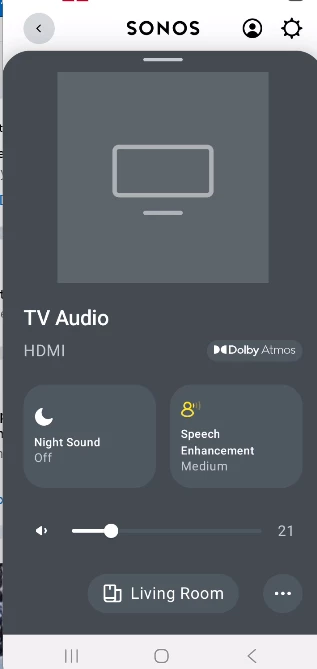
Check Source Content Compatibility for Dolby Atmos
- Ensure the audio source being played supports Dolby Atmos. This includes streaming services like Netflix, Disney+, Apple TV+, and Amazon Prime Video that offer Atmos-enabled content. Look for the Dolby Atmos logo or audio specification in the video’s audio settings.
- Use a high-speed HDMI connection with ARC (Audio Return Channel) or eARC support from your TV to the Sonos Arc. eARC is preferred as it provides the bandwidth required for lossless Dolby Atmos audio transmission.
- Verify that your TV or streaming app is outputting a Dolby Atmos-compatible audio signal. This can typically be checked in the TV’s audio output settings or within the app’s playback menu where audio format details are displayed during playback.
Confirm Sonos App Audio Settings Configuration
- Open the Sonos app and navigate to the Settings tab, then select your Sonos Arc under System. Choose Audio Settings and ensure that both HDMI Audio Output and Dolby Atmos are enabled if available.
- Look for an on-screen prompt in the Sonos app during playback of compatible content indicating that Dolby Atmos is active. The app may display real-time audio format information when a compatible signal is detected.
- Run Trueplay tuning, which optimizes the speaker’s sound based on your room’s acoustics. While not required for Atmos functionality, it ensures the spatial audio effects of Dolby Atmos are delivered accurately and effectively.
Observe On-Screen and Audio Cues During Playback
- Play a known Dolby Atmos title and observe the Sonos app or your TV’s audio information overlay. The Sonos app may display Dolby Atmos or Dolby Digital Plus with Atmos in the Now Playing screen when the correct signal is received.
- Listen for distinct spatial audio effects such as overhead sounds, directional dialogue, and immersive surround effects, which are signature characteristics of Dolby Atmos. These cues indicate the system is decoding and rendering Atmos correctly.
- Use test content such as Dolby’s official Atmos demo videos or reference clips designed for home theater evaluation. Consistent overhead and three-dimensional sound placement confirms successful Dolby Atmos playback through the Sonos Arc.
Frequently Asked Questions
How do I set up the Sonos Arc speaker with my TV?
Connect the Sonos Arc to your TV using an HDMI ARC or eARC cable. Plug the Arc into power and open the Sonos app on your phone. Follow the in-app setup instructions, which will guide you through connecting to your Wi-Fi network and pairing with your TV. Enable HDMI-CEC on your TV for easier control. The app also lets you configure Trueplay tuning for optimal sound based on your room.
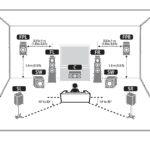 Dolby Atmos Speaker Configurations
Can the Sonos Arc be wall-mounted?
Yes, the Sonos Arc can be wall-mounted using the optional Sonos Arc wall mount, sold separately. The mount allows secure, flush installation and enables full access to the touch controls and power/ethernet ports. Follow the included instructions to position it correctly for optimal sound projection. Make sure the wall can support the speaker’s weight and that power and HDMI connections remain accessible after mounting.
Does the Sonos Arc support Dolby Atmos?
Yes, the Sonos Arc supports Dolby Atmos, delivering immersive, three-dimensional sound through virtualized height effects. It uses upward-firing drivers to reflect sound off the ceiling, creating the sensation of overhead audio. For the best Atmos experience, ensure your source content and TV support Dolby Atmos, and use an HDMI eARC connection. The Sonos app also offers adjustable speech and bass levels to fine-tune the Atmos performance.
How do I adjust the sound settings on my Sonos Arc?
Use the Sonos app to adjust sound settings like bass, treble, and speech enhancement. Open the app, select the Arc, and go to Settings > EQ. For room-specific tuning, run Trueplay during setup or re-tune later using your phone’s microphone. Trueplay calibrates the speaker to your space by analyzing sound reflections. You can also control volume and mute with the touch panel on top of the Arc.
 Dota 2 Speaker Configuration
Leave a Reply