
How To Connect A TV To Bluetooth Speakers
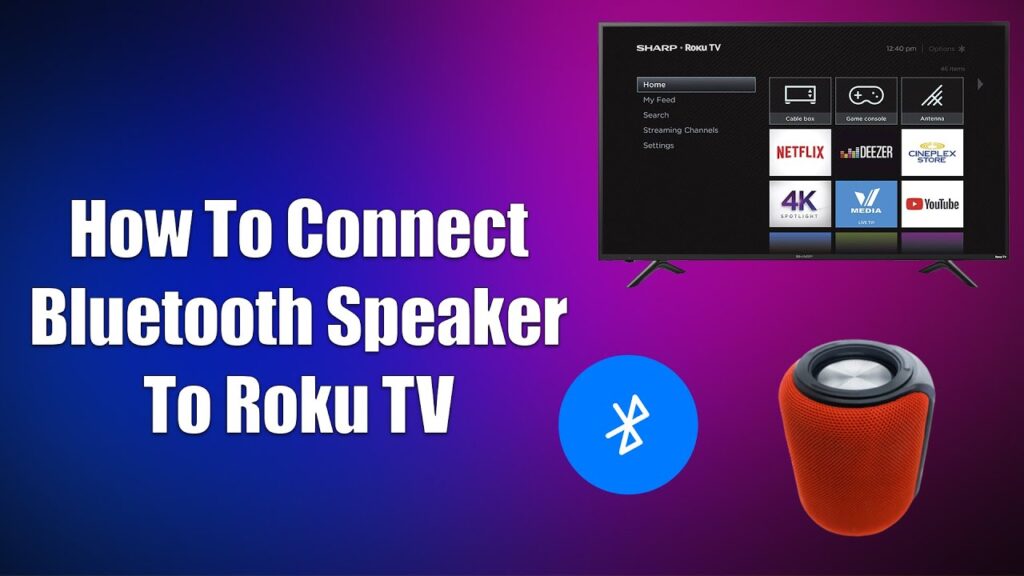
Connecting your TV to Bluetooth speakers can significantly enhance your audio experience, offering better sound quality and greater convenience than built-in TV speakers.
This setup allows you to enjoy movies, music, and shows with richer bass, clearer dialogue, and immersive surround sound. Modern TVs and Bluetooth speakers make the process relatively simple, though the exact steps may vary by model and brand.
Whether you want a wireless home theater feel or need accessibility features like audio sharing, Bluetooth connectivity provides a practical solution. This guide walks you through the necessary steps, requirements, and troubleshooting tips to seamlessly pair your TV with Bluetooth speakers for a superior entertainment experience.
 Altec Lansing Computer Speakers How To Connect
How To Connect A TV To Bluetooth Speakers
Connecting a TV to Bluetooth speakers enhances your audio experience by offering wireless convenience and improved sound quality. Many modern smart TVs support Bluetooth connectivity, allowing you to pair wireless speakers or soundbars easily. To begin, ensure both your TV and Bluetooth speaker are powered on and fully charged or plugged in.
Access the TV’s settings menu, navigate to the Sound or Audio output section, and look for Bluetooth devices or Bluetooth pairing. Enable Bluetooth if it's not already active. Your TV will scan for available devices—select your Bluetooth speaker from the list. Once selected, follow any on-screen prompts to complete pairing. After a successful connection, audio from your TV will route directly to the Bluetooth speaker.
Note that older TVs without built-in Bluetooth may require a Bluetooth transmitter connected via the audio output port (such as optical, AUX, or USB). While connecting via Bluetooth is convenient, some users may experience slight audio delay (latency), which can often be mitigated using the TV’s audio sync or lip sync settings.
Check TV Bluetooth Compatibility
Before attempting to connect Bluetooth speakers, verify that your TV supports Bluetooth functionality. Most smart TVs released in the last five years—especially from brands like Samsung, LG, Sony, and TCL—come equipped with built-in Bluetooth.
 Amplifier How To Connect Speakers To TV
You can check this by reviewing your TV’s user manual or going into the Settings menu, selecting Sound, and looking for an option labeled Bluetooth Speaker List, Bluetooth Settings, or similar. If you don’t see Bluetooth options, your TV likely lacks native Bluetooth support.
In such cases, you can still use external accessories like a Bluetooth audio transmitter that plugs into your TV’s audio output (e.g., optical, 3.5mm AUX, or USB). These transmitters send audio signals wirelessly to your Bluetooth speakers, effectively adding Bluetooth capability to older or non-smart TVs.
Pairing Your Bluetooth Speaker With The TV
To pair your Bluetooth speaker with the TV, first place the speaker in pairing mode—this is usually done by pressing and holding a dedicated Bluetooth button until an indicator light starts blinking. On your TV, go to Settings > Sound > Bluetooth Devices (exact path may vary by brand), then select Scan or Add Device. When your speaker appears in the list of available devices, highlight it and press Select or Pair.
Some systems may display a passkey or PIN (typically 0000 or 1234); if prompted, enter it using the remote. Once connected, the TV will typically display a confirmation message, and audio will begin playing through the speaker.
 AmpMe How To Connect Multiple Speakers
If the connection fails, try restarting both devices, ensuring the speaker is within range (within 30 feet and without major obstructions), and confirming no other device is currently connected to the speaker.
Alternative Methods For Non-Bluetooth TVs
If your TV doesn’t have built-in Bluetooth, you can still connect it to Bluetooth speakers using external transmitters.
A Bluetooth transmitter plugs into the TV’s audio output port and sends the audio signal wirelessly to your speaker. Common connection types include optical (TOSLINK), 3.5mm AUX, and USB. Optical connections are preferred for high-quality digital audio and are commonly found on modern TVs. AUX outputs work well for analog audio and are widely compatible.
Some transmitters are powered via USB (often plugged into the TV’s USB port), while others require a separate power source. After connecting the transmitter to the TV, pair it with your Bluetooth speaker just as you would with a native Bluetooth device. This method is cost-effective and allows you to upgrade your sound system without buying a new TV.
 How To Connect 2 JBL Speakers To One Phone
| Connection Method | Best For | Audio Quality | Latency Considerations |
|---|---|---|---|
| TV Built-in Bluetooth | Modern smart TVs with Bluetooth support | Good (AAC/SBC codec) | Low to moderate; use lip sync settings if needed |
| Bluetooth Transmitter (Optical) | Older TVs with digital audio output | High (digital signal) | Low; depends on transmitter quality |
| Bluetooth Transmitter (AUX/3.5mm) | TVs with headphone or line-out jack | Fair (analog signal) | Moderate; may need manual audio delay adjustment |
How to Connect a TV to Bluetooth Speakers: Step-by-Step Guide
How to connect your TV to Bluetooth speakers for audio playback

Check Your TV’s Bluetooth Compatibility
- Start by verifying if your TV supports Bluetooth out of the box. Most modern smart TVs, especially those from brands like Samsung, LG, Sony, and newer models from TCL or Hisense, include built-in Bluetooth capabilities.
- Navigate to your TV’s settings menu, typically accessible through the remote, and look for a section labeled “Sound,” “Audio Output,” or “Device Connections.” Within this section, search for a “Bluetooth” option.
- If Bluetooth is listed, your TV can likely pair directly with Bluetooth speakers. If it’s not available, you may need to use a Bluetooth transmitter, which plugs into your TV’s audio output to enable wireless connectivity.
Pair the Bluetooth Speaker with Your TV
- Turn on your Bluetooth speaker and place it in pairing mode, usually by pressing and holding a dedicated Bluetooth button until an indicator light starts blinking.
- On your TV, go to the Bluetooth settings menu and select “Scan” or “Search for Devices.” Your TV will then look for available Bluetooth devices within range.
- When your speaker appears in the list of available devices, select it and confirm the pairing. A successful connection is often confirmed with a tone from the speaker or a message on the TV screen.
Configure Audio Output Settings
- After pairing, ensure your TV is set to send audio to the correct output. Go to the “Sound” or “Audio Output” settings and select “Bluetooth Speaker” or the specific name of your paired device.
- Test the connection by playing audio or video content. If you hear sound from the speaker, the setup is complete. If there’s no sound, verify that the speaker remains connected and is not paired to another device.
- For optimal performance, keep the speaker within 30 feet of the TV and minimize obstructions or interference from other wireless devices such as routers or microwaves.
Frequently Asked Questions
Can I connect my TV directly to Bluetooth speakers?
Yes, if your TV has built-in Bluetooth, you can connect it directly to Bluetooth speakers. Go to the TV’s settings, enable Bluetooth, and pair it with your speakers. If your TV doesn’t support Bluetooth, use a Bluetooth transmitter connected to the audio output (like the headphone jack or optical audio port) to wirelessly send sound to your speakers.
What do I do if my TV doesn’t have Bluetooth?
If your TV lacks Bluetooth, purchase a Bluetooth transmitter. Plug it into your TV’s audio output port—such as 3.5mm headphone jack, RCA, or optical audio. Power the transmitter, put it in pairing mode, and connect it to your Bluetooth speakers. This setup sends audio wirelessly, allowing you to enjoy high-quality sound without needing a Bluetooth-enabled TV.
Why is there audio delay when using Bluetooth speakers with my TV?
Audio delay, or latency, happens because Bluetooth processing takes time, causing sound to lag behind the video. To fix this, enable your TV’s audio sync or lip-sync feature and adjust the delay settings. Some Bluetooth transmitters and speakers also support low-latency codecs like aptX LL. Using these can significantly reduce or eliminate the lag during video playback.
 How To Connect 2 LG XBoom Speakers
Can I use multiple Bluetooth speakers with my TV?
Most TVs and transmitters allow pairing with only one Bluetooth device at a time. To use multiple speakers, ensure they support daisy-chaining or stereo pairing via manufacturer apps. Alternatively, use a transmitter that supports multi-device output or connect speakers to a Bluetooth receiver with multi-speaker capabilities. Otherwise, an audio splitter with multiple transmitters may be needed for simultaneous playback.
Leave a Reply