
Samsung Smart TV How To Connect Speakers
Connecting external speakers to a Samsung Smart TV can significantly enhance your audio experience, transforming ordinary viewing into a cinematic sensation. Whether you're using a soundbar, a home theater system, or standalone speakers, proper setup is key to unlocking rich, immersive sound.
This guide walks you through the steps to successfully connect speakers to your Samsung Smart TV using various methods, including HDMI ARC, optical audio, Bluetooth, and AUX connections. We’ll help you identify the available audio outputs on your TV, choose the best connection type, and configure settings for optimal performance.
How to Connect Speakers to Your Samsung Smart TV
Connecting external speakers to your Samsung Smart TV enhances your audio experience, offering richer sound quality compared to built-in TV speakers.
 USB Speakers For PC How To Connect
Whether you want to attach a soundbar, home theater system, or powered stereo speakers, Samsung Smart TVs provide multiple connection options such as HDMI ARC, optical audio output, or Bluetooth. The exact method depends on your TV model, speaker type, and desired audio setup.
This guide walks you through the most common and effective ways to link your speakers, ensuring optimal sound performance and seamless integration with your Samsung Smart TV. By following the correct steps and using the appropriate cables or wireless technology, you can transform your viewing experience with immersive, high-fidelity audio.
Using HDMI ARC for High-Quality Audio Connection
The HDMI ARC (Audio Return Channel) port is one of the best ways to connect external speakers or a soundbar to your Samsung Smart TV.
This single-cable solution allows both audio and video signals to travel between the TV and the audio device, simplifying setup and reducing cable clutter. To use HDMI ARC, ensure both your Samsung TV and speaker system have an HDMI ARC port—usually labeled as HDMI (ARC) on the back.
 UE Boom How To Connect 2 Speakers
Connect the devices using a high-speed HDMI cable, then go to your TV’s Settings > Sound > Sound Output and select the ARC-compatible device as the audio output. Enabling eARC (enhanced Audio Return Channel) on compatible models allows for lossless, high-bitrate audio formats like Dolby TrueHD, providing a theater-like audio experience at home.
Connecting via Optical Audio Cable for Digital Sound
If your TV or speaker doesn’t support HDMI ARC, the optical audio output (TOSLINK) is an excellent alternative. This digital audio connection delivers clear, high-quality sound and is commonly found on older and mid-range Samsung Smart TVs and audio systems.
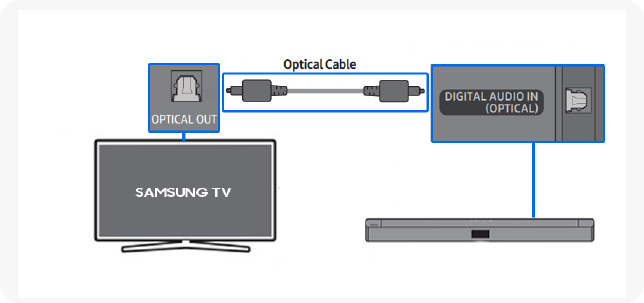
To connect, use an optical cable to link the Optical Out port on your TV to the corresponding input on your speaker or soundbar. After connecting, navigate to Settings > Sound > Sound Output on your TV and select Speaker List or Audio Out (Optical) as the output option.
Note that optical cables do not support all advanced audio formats like Dolby Atmos but still provide superior sound compared to analog connections. Ensure the optical cable is inserted correctly—the plug should click into place and should never be forced.
 Speakers In House Ceiling How To Connect
Pairing Wireless Speakers Using Bluetooth
Samsung Smart TVs support Bluetooth connectivity, allowing you to wirelessly pair compatible speakers, soundbars, or headphones.
This is ideal if you want a cable-free setup and have Bluetooth-enabled audio devices. To pair, go to your TV’s Settings > Sound > Speaker Settings > Bluetooth Speaker List and turn on Bluetooth if prompted. Your TV will scan for nearby devices—select your speaker when it appears in the list.
Once paired, the TV will route audio directly to the Bluetooth speaker. While convenient, Bluetooth has limitations: it may introduce audio lag during videos and typically doesn’t support high-resolution audio formats. For best performance, keep the speaker within 30 feet and minimize obstructions and interference from other wireless devices.
| Connection Method | Best For | Audio Quality | Required Equipment |
|---|---|---|---|
| HDMI ARC/eARC | Soundbars, AV receivers, home theater systems | High to lossless; supports Dolby Atmos with eARC | HDMI cable (high-speed), ARC-compatible devices |
| Optical Audio | Digital audio systems without HDMI ARC | Good; supports stereo and 5.1 surround | Optical cable (TOSLINK) |
| Bluetooth | Wireless speakers, portable audio devices | Fair to good; possible latency and compression | Bluetooth-enabled speaker and TV |
How to Connect Speakers to Your Samsung Smart TV: A Step-by-Step Guide
How to Connect External Speakers to a Samsung Smart TV – Step-by-Step Guide
 Speakers In Ceiling How To Connect
Choosing the Right Connection Method for Your Samsung Smart TV
- Determine the available audio output ports on your Samsung Smart TV. Most modern models include HDMI ARC (Audio Return Channel), optical audio (TOSLINK), Bluetooth, and 3.5mm headphone jack options.
- Assess the input options on your external speakers. If your speakers support HDMI ARC, this is typically the best choice for high-quality audio and simplified control.
- Choose HDMI ARC for surround sound systems or soundbars that support it, optical for older audio systems, Bluetooth for wireless convenience, or analog RCA/3.5mm for basic speaker setups.
Connecting Speakers via HDMI ARC (Recommended Method)
- Locate the HDMI port on your Samsung Smart TV labeled HDMI ARC – usually HDMI 1 or HDMI 2 – and connect one end of a high-speed HDMI cable to it.
- Attach the other end of the HDMI cable to the HDMI ARC port on your external speaker or soundbar.
- Turn on both devices, then go to Settings > Sound > Output on your TV and select “HDMI ARC” as the audio output. This enables both audio transmission and allows TV remote volume control over the sound system.
Using Bluetooth to Pair Wireless Speakers
- Ensure your Samsung Smart TV supports Bluetooth; most models from 2016 onwards do. Go to Settings > Sound > Bluetooth Devices to access the pairing menu.
- Put your external Bluetooth speakers into pairing mode by pressing and holding the Bluetooth or pairing button until the indicator light flashes.
- Select the speaker name from the list of detected devices on your TV screen. Once connected, audio will route automatically to the Bluetooth speakers, though latency may slightly increase during video playback.
How to connect external speakers to a Samsung Smart TV using audio output options?
Identify Available Audio Output Ports on Your Samsung Smart TV
- Examine the back or side panel of your Samsung Smart TV to locate the available audio output ports. Common options include an optical audio output (TOSLINK), HDMI ARC (Audio Return Channel), or a 3.5mm headphone/audio out jack.
- Check your TV's user manual or product specifications online if you are unsure about the port types. Modern Samsung Smart TVs typically include HDMI ARC and optical audio outputs for external audio devices.
- Determine which type of audio output your external speakers support. This will help you decide whether you need an HDMI cable, optical cable, or a 3.5mm auxiliary cable to establish the connection.
Connect Speakers Using HDMI ARC for Optimal Audio Quality
- Use a high-speed HDMI cable to connect the HDMI ARC port on your Samsung Smart TV to the HDMI ARC input on your external speaker system or soundbar. Ensure both devices support ARC functionality.
- Power on both the TV and the external speakers, then navigate to the TV's Settings menu using the remote control. Go to Sound > Sound Output and select HDMI ARC as the audio output source.
- Once selected, the TV should automatically route audio through the connected speakers. You can adjust volume using the TV remote, and many systems support CEC (Consumer Electronics Control) for unified device control.
Use Optical Audio Output for Digital Sound Connection
- Connect one end of an optical audio cable (TOSLINK) to the optical audio output port on your Samsung Smart TV and the other end to the optical input on your external speakers or audio receiver.
- Ensure the cable is securely inserted and aligned properly, as optical connections are sensitive to incorrect positioning. Power on both devices after the physical connection is complete.
- On your TV, go to Settings > Sound > Sound Output and choose Optical as the audio output method. This enables digital audio transmission, supporting formats such as Dolby Digital for enhanced sound quality.
How to Connect External Speakers to a Samsung Smart TV

Using HDMI ARC or eARC for Audio Connection
Connecting external speakers to a Samsung Smart TV using HDMI ARC (Audio Return Channel) or eARC (enhanced ARC) is one of the most effective and high-quality methods available. This approach allows for two-way communication between the TV and an external audio device like a soundbar or AV receiver, sending audio from the TV to the speaker system and control signals in both directions via a single HDMI cable.
- Locate the HDMI ports on your Samsung TV and identify the one labeled HDMI ARC or HDMI eARC — usually the first or second HDMI port.
- Use a high-speed HDMI cable (preferably HDMI 2.1 for eARC compatibility) to connect the TV’s HDMI ARC port to the HDMI ARC input on your external speaker or sound system.
- Power on both devices and navigate to the TV’s Settings menu, then go to Sound > Speaker Settings > Output Sound. Select HDMI ARC or External Speaker System to route audio through the connected device.
Connecting via Optical Audio Cable
If your Samsung Smart TV does not support HDMI ARC or your external speakers lack HDMI connectivity, using an optical audio cable (also known as TOSLINK) is a reliable alternative. This method transmits digital audio signals from your TV to compatible sound systems such as soundbars, AV receivers, or home theater setups, preserving good sound quality for movies, music, and shows.
 Sony Speakers Bluetooth How To Connect
- Find the optical audio output port on the back or side of your Samsung Smart TV, typically labeled as Digital Audio Out (Optical).
- Connect one end of the optical cable to the TV’s optical port and the other end to the optical input on your external speaker system.
- Access the TV’s sound settings, go to Sound > Sound Output, and select Optical as the output method. Ensure the speaker system is set to the correct input source to receive audio.
Pairing Wireless Speakers via Bluetooth
Many Samsung Smart TVs support Bluetooth connectivity, allowing you to wirelessly connect Bluetooth-enabled external speakers. This method offers greater flexibility in speaker placement and eliminates the need for cables, making it ideal for users seeking a clean setup and quick connection, particularly with portable or compact speaker systems.
- Turn on your external Bluetooth speaker and place it in pairing mode according to the manufacturer’s instructions.
- On your Samsung TV, go to Settings > Sound > Sound Output, and select Bluetooth Speaker List.
- The TV will scan for available devices. Select your speaker from the list and confirm pairing. Once connected, the TV will route audio to the wireless speaker automatically.
Frequently Asked Questions
How do I connect external speakers to my Samsung Smart TV using HDMI ARC?
Connect one end of an HDMI cable to the TV’s HDMI ARC port and the other to the speaker’s ARC-compatible input. Turn on both devices, go to Settings > Sound > Sound Output on your TV, and select HDMI ARC. Ensure both devices support ARC and that the cable is high-speed HDMI. This setup allows audio to travel from the TV to the speakers, enabling synchronized sound with better quality than internal speakers.
Can I connect Bluetooth speakers to my Samsung Smart TV?
Yes, most Samsung Smart TVs support Bluetooth. Go to Settings > Sound > Sound Output > Bluetooth Speaker List. Turn on your Bluetooth speaker and set it to pairing mode. Select the speaker from the list on your TV. Once connected, audio will play through the Bluetooth speaker. Note that Bluetooth may introduce slight audio lag, so it’s best for casual viewing rather than fast-paced movies or gaming.
What’s the best way to connect speakers using an optical cable?
Use a digital optical cable to connect your Samsung Smart TV to external speakers or a soundbar. Plug one end into the TV’s optical audio output and the other into the speaker’s optical input. In TV settings, go to Sound > Sound Output and choose “Digital Output (Optical).” This provides high-quality digital audio and avoids interference. Make sure the cable is securely connected and the correct input is selected on the speaker system.
 Sony Bluetooth Speakers How To Connect
Why won’t my speakers connect to my Samsung Smart TV?
Check that all cables are securely connected and compatible with your devices. For HDMI ARC, ensure both TV and speakers support ARC and use a high-speed HDMI cable. For optical, verify the cable is inserted correctly and the TV’s sound output is set to “Digital Output.” If using Bluetooth, confirm the speaker is in pairing mode and within range. Restart both devices and update your TV’s firmware if the issue persists.
Leave a Reply