
Sony Speakers Bluetooth How To Connect
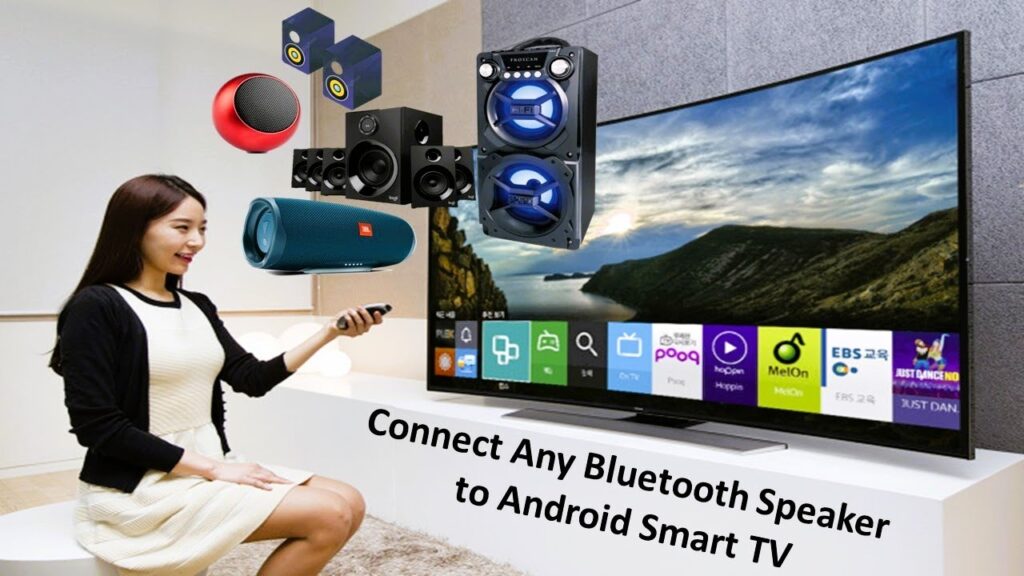
Connecting Sony Bluetooth speakers to your devices is a simple process that enhances your audio experience with wireless convenience. Whether you’re using a smartphone, tablet, or computer, Sony designs its speakers for seamless pairing and reliable performance.
This guide walks you through the step-by-step process of connecting your Sony Bluetooth speaker, from powering on the device and enabling pairing mode to selecting it from your device’s Bluetooth menu.
You’ll also find troubleshooting tips for common connection issues and advice on maintaining a stable Bluetooth signal. With clear instructions, you can quickly enjoy high-quality sound without the hassle of wires.
 How To Connect External Speakers To TV Without Aux
How to Connect Your Sony Bluetooth Speaker: A Step-by-Step Guide
Connecting your Sony Bluetooth speaker is a straightforward process that allows you to enjoy wireless audio from your smartphone, tablet, or computer.
Sony designs its Bluetooth speakers with user-friendly features, making pairing accessible even for those unfamiliar with audio technology. The key to a successful connection lies in properly preparing both the speaker and the source device. Most Sony speakers enter pairing mode automatically when powered on for the first time, indicated by a blinking blue LED light.
From there, you simply need to enable Bluetooth on your device, search for available devices, and select your Sony speaker from the list. Once connected, the LED typically turns solid blue, indicating a stable connection. For subsequent uses, many Sony speakers reconnect automatically when within range and powered on, enhancing convenience.
Preparing Your Sony Speaker for Bluetooth Pairing
Before initiating a connection, it’s essential to ensure your Sony Bluetooth speaker is properly charged and powered on.
 How To Connect Kove Commuter 2 Speakers Together
To enter pairing mode, press and hold the Bluetooth button or the power button, depending on the model—most devices will respond with a flashing blue or blue-and-red light, signaling that they're discoverable. Some models, like the SRS-XB34 or SRS-XB23, have a dedicated BLUETOOTH button that you press and hold until you hear a tone or see a blinking indicator.
Refer to your specific model's user manual if unsure. Once in pairing mode, the speaker will appear in the Bluetooth menu of nearby devices. Keep the speaker close to your source device (within 3 feet) for a stronger signal and faster pairing success.
Connecting from a Smartphone or Tablet
To pair your Sony speaker with a smartphone or tablet, first ensure Bluetooth is enabled in your device’s settings. Open the Bluetooth menu and wait for available devices to appear.
Look for your Sony speaker’s model number, such as SRS-XB23 or SRS-XB43, and tap on it to initiate pairing. If prompted, confirm the connection by tapping “Pair” or entering a default PIN like 0000—though most modern Sony speakers connect without requiring a PIN.
 How To Connect PC Speakers
Once paired successfully, you should hear a confirmation tone from the speaker, and the app (if using Sony’s Music Center or Fiestable app) may display connection details. After the initial pairing, your device will typically reconnect automatically whenever the speaker is powered on and within range.
Pairing with a Laptop or Computer
Connecting a Sony Bluetooth speaker to a Windows or macOS computer follows a similar process but may vary slightly in interface. On Windows, go to Settings > Devices > Bluetooth & other devices, then turn on Bluetooth and click “Add Bluetooth or other device.”
Select Bluetooth and wait for your Sony speaker to appear in the list—click on it to pair. On macOS, click the Bluetooth icon in the menu bar and choose your Sony speaker from the list of devices.
If the icon isn't visible, enable Bluetooth via System Preferences > Bluetooth. Note that some older computers may have limited Bluetooth range or compatibility; using a Bluetooth 5.0 adapter can improve performance. Once connected, set the Sony speaker as the default audio output in your system’s sound settings for uninterrupted playback.
 How To Connect PS5 To Bluetooth Speakers
| Action | Steps | Tips |
|---|---|---|
| Enter Pairing Mode | Press & hold Bluetooth/power button until LED flashes | Keep the speaker within 3 feet of the source device |
| Enable Bluetooth | Turn on Bluetooth in settings on phone, tablet, or computer | Ensure no other devices are already connected |
| Select Device | Choose your Sony speaker from the list of available devices | Default PIN is often 0000; most models don’t require one |
| Confirm Connection | Listen for a tone and check LED (solid blue = connected) | Use Sony’s Music Center app for firmware and settings |
How to Connect Sony Bluetooth Speakers: Step-by-Step Guide
How to Connect Sony XB43 EXTRA BASS Bluetooth Speaker to a Device

Turning On the Sony XB43 Speaker and Enabling Bluetooth Mode
To begin connecting your Sony XB43 EXTRA BASS Bluetooth Speaker to a device, first ensure the speaker is charged or connected to a power source. Press and hold the power button located on the top of the speaker until you hear a startup sound and the LED indicator lights up.
The speaker automatically enters Bluetooth pairing mode when turned on for the first time or after a reset. If it doesn’t, press and hold the Bluetooth button (marked with a Bluetooth symbol) until you hear a voice prompt indicating the speaker is in pairing mode. At this point, the Bluetooth indicator will blink rapidly, signaling it is ready to pair with a device.
- Press and hold the power button until the speaker turns on and emits an audible tone.
- Wait for the Bluetooth indicator to blink or press the Bluetooth button manually to activate pairing mode.
- Listen for the voice prompt confirming that the speaker is now discoverable via Bluetooth.
Connecting the Speaker from a Mobile Device or Tablet
Once the Sony XB43 is in pairing mode, unlock your smartphone or tablet and go to the device’s Settings menu. Navigate to the Bluetooth section and turn Bluetooth on if it isn't already enabled. Your device will scan for available Bluetooth devices.
 How To Connect Speakers To Roku TV
Look for a device named “SRS-XB43” in the list of available devices and tap on it to initiate the connection. Once selected, the speaker will emit a connection tone, and the Bluetooth indicator light will become steady, indicating a successful connection. You can now play audio from your device through the speaker.
- Go to Settings > Bluetooth on your mobile device and ensure Bluetooth is turned on.
- Wait for “SRS-XB43” to appear in the list of available devices and select it.
- Confirm the connection when the LED stops blinking and turns solid, and a voice prompt confirms pairing.
Reconnecting or Switching Between Paired Devices
The Sony XB43 can remember multiple paired devices, making it easy to reconnect without repeating the full pairing process. When you turn on the speaker, it will automatically attempt to reconnect to the last connected device if it’s within range. If you want to connect to a different previously paired device, ensure Bluetooth is enabled on that device and go to its Bluetooth settings.
Tap on “SRS-XB43” from the list of paired devices. If the automatic reconnection fails, manually place the speaker back into pairing mode by pressing and holding the Bluetooth button for a few seconds. This allows you to switch audio sources quickly between devices like phones, tablets, or laptops.
- Power on the speaker and let it automatically connect to the most recent device.
- Select “SRS-XB43” from the Bluetooth menu of another previously paired device to switch connections.
- If needed, press and hold the Bluetooth button to re-enter pairing mode and choose the desired device from its Bluetooth list.
How to Connect Sony Bluetooth Speakers to a TV

 GTRacing Gaming Chair With Bluetooth Speakers How To Connect
Check TV and Speaker Compatibility
- Ensure your TV supports Bluetooth functionality, as not all models are equipped with built-in Bluetooth. Check your TV’s user manual or navigate to the settings menu under Sound or Network to confirm Bluetooth availability.
- Verify that your Sony Bluetooth speaker is compatible with your TV’s Bluetooth version. Most modern Sony speakers such as the SRS-XB series or SRS-HT series support standard Bluetooth profiles like A2DP for audio streaming.
- Make sure the speaker is fully charged or connected to a power source, as low battery may prevent proper pairing or connection stability.
Enable Bluetooth on Your TV and Speaker
- Turn on your Sony Bluetooth speaker by pressing and holding the power button until the indicator light starts blinking, which indicates it's in pairing mode.
- On your TV, go to Settings, select Sound, then choose Bluetooth Settings or Device List, depending on your TV model. Initiate a search for nearby Bluetooth devices.
- Wait for your speaker’s name to appear in the list of available devices on your TV screen. Select it to begin pairing. Some TVs may require you to confirm a passcode, though most modern setups pair automatically.
Adjust Audio Output Settings on the TV
- After successful pairing, go back to the TV’s Sound settings and select Audio Output or Speaker Settings. Choose Bluetooth Speaker or the specific device name as the default audio output option.
- Test the connection by playing audio or video content. If no sound is heard, check whether the TV volume is functioning or if the audio output has been properly switched from internal speakers to the Bluetooth device.
- If experiencing audio delay (lip sync issues), look for an Audio Sync or A/V Sync setting in the TV’s sound menu and adjust the timing to align sound with the picture.
How to Bluetooth pair Sony SRS-XB13 speaker step by step

Turning On and Preparing the Sony SRS-XB13 for Pairing
- Locate the power button on the top panel of the Sony SRS-XB13 speaker. Press and hold this button for approximately two seconds until the power indicator light turns on.
- Upon powering on, the speaker will emit a startup sound, and the Bluetooth indicator will begin flashing blue, signaling that the device is either already in pairing mode or ready to enter it.
- If the speaker was previously connected to a device, it may automatically attempt to reconnect. To initiate a fresh pairing process, press and hold the Bluetooth button on the top of the speaker for about five seconds until the indicator blinks rapidly in blue, confirming that it is discoverable.
Enabling Bluetooth on Your Source Device
- On your smartphone, tablet, or computer, open the Settings menu and navigate to the Bluetooth section. Ensure Bluetooth is turned on.
- Wait a few seconds for the device to scan available Bluetooth devices. The list of nearby devices will appear under the Available Devices or similar section.
- Look for “SRS-XB13” in the list of available devices. This is the default name for the Sony speaker. If you see a different name, confirm it is your speaker by checking the flashing pattern of the indicator light.
Completing the Bluetooth Connection
- Select “SRS-XB13” from the list of available devices on your source device. Once selected, the connection process will begin automatically.
- Wait for a confirmation sound from the speaker, typically a chime, and observe the Bluetooth indicator light. It will change from blinking to a steady blue glow, indicating a successful connection.
- Test the connection by playing audio from your device. The sound should output through the Sony SRS-XB13. If no sound is heard, verify that the speaker is selected as the audio output device in your device settings.
Frequently Asked Questions
How do I turn on Bluetooth on my Sony speaker?
To turn on Bluetooth on your Sony speaker, press and hold the Power button until the indicator light turns on. Then, press and hold the Bluetooth button until the light starts flashing blue, indicating pairing mode. Once in pairing mode, go to your device’s Bluetooth settings and select your Sony speaker from the list of available devices to complete the connection.
Why won’t my Sony speaker connect to Bluetooth?
Your Sony speaker may not connect due to low battery, being out of range, or not being in pairing mode. Ensure the speaker is charged and within 10 meters of your device. Make sure Bluetooth is enabled on your device and that the speaker’s Bluetooth light is flashing. If issues persist, try resetting the speaker or forgetting the device in your Bluetooth settings and reconnecting.
Can I connect multiple devices to my Sony Bluetooth speaker?
Yes, most Sony Bluetooth speakers support connecting to multiple devices, but only one device can play audio at a time. Pair each device through Bluetooth settings as usual. When you want to switch, disconnect the current device and connect the next one. Some models allow quick switching between recently paired devices, but simultaneous streaming from multiple sources is generally not supported.
How do I reset the Bluetooth connection on my Sony speaker?
To reset the Bluetooth connection, turn off the speaker and press and hold the Power and Volume Down buttons for 5–10 seconds until the indicator light flashes. This clears paired devices and resets network settings. After resetting, turn the speaker back on, activate pairing mode, and reconnect your device through Bluetooth settings as if setting it up for the first time.
Leave a Reply