
Sony Bluetooth Speakers How To Connect
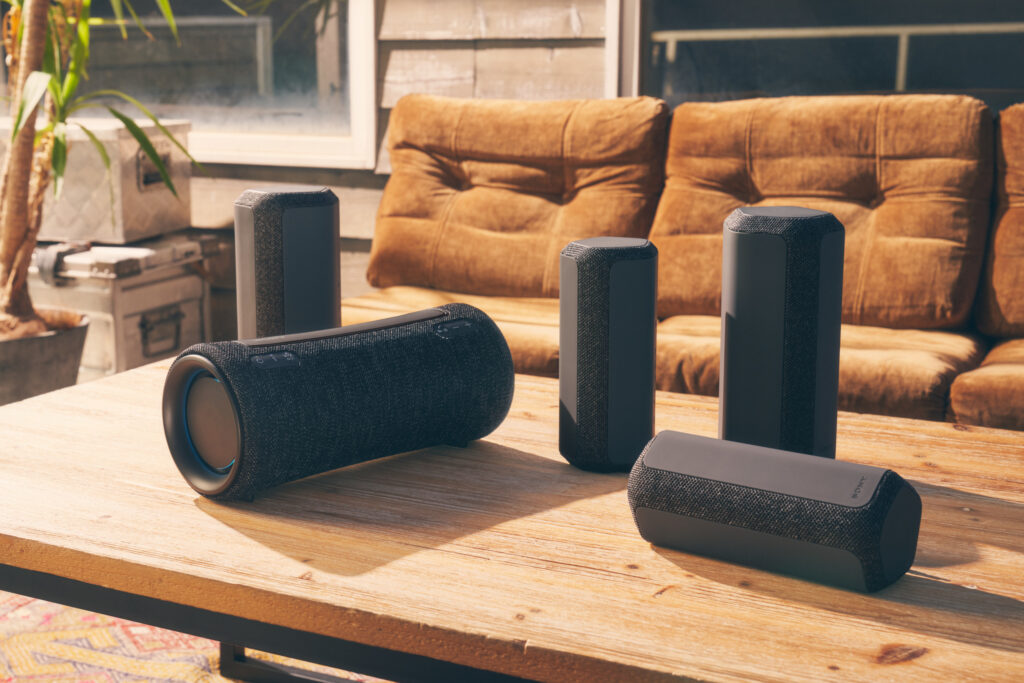
Connecting your Sony Bluetooth speaker to a device is a simple process that allows you to enjoy high-quality audio wirelessly.
Whether you're using a smartphone, tablet, or computer, Sony designs its speakers for seamless pairing and reliable performance. Most models feature intuitive controls and clear audio prompts to guide you through the connection.
Understanding the steps—such as enabling Bluetooth, placing the speaker in pairing mode, and selecting it from your device’s list—can enhance your experience. This guide will walk you through the essential steps to connect your Sony Bluetooth speaker, troubleshoot common issues, and optimize sound quality for uninterrupted playback.
 How To Connect Kove Commuter 2 Speakers Together
How to Connect Sony Bluetooth Speakers: A Step-by-Step Guide
Connecting your Sony Bluetooth speaker to your device is a simple and seamless process when you follow the correct steps. Sony designs its Bluetooth speakers with user-friendly features, allowing quick pairing with smartphones, tablets, laptops, and other compatible devices.
Whether you're using a Sony SRS-XB series, SRS XB43, or another model, the general connection process remains consistent. Most Sony Bluetooth speakers feature an intuitive button layout, with a dedicated Bluetooth button that initiates pairing mode.
Once in pairing mode, the speaker becomes discoverable by nearby devices, allowing you to select it from your device's Bluetooth settings. Maintaining a strong signal and ensuring your speaker is charged will help guarantee a stable connection for uninterrupted audio playback.
Activating Bluetooth Mode on Your Sony Speaker
To begin the connection process, you must first activate Bluetooth mode on your Sony speaker. Power on the speaker using the power button, usually located on the top or side panel.
 How To Connect PC Speakers
Then, press and hold the Bluetooth button until you hear a tone or see a flashing blue light—this indicates the speaker is in pairing mode. Some models may announce Bluetooth pairing through a voice prompt.
During this stage, the LED light will blink rapidly, signaling that it's ready to pair with a new device. Make sure no other device is currently connected, as this could prevent the speaker from entering pairing mode. Always refer to the user manual for specific indicators related to your model.
Pairing Your Sony Speaker with a Mobile Device
Once your Sony speaker is in pairing mode, navigate to the Bluetooth settings on your smartphone or tablet. Ensure Bluetooth is turned on, then wait for your device to scan for available devices. Look for your Sony speaker’s name—common identifiers include SRS- followed by the model number (e.g., SRS-XB33). Tap on the device name to initiate pairing.
You may hear a confirmation tone or voice prompt such as “Connected” once the pairing is successful. If prompted for a password, enter 0000, which is the default PIN for most Sony Bluetooth speakers. After pairing, your device will automatically reconnect to the speaker when both are within range and Bluetooth is enabled.
 How To Connect PS5 To Bluetooth Speakers
Troubleshooting Common Connection Issues
Even with a straightforward pairing process, users may encounter connection issues with their Sony Bluetooth speaker. Common problems include the speaker not appearing in the device list, frequent disconnections, or failure to enter pairing mode.
First, ensure the speaker is fully charged and within a 10-meter (33-foot) range of the device. Try resetting the Bluetooth settings on your phone or tablet. If the speaker still won’t connect, perform a reset by pressing and holding the power and Bluetooth buttons simultaneously for about 5 seconds (or follow model-specific instructions).
Clearing the paired device list on the speaker can also help—press and hold the Bluetooth button for 7 seconds until you hear “Bluetooth pairing information cleared.” Re-pairing after this step often resolves connectivity issues.
| Issue | Possible Cause | Solution |
|---|---|---|
| Speaker not appearing in device list | Not in pairing mode or low battery | Press and hold the Bluetooth button until blue light blinks; charge the speaker |
| Connection drops frequently | Interference or distance | Stay within 10 meters and avoid obstacles like walls or metal objects |
| Can’t complete pairing | Device memory full or outdated software | Clear paired devices list; update device firmware via Sony | Music Center app |
| No sound after connection | Volume mismatch or incorrect output setting | Check audio output is set to Sony speaker; adjust volume on both devices |
How to Connect Sony Bluetooth Speakers: Step-by-Step Guide
How to Connect Sony Bluetooth Speakers: Step-by-Step Guide
 How To Connect Speakers To Roku TV
Preparing Your Sony Bluetooth Speaker for Pairing
Before connecting your Sony Bluetooth speaker to a device, it's essential to ensure the speaker is ready for pairing. Start by fully charging the speaker using the provided USB cable and power adapter to prevent interruptions during setup.
Once charged, power on the speaker by pressing and holding the power button until the LED indicator lights up, typically blinking blue or showing a combination of blue and red, depending on the model.
Then, activate pairing mode by pressing and holding the Bluetooth button—this is often labeled with a Bluetooth symbol—until the indicator starts flashing rapidly, signaling that the speaker is discoverable. Make sure no other device is currently connected, as this may prevent new connections.
- Charge the Sony Bluetooth speaker fully using the included cable and adapter.
- Press and hold the power button until the LED turns on, indicating the speaker is powered up.
- Press and hold the Bluetooth button until the LED blinks rapidly, entering pairing mode.
Connecting the Speaker to Your Device via Bluetooth
To establish a Bluetooth connection, go to the Bluetooth settings on your smartphone, tablet, or computer. Ensure Bluetooth is turned on, then wait for the list of available devices to appear. Look for your Sony speaker’s model name—such as SRS-XB23, SRS-XB33, or similar—in the list and tap or click on it.
 GTRacing Gaming Chair With Bluetooth Speakers How To Connect
The device will attempt to pair, and if successful, the speaker will emit a confirmation tone and the LED may change to a steady blue or turn off, depending on the model. Once paired, audio playback from your device will automatically route through the speaker.
- Open Bluetooth settings on your device and make sure Bluetooth is enabled.
- Wait for your Sony speaker’s name to appear in the available devices list.
- Select the Sony speaker from the list and wait for the connection confirmation tone and LED change.
Troubleshooting Common Connection Issues
If your Sony Bluetooth speaker fails to connect, several troubleshooting steps can resolve the issue. First, ensure the speaker is within range—typically within 30 feet (10 meters) without obstacles—and that there’s minimal wireless interference from other Bluetooth or Wi-Fi devices. If the device still doesn’t appear, try resetting the speaker by holding the power and Bluetooth buttons simultaneously for about 5 to 10 seconds until the LED flashes in a pattern (varies by model).
Additionally, clear the speaker from your device’s Bluetooth pairing list and re-pair it as a new device. Keeping the speaker’s firmware updated via the Sony Music Center or Headphones Connect app can also prevent connectivity problems.
- Verify the speaker and device are within close proximity and free from physical obstructions or interference.
- Reset the speaker by pressing and holding the power and Bluetooth buttons until the LED flashes abnormally.
- Remove the speaker from your device’s paired devices list and pair it again as a new device.
Why won't my Sony Bluetooth speaker pair with my phone?

 How To Connect 2 Bluetooth Speakers To iPhone
Check Bluetooth Compatibility and Settings on Your Phone
One of the most common reasons your Sony Bluetooth speaker won't pair with your phone is due to incorrect Bluetooth settings or compatibility issues. Ensure that Bluetooth is enabled on your phone and that it's set to discoverable mode.
Sometimes, phones enter power-saving modes that disable background services like Bluetooth scanning. Additionally, verify that your phone supports the Bluetooth profile used by your Sony speaker, such as A2DP for audio streaming. Older phones may not support newer Bluetooth versions, which can prevent successful pairing.
- Go to your phone’s Settings and select Bluetooth to ensure it is turned on.
- Make sure your phone is in discoverable mode so the speaker can detect it.
- Restart Bluetooth on your phone or reboot the device to refresh the connection settings.
Reset and Re-pair the Sony Bluetooth Speaker
If your Sony speaker has been previously connected to another device or has stored pairing data, it may not enter pairing mode properly. The speaker needs to be in discoverable pairing mode before your phone can detect it.
To reset the speaker, power it off, then press and hold the power button and the Bluetooth button simultaneously (specific button combination may vary by model) until you hear a reset tone or see a blinking light. After resetting, turn the speaker back on and wait for it to enter pairing mode, indicated by a flashing blue light.
 How To Connect 2 Boom Speakers
- Turn off the Sony speaker completely.
- Press and hold the power and Bluetooth buttons for about 5–10 seconds to reset.
- Release the buttons and wait for the speaker to power on and enter pairing mode.
Clear Old Pairing History and Try a Fresh Connection
Saved Bluetooth devices on your phone can interfere with new pairing attempts, especially if the same speaker was previously connected. Old or corrupted pairing data might block the connection even if the speaker appears available.
To fix this, remove the Sony speaker from your phone’s paired devices list. Then, forget any previously connected audio devices that might be conflicting. This clears the Bluetooth cache and allows your phone to establish a clean connection with the speaker.
- Go to Bluetooth settings on your phone and locate the list of paired devices.
- Find your Sony speaker in the list and select Forget or Unpair.
- Restart both the phone and speaker, then attempt pairing again from scratch.
Frequently Asked Questions
How do I put my Sony Bluetooth speaker into pairing mode?
Press and hold the Power or Bluetooth button on your Sony speaker until you hear a tone or see a blinking blue light. This indicates it’s in pairing mode. Some models may say “Bluetooth pairing” aloud. Make sure the speaker is turned on and within 3 feet of your device. Pairing mode usually lasts 30 seconds, so connect quickly to avoid timing out.
How do I connect my Sony Bluetooth speaker to a smartphone or tablet?
Enable Bluetooth on your phone or tablet, then turn on your Sony speaker and place it in pairing mode. In your device’s Bluetooth settings, find the speaker listed—usually named like “Sony SRS-XX.” Tap it to connect. Once paired, you’ll hear a confirmation tone. Ensure both devices are close and not connected to too many other Bluetooth devices, which can cause connection issues.
Why won’t my Sony Bluetooth speaker connect to my device?
Check if the speaker is in pairing mode and fully charged. Delete old Bluetooth connections on your device and forget the speaker, then try pairing again. Ensure Bluetooth is enabled and your device isn’t out of range. Sometimes resetting the speaker helps—refer to the manual. Interference from other electronics or too many paired devices can also block the connection.
Can I connect multiple Sony Bluetooth speakers together?
Yes, many Sony Bluetooth speakers support Party Connect or Stereo Pair via the Sony Music Center app. Pair one speaker to your device, then use the app to add others. Not all models support this feature, so check your speaker’s specifications. Up to 100 speakers can be connected in some models. This allows synchronized audio playback for a louder, wider sound experience across rooms.
Leave a Reply