
Sonos Speakers Bluetooth How To Connect
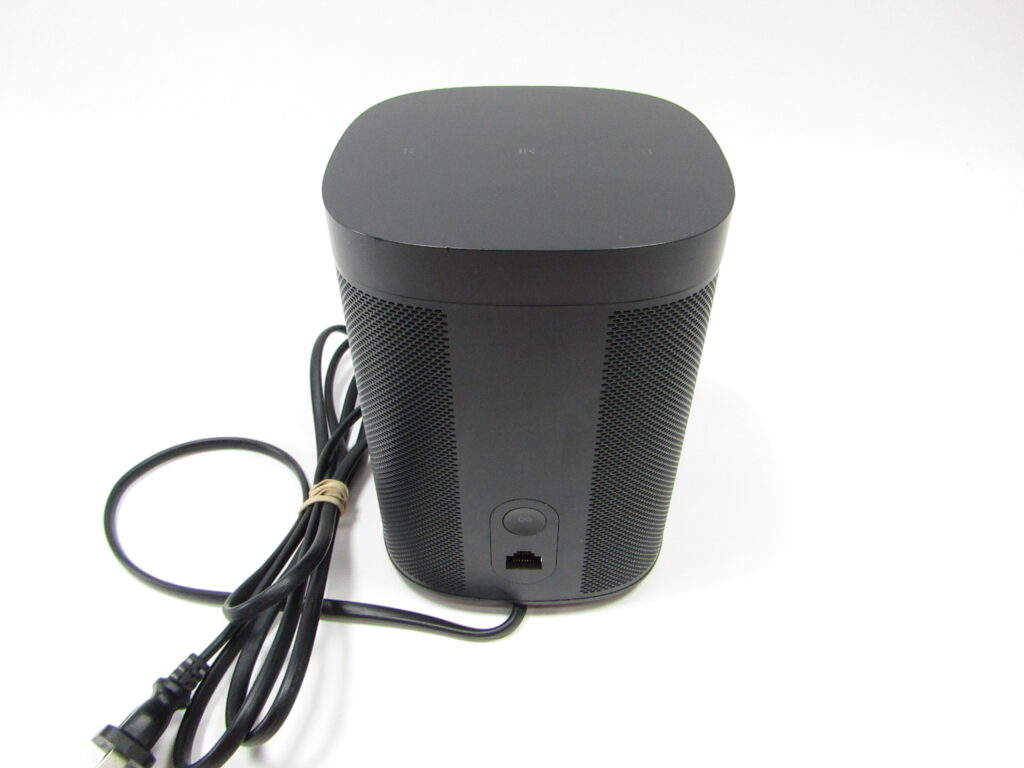
Sonos speakers are renowned for their premium sound quality and seamless home audio integration. While they are primarily designed to work over Wi-Fi using the Sonos app, many users wonder how to connect them via Bluetooth.
It's important to note that most Sonos speakers do not support Bluetooth audio streaming, as they rely on Wi-Fi for optimal performance. However, select models like the Sonos Roam and Move offer Bluetooth connectivity for added flexibility.
This guide will explain which Sonos speakers support Bluetooth, how to pair them with your devices, and tips for a smooth connection. Learn how to make the most of your Sonos speaker in different environments using Bluetooth when Wi-Fi isn't available.
 How To Connect 2 Boom Speakers
How to Connect Sonos Speakers via Bluetooth: What You Need to Know
While most Sonos speakers are primarily designed to function over Wi-Fi using the Sonos app, there are important nuances regarding Bluetooth connectivity that users should understand. Unlike traditional Bluetooth speakers, the majority of Sonos models—such as the Sonos One, Beam, and Play:5—do not support incoming Bluetooth connections for audio streaming.
This means you cannot directly pair your smartphone or tablet to these speakers via Bluetooth in the conventional sense. However, select models like the Sonos Roam and Sonos Move do include full Bluetooth support, allowing seamless switching between Wi-Fi and Bluetooth streaming.
For these devices, enabling Bluetooth mode is essential when you're away from your home network. Understanding which model you own and how to activate Bluetooth properly will ensure a smooth audio experience whether you're at home or on the go.
Which Sonos Speakers Support Bluetooth?
Only certain portable Sonos models support Bluetooth connectivity, with the Sonos Roam and Sonos Move being the primary examples.
 Xbox One How To Connect Speakers
These speakers are designed for flexibility, allowing users to stream audio via Wi-Fi when at home and switch to Bluetooth mode when outdoors or when Wi-Fi isn't available. The Roam, for instance, automatically connects to known Bluetooth devices when turned on outside your network.
To use Bluetooth, ensure the speaker is in Bluetooth mode—this can be done via the physical button on the Roam or through the Sonos app settings. It’s important to note that even though these models support Bluetooth, audio quality may vary compared to Wi-Fi streaming, and features like multi-room sync are limited in Bluetooth mode.
How to Enable Bluetooth on Sonos Roam and Move
To connect your Sonos Roam or Move via Bluetooth, first ensure the speaker is powered on. For the Sonos Roam, press and hold the button on the back for about three seconds until you hear a tone and the LED flashes blue—this indicates Bluetooth pairing mode.
On the Sonos Move, press the Wi-Fi/Bluetooth button located on the back until the LED turns solid blue. Then, on your mobile device, go to the Bluetooth settings, find Sonos Roam or Sonos Move in the list of available devices, and tap to connect.
 X Rocker Gaming Chair With Speakers How To Connect
Once paired, the speaker will remember the device and automatically reconnect when in range. For optimal pairing, keep the speaker within close proximity and ensure no obstacles interfere with the signal.
Bluetooth vs. Wi-Fi: Understanding the Differences in Sonos Streaming
When using a Bluetooth-enabled Sonos speaker like the Roam or Move, it's crucial to recognize the functional differences between Bluetooth and Wi-Fi streaming.
Wi-Fi offers higher audio quality, supports multi-room synchronization, and enables access to all Sonos app features, including voice assistant integration and music service queues. In contrast, Bluetooth mode is more limited: audio quality is compressed, multi-room functionality is disabled, and you lose access to Trueplay tuning and some app controls.
Wi-Fi also allows AirPlay 2 support on compatible devices. Therefore, even though Bluetooth provides convenient portability, it's best used when outside your home network, while Wi-Fi remains the preferred mode for the full Sonos experience.
 Vifa Speakers How To Connect
| Sonos Model | Bluetooth Supported? | Audio Quality on Bluetooth | Multi-Room on Bluetooth? | Primary Use Case |
|---|---|---|---|---|
| Sonos Roam | Yes | Good (compressed audio) | No | Portable, indoor/outdoor use |
| Sonos Move | Yes | Very Good (with codec support) | No | Outdoor/large space portability |
| Sonos One | No | N/A | No | Wi-Fi-only indoor smart speaker |
| Sonos Beam | No | N/A | Yes (via Wi-Fi) | Home theater audio |
| Sonos Arc | No | N/A | Yes (via Wi-Fi) | Premium soundbar for TV |
How to Connect Sonos Speakers via Bluetooth: A Step-by-Step Guide
How to check if a Sonos speaker is in Bluetooth pairing mode?
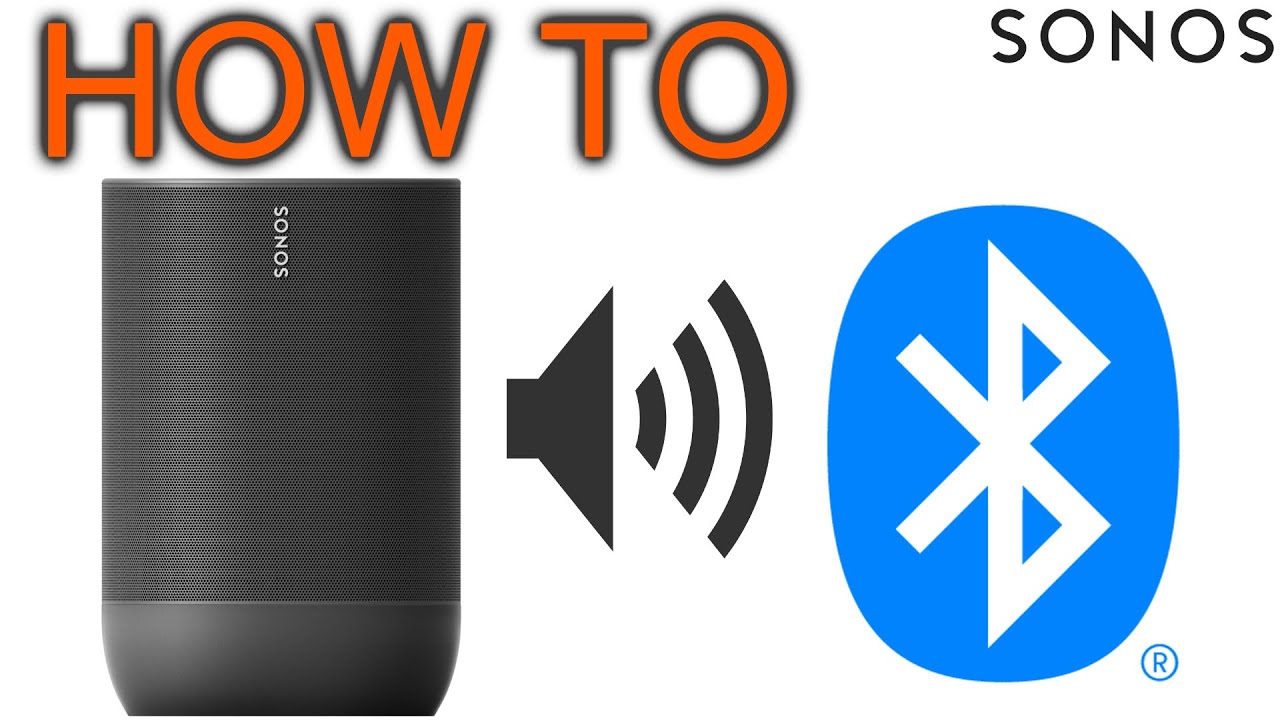
Identifying Bluetooth Pairing Mode Indicators on Sonos Speakers
- Most Sonos speakers that support Bluetooth, such as the Sonos Roam and Sonos Move, indicate Bluetooth pairing mode through visual and audio cues. When you press and hold the Bluetooth button (usually located on the back or side of the speaker), the status light begins to blink white, signaling that the device is now discoverable by other Bluetooth-enabled devices.
- In the case of the Sonos Roam, holding the Bluetooth button for several seconds causes the LED to pulse slowly in white. This distinct flashing pattern indicates the speaker is in pairing mode and ready to connect. If the light remains solid or blinks green, the speaker is either charging or in WiFi mode.
- Additionally, some models emit a chime or audible tone when entering or exiting pairing mode. This sound confirms the change in connection state and helps users determine that Bluetooth pairing mode has been successfully activated without needing to check the Sonos app.
Using the Sonos App to Confirm Bluetooth Status
- Open the Sonos app on your smartphone or tablet and ensure your device is connected to the same WiFi network as your Sonos speaker. Navigate to the Settings tab, then select System and locate your speaker under the Products section.
- Tap on the speaker name to view detailed information. If the speaker supports Bluetooth, there will be an option labeled Bluetooth or Change Connection Type. If this option shows Ready to Pair or Bluetooth Active, the speaker is currently in or capable of entering Bluetooth mode.
- The app might also display the current connection method—either WiFi or Bluetooth. If it indicates Connected via Bluetooth or In Pairing Mode, this confirms the speaker is available for Bluetooth pairing. The app provides more precise status information than visual cues alone.
Verifying Pairing Mode Through Device Discovery
- On your smartphone, tablet, or computer, go to the Bluetooth settings menu. Make sure Bluetooth is turned on and begin scanning for nearby devices. If your Sonos speaker is in pairing mode, it should appear in the list of available devices, typically listed as Sonos Roam or Sonos Move, depending on the model.
- If the device does not appear, ensure the speaker has finished its startup sequence and that you've held the Bluetooth button long enough—usually 5 to 10 seconds. Some models require the speaker to be powered on and not currently connected to WiFi to enter Bluetooth pairing mode.
- Once the speaker appears in the Bluetooth device list and you’re able to select and connect to it, this confirms it was successfully in pairing mode. A successful connection, followed by audio playback, is the most definitive way to verify the speaker is operating in Bluetooth mode.
Frequently Asked Questions
Can Sonos speakers connect via Bluetooth?
Most Sonos speakers do not support Bluetooth connectivity. Sonos designed their products to work primarily over Wi-Fi using the Sonos app for seamless multi-room audio and high-quality streaming.
A few exceptions, like the Sonos Roam and Sonos Move, offer Bluetooth for portability and quick connections, but full functionality requires the Sonos app and Wi-Fi. For reliable performance and access to all features, Sonos recommends using their dedicated wireless network over Bluetooth.
How do I connect my Sonos Roam via Bluetooth?
To connect your Sonos Roam via Bluetooth, press and hold the power button until you hear a tone and the LED flashes blue.
 USB Speakers For PC How To Connect
Then, go to your mobile device’s Bluetooth settings, find Sonos Roam, and select it to pair. Once connected, you can stream audio directly through Bluetooth. Note that some smart features, like voice control and app access, are limited when using Bluetooth instead of Wi-Fi.
Why doesn’t my Sonos speaker show up in Bluetooth devices?
Most Sonos speakers don’t support Bluetooth, so they won’t appear in your device’s Bluetooth list. Only the Sonos Roam and Sonos Move have Bluetooth capabilities.
If you're using one of these models and it still doesn’t show up, ensure it’s in pairing mode—press and hold the power button until the LED flashes blue. Also, verify that Bluetooth is enabled on your device and that the speaker is charged and within range.
Can I use Bluetooth and Wi-Fi simultaneously on Sonos?
The Sonos Roam and Move can connect to either Bluetooth or Wi-Fi, but not both at the same time. When connected via Bluetooth, you lose access to voice assistants, the Sonos app, and multi-room audio.
 UE Boom How To Connect 2 Speakers
For full functionality, switch back to Wi-Fi by connecting through the Sonos app. Wi-Fi offers better sound quality, app integration, and seamless synchronization with other Sonos speakers in your home.
Leave a Reply