
Sonos Speakers How To Connect
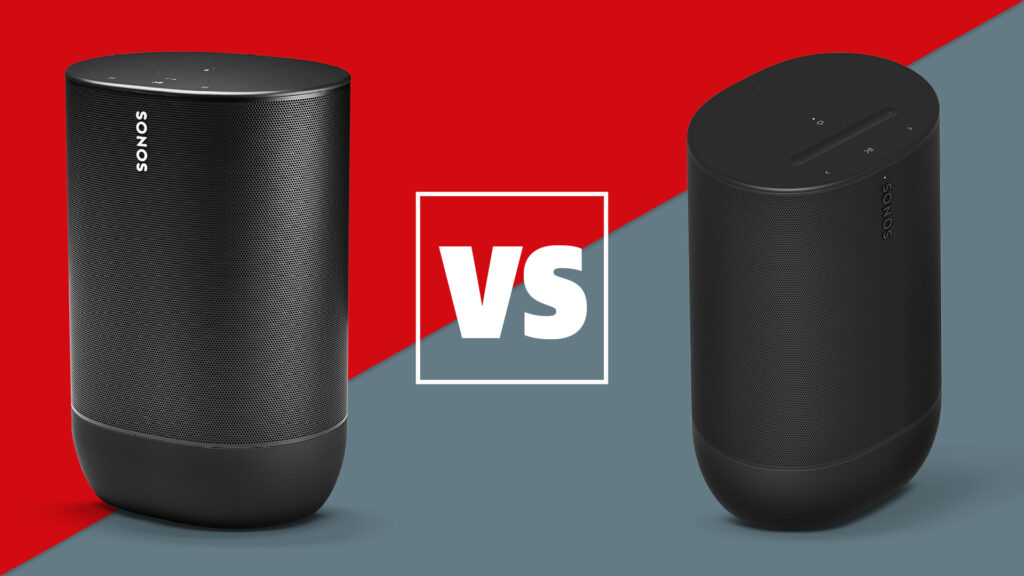
Connecting Sonos speakers properly ensures an immersive audio experience throughout your home. Whether you're setting up a single speaker or building a whole-house sound system, understanding the connection process is essential.
Sonos offers various methods to link its speakers, including Wi-Fi, Ethernet, and wireless pairing. This guide walks you through each step, from power-up to app configuration, helping you optimize placement and network stability.
You’ll also learn how to connect to music services, use voice assistants, and group speakers for synchronized playback. With clear instructions and helpful tips, establishing a seamless Sonos network has never been easier—transform your space with high-quality sound that’s simple to manage and enjoy every day.
 How To Connect 2 Bluetooth Speakers To iPhone
How to Connect Sonos Speakers: A Comprehensive Guide
Connecting Sonos speakers is designed to be intuitive and user-friendly, whether you're setting up a single speaker or building a whole-home audio system. Sonos leverages Wi-Fi rather than Bluetooth for superior audio quality and seamless multi-room functionality.
The process typically begins by downloading the Sonos app (available for iOS and Android), ensuring your smartphone or tablet is connected to your home Wi-Fi network. After launching the app, tap “Set up a new system,” and the app will guide you through speaker detection and configuration. You’ll need to plug in your Sonos device, wait for its indicator light to pulse white, and follow the on-screen prompts to connect it to your Wi-Fi network.
Once configured, the app allows you to organize speakers by room, group them for synchronized playback, and integrate voice assistants like Alexa or Google Assistant. For optimal performance, Sonos recommends using a strong 2.4 GHz Wi-Fi band and possibly adding a Sonos Boost (which uses Ethernet) to enhance connectivity if your Wi-Fi signal is weak.
Wired vs Wireless Connection Options for Sonos
Sonos speakers primarily operate over Wi-Fi, but they also support wired connections for improved stability and performance. Most models, like the Sonos One or Sonos Five, connect wirelessly to your home network, making installation simple and flexible.
 How To Connect 2 Boom Speakers
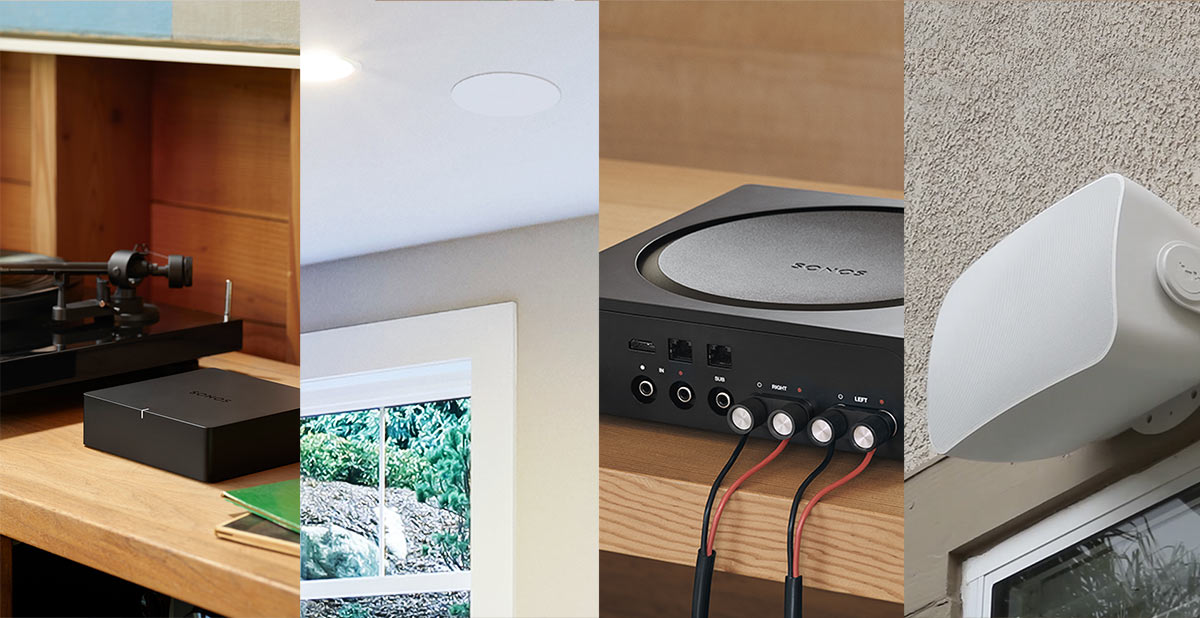
However, if wireless performance is inconsistent due to interference or distance, you can use an Ethernet cable to connect certain Sonos devices—such as the Sonos Port, Sonos Amp, or Sonos S2-compatible speakers—directly to your router.
This wired setup creates a more stable connection, reduces audio buffering, and enhances the performance of your entire Sonos system, especially when using multiple speakers in large homes. The Sonos app automatically detects whether a speaker is connected via Ethernet, and you can mix wired and wireless units seamlessly within the same network.
Using the Sonos App to Set Up and Manage Devices
The Sonos app is central to connecting and managing all Sonos speakers and is available for free on iOS and Android. Upon first launch, the app walks you through each step: detecting speaker models, connecting them to Wi-Fi, and assigning room names.
It supports automatic system detection and provides real-time feedback through visual and audio cues during setup. Beyond initial configuration, the app serves as a powerful control center, enabling you to adjust volume, select music sources (like Spotify, Apple Music, or Amazon Music), and group or ungroup rooms with a tap.
 Xbox One How To Connect Speakers
It also allows for advanced settings such as adjusting equalizer levels, enabling voice assistant integration, and scheduling alarms or routines. Regular app updates ensure compatibility with new features, music services, and firmware enhancements across the Sonos ecosystem.
Connecting Multiple Sonos Speakers for Multi-Room Audio
One of Sonos’ standout features is its ability to create a synchronized multi-room audio experience. After setting up individual speakers in different rooms, you can easily group them together using the Sonos app.
Open the app, tap the “Rooms” icon, select multiple speakers (e.g., Kitchen, Living Room, Bedroom), and choose “Group.” Once grouped, they play the same music in perfect sync, ideal for entertaining or maintaining audio continuity throughout the home. You can also create permanent room groups for frequently used combinations.
Additionally, each speaker can play different content independently if desired—simply control each room separately in the app. For advanced setups, you can pair two Sonos speakers as left/right stereo pairs for improved sound imaging in a single room, increasing both volume and audio fidelity.
 X Rocker Gaming Chair With Speakers How To Connect
| Connection Type | Best For | Setup Tip |
|---|---|---|
| Wi-Fi (Wireless) | Standard setups with strong network coverage | Ensure your 2.4 GHz band is active; 5 GHz is not supported for initial setup |
| Ethernet (Wired) | Unstable Wi-Fi areas or whole-home systems | Use Sonos Boost or connect compatible devices directly to router |
| Multi-Room Grouping | Parties or whole-home listening | Create groups in the app and adjust volume per room for balance |
| Stereo Pairing | Enhanced sound in one room | Pair two identical speakers (e.g., two Sonos Ones) for left/right audio channels |
How to Connect Sonos Speakers: A Step-by-Step Setup Guide
How to connect a Sonos PlayBar to other Sonos speakers seamlessly?
Setting Up the Sonos PlayBar in Your Home Network
To connect your Sonos PlayBar to other Sonos speakers seamlessly, the first step is ensuring that all devices are on the same Wi-Fi network. The Sonos PlayBar connects via Wi-Fi, not Bluetooth, so it’s essential that your network is stable and covers the areas where your speakers are placed. Begin by downloading the Sonos app on your smartphone or tablet and following the in-app setup wizard.
During setup, the app will prompt you to connect the PlayBar to your Wi-Fi by temporarily linking it to your device via a direct connection. Once online, the app recognizes the PlayBar and integrates it into your Sonos system. A strong 2.4 GHz Wi-Fi signal is recommended, as most Sonos devices do not support 5 GHz bands.
- Download the Sonos app from the Apple App Store or Google Play Store.
- Plug in the Sonos PlayBar and wait for the white light to flash, indicating it’s ready for setup.
- Open the Sonos app and select “Add a Sonos speaker or subgroup” to begin pairing.
- Follow the on-screen instructions to connect the PlayBar to your Wi-Fi network.
- Ensure the PlayBar appears in the list of available devices within the app.
Grouping the Sonos PlayBar with Other Sonos Speakers
After the initial setup, you can group the Sonos PlayBar with other compatible Sonos speakers to create a synchronized audio experience throughout your home. Using the Sonos app, navigate to the Rooms tab where all your connected speakers are listed.
 Vifa Speakers How To Connect
Select the PlayBar and choose the option to “Group” it with another speaker, such as a Sonos One, Play:5, or rear surround units like Sonos Arc or Sub if available. You can create zones, such as “Living Room” or “Entire House,” depending on your configuration. When grouped, all selected speakers play audio in perfect sync, which is ideal for multi-room music or enhancing TV audio with surround sound.
- Open the Sonos app and go to the Rooms section.
- Select the Sonos PlayBar and tap the Group icon.
- Choose one or more additional Sonos speakers you want to group with the PlayBar.
- Play audio from any compatible source to confirm all grouped speakers are synchronized.
- Adjust volume independently or as a group using the app’s volume controls.
Using Sonos S2 App and Ensuring System Compatibility
To maintain seamless connectivity, ensure your Sonos PlayBar and other speakers are compatible with the Sonos S2 operating system. The original Sonos PlayBar supports S2, but older models may require a firmware update or might be limited to S1.
In the Sonos app, check for updates under Settings > System > Updates. If your system runs S2, you’ll have access to the latest features, including enhanced grouping, voice control via Amazon Alexa or Google Assistant, and compatibility with new Sonos products. Always keep all devices updated to prevent sync issues, dropouts, or grouping failures.
- Open the Sonos app and tap Settings in the upper-right corner.
- Go to System > Updates to check if your PlayBar and other speakers are up to date.
- Ensure all devices are on the same Sonos platform (S2 recommended).
- Restart speakers if updates are applied to finalize changes.
- Verify functionality by playing content and checking synchronization across devices.
How to connect a Sonos Play:1 speaker to your Wi-Fi network
 USB Speakers For PC How To Connect
Setting Up the Sonos App for Initial Configuration
- Download the Sonos app from the Apple App Store or Google Play Store onto your smartphone or tablet, ensuring your device runs a compatible operating system (iOS 10 or later, Android 6.0 or later).
- Open the Sonos app and create a Sonos account if you don’t already have one, or sign in if you do. This account is essential for managing all Sonos devices across your home network.
- Once logged in, tap the “Set up a new Sonos system” option. The app will guide you through detecting nearby Sonos devices, including your Sonos Play:1, once it’s powered on.
Connecting the Sonos Play:1 to Power and Network
- Plug the Sonos Play:1 into a power outlet using the provided power adapter. The white LED light on the front should begin to pulse, indicating the speaker is powered and in setup mode.
- Ensure your mobile device is connected to the same Wi-Fi network you intend to use for the Sonos system, as the speaker will connect to Wi-Fi through your router's signal.
- Within the Sonos app, wait for the Play:1 to appear in the list of available devices. When prompted, select it to begin the connection process, which will walk you through linking the speaker to your home Wi-Fi.
Configuring Wi-Fi Settings in the Sonos App
- After the app detects the Play:1, you’ll be prompted to choose your Wi-Fi network from a list of available networks. Select your home network and enter the correct password when required.
- The Sonos app will then transmit the Wi-Fi credentials to the Play:1 over a temporary direct connection, enabling the speaker to join your wireless network independently.
- Wait for the app to confirm a successful connection. Once connected, the LED on the Play:1 will turn solid white, and the app will prompt you to name the speaker and choose a room location for easier management in multi-room setups.
How to Connect a Sonos Speaker via Bluetooth: Step-by-Step Guide

Not all Sonos speakers support Bluetooth, so the first step is confirming whether your model is compatible.
Sonos primarily emphasizes Wi-Fi connectivity for streaming music across multiple rooms, but a few select models, such as the Sonos Roam, Sonos Move, and Sonos Move 2, do include Bluetooth functionality. These models were designed with portability in mind, making Bluetooth a useful feature when Wi-Fi isn’t available or when quickly pairing with a phone or tablet.
To connect a Sonos speaker via Bluetooth, ensure the speaker is sufficiently charged and in Bluetooth pairing mode. This guide walks you through the process step by step and covers related topics to ensure a seamless experience.
Checking Bluetooth Compatibility on Your Sonos Speaker
- Verify if your Sonos speaker model supports Bluetooth by checking the official Sonos website or user manual—models like the Sonos Roam, Move, and Move 2 are Bluetooth-enabled, while most others like the One, Beam, and Play:5 operate solely over Wi-Fi.
- Look for a Bluetooth symbol on the speaker or its packaging; the Roam and Move series typically have a small Bluetooth icon near the power button.
- Open the Sonos app on your mobile device and check the product specifications under the settings menu to confirm Bluetooth capability, ensuring you don’t attempt pairing on a non-compatible speaker.
Enabling Bluetooth Pairing Mode on a Sonos Speaker
- Power on your Sonos speaker by pressing and holding the power button until the status light turns on—this applies to the Roam and Move series.
- To activate Bluetooth pairing mode, press and hold the play/pause button on the back of the speaker for approximately 5 seconds until the LED indicator starts blinking blue, signaling that the device is discoverable.
- Ensure Bluetooth is enabled on your source device (smartphone, tablet, or laptop), then go to the Bluetooth settings menu and scan for available devices; select your Sonos speaker from the list when it appears (e.g., “Sonos Roam” or “Sonos Move”).
Switching Between Bluetooth and Wi-Fi on Sonos Speakers
- Once connected via Bluetooth, your Sonos speaker will operate independently from your Wi-Fi network, meaning you won't be able to use the Sonos app to control playback or group it with other speakers during this time.
- To switch back to Wi-Fi, press and hold the play/pause button again until the LED turns white, indicating a successful connection to your home network; you may need to reopen the Sonos app to manage settings.
- Note that audio quality may vary between Bluetooth and Wi-Fi modes—Wi-Fi generally provides higher resolution streaming through services like Spotify Connect or Apple AirPlay 2, while Bluetooth functions as a convenient fallback for mobility.
Frequently Asked Questions
How do I connect my Sonos speaker to Wi-Fi?
Download the Sonos app, open it, and follow the setup instructions. Ensure your mobile device is connected to your home Wi-Fi. The app will guide you to connect the Sonos speaker to the same network. Plug in the speaker, wait for the light to blink, then select it in the app. Confirm your Wi-Fi credentials and let the app complete the setup. The speaker will beep when connected successfully.
Can I connect Sonos speakers with Bluetooth?
No, most Sonos speakers do not support Bluetooth. They connect via Wi-Fi or Ethernet to stream music. The Sonos Roam and Move are exceptions, offering Bluetooth connectivity for portable use. However, full features like multi-room audio and voice control require a Wi-Fi connection. For optimal performance, use Wi-Fi even with Roam or Move when at home.
How do I connect multiple Sonos speakers together?
Use the Sonos app to group speakers into a multi-room system. Ensure all speakers are on the same Wi-Fi network. Open the app, go to Settings, select Rooms, and choose which speakers to group. You can play the same music across all or control each independently. Once grouped, adjust volume or music from any device using the Sonos app or voice assistants.
What should I do if my Sonos speaker won’t connect to Wi-Fi?
First, restart the speaker and your router. Ensure the speaker is within range of the router and that Wi-Fi is working on other devices. In the Sonos app, go to Settings > Network > Rejoin Existing Network. If problems persist, forget the network and set up the speaker again. Check for firmware updates in the app, as outdated software can cause connectivity issues.
Leave a Reply