
Configure Sonos Speaker

Setting up a Sonos speaker transforms the way you experience music at home, offering seamless wireless audio across rooms.
Known for its sleek design and powerful sound, Sonos integrates easily with your existing Wi-Fi network, supporting popular music services like Spotify, Apple Music, and Amazon Music. Whether you're installing a single speaker or building a whole-home audio system, the process is intuitive through the Sonos app.
From proper placement to connecting to voice assistants like Alexa or Google Assistant, each step enhances performance and convenience. This guide walks you through everything you need to know to configure your Sonos speaker quickly and efficiently for optimal sound quality and smart functionality.
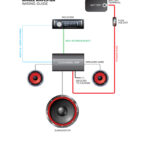 Speaker Wiring Configurations
How to Configure Your Sonos Speaker for Optimal Performance
Configuring your Sonos speaker is a straightforward process that brings high-quality wireless audio to your home.
By following the correct setup steps, you can seamlessly integrate your Sonos speaker into your existing Wi-Fi network and link it with other Sonos devices for a synchronized, whole-home audio experience. The Sonos ecosystem relies on its dedicated app, which guides users through each stage of setup, from powering the speaker to room assignment and voice assistant integration.
Whether you're setting up a single speaker or a multi-room system, proper configuration ensures reliable connectivity, excellent sound quality, and access to streaming services like Spotify, Apple Music, and Amazon Music.
Ensuring your router meets Sonos’ network requirements—such as supporting 2.4 GHz Wi-Fi—is critical for stable performance. Once configured, you can further customize settings like EQ, stereo pairing, and Trueplay tuning to adapt the sound to your space and preferences.
 TF2 Speaker Configuration
Connecting Your Sonos Speaker to Wi-Fi
To connect your Sonos speaker to Wi-Fi, begin by plugging in the device and waiting for the indicator light to flash. Open the Sonos app on your smartphone or tablet and follow the in-app prompts to locate your speaker.
The app will search for available devices on the same network and identify your speaker; select it from the list. You'll then be prompted to join your home Wi-Fi network by selecting it from the list of available networks and entering your password.
The Sonos app uses your phone's internet connection as a temporary bridge to pass Wi-Fi credentials to the speaker. Once connected, the light on the speaker will turn a steady white, indicating successful setup. It’s important to avoid using 5 GHz-only networks, as Sonos devices require a stable 2.4 GHz Wi-Fi signal for optimal operation. If your router is dual-band, ensure the 2.4 GHz network has a distinguishable name (SSID) so the speaker can recognize it during setup.
Setting Up Multiple Speakers with Sonos
Expanding your audio system with multiple Sonos speakers enables a seamless whole-home audio experience. After configuring your first speaker, you can add more through the Sonos app by repeating the Wi-Fi setup process for each new device.
 Valorant Speaker Configuration
Once added, speakers can be grouped by room (e.g., Kitchen, Living Room, Bedroom) and configured to play in sync across multiple zones. The app allows you to create speaker groups for unified playback or control each speaker independently. Stereo pairing is supported on compatible models—such as two Sonos One or Sonos Play:1 speakers—allowing you to designate one as the left channel and the other as the right for richer, more immersive sound.
For larger installations, consider using a Sonos Boost to enhance wireless performance, especially in homes with thick walls or spotty Wi-Fi coverage. Proper placement and network optimization are essential for maintaining synchronization and minimizing lag between speakers.
Using the Sonos App for Speaker Management
The Sonos app is the central hub for configuring, controlling, and customizing your Sonos speakers. Available for both iOS and Android, it offers an intuitive interface to manage all aspects of your audio system.
Through the app, you can adjust volume, play music from various streaming services, set alarms, and configure voice assistants like Alexa or Sonos Voice Control. The Settings section allows access to advanced features such as Trueplay tuning, which uses your phone’s microphone to analyze acoustics and automatically optimize speaker sound based on room dimensions and furnishings.
 Valorant Speaker Configuration Mono Or Stereo
Firmware updates are delivered automatically through the app, ensuring your speakers run the latest software with security patches and new features. You can also rename rooms, customize equalizer settings, and manage microphone privacy for voice-enabled models. Regular use of the app helps maintain an efficient, up-to-date, and personalized Sonos experience.
| Feature | Description | Key Benefit |
|---|---|---|
| Wi-Fi Setup | Connects the speaker to a 2.4 GHz home network via the Sonos app. | Ensures stable, reliable wireless connection. |
| Stereo Pairing | Combines two compatible speakers for left/right audio channels. | Delivers enhanced, theater-like sound quality. |
| Trueplay Tuning | Uses phone microphone to calibrate speaker output based on room acoustics. | Optimizes audio performance for any environment. |
| Voice Control | Enables hands-free control with Alexa or Sonos Voice Control. | Increases convenience and accessibility. |
| App Management | Centralized control for music, settings, and firmware updates. | Simplifies long-term speaker maintenance and customization. |
How to Set Up Your Sonos Speaker: A Step-by-Step Guide
How to set up and configure a Sonos speaker for optimal performance
Positioning Your Sonos Speaker for Optimal Audio Quality
- Place your Sonos speaker at ear level when seated, as this aligns the sound directly with your listening position, enhancing clarity and stereo imaging.
- Avoid corner placement unless you're using a Sonos subwoofer in a surround setup, as corners can exaggerate bass response and create muddy audio.
- Ensure at least several inches of space on all sides of the speaker to allow for proper sound dispersion and to prevent audio reflections from walls or furniture.
Connecting Your Sonos Speaker to Wi-Fi and the Sonos App
- Download the Sonos app from the App Store or Google Play, then open it and follow the on-screen prompts to start the setup process.
- Plug in your Sonos speaker and wait for the indicator light to blink white, signaling it’s ready for setup.
- Select your speaker model in the app, connect it to your home Wi-Fi network by entering your password, and allow the app to complete firmware updates if needed to ensure the latest features and security patches.
Calibrating with Trueplay Tuning for Room-Optimized Sound
- Once your speaker is connected and positioned, use the Trueplay tuning feature in the Sonos app to tailor the sound to your room’s acoustics.
- On an iOS device, go to Settings > Sonos > select your speaker > Trueplay Tuning, then slowly rotate your phone around while the app emits test tones to analyze reflections and adjust frequency response accordingly.
- Note that Trueplay is only available on iOS due to microphone calibration capabilities, so Android users will need access to an iOS device for optimal tuning, or can manually adjust EQ settings in the app as an alternative.
How to Reset and Reconnect Your Sonos Speaker During Setup

How to Perform a Factory Reset on Your Sonos Speaker
A factory reset is essential if your Sonos speaker isn't responding correctly during setup or appears to be stuck in a configuration loop. This process erases all network settings and stored preferences, returning the speaker to its original out-of-the-box state. This step is especially important if you're moving to a new Wi-Fi network or troubleshooting persistent connectivity issues.
 What Is Speaker Configuration
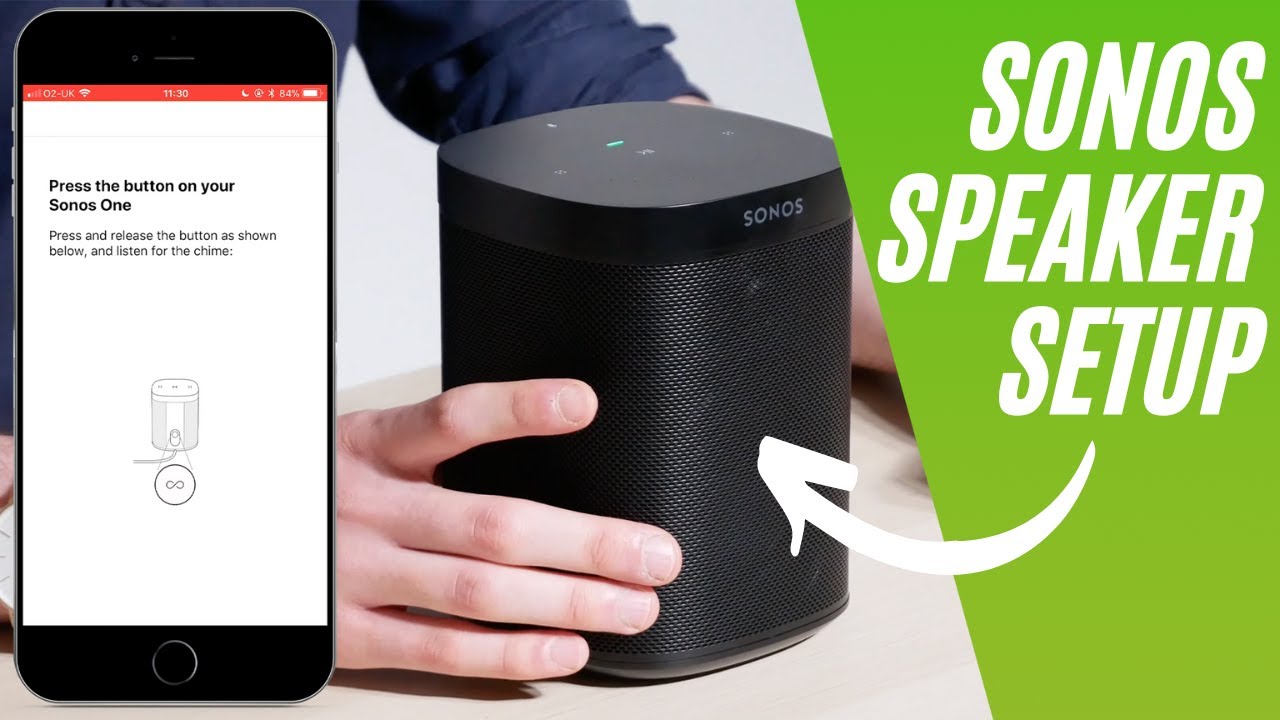
- Locate the Control Button on your Sonos speaker—this is typically the Play/Pause or Join button, depending on the model (e.g., Sonos One, Beam, or Play:5).
- Press and hold the button for about 10 seconds until the LED indicator starts flashing amber and white alternately. This signals that the reset sequence has begun.
- Continue holding the button until the light turns solid white, then pulses, indicating the speaker has reset and is restarting. Once the light blinks green, the speaker is ready for setup.
Connecting Your Sonos Speaker to Wi-Fi After Reset
After resetting your Sonos speaker, reconnecting it to your Wi-Fi network is the next crucial step. Use the Sonos app on your smartphone or tablet to guide the setup process. Ensure your mobile device is already connected to the same Wi-Fi network you want your speaker to join for a smooth configuration.
- Open the Sonos app and tap “Set up a new system” if this is a fresh setup, or “Add a player” if integrating into an existing system.
- Follow the in-app prompts to detect your reset speaker—your device uses your phone’s microphone to send an audio signal to the speaker for pairing.
- When prompted, select your Wi-Fi network from the list and enter the correct password. Ensure the network operates on a 2.4 GHz band, as most Sonos models do not support 5 GHz alone.
Troubleshooting Common Reconnection Issues
Even after a proper reset and setup attempt, some users encounter difficulties reconnecting their Sonos speaker. These issues can stem from network interference, outdated app versions, or temporary glitches in the device's firmware. Addressing these early helps avoid prolonged downtime.
- Ensure your router is functioning properly—reboot it if needed. A temporary router issue can prevent the speaker from obtaining an IP address.
- Check for updates in the Sonos app and make sure your speaker's firmware is current. An outdated version may lack compatibility with newer network configurations.
- Try setting up the speaker closer to your router to eliminate signal interference from walls or electronic devices. Once connected, you can move it back to its desired location.
Frequently Asked Questions
How do I set up my Sonos speaker for the first time?
Download the Sonos app on your smartphone or tablet, plug in your speaker, and ensure your mobile device is connected to Wi-Fi. Open the app and follow the step-by-step instructions to connect your speaker to your home network. The app will guide you through naming your speaker, selecting a room, and testing audio. No additional equipment is needed—just the Sonos app and a stable Wi-Fi connection.
Can I connect my Sonos speaker to Wi-Fi without the app?
No, the Sonos app is required to connect your speaker to Wi-Fi during initial setup. The app guides you through network configuration and firmware updates. Once set up, the speaker remains connected to Wi-Fi automatically. You can control it via the app, voice assistants, or streaming services. There’s no web interface or alternative method for Wi-Fi setup—using the official Sonos app is essential.
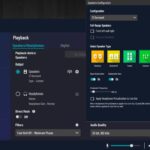 What Speaker Configuration Should I Use For Headphones
How do I add a new Sonos speaker to an existing setup?
Open the Sonos app, go to Settings, and select Add Device. Follow the prompts to power on and connect the new speaker. The app will detect it and integrate it into your current system. You can group it with other speakers, assign it to a room, and sync music across all devices. No need to reconfigure existing speakers—they’ll continue working normally.
What should I do if my Sonos speaker won’t connect to Wi-Fi?
First, restart your Sonos speaker and router. Ensure the speaker is within range of your Wi-Fi signal. In the Sonos app, check for error messages and try reconnecting through Settings > Network > Wi-Fi Setup. If problems persist, forget the network and re-enter your password. Update the Sonos app and ensure your router firmware is current. Contact Sonos support if the issue continues.
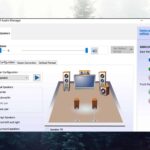 Windows 11 5.1 Speaker Configuration
Leave a Reply