
How To Connect Speakers To LG TV
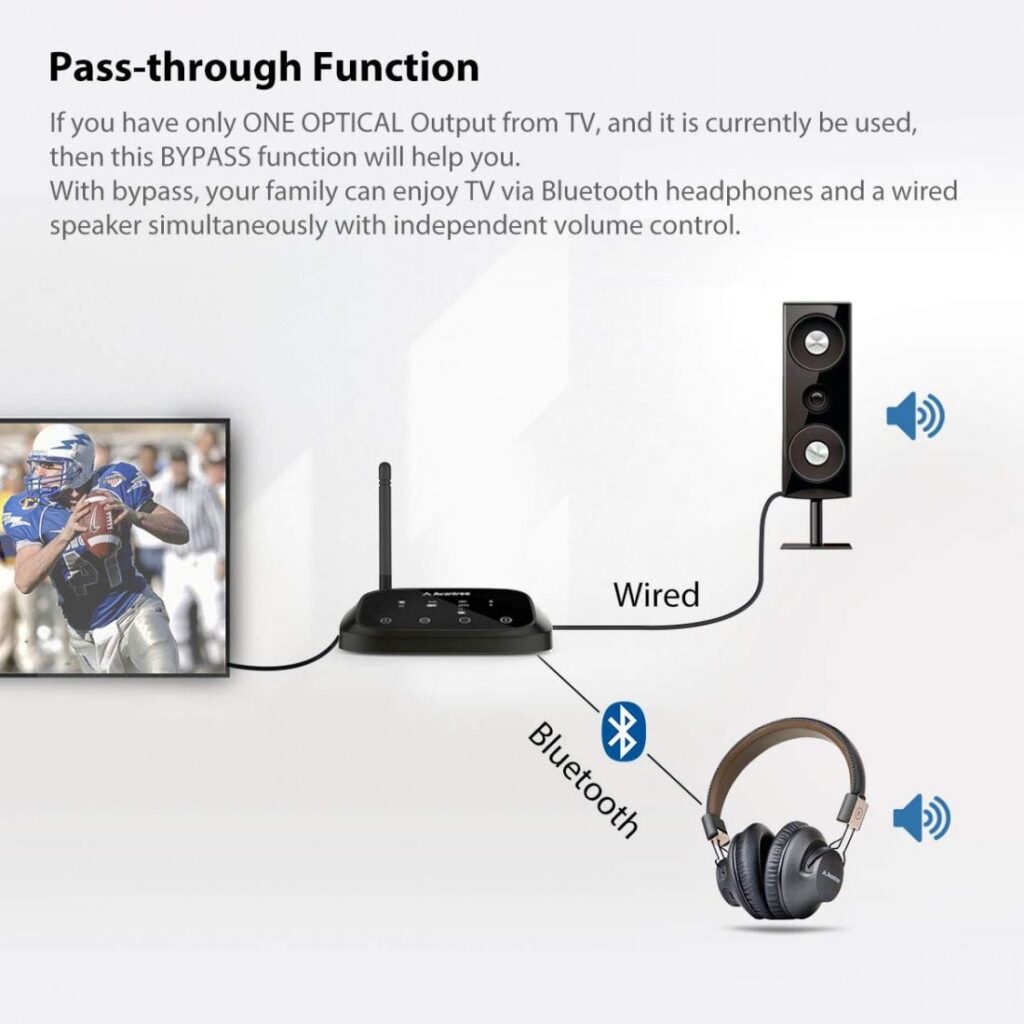
Connecting speakers to an LG TV can significantly enhance your audio experience, transforming ordinary viewing into a more immersive entertainment session.
Whether you're using a soundbar, external stereo system, or wireless speakers, LG TVs offer multiple connectivity options to suit your setup. From HDMI ARC and optical audio outputs to Bluetooth pairing, each method provides a reliable way to achieve better sound quality than the built-in speakers alone.
This guide walks you through the step-by-step process for each connection type, ensuring compatibility and optimal performance. Learn how to configure audio settings, troubleshoot common issues, and enjoy rich, room-filling sound tailored to your preferences.
 How Do I Connect Bluetooth Speakers To My PC
How To Connect Speakers To LG TV: A Complete Guide
Connecting external speakers to your LG TV can significantly enhance your audio experience, whether you're watching movies, gaming, or streaming music.
LG TVs come with various audio output options that support different speaker setups, including soundbars, home theater systems, Bluetooth speakers, and traditional wired speaker systems. The method you choose depends on the type of speakers you own and the connectivity features available on your specific LG TV model.
Most modern LG TVs run on webOS and include HDMI ARC (Audio Return Channel), optical audio output, Bluetooth, and headphone jacks, giving users multiple ways to route sound externally. Proper setup ensures high-quality sound transmission and system compatibility, reducing audio lag and maximizing performance.
Using HDMI ARC for High-Quality Audio Connection
One of the best ways to connect speakers, especially a soundbar or AV receiver, to your LG TV is through the HDMI ARC (Audio Return Channel) port. This single-cable solution allows for high-quality audio transmission from the TV to your speaker system, supporting formats like Dolby Digital and DTS.
 How Do I Connect Bluetooth Speakers To My Stereo Receiver
To use HDMI ARC, ensure both your LG TV and speakers support this feature. Connect one end of a compatible HDMI cable to the “HDMI ARC” port on the TV and the other end to the ARC-enabled input on your speaker system.
Then, go to your TV’s settings, navigate to Sound > Output Sound > HDMI ARC, and select the option to enable audio output through ARC. This method also enables simplified control via CEC (Consumer Electronics Control), allowing you to manage volume and power using your TV remote.
Connecting via Optical Audio Cable for Digital Sound
If your LG TV doesn’t support HDMI ARC or your speakers lack that capability, the optical audio (TOSLINK) connection is a reliable alternative for transmitting digital audio.
This fiber optic cable delivers clear, high-fidelity sound and supports multi-channel audio formats such as Dolby Digital. Locate the optical audio output port on the back or side of your LG TV, connect one end of the optical cable to it, and the other end to your speaker’s optical input.
 How Do I Connect Bluetooth Speakers To My TV
In your TV's Settings > Sound > Sound Output menu, select “Optical” as the audio output method. Ensure the optical cable is firmly inserted, as loose connections can interrupt the signal. While optical doesn’t support the newest high-bandwidth formats like HDMI eARC, it remains an excellent choice for standard surround sound systems.
Pairing Bluetooth Speakers Wirelessly
For a cable-free setup, Bluetooth connectivity allows you to pair compatible wireless speakers or soundbars directly with select LG TV models.
This method offers convenience and flexibility in speaker placement. First, ensure your Bluetooth speaker is in pairing mode. On your LG TV, go to Settings > Sound > Sound Output > Bluetooth, then select “Connect Device.” The TV will scan for available devices—select your speaker when it appears.
Once connected, audio will stream wirelessly to the speaker. Note that some users may experience slight audio lag during video playback due to Bluetooth latency, which can often be corrected by enabling “Audio Sync” or “Lip Sync” in the TV’s sound settings. Bluetooth is ideal for lightweight audio enhancement but may not support high-resolution audio codecs.
 How To Connect Pyle Bluetooth Speakers
| Connection Method | Audio Quality | Setup Complexity | Best For |
|---|---|---|---|
| HDMI ARC | High (supports Dolby Digital, DTS) | Easy | Soundbars, Home Theater Systems |
| Optical Cable | Moderate to High (digital stereo/surround) | Easy | External AV Receivers, Older Sound Systems |
| Bluetooth | Moderate (compressed audio, possible latency) | Easy | Wireless Speakers, Portable Soundbars |
How to Connect Speakers to Your LG TV: A Step-by-Step Guide
How to connect external speakers to an LG TV without a remote control

Using the Physical Buttons on the LG TV
When you don't have access to a remote control, the physical buttons on the LG TV itself become essential for navigation. Most LG TVs have a control panel located on the back or bottom edge of the set, typically consisting of power, volume, and input/source buttons. To connect external speakers, first press the power button to turn on the TV.
Then, use the input or source button to cycle through available input options until you reach the correct one for your audio output—often labeled as Optical, HDMI ARC, or Headphone Out, depending on your speaker connection type. Once the correct input is selected, verify that the TV recognizes the audio output by checking whether sound is being transmitted through the connected speakers. This method requires patience, as navigating through settings without a remote can be slow and limited.
- Locate the physical control buttons, typically found on the back or bottom of the LG TV, and identify the power, volume, and input buttons.
- Turn on the TV using the power button and press the input/source button repeatedly to scroll through available input options.
- Select the input corresponding to your external speaker connection (e.g., HDMI ARC or Optical Audio) and test audio output by playing content.
Connecting Speakers via HDMI ARC Port
The HDMI ARC (Audio Return Channel) port is one of the most effective ways to connect external speakers to an LG TV without needing a remote. This connection allows bidirectional audio transfer between the TV and soundbar or AV receiver, reducing cable clutter and improving sound quality.
 How To Connect Receiver To Speakers
To proceed without a remote, use the TV's physical buttons to navigate to the correct HDMI input. Once the appropriate HDMI input is active, the TV should automatically send audio through the HDMI ARC connection if the external speaker supports it.
Ensure that both the TV and the speaker are powered on and connected using a high-speed HDMI cable labeled HDMI ARC on both ends. Some LG TVs may require the audio output setting to be manually adjusted, but this can usually be accessed through the on-screen menu triggered by the input button.
- Connect one end of a high-speed HDMI cable to the HDMI ARC port on the LG TV and the other end to the HDMI ARC input on your external speaker or soundbar.
- Use the TV’s physical input/source button to switch to the corresponding HDMI ARC input.
- Power on the external speaker system and verify that audio is being transmitted through it, adjusting speaker volume as needed using its own controls.
Using Optical Audio or Headphone Jack Output
If your LG TV does not support HDMI ARC or your external speakers lack that capability, optical audio or the 3.5mm headphone jack are reliable alternatives.
The optical audio port (Toslink) transmits digital audio signals and is commonly used for connecting soundbars or home theater systems. The headphone jack, while less common on modern TVs, can output analog audio to powered speakers or amplifiers. With no remote, use the physical input button on the TV to reach the correct source.
 How To Connect Speakers To PC With Aux
After connecting the appropriate cable—optical cable or 3.5mm audio cable—ensure the external speaker is set to the correct input mode. Audio settings on the TV must be configured to use the external output, which may be accessible through the on-screen menu navigated via the input and volume buttons.
- Connect an optical cable from the TV’s optical audio out port to the optical input on your external speaker system, or use a 3.5mm audio cable for the headphone jack if available.
- Use the TV’s physical buttons to navigate to a valid input source and confirm that sound should now route through the external speakers.
- Adjust the external speaker's volume and input settings to ensure compatibility and optimal sound output, as the TV may not control speaker volume directly.
How to Connect External Speakers to an LG TV Using HDMI

Checking HDMI and Audio Output Compatibility
- Start by verifying that your LG TV has an HDMI ARC (Audio Return Channel) or eARC port, which is essential for sending audio signals from the TV to external speakers. The HDMI ARC port is usually labeled on the back of the TV or in the user manual.
- Ensure that your external speakers or sound system (such as a soundbar or AV receiver) also support HDMI ARC or eARC. Without mutual compatibility, the audio may not transmit properly between devices.
- Check the version of HDMI ports on both the TV and speaker system. Using HDMI 2.1 ports with eARC enables the highest audio quality, including support for uncompressed formats like Dolby Atmos.
Connecting the HDMI Cable
- Use a high-speed HDMI cable that supports ARC or eARC, preferably certified by HDMI.org. A standard HDMI cable may not deliver the full audio performance expected from modern speaker systems.
- Connect one end of the HDMI cable to the HDMI ARC or eARC port on your LG TV and the other end to the corresponding HDMI ARC/eARC input on your external speaker system.
- Make sure the connection is secure on both ends to prevent signal loss or audio dropouts. Avoid bending or tightly stretching the cable to maintain signal integrity.
Configuring Audio Settings on LG TV
- Turn on both the TV and the external speaker system. Use the LG TV remote to navigate to Settings, then select Sound or Audio Output depending on your model and firmware version.
- Choose the option for Sound Output or Speaker Settings and select TV Speaker Off or External Speaker, then choose HDMI ARC or eARC as the output method.
- Enable the Simplink (HDMI-CEC) feature in the TV settings under Device Connection or HDMI Device Link. This allows the TV and speakers to control each other’s power and volume via a single remote.
How to Wirelessly Connect Speakers to an LG TV for Optimal Audio Performance

Choosing the Right Wireless Audio Technology for Your LG TV
- Selecting the appropriate wireless technology is essential for achieving optimal audio performance. LG TVs support various wireless audio protocols including Bluetooth, Wi-Fi (via LG ThinQ or third-party apps), and proprietary options like LG's own Sound Sync technology. Bluetooth is widely accessible and compatible with most modern wireless speakers, making it a popular choice for straightforward audio streaming.
- For higher quality audio with lower latency, consider using Wi-Fi-based solutions such as Chromecast built-in, Apple AirPlay 2 (supported on recent LG models), or DLNA-certified speakers. These methods transmit audio over your home network and typically offer better sound quality than Bluetooth due to support for higher bitrates.
- Before proceeding, confirm that your LG TV model supports the chosen wireless technology. Typically, LG TVs from 2018 and newer feature Bluetooth and Wi-Fi audio output, which can be verified in the TV's Sound or Network settings menu. Matching the TV’s capabilities with the speaker’s connectivity options ensures a seamless setup.
Pairing Wireless Speakers via Bluetooth to an LG TV
- Begin by enabling Bluetooth on your LG TV: press the Home or Settings button on your remote, navigate to Sound Settings, then select Sound Output, and choose Bluetooth Devices. Put your wireless speaker into pairing mode by following the manufacturer’s instructions, usually involving pressing and holding a Bluetooth button until a light pulses.
- Your LG TV will scan for nearby devices. When your speaker appears in the list of detected devices, select it to initiate pairing. Once connected, the TV will confirm the connection, and audio will begin routing through the wireless speaker. This method is ideal for one-to-one speaker connections and offers plug-and-play simplicity.
- If you experience latency (audio lag), try adjusting the TV’s Audio Sync or A/V Sync setting under Sound Options to manually correct the delay. Additionally, keep the speaker within 10 meters of the TV and free from physical obstructions or interference from other wireless devices for a stable connection.
Optimizing Audio Settings for Enhanced Wireless Speaker Performance
- After establishing a wireless connection, access the Sound Settings menu on your LG TV to fine-tune the audio output. Adjust settings such as Equalizer, Sound Mode (e.g., Standard, Cinema, or Clear Voice), and Bass/ Treble levels to match your speaker’s capabilities and room acoustics for better clarity and depth.
- Disable internal TV speakers by ensuring the audio output is set exclusively to your wireless speaker. This avoids sound duplication and directs the full audio signal to your external system. For Bluetooth connections, select Bluetooth as the primary output; for Wi-Fi speakers, choose the appropriate network audio device.
- To minimize compression and enhance audio fidelity, use high-quality wireless speakers that support codecs like aptX, aptX LL, or AAC if available. While LG TVs don't universally support all advanced codecs, using speakers compatible with AAC can result in improved sound over standard SBC Bluetooth profiles, especially noticeable in music and dialogue playback.
Frequently Asked Questions
How can I connect external speakers to my LG TV using HDMI ARC?
Connect your speakers to the LG TV’s HDMI ARC port using an HDMI cable. Enable ARC in the TV settings under Sound Output. Make sure both the TV and speakers support ARC. This connection allows audio to be sent from the TV to the speakers with a single cable, simplifying setup and improving sound quality compared to internal TV speakers.
Can I use an optical cable to connect speakers to my LG TV?
Yes, connect one end of an optical cable to the TV’s optical audio output and the other to your speakers’ optical input. Then, go to the LG TV’s Sound Settings and select Optical as the audio output. This method delivers high-quality digital audio and is ideal for connecting soundbars or home theater systems that don’t support HDMI ARC.
Is it possible to connect Bluetooth speakers to an LG TV?
Yes, most LG TVs support Bluetooth audio. Go to Settings > Sound > Sound Output and select Bluetooth Speaker List. Pair your Bluetooth speaker from there. Once connected, audio will stream wirelessly. Note that Bluetooth may introduce slight delays, so it's best for music or non-gaming use where perfect audio-video sync is critical.
What if my speakers don’t have HDMI or optical inputs?
Use the LG TV’s audio output (headphone or RCA jack) with an appropriate cable. For RCA, connect to analog audio inputs on the speakers. In the TV’s Sound Settings, choose External Speaker or Audio Out. This analog connection works with older speaker systems, though audio quality may be lower than digital options like HDMI or optical.
Leave a Reply