
How To Connect Two JBL Speakers To Each Other

Connecting two JBL speakers can enhance your audio experience by delivering richer, more immersive sound.
Whether you're hosting a party or simply want stereo sound, JBL offers built-in features like PartyBoost or Connect+ that make pairing compatible speakers easy. This guide will walk you through the step-by-step process for linking two JBL speakers, ensuring seamless synchronization and optimal performance.
You’ll learn which models support multi-speaker setups, how to initiate pairing mode, and troubleshooting tips for common connection issues. With the right setup, you can enjoy powerful, room-filling audio from your JBL speakers in no time.
 How To Connect Receiver To Speakers
How To Connect Two JBL Speakers To Each Other
Connecting two JBL speakers allows you to create a more immersive audio experience, whether you're hosting a party or simply enjoying music with enhanced stereo sound. Most JBL Bluetooth speakers support a feature called JBL Connect, Connect+, Connect Plus, or PartyBoost, depending on the model, which enables you to link two or more compatible speakers wirelessly.
This functionality transforms individual speakers into a synchronized audio system that plays the same music simultaneously. To get started, ensure both speakers are powered on, fully charged, and within close proximity. Then, use the designated button or setting on the primary speaker to activate pairing mode for linking.
Once paired, the secondary speaker will sync automatically, and both will play audio in unison from a single source device like a phone or tablet via Bluetooth. Keep in mind that not all JBL models are compatible with each other—always verify that both speakers support the same connection technology (e.g., JBL Connect+ or PartyBoost) before attempting to pair them.
Understanding JBL Connect, Connect+, and PartyBoost Technologies
JBL offers several wireless pairing technologies across its speaker lineup: JBL Connect, Connect+, and PartyBoost. JBL Connect allows you to pair select models together, streaming audio from one source to multiple speakers.
 How To Connect Samsung Rear Speakers To Soundbar Wireless
Connect+ is an enhanced version that supports higher-quality audio transmission and more stable connections between compatible speakers. PartyBoost, introduced in newer models, replaces Connect+ in some cases and enables not only stereo pairing but also connecting over 100 compatible JBL speakers together for large-scale audio setups.
It’s important to note that these technologies are not cross-compatible—speakers with JBL Connect cannot pair with those that only support PartyBoost. Always check your speaker model and firmware version to confirm which technology it uses, which can typically be found in the product manual or on the official JBL website.
Step-by-Step Guide to Pair Two JBL Speakers Using Connect+
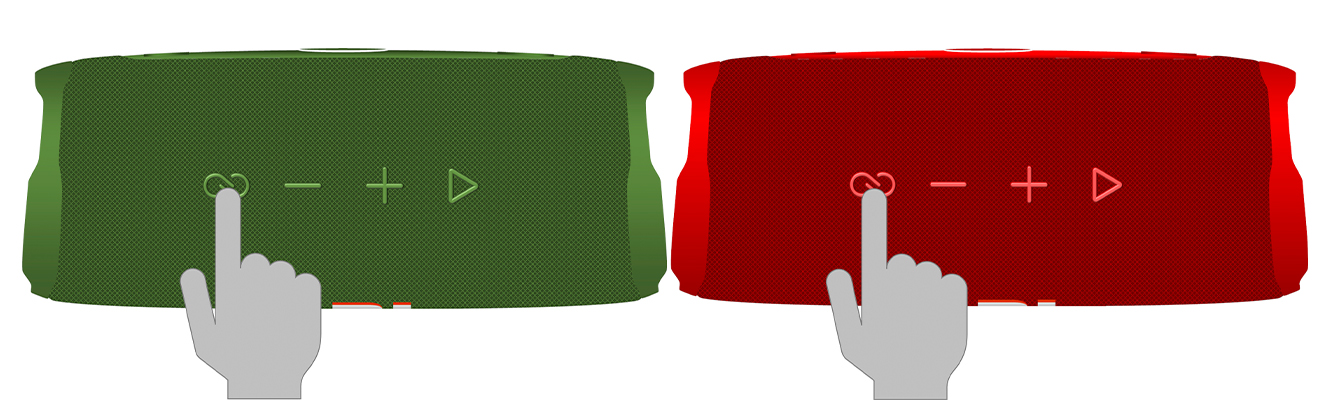
To pair two JBL speakers using JBL Connect+, start by turning on both speakers and ensuring they are charged. On the primary speaker (the one connected to your audio source), locate the JBL Connect+ button, usually marked with a chain-link icon.
Press and hold this button until you hear a tone or see an indicator light signaling pairing mode. Next, power on the second speaker and press its Connect+ button as well. The secondary speaker should automatically detect and link to the primary one, indicated by a blinking light that becomes solid once connected.
 How To Connect Sonos To Speakers
At this point, both speakers will play the same audio simultaneously when you stream from your Bluetooth device. If the speakers do not connect, reset both devices, ensure they are within 10 feet of each other, and confirm that both support Connect+ functionality.
Common Issues and Troubleshooting When Connecting JBL Speakers
While connecting two JBL speakers is generally straightforward, users may encounter issues such as failed pairing, audio lag, or connection dropouts. A common cause is using incompatible models—always verify that both speakers support the same technology (e.g., Connect+ or PartyBoost).
If pairing fails, try resetting both speakers by powering them off, holding the power button for 10 seconds, and restarting. Ensure Bluetooth is enabled on your source device and that no other devices are interfering with the signal.
Low battery levels can also hinder performance, so fully charge both speakers before pairing. Interference from Wi-Fi networks or other wireless devices may disrupt the connection; moving the speakers closer together or reducing wireless congestion can help stabilize the link.
 How To Connect Speakers To Laptop
| Feature | JBL Connect | JBL Connect+ | PartyBoost |
|---|---|---|---|
| Max Speakers | 2 | 2 | Over 100 |
| Compatibility | Select older models | Newer 2016+ models | Latest JBL speakers |
| Stereo Pairing | No | Yes (on supported models) | Yes |
| Cross-Technology Pairing | No | No | No |
How to Pair Two JBL Speakers for Stereo Sound: A Step-by-Step Guide
How to Wirelessly Pair Two JBL Speakers Together
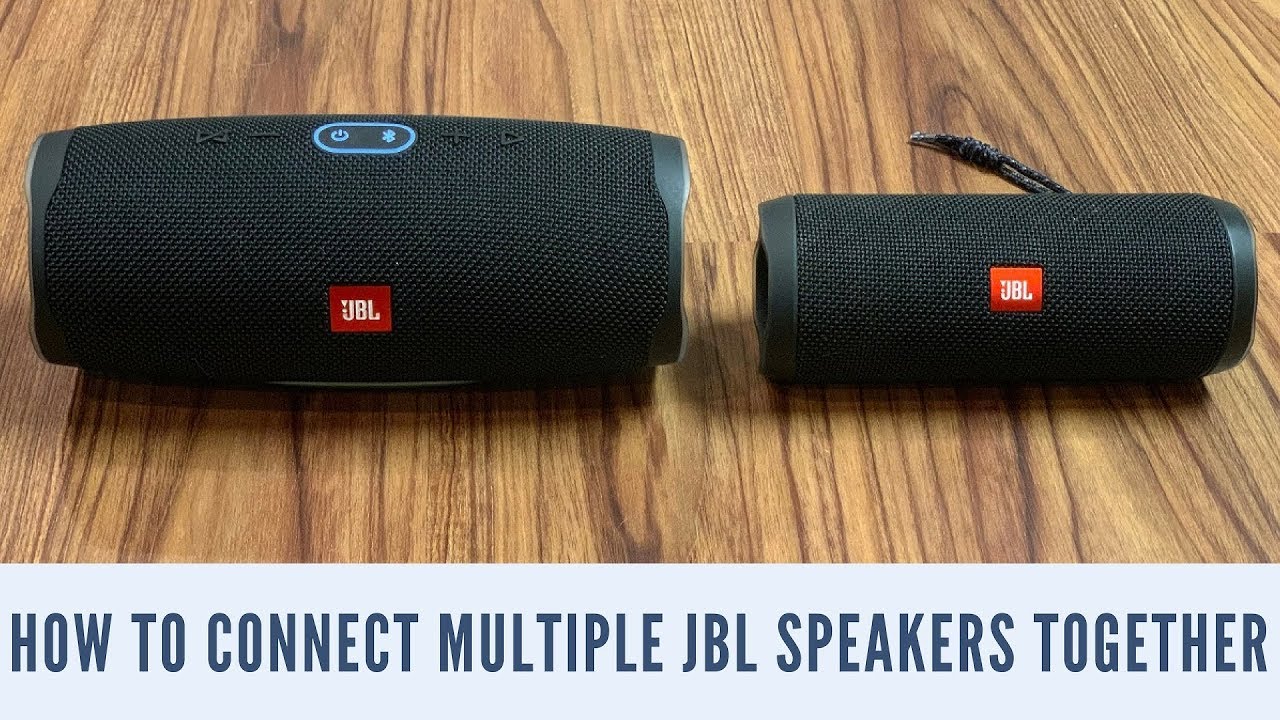
Using JBL Connect+ or Connect to Pair Speakers Wirelessly
To wirelessly pair two JBL speakers, first ensure that your models support JBL Connect+ or Connect technology—this includes popular models like the JBL Flip 5, JBL Charge 5, JBL Pulse 4, or JBL Xtreme 3. Begin by powering on both speakers and placing them within close proximity, ideally no more than 30 feet apart.
Press the power button on the primary speaker to turn it on, and then press and hold the Connect or JBL Connect button (usually marked with a Bluetooth icon and overlapping circles) until it emits a tone or the LED flashes an indication that it’s ready to pair. Next, power on the second speaker and press its JBL Connect button. The second speaker should detect the first and connect automatically, confirmed by an audio cue or a steady LED light.
- Verify both speakers are compatible with JBL Connect or Connect+ by checking the user manual or JBL’s official website.
- Turn on both speakers and ensure they are charged or plugged in to avoid connection drops.
- Press and hold the Connect button on the first speaker, then activate the second speaker’s Connect feature to initiate pairing.
Pairing JBL Speakers via Bluetooth TWS (True Wireless Stereo)
Some JBL speaker models support True Wireless Stereo (TWS), which allows for a more immersive stereo experience by designating one speaker as the left channel and the other as the right. To use TWS pairing, ensure both speakers support this feature and are from the same generation—TWS typically won’t work across different model versions.
 How To Connect Speakers To LG TV
Start by connecting the first speaker to your audio source via Bluetooth. Then, press the TWS button on that speaker—usually a separate button with a stereo symbol—indicating it is now in transmitter mode. Power on the second speaker and press its TWS button; it should automatically connect to the first. Once paired, both speakers will play in stereo, with no need to connect directly to your phone or tablet.
- Confirm TWS compatibility between the two JBL speaker models you plan to pair.
- Enable Bluetooth on your audio source and connect to the primary speaker first.
- Use the TWS button on each speaker to establish the stereo link, allowing synchronized playback across both units.
Troubleshooting Common Pairing Issues
Wireless pairing between JBL speakers can sometimes fail due to compatibility, software, or proximity issues. One common problem is attempting to pair speakers from different generations or that lack matching technologies (e.g., trying to pair a Connect speaker with a Connect+ model). Another frequent issue is low battery—both speakers should be sufficiently charged before pairing.
Interference from other wireless devices or being out of range during setup can also disrupt the connection. If the speakers don’t pair, try resetting both devices by turning them off, waiting 10 seconds, and restarting the process. Some models may also require a firmware update via the JBL Portable app to maintain connectivity features.
- Ensure both speakers are of the same compatible series and support the same wireless technology (Connect, Connect+, or TWS).
- Keep the speakers close together during pairing—maximum 10 feet apart for optimal signal strength.
- Reset both speakers and retry the pairing process if the connection fails or appears unstable.
How to pair two JBL speakers together wirelessly – Step-by-step guide
 How To Connect Speakers To PC With Aux
How to Enable Wireless Pairing on JBL Speakers Using JBL Connect or Connect+
- Ensure both JBL speakers are powered on and fully charged or connected to a power source to avoid interruptions during pairing.
- Locate the JBL Connect or Connect+ button on the first speaker—this feature is available on compatible JBL models such as the JBL Flip, Charge, Pulse, or Xtreme series.
- Press and hold the Connect button on the first speaker until an audio or visual cue confirms it is in pairing mode, usually indicated by a blinking light or a tone.
- On the second JBL speaker, press its Connect button once to link it to the first speaker. If using JBL Connect+, multiple speakers can be chained by repeating this process.
- Once connected, both speakers will play audio in sync from the same source, creating a stereo or amplified sound experience.
Using JBL PartyBoost for Multi-Speaker Pairing
- Confirm that both JBL speakers support the PartyBoost feature, which is present in newer models like the JBL Charge 5, Flip 6, or Boombox 3—this feature replaces the older Connect+ in recent releases.
- Power on both speakers and make sure they are not connected to any Bluetooth device initially.
- On the primary speaker, press and hold the Bluetooth button until you hear a tone indicating it is in PartyBoost mode.
- On the second speaker, also press and hold its Bluetooth button until it responds with a confirmation tone and the lights indicate synchronization.
- Once linked, both speakers will play audio simultaneously and can be managed from one source device, providing a seamless party audio experience.
Connecting JBL Speakers via Bluetooth from a Mobile Device
- Start by pairing your smartphone or tablet to the first JBL speaker through the device’s Bluetooth settings menu—select the speaker from the list of available devices.
- After a successful connection, open the JBL Portable app (if available and compatible with your model) to access advanced pairing functions like dual speaker mode.
- Enable the dual speaker or stereo mode option within the app, then follow the in-app instructions to locate and connect the second JBL speaker.
- If the app is not available, use the physical Connect or PartyBoost button on the first speaker to initiate pairing, then activate the second speaker accordingly.
- Once both speakers are connected and recognized by the source device, play music to test audio synchronization and adjust volume levels as needed for balanced sound output.
How to Pair Two JBL Speakers Together Using an iPhone

Using Bluetooth Pairing to Connect Two JBL Speakers
To pair two JBL speakers together using an iPhone via Bluetooth, ensure both speakers are compatible with JBL's PartyBoost or Connect+ feature, depending on the model.
Begin by turning on both JBL speakers and placing them within close proximity. Press and hold the Bluetooth button on the primary speaker until it enters pairing mode. Then, on your iPhone, go to Settings > Bluetooth and wait for the first speaker to appear in the list of available devices. Tap to connect.
Once connected, power on the second JBL speaker and activate its pairing mode. On the iPhone, you won’t manually connect the second speaker through the Bluetooth menu—instead, the two JBL speakers will link wirelessly to each other automatically if they support PartyBoost or Connect+. Once paired, they will play audio in sync from your iPhone.
- Ensure both JBL speakers support the same pairing technology (JBL Connect+, PartyBoost, or True Wireless Stereo).
- Power on the first speaker and pair it with your iPhone through the Bluetooth settings menu.
- Activate pairing mode on the second speaker; it should automatically connect to the first speaker wirelessly.
Activating JBL Connect+ or PartyBoost Mode
Certain JBL speakers use proprietary technologies like JBL Connect+ or PartyBoost to link multiple speakers together. These features allow seamless pairing without using your iPhone as an intermediary for speaker-to-speaker connection.
After connecting the first speaker to your iPhone over Bluetooth, locate the dedicated button on the second speaker—usually labeled “Connect,” “PartyBoost,” or indicated by a chain-link icon. Press this button once to enable pairing mode.
The second speaker will detect the first one and connect automatically, provided both support the same technology. Once linked, both speakers will function as a unified audio system, streaming the same audio in stereo or dual-speaker mode depending on model capabilities.
- Identify whether your JBL speakers support Connect+ or PartyBoost by checking the user manual or product specifications.
- Press the Connect or PartyBoost button on the second speaker to initiate wireless speaker pairing.
- Wait for a tone or LED indication confirming the successful connection between the two speakers.
Optimizing Audio Output and Connection Stability
For uninterrupted playback and balanced sound from both JBL speakers, take steps to maintain a stable connection and optimal audio performance. Keep your iPhone within a 10-meter (33-foot) range of the primary speaker, avoiding walls or obstructions that may interfere with Bluetooth signals. Ensure both speakers are fully charged to prevent unexpected power loss during use.
If audio drops or desynchronization occurs, power off both speakers, restart your iPhone’s Bluetooth, and repeat the pairing process. Some JBL models allow you to daisy-chain more than two speakers, so check your device’s limitations. Additionally, update the speakers’ firmware via the JBL Portable app if available, to ensure compatibility and improved performance.
- Maintain close proximity between your iPhone and the primary speaker to minimize Bluetooth interference.
- Charge both speakers fully before use to avoid connection issues caused by low battery.
- Restart the pairing process or check for firmware updates using the JBL app to resolve connectivity problems.
Frequently Asked Questions
How can I connect two JBL speakers using Bluetooth?
To connect two JBL speakers via Bluetooth, enable Bluetooth on both speakers and pair the first one to your audio source. Then, press and hold the 'Connect' or 'PartyBoost' button (depending on model) on both speakers simultaneously. They will sync wirelessly. Note: Only select JBL models support PartyBoost or Connect+. Always check compatibility before attempting to pair.
What is JBL PartyBoost and which speakers support it?
JBL PartyBoost is a feature that allows you to wirelessly link compatible JBL speakers for stereo or expanded sound. It supports models like the JBL Charge 5, Flip 6, Xtreme 3, and others released from 2020 onward. Unlike older JBL Connect+, PartyBoost enables true stereo pairing and more stable connections. Check your speaker’s manual or JBL’s website to confirm if your model supports PartyBoost.
Can I connect JBL speakers with different models together?
Yes, you can connect different JBL speaker models if they both support the same pairing technology—either JBL Connect+ or PartyBoost. However, you cannot pair a Connect+ speaker with a PartyBoost-only model. For example, a JBL Charge 4 (Connect+) can pair with a Flip 5 but not with a Charge 5 (PartyBoost). Always verify compatibility to ensure successful connection between mixed models.
Is it possible to connect more than two JBL speakers together?
Yes, with JBL PartyBoost, you can connect multiple JBL speakers—more than two—to create a larger audio setup. Simply power on all compatible speakers, press the PartyBoost button on each, and they will sync wirelessly. The exact number depends on the model and environment, but JBL often supports connecting up to 100 speakers. This feature is ideal for bigger events requiring immersive sound.
Leave a Reply