
How To Connect Two Speakers To One iPhone
Connecting two speakers to one iPhone can enhance your audio experience, whether you're hosting a party, giving a presentation, or simply enjoying music with friends.
While iPhones don’t natively support simultaneous audio output to multiple Bluetooth speakers, there are effective workarounds available. Using built-in features like Audio Sharing, compatible third-party apps, or wired connections, you can seamlessly pair and sync two speakers.
This guide explores the most reliable methods, including step-by-step instructions for both modern wireless options and traditional auxiliary setups, ensuring clear, synchronized sound from your iPhone to two separate speakers.
 How To Connect Receiver To Speakers
How to Connect Two Speakers to One iPhone
Connecting two speakers to a single iPhone can significantly enhance your audio experience, whether you're hosting a small gathering or simply want richer, room-filling sound.
While the iPhone doesn't natively support streaming audio to multiple Bluetooth speakers simultaneously through standard settings, there are several effective workarounds using built-in features, third-party apps, and compatible hardware.
Methods include using Bluetooth multipoint, AirPlay 2 for compatible speakers, third-party audio routing apps, and hardware audio splitters. Each solution varies in ease of setup, audio quality, and compatibility, so your choice will depend on the type of speakers you have and whether they're wired or wireless. Below are the most reliable methods to achieve dual-speaker connectivity.
Using AirPlay 2 to Connect Two Wireless Speakers
If your speakers support AirPlay 2 and are connected to the same Wi-Fi network, you can easily stream audio from your iPhone to multiple speakers simultaneously.
 How To Connect Samsung Rear Speakers To Soundbar Wireless
First, ensure your iPhone and speakers are on the same Wi-Fi network. Open the Control Center, tap the Music playback card, then tap the AirPlay icon. From there, select Create a Stereo Pair or manually choose multiple compatible speakers from the list.
AirPlay 2 allows synchronized playback with minimal lag, delivering high-quality audio across rooms. This method works seamlessly with Apple HomePods, HomePod minis, and other AirPlay 2–certified speakers, offering a convenient and reliable wireless solution without requiring third-party apps.
Pairing Two Bluetooth Speakers Using Third-Party Apps
When dealing with standard Bluetooth speakers that don’t support multipoint or native dual pairing, you can use apps like AmpMe, SoundSeeder, or Bose Connect to sync audio across multiple devices. These apps work by turning your iPhone into a media host, then streaming the same audio to multiple Bluetooth speakers in sync over Wi-Fi or Bluetooth.
To use them, install the app on your iPhone and the speakers (if they’re other smartphones), play a song within the app, and invite nearby devices to join the audio session. While convenient, these solutions depend heavily on network stability and may introduce slight latency. However, they are ideal for mixing different speaker brands and models that otherwise wouldn’t work together.
 How To Connect Sonos To Speakers
Connecting Two Wired Speakers via Audio Splitters or Docks
For wired audio output, you can connect two speakers using a 3.5mm audio splitter or Lightning to 3.5mm adapter with a splitter.
Simply plug the splitter into your iPhone's headphone jack (or adapter), then connect two sets of wired speakers or aux-enabled active speakers using standard audio cables. This method ensures zero latency and consistent audio quality since it’s a direct analog signal.
It’s ideal for short-range setups like desktop use or presentations. However, newer iPhones lack a headphone jack, so you’ll need a Lightning to 3.5mm adapter or USB-C to 3.5mm adapter (on newer models), which may limit simultaneous charging. Volume control is managed from the iPhone, and sound is mirrored identically to both speakers.
| Method | Best For | Audio Quality | Latency | Compatibility Requirements |
|---|---|---|---|---|
| AirPlay 2 | Apple HomePods, AirPlay 2–certified speakers | High | Low | Same Wi-Fi network, iOS 11.4 or later |
| Third-Party Apps | Mix of Bluetooth speakers, non-Apple brands | Medium to High | Moderate to High | Wi-Fi/Bluetooth, app installed |
| Wired Splitter | Wired speakers, auxiliary inputs | High (analog) | Negligible | 3.5mm jack or adapter |
How to Connect Two Speakers to One iPhone: A Step-by-Step Guide
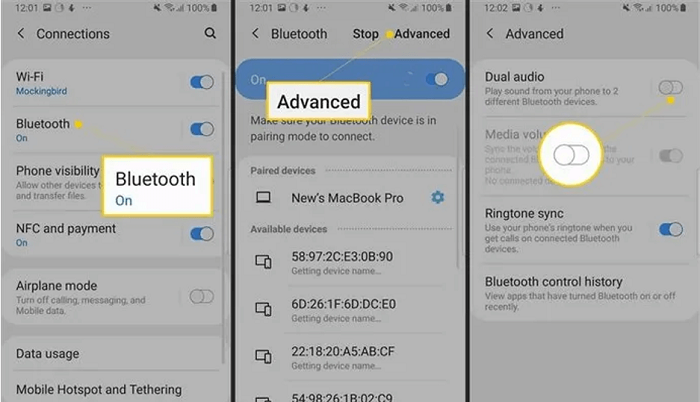
How to Play Audio on Two Devices Simultaneously from One iPhone?
 How To Connect Speakers To Laptop
Using Bluetooth Audio Sharing with Compatible Devices
One of the most effective ways to play audio on two devices simultaneously from a single iPhone is by using Apple’s built-in audio sharing feature, which works seamlessly through Bluetooth. This functionality is available on iPhones running iOS 13 or later and requires compatible Bluetooth headphones or speakers.
AirPods, AirPods Pro, AirPods Max, and many Made for iPhone (MFi) accessories support this feature. When two compatible devices are near each other and connected to the same iPhone, users can share audio effortlessly without needing third-party apps or additional hardware.
- Ensure both Bluetooth audio devices are charged and within range of the iPhone.
- Connect the first pair of headphones to your iPhone via Bluetooth as usual.
- Tap the audio sharing icon (two overlapping circles) in the Control Center or on the Lock Screen, then hold the second set of compatible headphones near the iPhone to pair and start playing audio to both.
Connecting to Two Devices Using AirPlay 2
AirPlay 2 enables multi-room and multi-device audio streaming, allowing users to send audio from their iPhone to multiple compatible speakers at the same time. Unlike standard Bluetooth connections, AirPlay 2 operates over Wi-Fi, offering higher audio quality and the ability to synchronize playback across devices in different locations.
Speakers such as HomePod, HomePod mini, and other AirPlay 2–compatible third-party speakers support this functionality. This method is ideal for users who want to stream music in various rooms or distribute audio across larger areas using their iPhone as the source.
 How To Connect Speakers To LG TV
- Make sure your iPhone and all target speakers are connected to the same Wi-Fi network.
- Open a music app like Apple Music or Spotify and start playback.
- Tap the AirPlay icon (a triangle with concentric rings), then select multiple speakers from the list to enable simultaneous audio output.
Using Third-Party Apps for Multi-Device Audio Streaming
If your devices don’t support native audio sharing or AirPlay 2, third-party apps can help bridge the gap. Several apps available on the App Store allow splitting audio output between different Bluetooth devices or combining Bluetooth and wired connections.
These apps often use Bluetooth multipoint technology or custom routing logic to manage simultaneous connections. While performance can vary depending on the app and device compatibility, they provide a viable workaround for older headphones or non-Apple speakers that lack native support for audio sharing features.
- Download a reputable multi-output audio app such as 'SoundSeeder', 'AmpMe', or 'Bose Connect' (depending on your speaker brand).
- Launch the app and follow its setup procedure to pair both audio devices with your iPhone.
- Start audio playback within the app or route system audio through it, ensuring both devices receive the signal simultaneously with minimal delay.
Frequently Asked Questions
Can I connect two Bluetooth speakers to one iPhone at the same time?
Yes, you can connect two Bluetooth speakers to one iPhone simultaneously using Audio Sharing. If your iPhone runs iOS 13 or later and both speakers support Bluetooth 5.0, simply hold them near your iPhone and follow the on-screen prompts. Alternatively, use third-party apps or an audio splitter with a Lightning to 3.5mm adapter for wired connections. This allows true stereo or amplified sound playback across both speakers.
How do I use Audio Sharing to connect two speakers?
To use Audio Sharing, ensure your iPhone and both speakers support it. Play audio, bring the second speaker close, and tap “Connect” when prompted. You can manage volume for each device independently. Note that both speakers must be Apple-compliant or MFi-certified. This feature works seamlessly between AirPods and select Beats devices, but compatibility with third-party Bluetooth speakers may vary depending on firmware and manufacturer support.
 How To Connect Speakers To PC With Aux
What if my speakers don’t support Audio Sharing?
If your speakers aren’t compatible with Audio Sharing, use a third-party Bluetooth adapter that supports dual pairing, or a physical audio splitter. Connect the splitter to a Lightning to 3.5mm adapter on your iPhone, then plug in two wired speakers. Alternatively, some apps like AmpMe sync audio playback across multiple phones or Bluetooth devices, requiring internet but enabling simultaneous playback on non-compatible speakers through separate connections.
Can I use wired and wireless speakers together from one iPhone?
Yes, you can use one wired and one wireless speaker simultaneously. Connect the wired speaker via a Lightning to 3.5mm adapter, then pair the wireless speaker via Bluetooth. However, iOS typically routes audio to one output at a time. To use both, you’ll need third-party apps or a hardware solution like a Bluetooth transmitter that splits the audio signal, allowing concurrent output through different connection types.
Leave a Reply