
How To Connect Sonos To Speakers
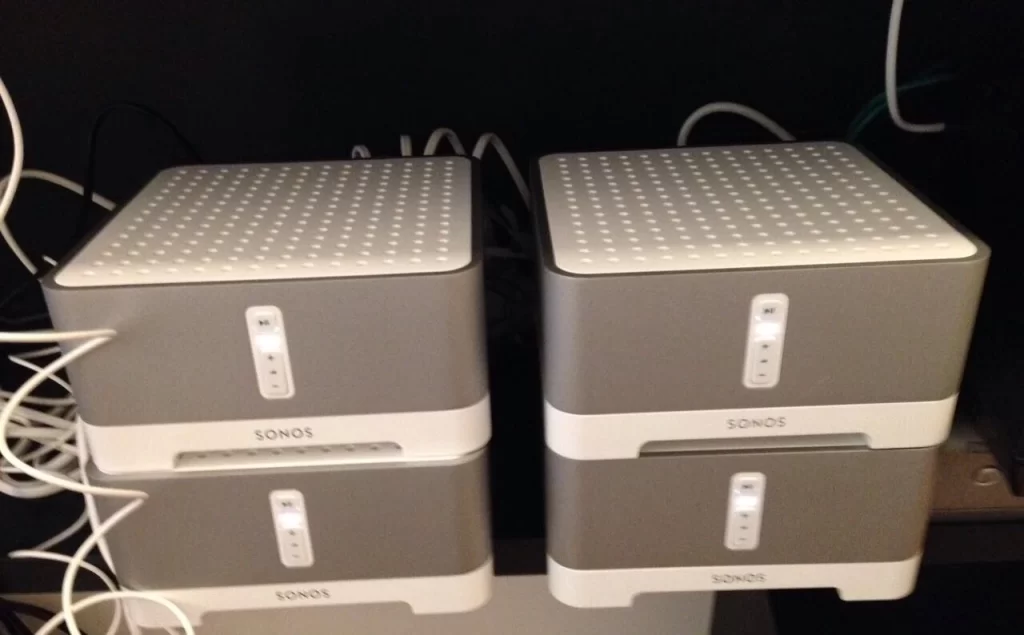
Connecting Sonos to external speakers opens up new possibilities for high-quality, customizable audio throughout your home. Whether you're looking to enhance room-filling sound or integrate existing speakers into a smart audio ecosystem, Sonos offers flexible solutions. With options ranging from wired to wireless setups, users can tailor their system to fit specific needs and room layouts.
This guide walks you through compatible equipment, connection methods, and setup steps to ensure seamless integration. From selecting the right Sonos component to optimizing audio performance, you’ll discover how to get the most out of your sound system. Turn any speaker into part of a powerful, synchronized network.
How To Connect Sonos To Speakers
Connecting Sonos to speakers allows you to create a powerful, synchronized audio experience across your home. Sonos offers a versatile ecosystem that supports both wired and wireless integration with a variety of speakers, depending on your Sonos model and sound preferences.
 How Do I Connect Bluetooth Speakers To My PC
Whether you're using passive speakers with a Sonos Amp, connecting to existing stereo systems, or integrating Sonos wireless speakers into a multi-room setup, the process emphasizes ease of use and high-quality sound distribution.
The Sonos app plays a central role in configuring and managing speaker connections, ensuring seamless setup and intuitive control over your audio environment. With proper setup, users can enjoy rich, room-filling sound with perfect sync across multiple zones.
Wired Connection Using Sonos Amp or Connect:AMP
When connecting Sonos to passive speakers, the Sonos Amp is the ideal choice, providing 125 watts per channel to power bookshelf or in-wall speakers. To set it up, connect your passive speakers to the Amp using speaker wire attached to the spring-loaded terminals, then plug the Amp into your Wi-Fi network via Ethernet or connect it wirelessly.
Open the Sonos app, follow the on-screen instructions to add the Amp to your system, and assign it to a room. Once configured, you can stream music from various services, control volume via the app, and include it in multi-room audio groups. This wired method ensures high-fidelity audio performance and is perfect for home theater setups or dedicated listening rooms.
 How Do I Connect Bluetooth Speakers To My Stereo Receiver
Wireless Integration With Sonos One, Beam, Or Move
For a completely wireless experience, Sonos offers a range of self-contained smart speakers like the Sonos One, Beam, and Move that don’t require external amplification. These speakers connect directly to your home Wi-Fi or use Wi-Fi and Bluetooth (in the case of Move) to stream music.
Simply plug in the speaker, open the Sonos app, and follow the setup wizard to connect it to your network. Once online, the speaker appears in your Sonos system and can be grouped with others for synchronized playback. The voice control features (via Alexa or Google Assistant) and automatic Trueplay tuning further enhance usability and sound quality based on the speaker’s environment.
Using Sonos Connect to Integrate with Existing Stereo Systems
The Sonos Connect is designed for audiophiles who want to upgrade their traditional stereo systems with Sonos intelligence. It connects to your existing AV receiver or amplifier using analog RCA or digital optical audio outputs.
Once physically connected, the Sonos Connect links to your home network via Ethernet and is managed through the Sonos app, enabling wireless streaming from services like Spotify, Apple Music, and podcast platforms. This allows legacy equipment to become part of a modern, multi-room Sonos setup. Although discontinued, the Sonos Connect remains a valuable option for integrating high-end, non-Sonos equipment into the Sonos ecosystem.
 How Do I Connect Bluetooth Speakers To My TV
| Sonos Device | Speaker Type | Connection Method | Best For |
|---|---|---|---|
| Sonos Amp | Passive Speakers | Wired (Speaker Wire + Wi-Fi/Ethernet) | Home audio, outdoor setups, in-wall systems |
| Sonos One / Beam / Move | Active (Built-in Speakers) | Wireless (Wi-Fi/Bluetooth) | Multi-room audio, voice control, portability |
| Sonos Connect | Existing Stereo/Receiver | Wired Audio Output + Ethernet | Upgrading legacy audio systems |
Step-by-Step Guide to Connecting Sonos to Speakers
How to Connect Sonos Era 100 to External Speakers Wirelessly
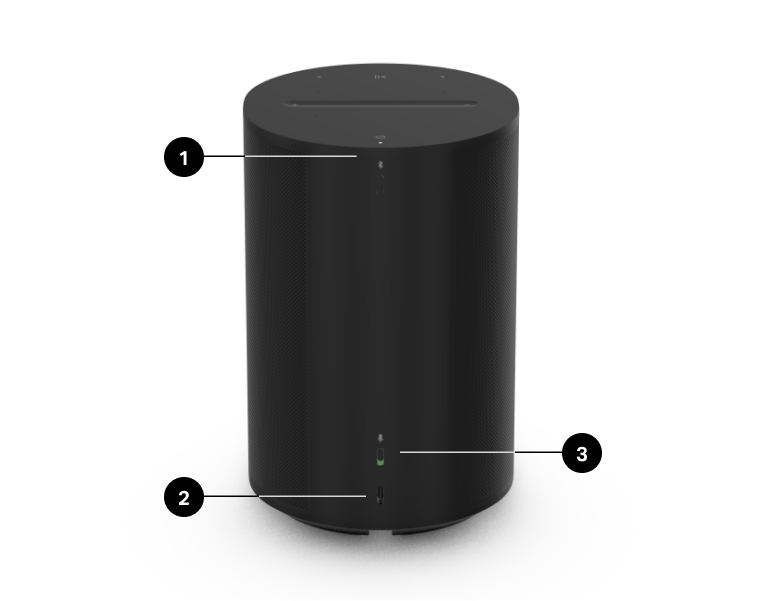
Understanding Sonos Era 100's Wireless Capabilities
The Sonos Era 100 is designed as a standalone smart speaker with built-in amplification and audio processing, optimized for direct Wi-Fi and Bluetooth connectivity. It does not support direct wireless transmission to external speakers as a transmitter.
Instead, the Era 100 functions primarily as a receiver—allowing you to stream music from your devices to it rather than sending audio out from it. To use external speakers with the Era 100, you typically need to use alternative methods involving other hardware or reconfigure your setup to include multi-room audio through the Sonos ecosystem.
While it supports AirPlay 2, Bluetooth receiving (in certain configurations), and integrates seamlessly with the Sonos app, its hardware does not include features to broadcast audio wirelessly to third-party speakers.
 How To Connect Pyle Bluetooth Speakers
- The Sonos Era 100 connects to your home Wi-Fi network for reliable, high-quality streaming from music services and mobile apps.
- It features Bluetooth 5.0, but only for receiving audio during initial setup or troubleshooting; it cannot act as a Bluetooth transmitter.
- Through AirPlay 2, you can stream audio from Apple devices directly to the Era 100, but not from the Era 100 to other devices.
Using Sonos App for Multi-Speaker Grouping
Although you cannot wirelessly connect external non-Sonos speakers directly to the Era 100, you can use the Sonos app to group the Era 100 with other Sonos speakers to create a synchronized, whole-home audio system. This method leverages your home Wi-Fi network to stream the same audio to multiple Sonos devices simultaneously.
The external speakers must be Sonos-compatible and connected to the same network. Once grouped, the Era 100 plays in sync with other speakers, effectively expanding your sound setup without physical cabling. This is one of the most effective ways to integrate the Era 100 with additional speakers in different rooms.
- Open the Sonos app and navigate to the Browse or Now Playing tab to access your connected devices.
- Select the Era 100 speaker, then tap the Group option to view other available Sonos speakers on the same network.
- Choose the Sonos speakers you want to group with the Era 100, and audio will play in perfect sync across all selected devices.
Connecting Non-Sonos External Speakers via Workarounds
If you wish to use non-Sonos external speakers with the Era 100, direct wireless pairing is not supported, but you can use indirect methods. One common workaround is to use a Bluetooth transmitter connected to the Era 100’s audio output, though the Era 100 does not have a line-out port.
Alternatively, you can stream the same audio source (like Spotify or Apple Music) to both the Era 100 and a separate Bluetooth speaker from your phone or tablet. Another solution is to use a smart display or hub that supports multi-speaker audio casting, sending the same stream to multiple devices independently. These methods do not create a direct link but allow simultaneous playback.
 How To Connect Speakers To Laptop
- Play audio from a mobile device using an app that supports multi-room casting, such as Spotify Connect, and select both the Era 100 and another compatible speaker.
- Use an external streaming device like an Amazon Echo or Google Nest Hub to cast audio to multiple speakers, including Sonos and Bluetooth-enabled devices.
- Install a Bluetooth adapter on a shared audio source and route audio from your phone or tablet to multiple destinations in parallel, managing volume independently on each device.
How to Wirelessly Connect Sonos to External Speakers
Understanding Sonos Connectivity Options for External Speakers
- Sonos devices are designed primarily to work within their own ecosystem, using Wi-Fi rather than Bluetooth for audio streaming, which allows for high-quality, synchronized multi-room audio. While Sonos speakers themselves do not support direct Bluetooth connections to external speakers, they offer several alternative methods for integration with non-Sonos audio systems.
- One of the most effective ways to connect external speakers is through a Sonos Amp or Sonos CONNECT. These devices are specifically built to bridge the gap between Sonos systems and traditional audio equipment such as bookshelf speakers, ceiling speakers, or home theater setups.
- Another option is using audio output ports on certain Sonos devices—like the Sonos Port or Amp—which provide line-level or speaker-level outputs. These can be connected via standard audio cables to receivers or amplifiers driving external speakers, enabling them to be controlled through the Sonos app over your home Wi-Fi network.
Using Sonos Amp to Wirelessly Control External Speakers
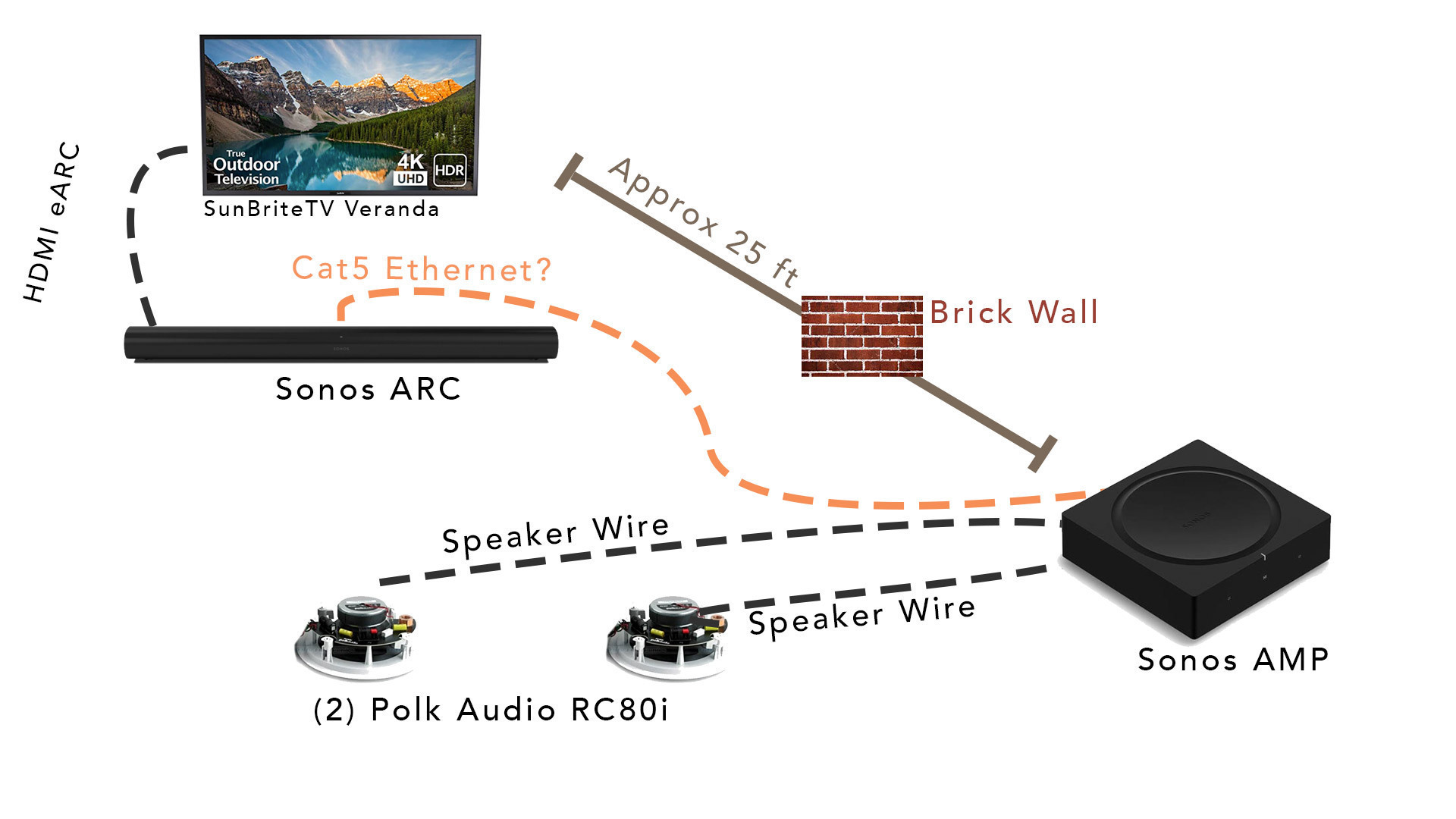
- The Sonos Amp is a dedicated amplifier that allows you to connect passive external speakers and control them wirelessly through the Sonos system. It provides up to 125 watts per channel, making it suitable for most traditional speakers, including in-wall or in-ceiling models.
- To set it up, connect your passive speakers to the Sonos Amp using speaker wire, then connect the Amp to your home Wi-Fi network via Ethernet or through your wireless router. Once powered on, the Sonos app will detect the Amp during setup and guide you through connecting it to your existing Sonos system.
- After setup, the external speakers connected to the Amp appear as a Sonos zone in the app. You can wirelessly stream music to them, group them with other Sonos speakers, adjust volume, and manage audio settings directly from your smartphone or tablet, all over Wi-Fi without the need for Bluetooth.
Integrating External Speakers with Sonos Port and Line-In Functionality
- The Sonos Port (formerly known as CONNECT:AMP without amplification) is ideal for connecting to an existing stereo receiver or powered amplifier that drives your external speakers. It features a digital optical and analog audio output, allowing flexible integration into various audio setups.
- To use it, connect the Sonos Port to your A/V receiver or external amplifier using either RCA or optical cables. Then connect the receiver to your external speakers. Once the Port is set up on your Wi-Fi network via the Sonos app, it functions as a streaming source that can play from hundreds of music services.
- In addition, the Sonos Port supports line-in functionality, meaning you can plug in other audio sources like a turntable or CD player into the Port and then wirelessly transmit that audio to other Sonos speakers throughout your home, effectively turning analog sources into part of a wireless multi-room system.
How to Connect Sonos Speakers via Bluetooth: A Step-by-Step Guide

Not all Sonos speakers support Bluetooth connectivity. Before attempting to connect, verify that your specific Sonos model is Bluetooth-capable. Models such as the Sonos Roam, Sonos Move, and Sonos Ace headphones support Bluetooth, while most other home speakers like the Sonos One or Beam rely solely on Wi-Fi.
To connect a compatible Sonos device via Bluetooth, ensure both the speaker and your source device (smartphone, tablet, or computer) have Bluetooth enabled. Place the Sonos speaker within close proximity to reduce connection issues.
 How To Connect Speakers To LG TV
On the speaker, press and hold the Bluetooth button (usually located on the side or back) until the LED indicator begins blinking blue, signaling it's in pairing mode. Then, go to your device’s Bluetooth settings, locate the speaker in the list of available devices—typically labeled as Sonos Roam, Sonos Move, etc.—and select it to pair. Once connected, you’ll hear a confirmation tone from the speaker, and the LED will turn solid blue.
Which Sonos Speakers Support Bluetooth?
- The Sonos Roam is a compact, portable speaker designed with Bluetooth 5.0, allowing wireless audio streaming from phones or tablets without requiring a Wi-Fi network. It automatically switches between Wi-Fi and Bluetooth depending on your audio source and connection preferences.
- The Sonos Move is a larger outdoor-friendly speaker that also includes Bluetooth functionality alongside its primary Wi-Fi operation. This enables users to play music even when away from their home network, making it ideal for portable use in gardens, patios, or trips.
- The Sonos Ace headphones are the first Sonos-branded headphones and support Bluetooth for direct wireless connection to mobile devices. They are designed for high-fidelity audio and include features like active noise cancellation and transparency mode.
How to Put Your Sonos Speaker in Bluetooth Pairing Mode
- Locate the dedicated Bluetooth button on your Sonos speaker—on the Sonos Roam and Move, it’s typically found on the side or back. Press and hold this button for approximately 5 seconds until the status LED starts flashing blue rapidly, indicating the speaker is discoverable.
- Ensure your mobile device’s Bluetooth is turned on and open the Bluetooth settings menu. Wait a few seconds for the device to scan and display available Bluetooth peripherals. Look for your Sonos speaker in the list—its name will appear as something like “Sonos Roam” or “Sonos Move.”
- Select the speaker’s name from the list. Your device will attempt to establish a connection. Upon successful pairing, the speaker will emit an audible chime, and the LED will stabilize to a solid blue, confirming the active Bluetooth connection.
Troubleshooting Common Bluetooth Connection Issues
- If your Sonos speaker does not appear in the Bluetooth device list, ensure it is in pairing mode with the LED blinking blue. Also, check that the speaker is fully charged or connected to power, as low battery can hinder Bluetooth functionality.
- Interference from other wireless devices or physical obstructions between the speaker and your source device can weaken the signal. Try reducing the distance between devices and moving away from routers, microwaves, or metal structures that may block the signal.
- If the speaker fails to reconnect to a previously paired device, forget the device from your phone’s Bluetooth settings and re-pair it. Restarting both the Sonos speaker and your source device can also resolve temporary software glitches preventing connection.
Frequently Asked Questions
How do I connect Sonos to passive speakers?
To connect Sonos to passive speakers, use the Sonos Amp. Connect the Amp to your passive speakers using speaker wire, then connect the Amp to your Wi-Fi network. Use the Sonos app to set up the system, where you’ll follow step-by-step instructions to complete the process. The Amp powers and controls your speakers, allowing wireless streaming. Make sure your speakers are compatible with the Amp’s power output for optimal performance.
Can I connect Sonos to existing wired speakers?
Yes, you can connect Sonos to existing wired speakers using the Sonos Amp or Sonos Port. The Amp powers passive speakers directly, while the Port connects to an external amplifier. Use the Sonos app to configure the setup and integrate it into your Sonos system. This allows you to stream music wirelessly through your traditional speakers while maintaining high audio quality and full Sonos ecosystem control.
What cables do I need to connect Sonos to speakers?
You need speaker wire to connect Sonos Amp or Port to passive speakers—typically 14- or 16-gauge wire depending on distance. For the Sonos Port, you’ll also need RCA or optical cables to connect to an external amplifier. Ensure wires are securely attached to the correct terminals. No special cables are needed for wireless Sonos speakers, as they connect via Wi-Fi and are set up through the Sonos app.
 How To Connect Speakers To PC With Aux
Do I need a Sonos Amp to connect speakers?
You only need a Sonos Amp if you’re connecting passive speakers that require external power. The Amp powers the speakers and connects them to your Wi-Fi network for wireless streaming. If you already have powered or active speakers, you might use a Sonos Port instead. For fully wireless Sonos speakers like the One or Beam, no Amp is needed—they connect directly to your network via the Sonos app.
Leave a Reply